Turn safeguarding features on or off
Written for: Headteachers, Designated Safeguarding Leads and school administrators.
The Safeguarding tab in School Settings decides whether staff can use Student Radar’s safeguarding tools, including Raise concern. Safeguarding is switched on for every school unless someone switches it off.
Important: switching safeguarding off stops every member of staff raising a concern in Student Radar. It’s a significant decision for your school. Only make it after your Designated Safeguarding Lead (DSL) and headteacher have agreed it, and after you’ve made sure staff know your school’s safeguarding procedure for reporting concerns another way.
What the main switch does
Section titled “What the main switch does”Enable safeguarding menu and concern actions is on by default. While it’s on, staff use Raise concern and the pages in the Safeguard menu in the usual way.
When it’s off:
- Raise concern is greyed out everywhere it appears, including on every pupil’s profile. When staff point at it on a profile, they see “Safeguarding features are not enabled for this school.”
- The pages in the Safeguard menu are greyed out, and can’t be opened.
- Nothing is deleted. Existing safeguarding records stay where they are, and they come back into use when the switch is turned on again.
Turn the safeguarding tools on or off
Section titled “Turn the safeguarding tools on or off”-
Agree the change with your DSL and headteacher first.
-
In the sidebar, click Settings, then School Settings.
-
Click the Safeguarding tab.
-
Under Safeguard Features, click the switch next to Enable safeguarding menu and concern actions.
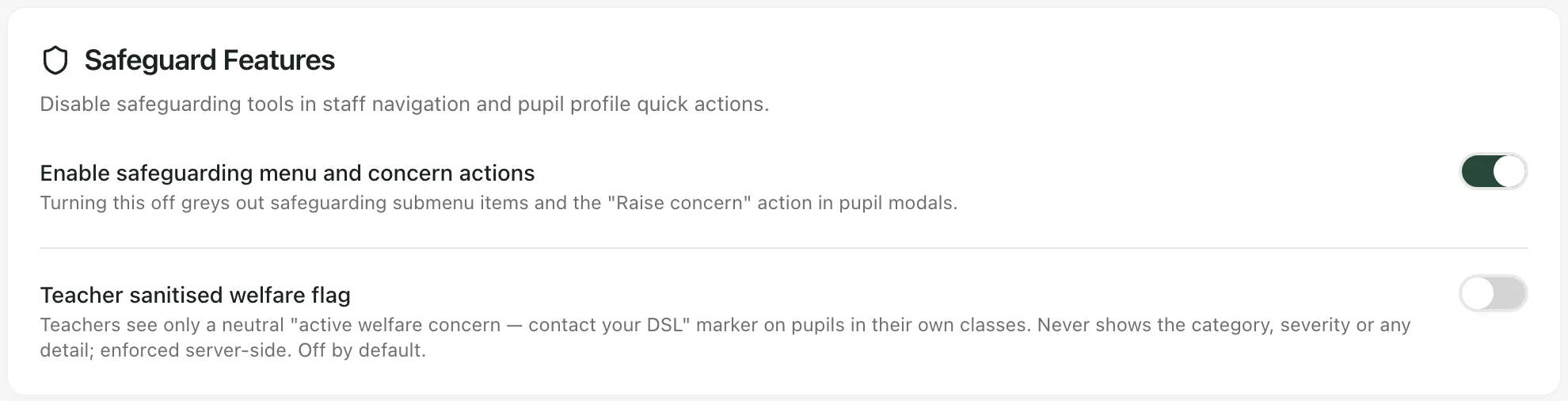
The change saves straight away. There’s no Save button and no confirmation step. If it can’t be saved, you’ll see “Save failed” and the switch goes back to how it was.
The teacher welfare flag
Section titled “The teacher welfare flag”Teacher sanitised welfare flag is off by default. It’s intended to let teachers see a neutral marker on pupils in their own classes who have an active welfare concern, telling them to contact the DSL, without any category, severity or detail.
At the moment Student Radar doesn’t show this marker anywhere, so switching it on has no visible effect for teachers. Leave it off.
Records retention
Section titled “Records retention”Below the switches, Records retention lists how long different safeguarding records are kept, such as Closed safeguarding concerns and Safeguarding audit log. Staff with permission can draft a retention period for each kind of record.
Archiving and disposal are blocked, so a draft doesn’t archive, delete or restore anything. Retention run history lists the checks that have run. These are records only.
- Who can change these switches: by default, headteachers and administrators can change them. Because the main switch affects safeguarding for the whole school, check who has permission to change School Settings in your school.
- Concerns while safeguarding is off: staff must follow your school’s safeguarding procedure. Student Radar doesn’t record concerns while the switch is off.
- Take the tour: click Take a tour at the top of School Settings for a short guide to each tab.
If something doesn’t work
Section titled “If something doesn’t work”| What you see | What to do |
|---|---|
| “Safeguarding features are not enabled for this school.” | Safeguarding is switched off in School Settings. Follow your school’s safeguarding procedure and speak to your DSL straight away. |
| “You do not have permission to change these school settings. Ask a school administrator.” | Your account can’t change the switch. Ask your headteacher or administrator. |
| “Your change was not saved. Check your connection and try again.” | Check your connection, then click the switch again. |
| “Unable to load school settings. Retry before making changes.” | Click Retry school settings before you change anything. |