Prepare the headteacher's report for governors
Written for: Headteachers, and the senior leaders and DSLs who contribute to the report.
Headteacher’s reports help you prepare your termly report to governors from the school’s own records. Student Radar collects the figures for each section, you and your colleagues add the commentary, and you review and approve it. When it’s issued, governors get access to a fixed copy that can’t be changed afterwards, so there’s always a clear record of what the board was told.
Open your reports
Section titled “Open your reports”- In the sidebar, open Leadership, then Strategy & assurance.
- Choose Headteacher’s Report.
You can also get there from School Priorities: click Export, then Headteacher report….
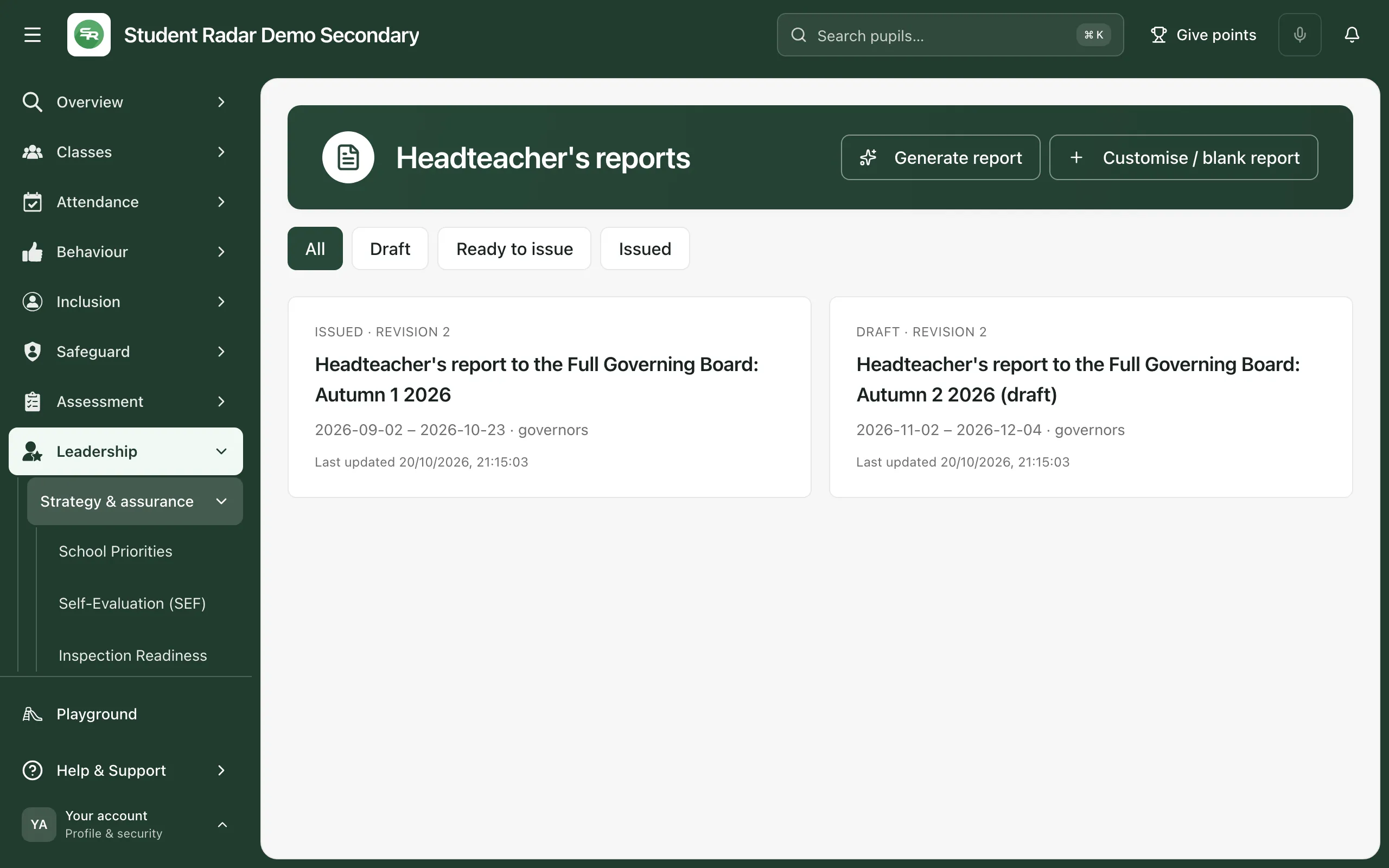
Each report shows its status, revision, title, reporting period, audience and when it was last updated. Use All, Draft, Ready to issue and Issued to filter the list. Click a report to open it.
Start a report
Section titled “Start a report”For the current term: click Generate report. Student Radar uses the current term in your school calendar, from its first day to today, collects the figures you’re allowed to see for each section, and then Astra, Student Radar’s AI assistant, writes a first draft of the commentary. The report opens when it’s ready.
For other dates, or without AI:
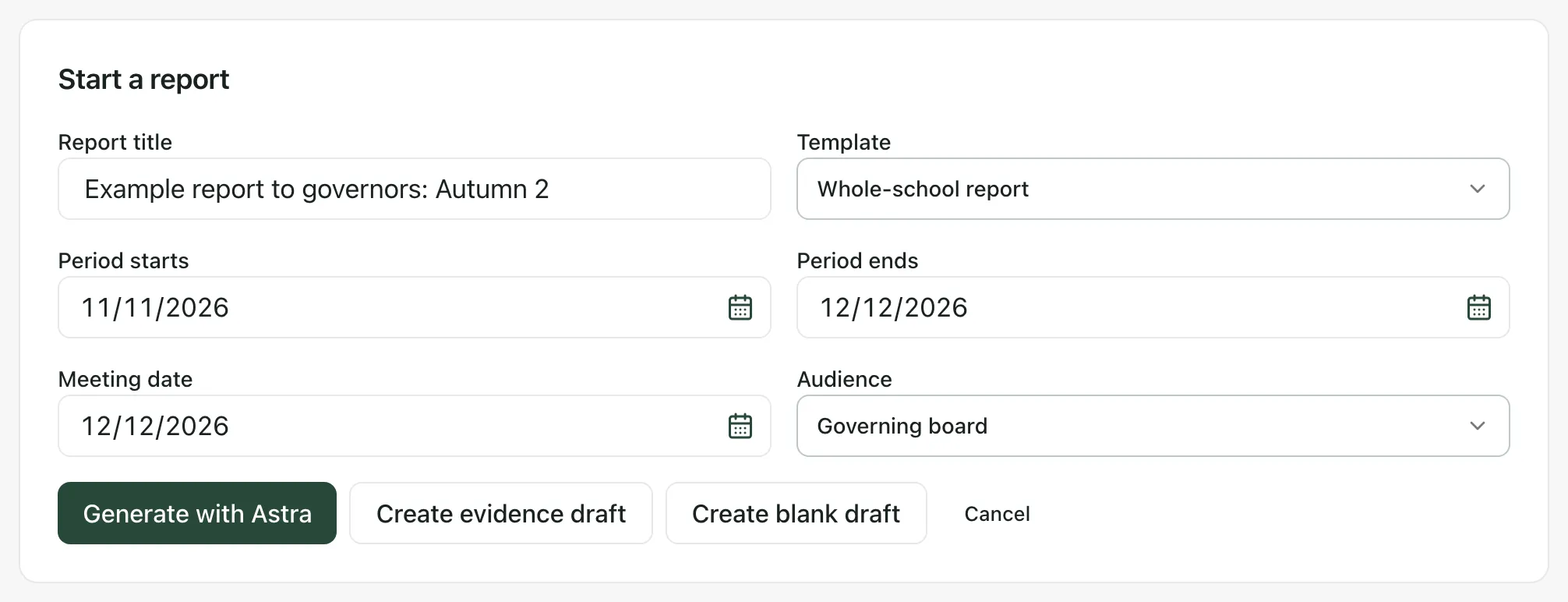
- Click Customise / blank report.
- Fill in Report title, Period starts, Period ends and the Meeting date.
- Choose a Template. Whole-school report includes every section, or choose a template your school has saved.
- Choose the Audience: Governing board, Leadership team or Trust.
- Choose how to start:
- Generate with Astra: collects the figures and has Astra draft the commentary.
- Create evidence draft: collects the figures without any AI writing.
- Create blank draft: an empty report for you to fill in.
When a generated report opens, a note lists any sections that need your own evidence or commentary because Student Radar had no figures for them. It ends “Missing sources do not establish a reassuring finding.” Fill those sections in yourself.
Check the AI draft: Astra’s writing is a first draft built from the figures it was given. It can misread them or miss what matters. Read every section, check every figure and rewrite anything that isn’t right before you approve the report.
Write the report
Section titled “Write the report”Down the left is the report outline: Executive commentary, then each section, such as Strategic priorities, Safeguarding, Attendance and Pupil outcomes. A ✓ shows that a section has been reviewed. Your writing saves automatically as you type, and the top of the report says All changes saved.
Executive commentary
Section titled “Executive commentary”Write your overview for governors under Headteacher commentary. You can also change the report’s title, audience, dates and meeting date here.
To have AI suggest commentary, click Suggest commentary. Read the suggestion, edit it, then click Accept or record edits to keep it, or Reject suggestion to put back your previous text. Suggestions don’t change the school evaluation or make any decisions.
Each section
Section titled “Each section”- Click the section in the outline.
- Check the figures at the top. They show when they were captured and the period they cover.
- Untick Include if the section shouldn’t be in this report.
- Write your Section commentary.
- If you need governors to decide or challenge something, write it under Decision or question for the board.
- To add evidence that isn’t in Student Radar, fill in Evidence title, Observation date, Evidence source and Evidence note and source, then click Add manual evidence. Don’t include names or restricted case details.
- To compare with an earlier report, choose it under Earlier report evidence. It’s shown side by side for reference only. Student Radar doesn’t work out a change or an impact from it.
To update the figures, click Preview source refresh. Check the new figures, then click Apply source refresh. Your commentary, evidence and decisions are kept, but each section’s review needs doing again.
Share the writing with colleagues
Section titled “Share the writing with colleagues”Under Contribution and review, choose a Section contributor to ask a colleague to write a section. For example, your DSL might write Safeguarding. They see the report in their own list and can edit only the sections you’ve given them.
Follow up a decision
Section titled “Follow up a decision”When a section has a decision for the board, you can create a follow-up task under Create owned follow-up: choose an Action owner and an Action due date, then click Create owned follow-up. The task appears under Owned follow-up in that section, and in future reports copied from this one.
Review and approve
Section titled “Review and approve”- Open each included section and read it. Click Preview report to read the whole report as governors will see it.
- In each section, add a Review note if you need to, and tick Section reviewed for accuracy, missing evidence and audience.
- Review any AI suggestions that are still waiting.
- Click Review and approve draft.
The report moves to Ready to issue. If anything changes after that, it needs approving again.
Issue the report
Section titled “Issue the report”- Open the report. Under Issue to the intended audience, tick the governors and others who should receive it.
- Tick I have checked every included narrative and evidence note for this audience.
- Click Approve and issue.
The recipients can now open the issued report in Student Radar, where it’s listed under Issued reports shared with you. Issuing doesn’t send a message: click Open Communications to tell governors it’s ready. In the issued copy, small-number figures and sensitive breakdowns are left out so that individuals can’t be identified. Your commentary is included as you wrote it, so check it’s suitable for everyone you’ve chosen.
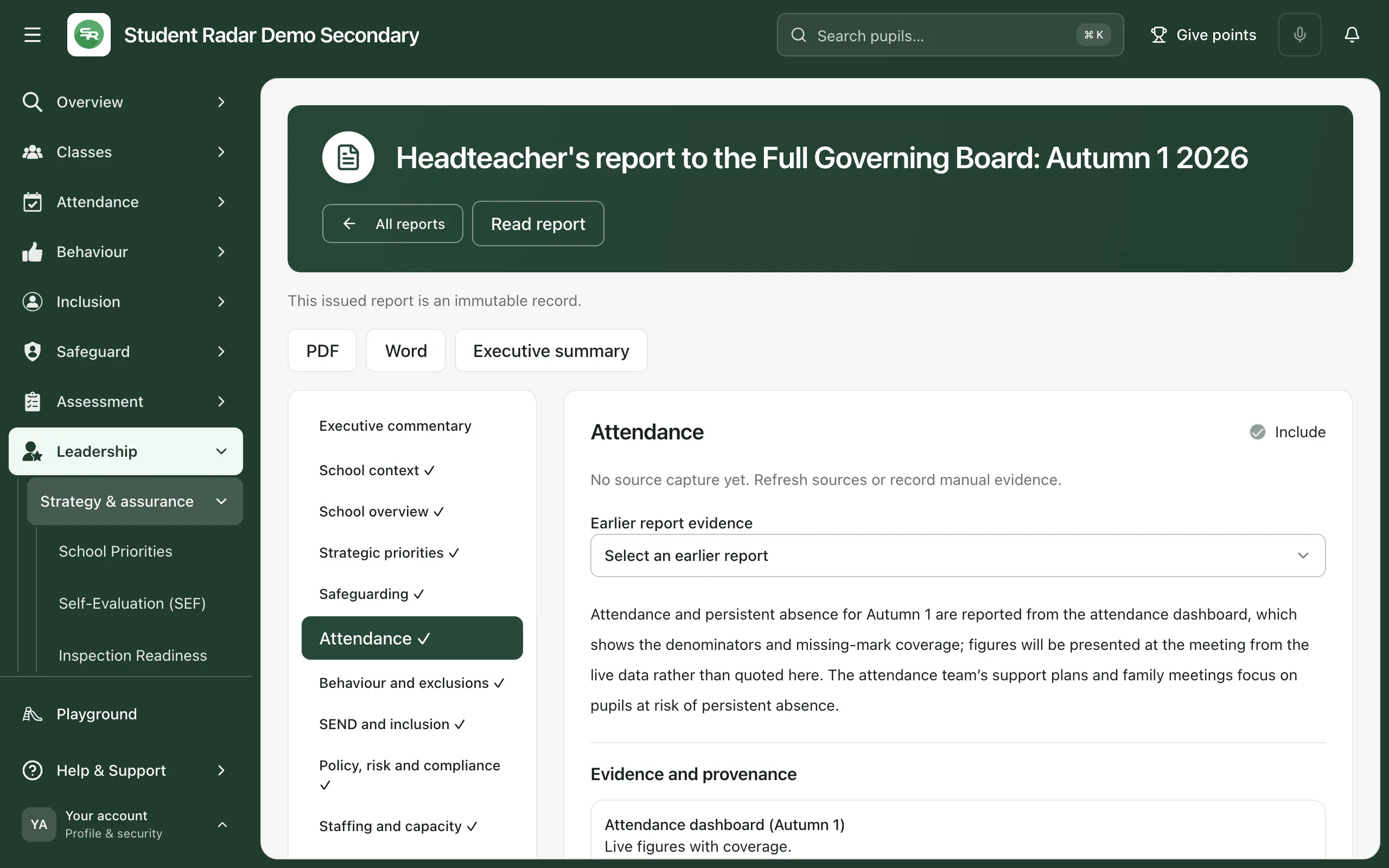
An issued report is a fixed record. To change it, open it and click Create corrected edition. To start next term’s report from this one, click Copy forward.
Download a copy
Section titled “Download a copy”Open a report and click PDF or Word for the full report, or Executive summary for a short version. Before a report is issued, every AI suggestion in it must be reviewed before you can download it. Share downloads through your school’s usual secure route for governor papers.
Who can do what
Section titled “Who can do what”| Role | What they can do |
|---|---|
| Headteachers, senior leaders and administrators | Create and write reports, review and approve them, and issue them. |
| DSLs | Create and write draft reports and contribute sections. A headteacher, senior leader or administrator must approve and issue them. |
| Governors | Read the issued reports shared with them. |
These are the defaults. Schools can change who has access.
If something doesn’t work
Section titled “If something doesn’t work”| What you see | What to do |
|---|---|
| “There is no single current teaching term in the school calendar. Choose the report dates below.” | Fill in the report dates yourself in the form that opens, or ask an administrator to check the school’s term dates. |
| “Enter a report title and a valid reporting period.” | Give the report a title, and check the period ends on or after the day it starts. |
| “Review every included section before approving this report.” | Open each included section and tick Section reviewed for accuracy, missing evidence and audience. |
| “Review every AI suggestion before issuing or exporting this report.” | Click Accept or record edits or Reject suggestion on each waiting suggestion. |
| “Confirm that the text and figures are appropriate for the selected recipients.” | Tick the confirmation box before you click Approve and issue. |
| “This report changed elsewhere. Keep your local text and reload the saved version before retrying.” | A colleague saved a change. Copy your latest writing, then click Reload latest revision. |
| “Save paused. Your writing remains here.” | Keep the page open, copy your writing and click Reload latest revision. |
| “This report has been issued. Create a correction or copy forward to make changes.” | Click Create corrected edition or Copy forward. |
| “Your account does not have access to this report action.” | Ask your headteacher or administrator. DSLs can’t approve or issue reports. |
| “Reports could not be loaded.” | Click Retry. |