Accept your invitation and set up your account
Written for: New school staff.
When your school adds you to Student Radar, you get an invitation by email. Accepting it links your account to your school. There’s no password to set: you sign in with a code sent to the email address your school invited.
Open your invitation
Section titled “Open your invitation”- Find the email from Student Radar. It’s headed Welcome to Student Radar, and it names your school and your role.
- Click the sign-in button in the email. If the button doesn’t work, copy the link under it into your browser’s address bar.
- Student Radar opens the sign-in page. Sign in with the email address the invitation was sent to: with Organisation selected, type the address, click Send sign-in code, then enter the 6-digit code from your email and click Sign in. See Sign in with an email code for more detail.
Once you’ve signed in, Student Radar takes you back to your invitation. Stay in the same browser tab while you do this.
For some roles, a second person at your school has to approve the invitation before it’s sent, so it may not arrive straight away.
Confirm your details
Section titled “Confirm your details”The invitation page shows your school’s name, the email address that was invited and how long the invitation has left.
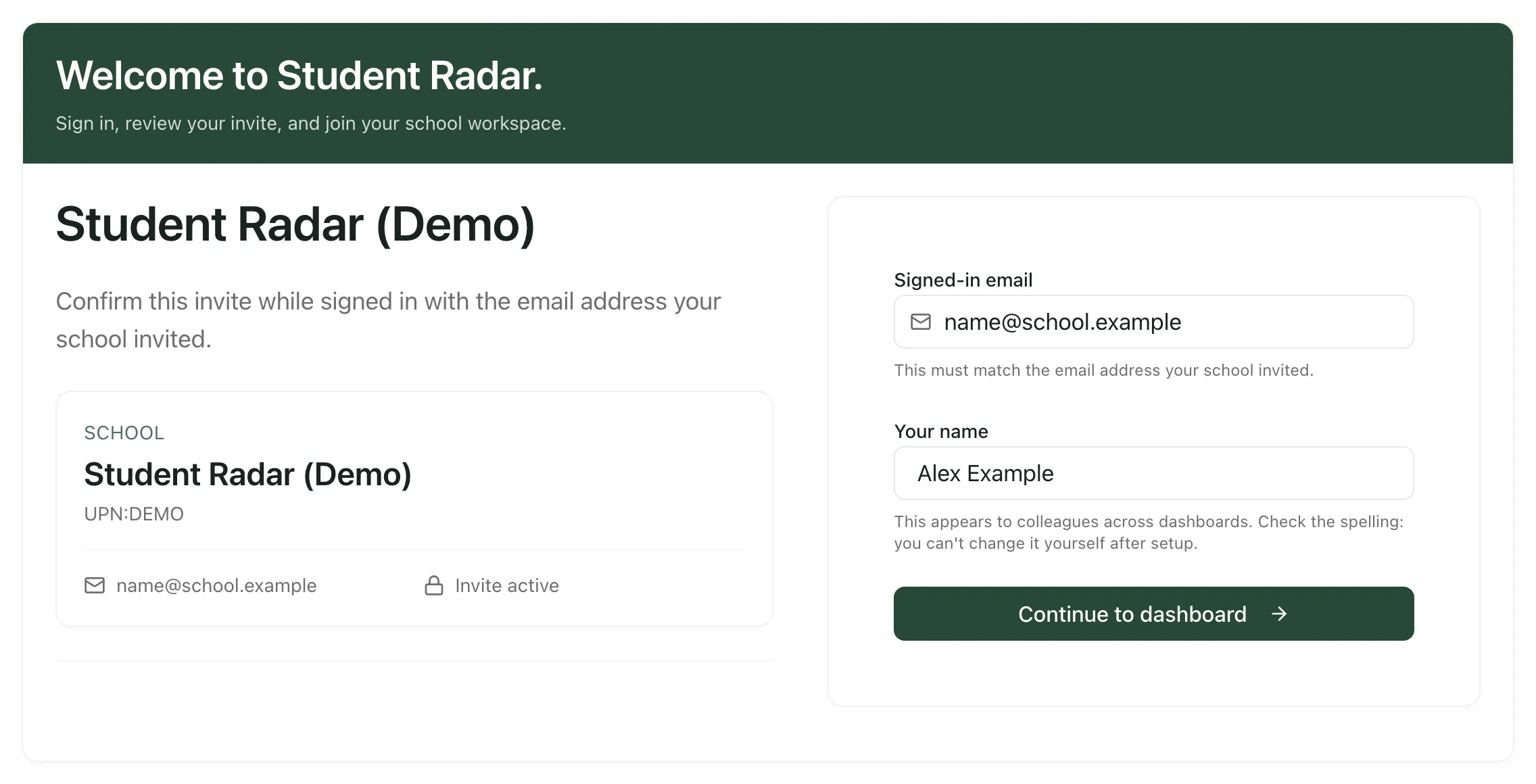
- Check that Signed-in email is the address your school invited. They must match.
- Check Your name. Colleagues see this name across Student Radar. Check the spelling carefully: you can’t change it yourself after setup.
- Click Continue to dashboard.
You’ll see “Your account is now linked to your school workspace.” Student Radar then opens your school. What you can see there depends on your role, which your school sets.
- If you’ve already accepted your invitation, the link takes you straight into Student Radar. From then on, sign in from the sign-in page as usual.
- Invitations expire. If yours has, ask your school’s Student Radar administrator to send a new one.
- If your name is wrong after setup, ask your school’s Student Radar administrator to change it.
If something doesn’t work
Section titled “If something doesn’t work”| What you see | What to do |
|---|---|
| “Invalid invite link. Please check the URL or request a new invitation.” | Open the link straight from the email. If you copied it, make sure you copied all of it. If you signed in in a different tab, or left the page for a while, open the link again. |
| “We could not validate this invitation. It may have expired or already been used. Please contact your school administrator for a new link.” | Ask your school’s Student Radar administrator for a new invitation. |
| “We could not verify this invite. Sign in with the invited email address or request a new invitation.” | You may be signed in with a different address. Click Sign out and try another account, then sign in with the address the invitation was sent to. |
| “We could not activate this invite. Sign in with the invited email address or request a new invitation.” | Check that Signed-in email matches the invited address. If it does, ask your administrator for a new invitation. |
| “Tell us your name so colleagues recognise you” | Type your name in Your name. It needs at least two letters. |
| “Name is too long” | Shorten your name to 80 characters or fewer. |
| You signed in but didn’t see your invitation | Open the link in your invitation email again while you’re signed in. |