Set up the first aid on-call rota
Written for: Staff who organise first aid cover, such as medical leads and senior leaders.
When a member of staff sends a first aid request from Student Radar, it goes to the first aider on duty on your school’s rota. Set up the rota on the First Aid On-Call page by adding a slot for each break, lunch or hour that needs cover, and naming the first aider covering it. For how staff send requests, see Call for first aid.
Before you start
Section titled “Before you start”Only first aiders with an in-date qualification can go on the rota. To add or renew one:
- In the sidebar, open Health, then First Aid & Incidents, and choose First Aid.
- Click Manage first aiders on the First-aider records card.
- In First-aid qualifications, click Add Staff Member, or Renew next to a first aider whose certificate is due.
Add a rota slot
Section titled “Add a rota slot”- In the sidebar, open Health, then First Aid & Incidents, and choose First Aid On-Call.
- Click Rota & settings.
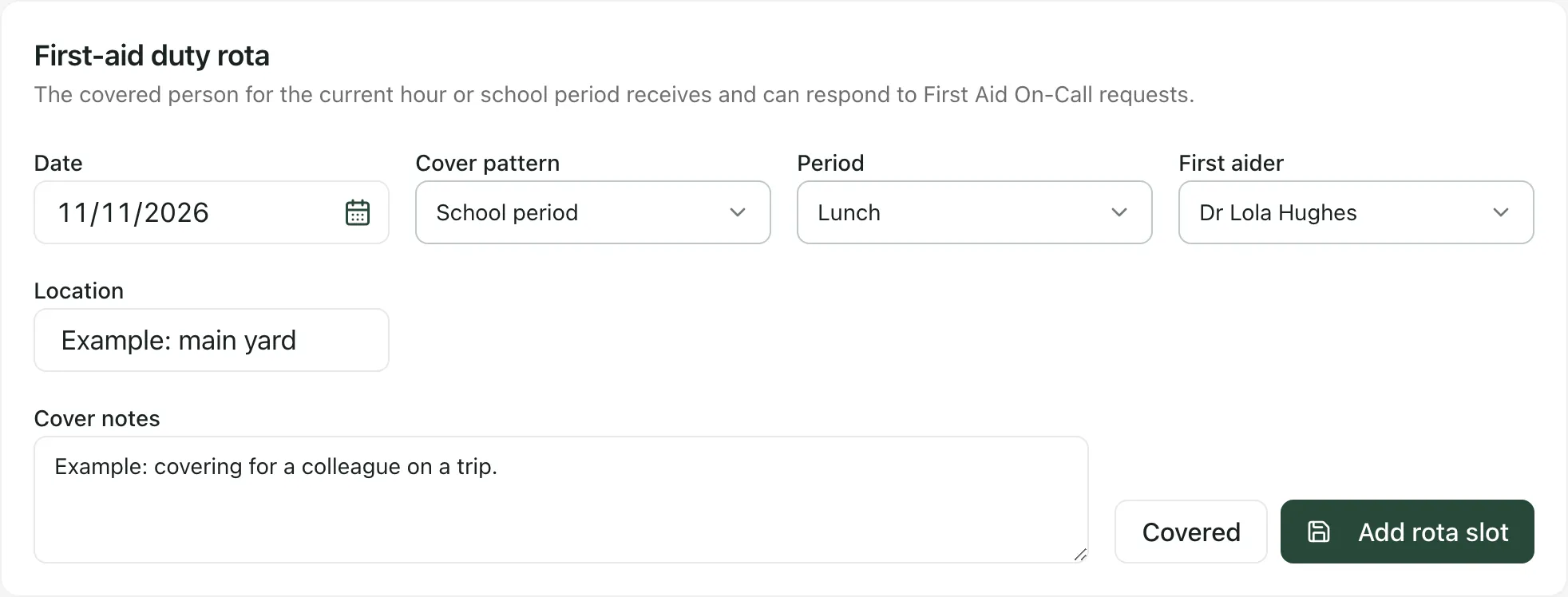
- Choose the Date.
- Under Cover pattern, choose School period or One-hour slot.
- Choose the Period (Morning Break, Lunch, Afternoon or After school), or the Hour for a one-hour slot.
- Choose the First aider.
- Enter the Location where they’ll be. It starts as Medical room.
- Add any Cover notes, such as a handover or who to contact.
- Leave the button next to Add rota slot showing Covered. Click it to switch to Uncovered if you’re recording a gap that nobody is covering yet.
- Click Add rota slot.
The slot appears in the list below the form, which shows the next 14 days. Repeat for each period or hour that needs cover.
Check and change the rota
Section titled “Check and change the rota”Each slot shows the day, the period or hour, the first aider, the location and whether it’s Covered or Uncovered.
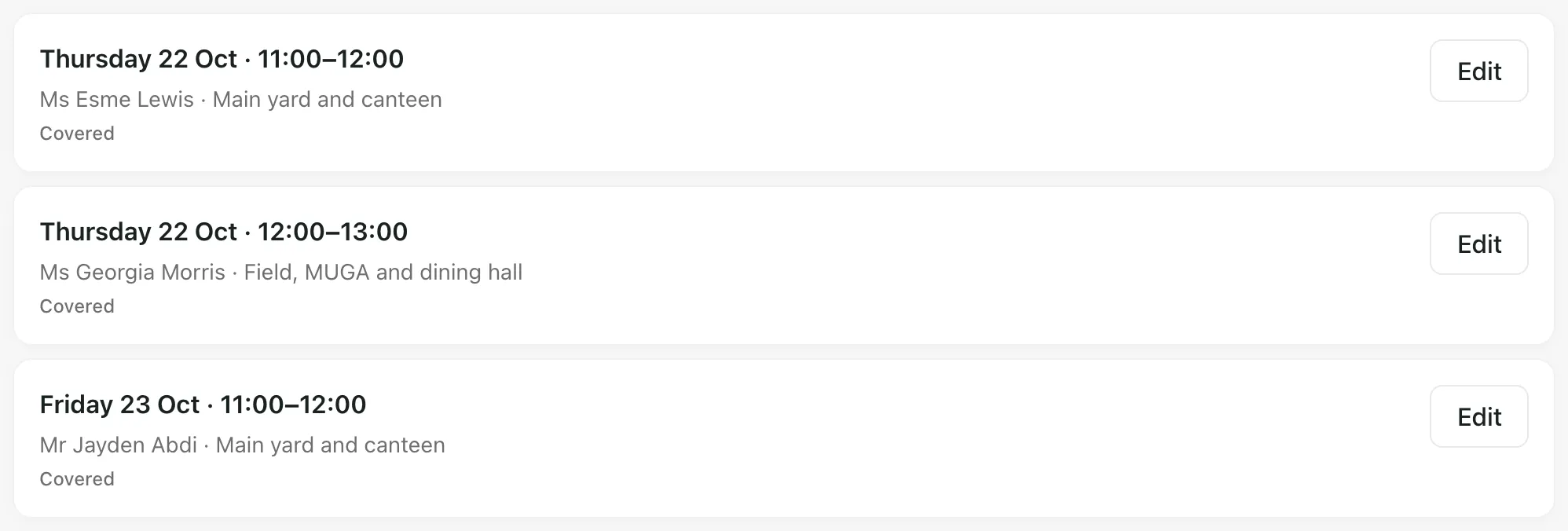
To change a slot, click Edit. Its details move into the form above. Make your changes and click Save changes. There’s no delete button here: to stop a slot receiving requests, edit it and switch it to Uncovered.
How requests are routed
Section titled “How requests are routed”The first aider on a Covered slot for the current period or hour receives new requests in their Live queue and can respond to them. Times follow your school’s time zone.
- Morning Break covers any time before 12:00.
- Lunch covers 12:00 to 14:00.
- Afternoon covers 14:00 onwards.
- A One-hour slot takes priority over a period slot for that hour.
At the moment, After school slots don’t receive requests. For cover after school, add One-hour slot cover instead.
Each date can have one slot per period and one per hour. If you add a slot for a period or hour that already has one, the new details replace the old ones.
- Current rota card: the Current rota card at the top of the page shows only your own duty. Not covered means you aren’t on duty now, not that nobody is.
- Expired qualifications: a slot stops receiving requests if the first aider’s qualification expires before the date of the slot. Renew their certificate, or give the slot to someone else.
- Responding: a first aider on duty needs a Student Radar account linked to their staff record to see the Live queue. If they can’t see it while on duty, ask your school’s Student Radar administrator to check their account.
- This week’s rota on the First Aid page: the Duty rota this week card on the First Aid page opens this week’s slots, with how many are covered.
- Who can change the rota: if you don’t see Rota & settings, your account can’t manage the rota. Ask your school’s Student Radar administrator.
If something doesn’t work
Section titled “If something doesn’t work”| What you see | What to do |
|---|---|
| Add rota slot is greyed out | Choose a First aider and enter a Location. |
| “No active first aiders” | No first aider has an in-date qualification. Add or renew one on the First Aid page first. |
| “Rota was not saved” | Read the reason shown with it. Check that the first aider’s qualification is in date on that day. |
| “No rota slots in the next 14 days” | Nothing is on the rota yet. Add a slot for each period or hour that needs cover. |
| “First Aid On-Call is unavailable.” | Click Refresh. If it still doesn’t load, tell your school’s Student Radar administrator. |