Upload and annotate a SEND document
Written for: SENCos and inclusion leads.
The SEND document library keeps your school’s SEND paperwork in one place: policies, templates, training and governance records, external agency files and EHCPs. Each document has a category, a visibility setting and a full version history. EHCPs saved as PDFs open in an annotation workspace, where you can highlight passages, add notes and labels, and pull the key passages out as evidence.
Open the document library
Section titled “Open the document library”In the sidebar, open Inclusion, then SEND, then Reviews & Documents, and choose Documents. The page is called SENCo document library.
To find a document, type in Search documents, tags, files…, or narrow the list with All categories and All visibility. Click Include archived to show archived documents too, and use the sort menu to switch between Recently updated and Title A–Z.
Each document shows its Category, Visibility, the Latest version and when it was Updated. EHCPs and templates are badged EHCP and Template.
Upload a document
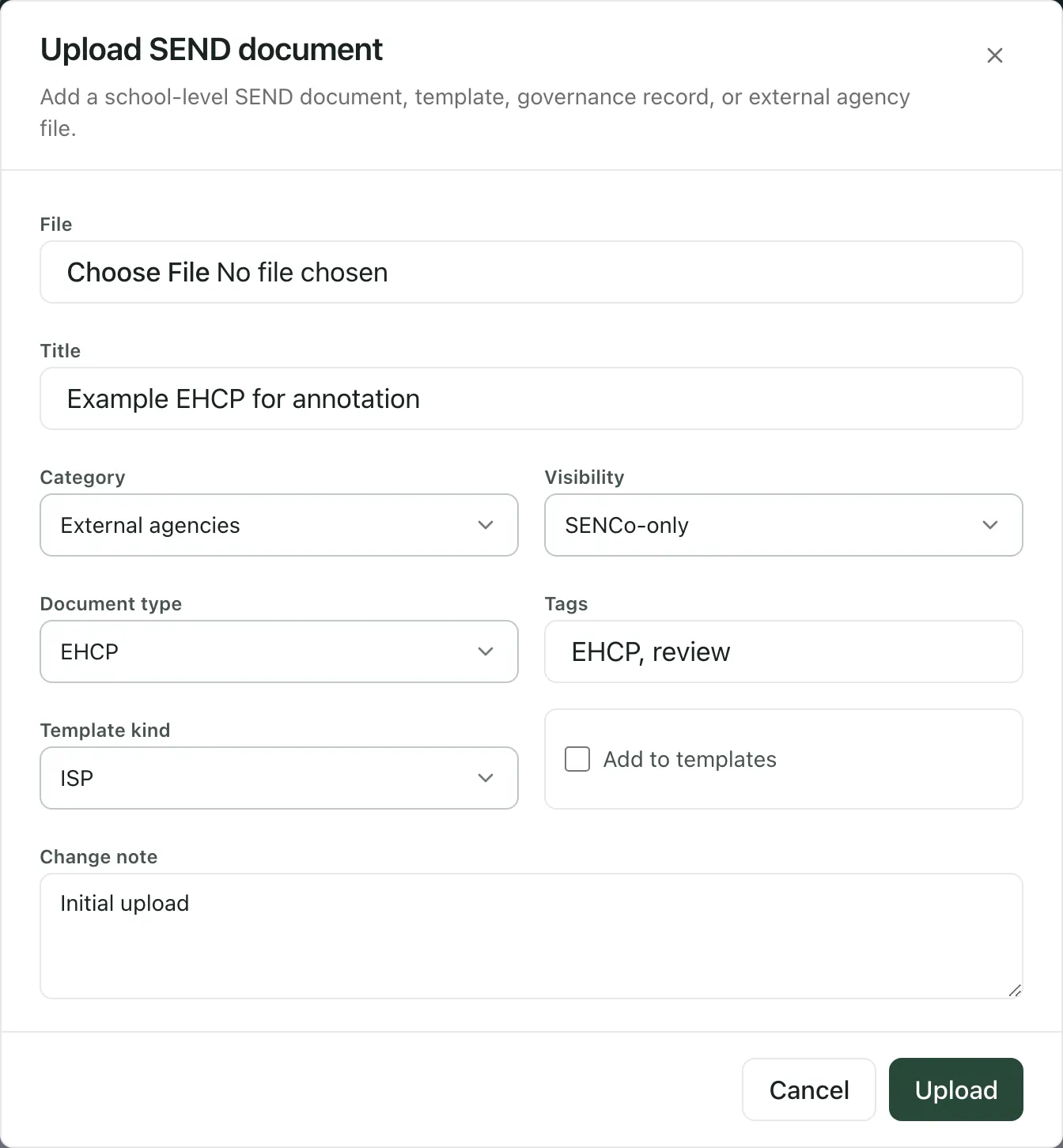
Section titled “Upload a document”- Click Upload at the top of the page.
- Under File, choose the file.
- Give it a Title.
- Choose the Category: Policy, Templates, Training, Governance or External agencies.
- Choose the Visibility: Staff-wide, SLT-only or SENCo-only.
- Choose the Document type. Choose EHCP for an EHCP you want to annotate; otherwise leave it as General SEND document.
- Add Tags to help people find it, separated by commas.
- To make the document a template, tick Add to templates and choose the Template kind: ISP, Review, Agency referral or Other.
- Add a Change note, for example why you’re uploading it.
- Click Upload.
You’ll see “Document uploaded” and the document appears in the library.
Annotate an EHCP
Section titled “Annotate an EHCP”Click the title of an EHCP. If it’s a PDF, it opens in the annotation workspace: the document is on the left and the Excerpt canvas, where your excerpts and notes collect, is on the right. Other files open in a secure preview.
At the top of the workspace, choose how selecting text behaves:
- Excerpt sends the text you select to the excerpt canvas.
- Highlight marks the PDF only.
Use Search excerpts, notes, and PDF text to find a passage, and the zoom buttons to make the page bigger or smaller.
Pull out an excerpt
Section titled “Pull out an excerpt”- Make sure Excerpt is selected.
- Select a passage in the EHCP. A Selected text card appears beside it.
- Choose what to do with it:
- Highlight in document marks the passage on the PDF.
- Pull excerpt puts the passage on the excerpt canvas.
- Add note starts a note linked to the passage.
- Checklist starts a checklist linked to the passage.
- Clip saves an image of an area. To capture one, drag around an area of the page that has no selectable text, such as a table or chart.
- For an excerpt, choose a label under Send to, such as Concern, Strength, Evidence needed, Not being delivered, Query for LA or Action needed, and add a note if you like.
- Click Save excerpt. To save it without a label, click Save unlabelled.
For a note or checklist, write it on the canvas, click Anchor to PDF if you want to link it to a different passage or area, then click Save.
Every annotation stays anchored to its place in that version of the document. Annotated pages shows which pages have annotations, and you can filter the canvas by label.
Annotations are shared with everyone allowed to see the document. The status at the bottom of the workspace shows “All changes saved” when everything has been saved. Click Close when you’ve finished. If you have an unsaved draft, you’ll be asked “Leave without saving?”: click Keep editing to go back.
Versions, downloads and archiving
Section titled “Versions, downloads and archiving”Each document row has a download button, which opens the latest version in a new tab, and a details button. The details window shows the Version history, with a download button for each version, and the Audit trail.
From the details window, you can also:
- Replace: upload a newer version. Choose the File, add a Change note and click Save version. The earlier versions are kept.
- Archive: remove the document from the main list. Click Include archived to see it again, and Restore to bring it back.
- Who can upload: Upload, Replace and Archive are shown to SENCos, designated safeguarding leads and their deputies, senior leaders, headteachers and administrators. Other staff can find, open and download the documents they’re allowed to see.
- Visibility: a document’s visibility decides who can see it. Choose SENCo-only or SLT-only for confidential records.
- LA consultations: EHCPs sent by the local authority for consultation are uploaded on the Consults page and open in the same workspace. See Respond to an LA consultation.
- Take the built-in tour: click Take a tour at the top of the page.
If something doesn’t work
Section titled “If something doesn’t work”| What you see | What to do |
|---|---|
| “No SEND documents found.” | Nothing has been uploaded that you can see yet. Click Upload to add a document. |
| “No documents match these filters.” | Click Reset filters. |
| “Unable to load SEND documents” | Click Retry. |
| “Upload failed” | Read the reason in the message, check the file and try again. |
| “This file type cannot be displayed inline.” | Click Open secure file to open it in a new tab. |
| “This selection has no extractable text. Use Highlight if this should stay as a visual PDF mark.” | The passage is an image, not text. Use Highlight, or capture it with Clip. |
| “Changes not saved — your edits are kept here” | Click Retry changes. If you’re asked to review conflicting changes, someone else edited the same annotation. |
| “Notes could not be loaded.” | Click Retry notes. |
| “This PDF could not be opened.” | Close the workspace and try again. If it keeps happening, download the file and check it opens. |