Investigate an accident and sign it off
Written for: All school staff, especially health and safety leads and senior leaders.
An accident investigation is a structured review of a first aid incident: what the evidence shows, why it happened, what was learned and what will change. Student Radar suggests an investigation for serious injuries, near misses and incidents flagged for an HSE reporting review, but a person always decides whether to open one. When the investigation is complete, someone with authority to approve it signs it off.
Find incidents to investigate
Section titled “Find incidents to investigate”-
In the sidebar, open Health, then First Aid & Incidents, and choose Accident Investigations.
-
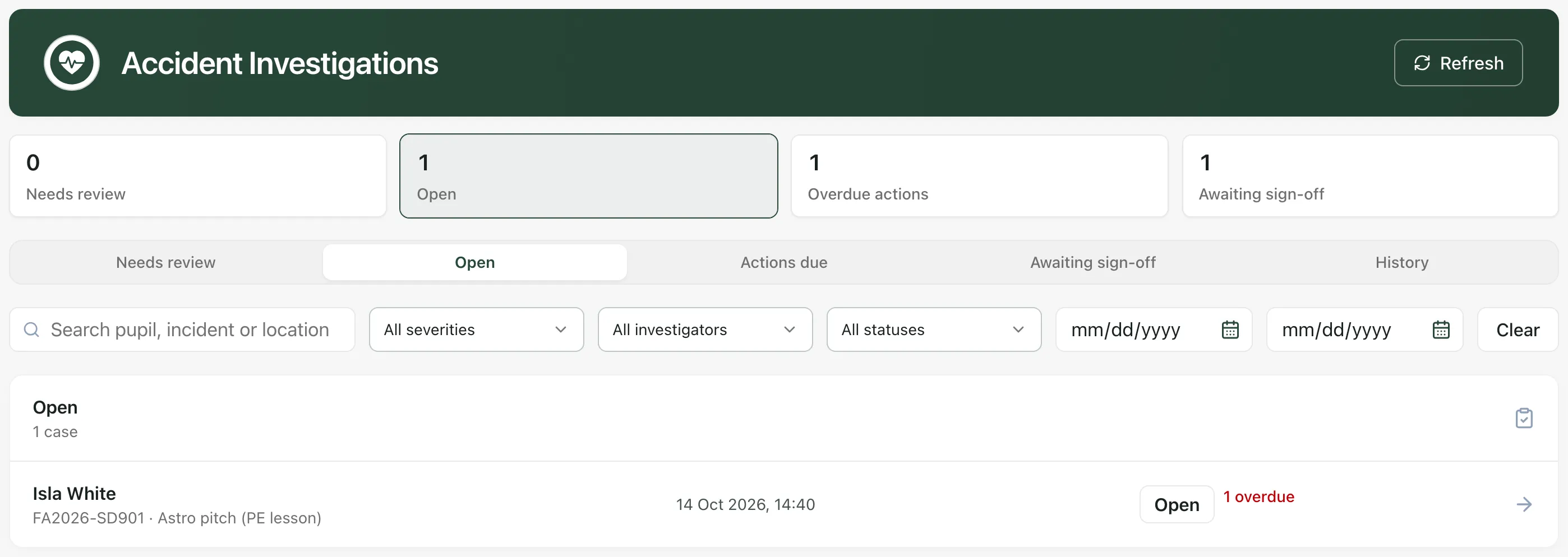
Choose a queue, either from the cards at the top or the tabs below them:
- Needs review: suggested investigations that nobody has opened or dismissed yet.
- Open: investigations in progress.
- Actions due: investigations with corrective actions past their due date.
- Awaiting sign-off: completed investigations waiting for approval.
- History: signed-off and dismissed investigations.
-
To narrow the list, search by pupil, incident or location, or filter by severity, investigator, status or date. Click Clear to remove the filters.
-
Click a case. The incident opens on the First Aid page, on its Investigation tab.
You can also open any incident from First Aid records on the First Aid page and click Investigation.
Open or dismiss a suggestion
Section titled “Open or dismiss a suggestion”A suggested investigation waits in Needs review until someone decides what to do with it.
- To start, click Open investigation. You become the investigation’s owner.
- If an investigation isn’t needed, enter a Reason for dismissing and click Dismiss suggestion. The reason is kept with the incident.
For an incident that wasn’t suggested, you can still click Open investigation whenever a structured review is needed.
Record what you found
Section titled “Record what you found”- In Established facts, record what the evidence supports. Keep assumptions and conclusions separate.
- In Recorded causes, say why it happened.
- In Lessons learned, record what the school has learned.
- Under Contributing factors, click each factor that played a part, such as Environment or premises, Supervision or Training or competence.
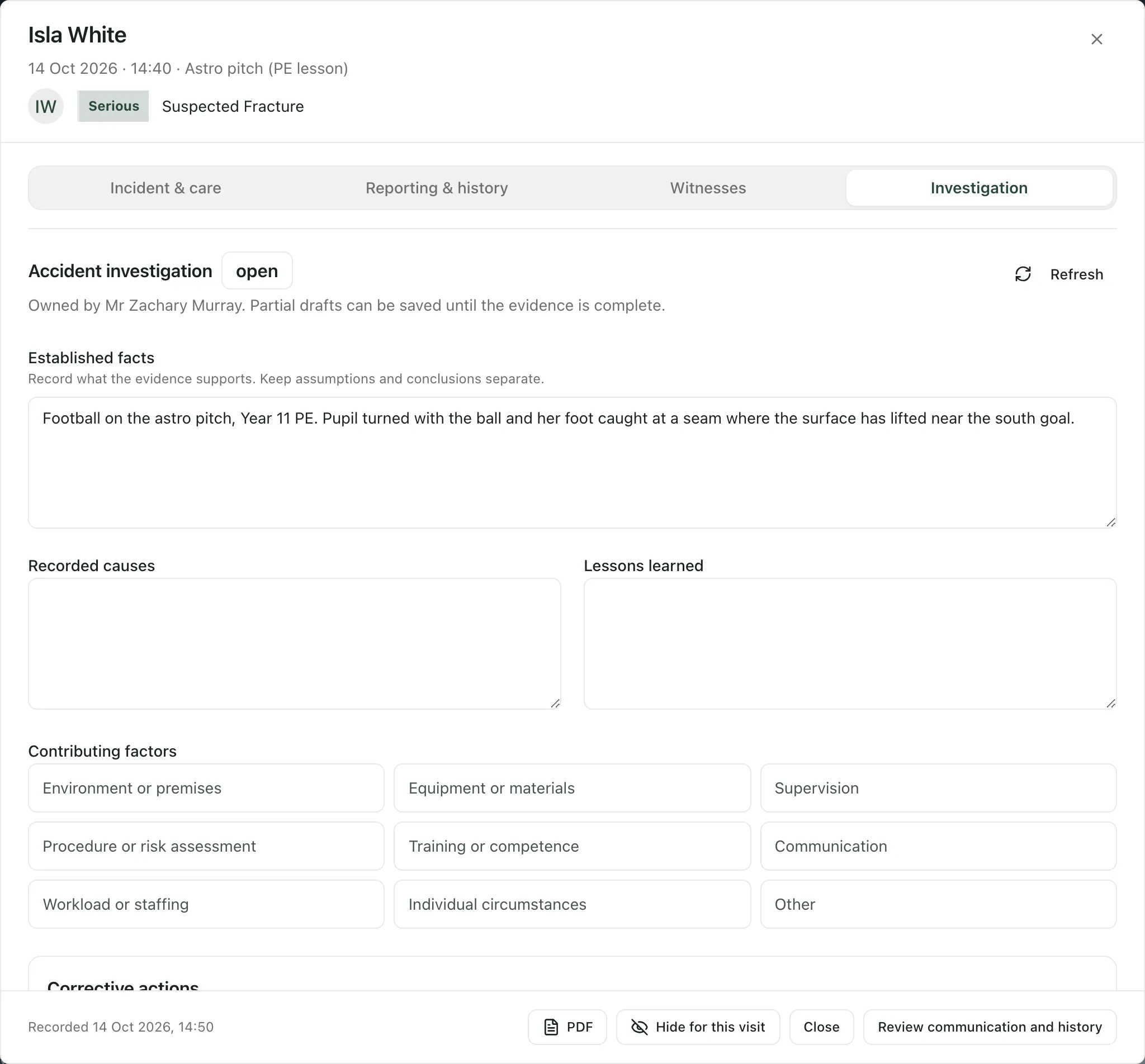
Click Save draft as you go. You can save a partial draft and come back to it as the evidence comes in.
Add corrective actions
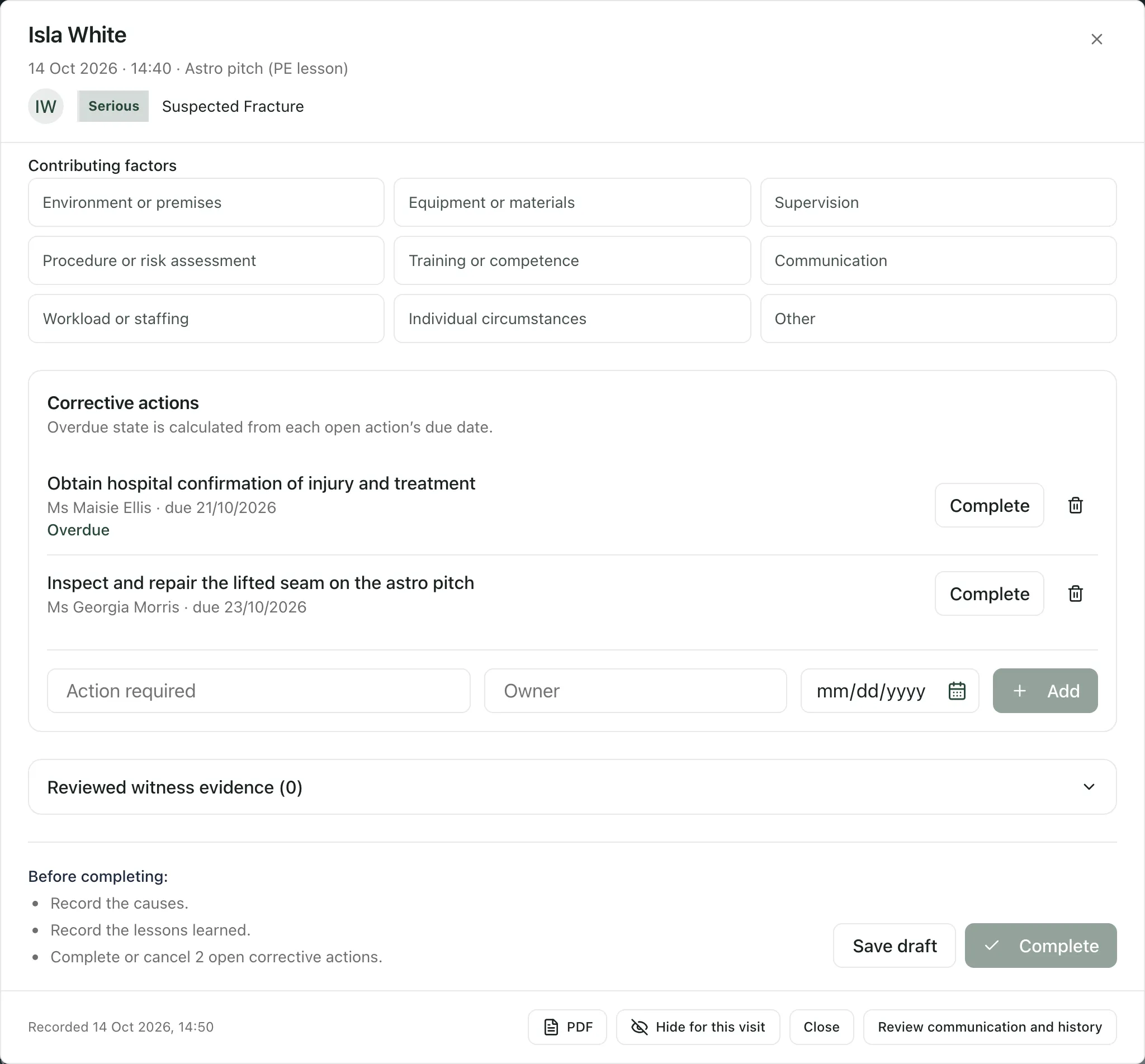
Section titled “Add corrective actions”- Under Corrective actions, type the Action required and its Owner, and choose a due date if there is one.
- Click Add.
- When an action is done, click Complete next to it. To cancel an action, click the bin icon and give a reason.
An open action shows Overdue once its due date has passed. If no corrective action is needed, explain why under Why no corrective action is needed instead.
Use reviewed witness evidence
Section titled “Use reviewed witness evidence”Reviewed witness evidence lists the witness accounts that have been reviewed on the Witnesses tab. Only reviewed accounts appear here, because unreviewed accounts can’t support conclusions. To review an account, open Witnesses and click Acknowledge review on it.
Complete the investigation
Section titled “Complete the investigation”Under Before completing:, Student Radar lists anything still missing: the established facts, the causes, the lessons learned, open corrective actions, or a reason why none are needed. When it says Ready to complete., click Complete.
The investigation moves to Awaiting sign-off, and its fields can no longer be changed.
Sign it off
Section titled “Sign it off”- On Accident Investigations, open the Awaiting sign-off queue and click the case.
- Read the investigation and its corrective actions.
- Click Sign off.
The investigation moves to History, with the name of the person who signed it off.
If a signed-off investigation needs more work, enter a Reason for reopening and click Reopen. The earlier sign-off stays in the audit history.
- Suggestions are prompts: Student Radar suggests investigations from the incident’s severity and type. It never opens, dismisses or signs off an investigation by itself.
- Permissions: if you don’t see Open investigation, Save draft or Sign off, your account doesn’t have that permission for this incident. Ask your school’s Student Radar administrator.
- HSE reporting: an investigation is separate from the HSE reporting review. Where RIDDOR applies, an incident that needs that review shows Review HSE in First Aid records, and the review happens on its Reporting & history tab. For schools where RIDDOR doesn’t apply, such as schools in Thailand, the tab is called History.
- Incident PDF: the PDF button on an incident includes a summary of its investigation.
- Recording incidents: see Record a first aid incident.
If something doesn’t work
Section titled “If something doesn’t work”| What you see | What to do |
|---|---|
| “Nothing in this queue” | No cases match this queue and your filters. Try another queue, or click Clear. |
| “Queue counts are unavailable until investigations load.” | Click Retry. Don’t treat the missing counts as zero. |
| “Investigation unavailable.” | Close the incident and open it again. If it keeps happening, ask your administrator to check your access. |
| “Investigation not updated” | Your change wasn’t saved. Read the reason shown with it, fix it and try again. |
| Complete is greyed out | Deal with each item under Before completing:. |
| “No reviewed witness accounts are attached. Unreviewed accounts cannot support conclusions.” | Review the witness accounts on the Witnesses tab first, or record your facts from other evidence. |
| “This incident is unavailable or you do not have access.” | The incident couldn’t be opened with your access. Ask your administrator. |