Set up a parents' evening and publish slots
Written for: School staff who organise parents’ evenings.
A parents’ evening in Student Radar is a meeting programme. You set the evening’s times and appointment length, choose the staff who will hold appointments, collect their availability, then publish bookable slots. Families book with a private link that Student Radar emails to them, or in the parent app.
To get there, open Parents in the sidebar and choose Meetings & Appointments. The page is split into Programme setup, Host availability, Schedule, Bookings, Meeting desk and Follow-up queue. This article covers the first four.
Create the programme
Section titled “Create the programme”- Click Create programme at the top of the page.
- Under Programme details, choose Parent evening as the Programme type and give it a Title.
- Under Schedule and booking, set when the evening Starts and Ends, and when Booking closes and Cancellation closes. If booking shouldn’t open straight away, set Booking opens (optional) too.
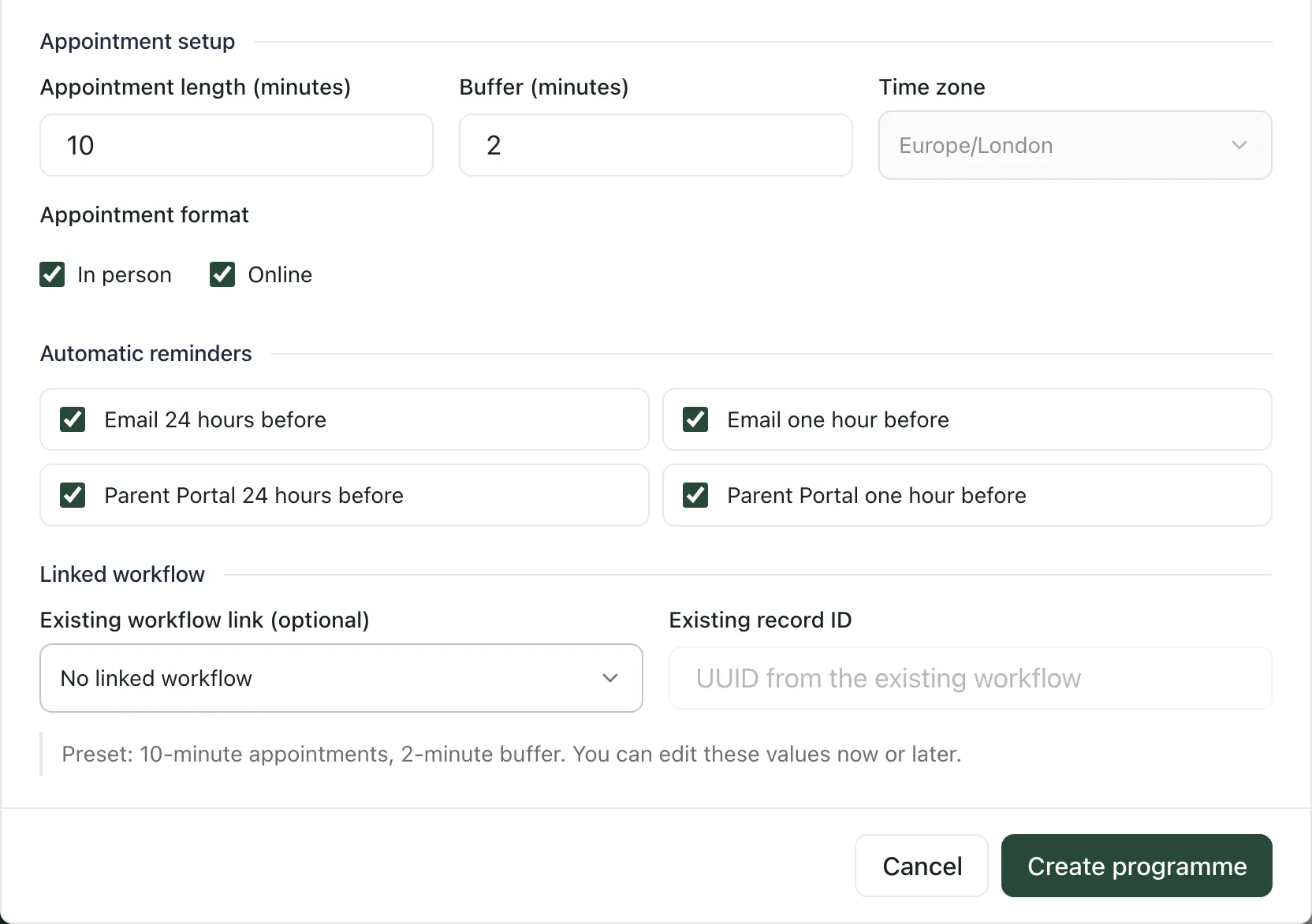
- Under Appointment setup, check the Appointment length (minutes) and the Buffer (minutes) between appointments. A parents’ evening starts with 10-minute appointments and a 2-minute buffer.
- Under Appointment format, tick In person, Online or both.
- Under Automatic reminders, tick the reminders families should get: by email, in the Parent Portal, or both, 24 hours or one hour before their appointment.
- Leave Existing workflow link (optional) set to No linked workflow. Linking is for SEND review meetings that belong to an ISP, EHCP annual review or TAC/TAF.
- Click Create programme.
The programme is saved as a draft and Host availability opens. Choose the hosts first, as described next. Times always use the Europe/London time zone.
Choose the hosts
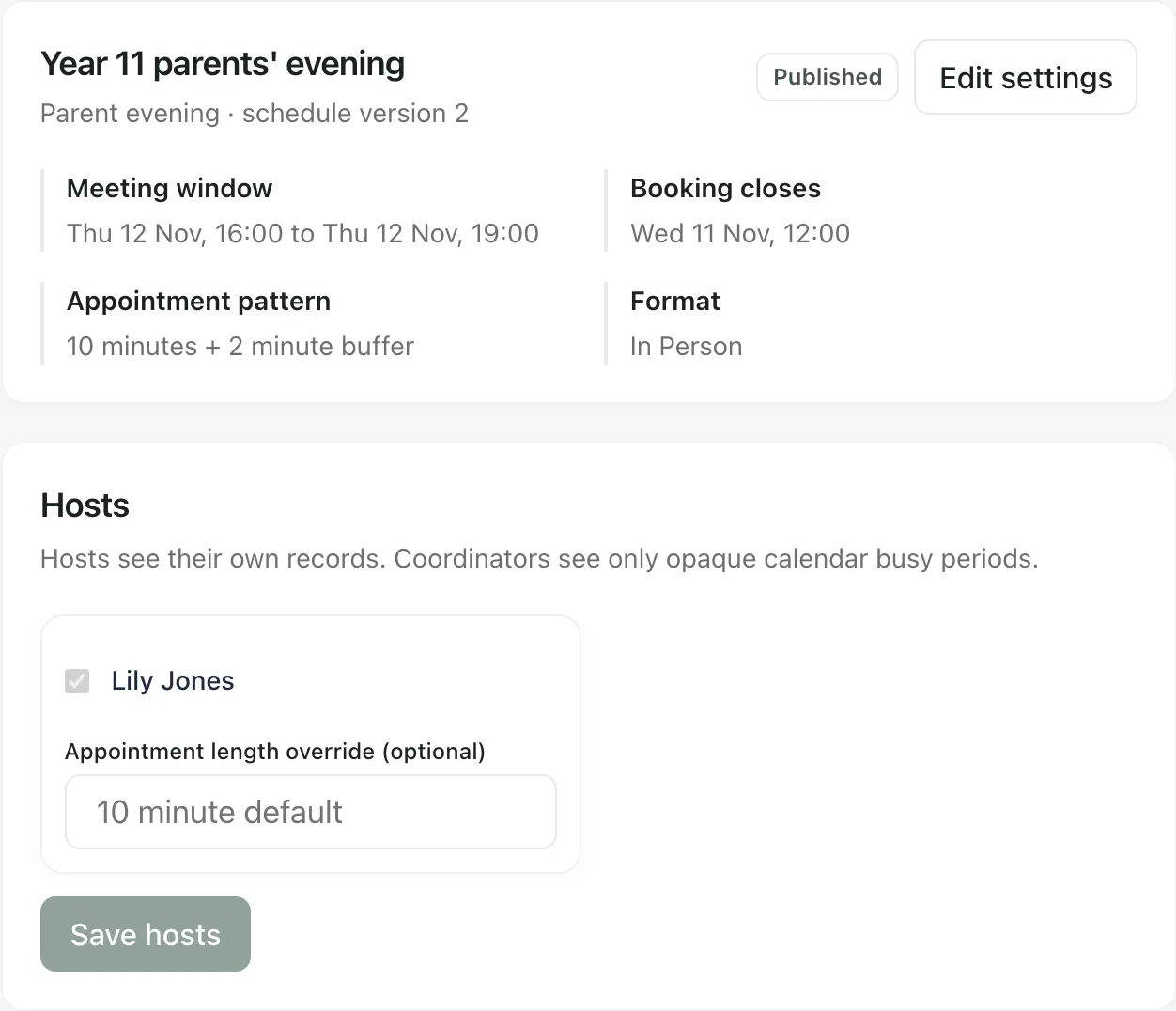
Section titled “Choose the hosts”Hosts are the staff who hold appointments, such as form tutors and subject teachers.
- Click Programme setup and make sure your programme is selected under Programmes.
- In Hosts, tick each member of staff who will hold appointments.
- If someone needs longer or shorter appointments than everyone else, enter their minutes in Appointment length override (optional).
- Click Save hosts.
You can only change hosts while the programme is a draft. A member of staff marked Identity needs clarification or Identity unavailable can’t be chosen until their staff account details are sorted out. Ask your school’s Student Radar administrator.
Below the hosts, School travel and video settings apply to every programme. Use Add location to list the rooms or sites where meetings happen, and keep Allowed video hosts up to date if you offer online appointments. Click Save school meeting settings after a change.
Add each host’s availability
Section titled “Add each host’s availability”- Click Host availability.
- Choose the Host, then set Available from and Available until.
- Choose the Format. For in-person appointments, choose the Location. For online appointments, paste the meeting link into Teams, Meet or Zoom link. The link must use one of the allowed video hosts listed under the box.
- Click Save availability.
Saving replaces that host’s earlier availability, so enter the whole time they’re available in one go. Everything saved so far is listed under Availability already supplied.
If you’re one of the hosts, you can add your own availability here even if someone else set up the programme.
Preview and publish the slots
Section titled “Preview and publish the slots”- Click Schedule.
- Click Preview schedule. Student Radar works out the slots from each host’s availability, their calendar, the appointment length and the buffer. The number appears in Preview slots, and Preview detail lists each slot with its host, time and format. Click Show more slots to see more.
- When the slots look right, click Publish this version.
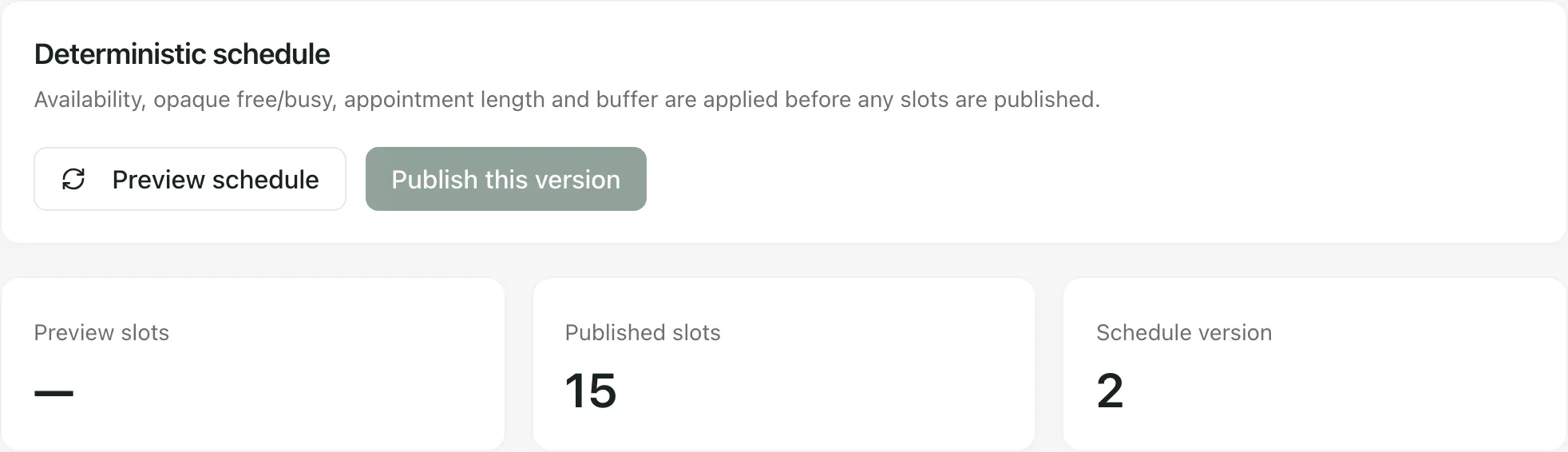
The slots are now bookable, Published slots shows how many there are and the programme is marked Published. Publish this version stays greyed out until a preview has found at least one slot.
To change the times or appointment pattern later, click Edit settings on Programme setup, then Save programme settings. “Changing schedule settings advances the version and retires unbooked slots. Existing bookings remain intact.” Preview and publish the schedule again afterwards.
Invite families to book
Section titled “Invite families to book”Families can book only after you’ve sent them a private booking link, and only once the schedule is published.
- Click Bookings.
- In Find a pupil, type part of the pupil’s name or year group, then choose them from Pupil.
- Under Required hosts, tick the hosts the family should book with.
- Click Send private booking link.
Student Radar emails the link to the parents or carers linked to the pupil in its records. You never see the link yourself. Repeat this for each pupil. Sending again for the same pupil doesn’t create a second link: the family keeps their original one.
Families pick a time from the email, or from Appointments in the parent app. Each booking then appears under Live bookings, with the pupil, host, time, format and status.
Cancel a draft you no longer need
Section titled “Cancel a draft you no longer need”If a draft programme has no bookings, click Cancel draft programme on Programme setup, then Cancel programme. Click Keep draft if you change your mind. Published programmes, and programmes with invitations or bookings, can’t be cancelled this way. To see cancelled programmes again, tick Include cancelled programmes.
- Who can do this: creating programmes, choosing hosts, publishing slots and sending booking links need permission to manage your school’s meeting schedule. If you don’t see Create programme or Publish this version, ask your school’s Student Radar administrator. Hosts without that permission can still add their own availability.
- Other meetings: the same page handles SEND review and Pastoral meeting programmes. Each programme type starts with its own appointment length and buffer.
- After the evening: to write up a meeting, see Record notes from a parent meeting.
If something doesn’t work
Section titled “If something doesn’t work”| What you see | What to do |
|---|---|
| “Appointment length must be between 5 and 120 minutes.” | Enter a whole number of minutes from 5 to 120. |
| “Buffer time must be between 0 and 60 minutes.” | Enter a whole number of minutes from 0 to 60. |
| “Choose at least one appointment format.” | Tick In person, Online or both. |
| “Choose at least one host.” | Tick at least one member of staff in Hosts before clicking Save hosts. |
| “A selected staff account needs a distinguishable identity. Refresh and resolve its staff account details before assigning it as a host.” | Ask your school’s Student Radar administrator to complete that colleague’s staff account details. |
| “No availability has been supplied.” | Add each host’s availability on Host availability before previewing the schedule. |
| “Preview unavailable” | Read the reason shown with it. Check that each host has saved availability, then click Preview schedule again. |
| “This programme changed in another window. Refresh and try again.” | Someone else changed the programme. Reload the page and make your change again. |
| “Too many meeting changes were attempted. Wait a moment and try again.” | Wait a minute, then try again. |
| “No verified linked recipient” | No verified parent or carer is linked to that pupil. Ask your school office to add or check one, then send again. |
| “Only unused draft programmes can be cancelled here. Published, invited or booked programmes must keep their existing records.” | The programme has been published or has invitations or bookings, so it stays on record. |
| “Meetings could not be loaded” | Click Try again. If it keeps happening, wait a few minutes and reload the page. |