Set up your provision profile and activate AP operations
Written for: Alternative provision leaders.
An alternative provision is set up in two separate parts:
- The setting profile tells Student Radar that you’re an alternative provision. It gives you the alternative provision menu, Today as the first page after sign-in, and your own words for pupils and schools. It never changes who can open what.
- AP operations gives the roles at your provision their alternative provision permissions, so staff can work with AP records such as referrals, placements and registers.
Changing one never changes the other. This article covers what’s different for an alternative provision. For the profile fields every school has, see Set your setting type, country and wording.
Open your provision’s settings
Section titled “Open your provision’s settings”- In the sidebar, open Settings and choose Provision Settings.
- Click the Setting Profile tab. You might need to scroll the row of tabs to see it.
The page is called Provision Settings once your profile says you’re an alternative provision. Some text on the page, and the built-in tour, still says school settings.
Set up your profile
Section titled “Set up your profile”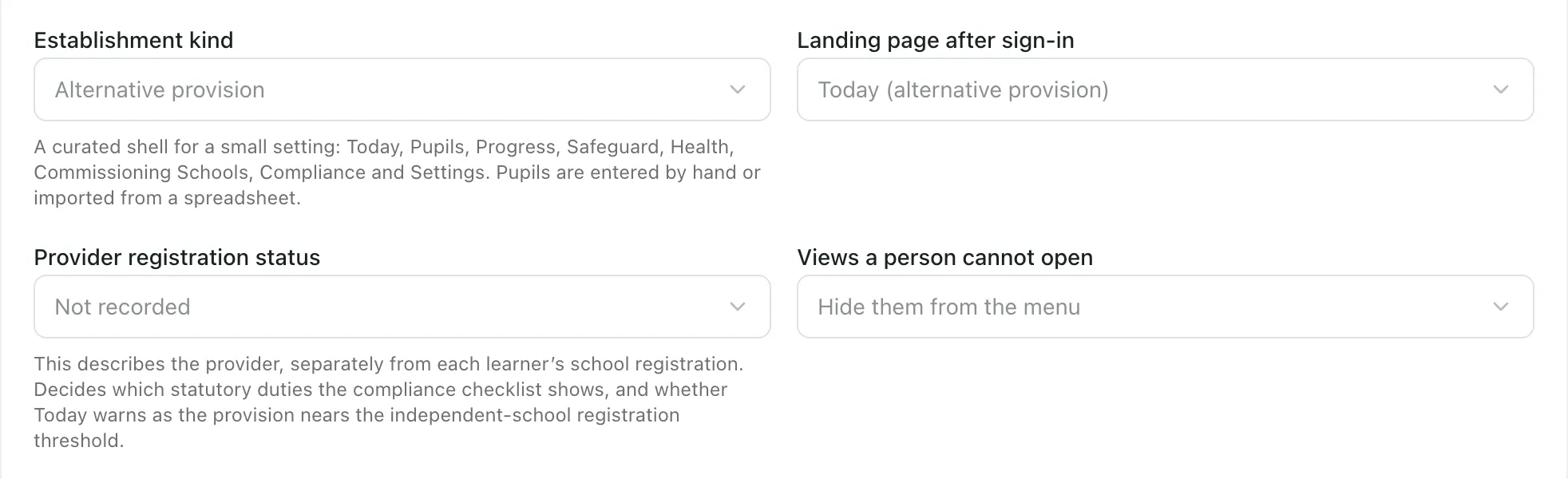
-
Under Establishment kind, choose Alternative provision. This fills in every other field with the alternative provision defaults:
- Landing page after sign-in: Today (alternative provision)
- Provider registration status: Not recorded
- Views a person cannot open: Hide them from the menu
- Where pupils come from: Entered by hand or imported
- Pupil cap on the licence: 50
- Vocabulary: pupil, group, commissioning school and Provision Lead
-
Set the Provider registration status:
- Registered school (PRU, AP academy or independent school)
- Unregistered provider (not a school)
This describes your provision, not the registration of each pupil with their school. It decides which duties the compliance checklist shows, and whether Today warns you as you near the threshold for registering as an independent school.
-
Set the Pupil cap on the licence to the number of pupils your licence allows. Adding a pupil by hand stops at this number. Leave it empty for no cap.
-
Change the Vocabulary if your provision uses other words. See Change the words used for pupils and schools.
-
Click Save profile.
You’ll see “Setting profile saved”. To undo changes you haven’t saved, click Discard changes.
Important: changing the Establishment kind resets every field on the card to that kind’s defaults, including your vocabulary. Before you save, check every field again.
Activate AP operations
Section titled “Activate AP operations”Alternative Provision operations appears under the profile only for people who can switch AP operations on and off. By default, that’s people with the Leader role and administrators. It shows whether AP operations are active or inactive.
- Click Activate AP operations.
- A window opens, titled Activate AP operations? Activating gives the alternative provision permissions to the approved roles at your provision. Your profile and menu don’t change.
- In the reason box, record why you’re activating, for example the date your provision started using Student Radar. Use 8 to 500 characters.
- Click Confirm activation.
You’ll see “AP operations activated”.
The reason is kept in a restricted activation history. It isn’t shown in the general audit log.
Deactivate AP operations
Section titled “Deactivate AP operations”Click Deactivate AP operations, enter the reason for deactivating and click Confirm deactivation. Staff immediately lose their alternative provision permissions, and AP records can’t be read or changed until AP operations are activated again. The records themselves are kept.
Other settings for your provision
Section titled “Other settings for your provision”- Default session times: on the School Hours & Operations tab, set your usual pupil and staff day. The times fill in staff working hours, agreed session patterns and new rota sessions. You can still change the times each time, and existing records aren’t changed.
- Export AP learner records: at the bottom of the Setting Profile tab, you can export your pupils’ records, for example if you move to another system.
- Staff: to invite staff and choose their roles, see Invite and manage staff.
- Who can change the profile: by default, your provision’s leader can change the setting profile. Changes must be made on this tab by a member of your provision’s staff. Other staff see “You can view this profile, but you do not have permission to change it.”
- Two-step check: activating and deactivating AP operations need a recent two-step check. You must have confirmed your sign-in with a second step, such as your authenticator app, in the last 15 minutes. See Add a passkey or authenticator app.
If something doesn’t work
Section titled “If something doesn’t work”| What you see | What to do |
|---|---|
| “We could not save the setting profile. Your changes are still here. Check your access or connection, then try again.” | Check your connection and click Save profile again. If it keeps happening, ask your provision’s leader. |
| “You can view this profile, but you do not have permission to change it.” | Ask your provision’s leader to make the change. |
| “We could not confirm the current AP operational status.” | Click Refresh status. |
| “The status was not changed. We are refreshing the current revision; review it before trying again.” | Check whether AP operations are now active or inactive. To try again, sign out, sign in again and complete the second step first. |
| “This school has more staff than the supported single central record compliance capacity. Trying again will not help. Contact support to review the capacity.” | Contact Student Radar support. See Contact Student Radar support. |
| “Unable to load school settings. Retry before making changes.” | Click Retry school settings before you change anything. |