Change a pupil's SEND status or area of need
Written for: SENCos and school leaders.
When a pupil’s needs change, update their entry on the SEND register: move them between Monitoring, SEN Support and EHCP, change their broad area of need, or take them off the register. Each change is recorded as your school’s decision, so the register stays accurate and the change is on record.
Before you start
Section titled “Before you start”- SENCos, headteachers, senior leaders, DSLs and administrators can change the register. Other staff see it read-only.
- Student Radar still checks your permissions when you save. If your school has changed what your role can do, you might be refused even though you can see the options.
- Make the change in line with your school’s SEND policy, after the usual review with the pupil, their family and staff.
Find the pupil
Section titled “Find the pupil”- In the sidebar, open Inclusion, then SEND, then Plans, and choose SEND Register.
- Type the pupil’s name in the Search pupil box above the list.
- In the pupil’s row, click ⋯ to see what you can do.
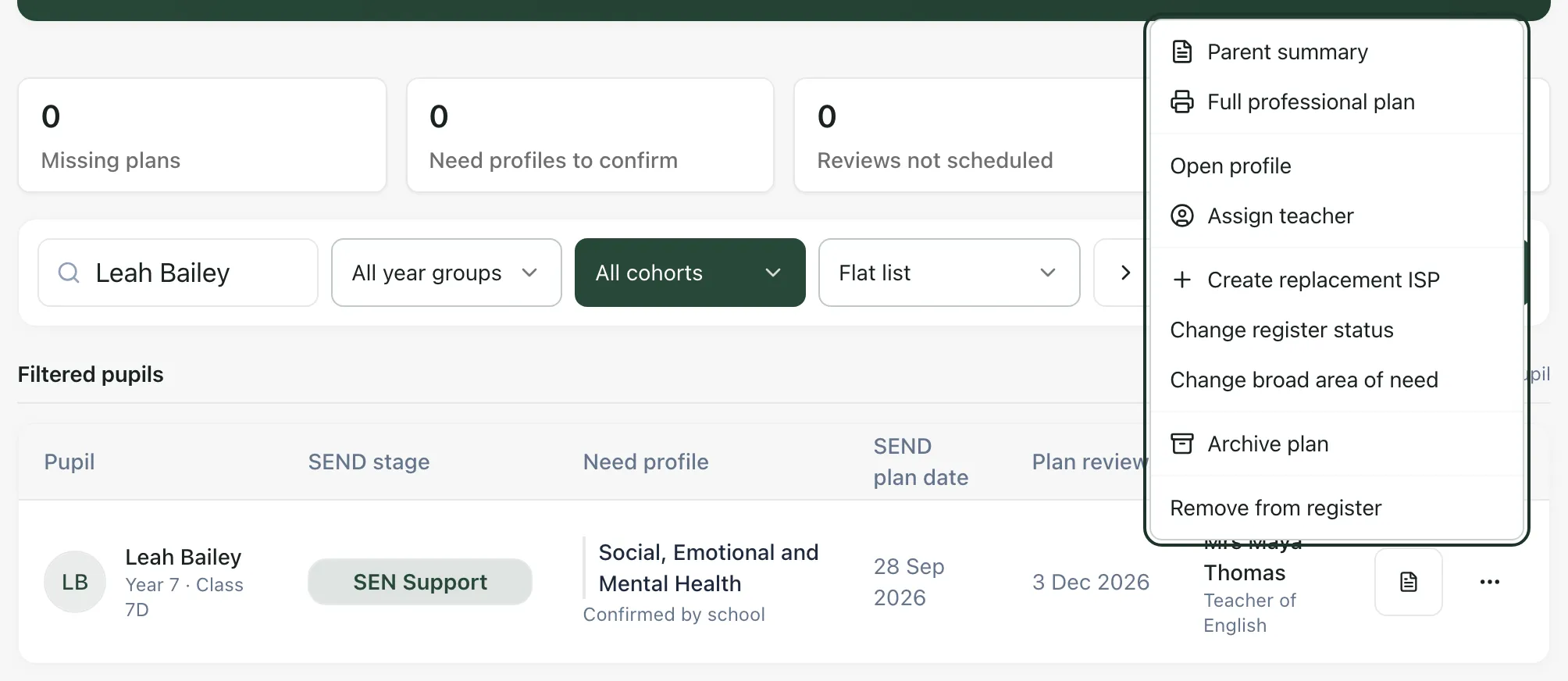
The menu also has options for the pupil’s plan, such as Archive plan. This article covers the register options.
Change the register status
Section titled “Change the register status”Use this to move a pupil between Monitoring, SEN Support and EHCP. You can change their broad area of need at the same time.
- Click ⋯ in the pupil’s row and choose Change register status.
- Under Register status, choose Monitoring, SEN Support or EHCP.
- Check Broad area of need, and change it if you need to.
- Click Save register status. To leave things as they were, click Cancel.
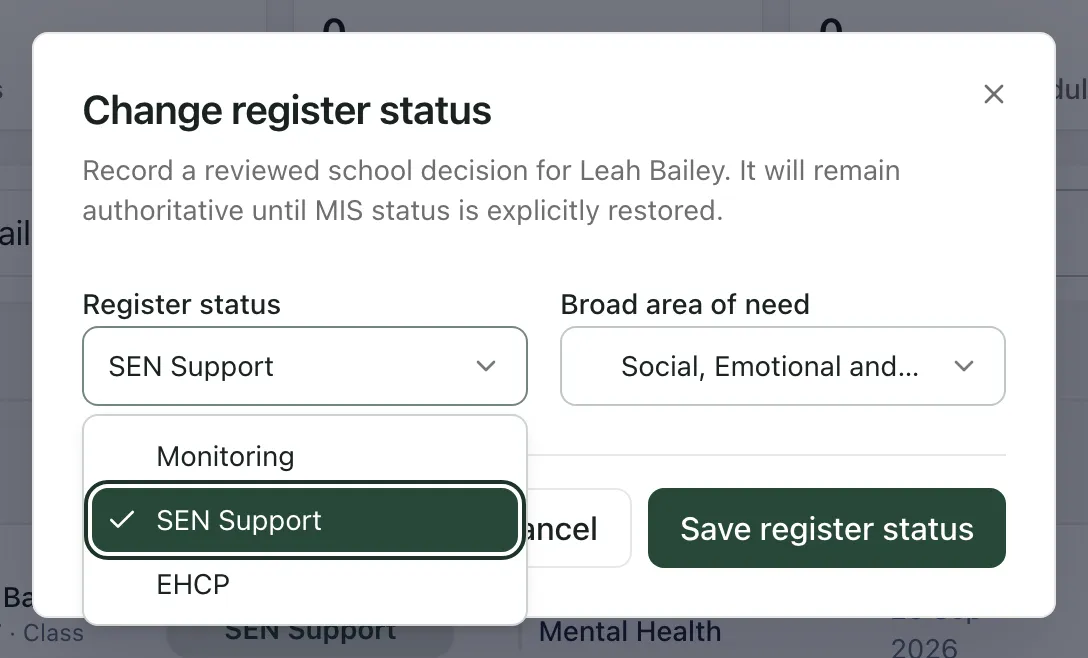
You’ll see “Register status changed” and the pupil’s SEND stage updates on the register.
Monitoring isn’t a SEND status. Moving a pupil to Monitoring takes them out of your SEND caseload while your school keeps a closer eye on them, and they’re listed under Pupils being monitored further down the page.
To take a pupil off the register altogether, use Remove from register instead (see below).
Change only the area of need
Section titled “Change only the area of need”- Click ⋯ in the pupil’s row and choose Change broad area of need.
- Click the pupil’s main area of need: Communication and Interaction, Cognition and Learning, Social, Emotional and Mental Health or Sensory and/or Physical.
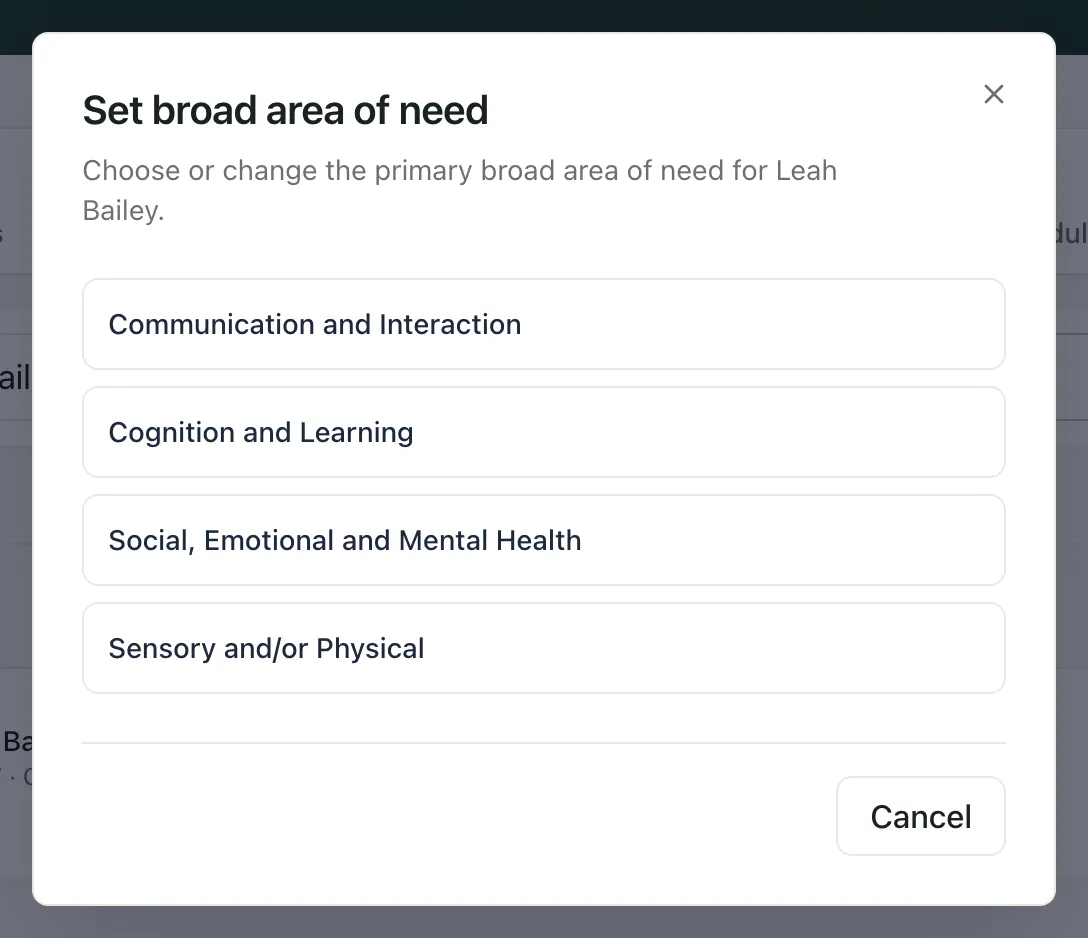
Clicking an area saves it straight away, so check before you click. Click Cancel to close the window without changing anything. You’ll see “Need profile confirmed” and the Need profile column shows the new area.
If a pupil’s need profile says Needs confirmation, no area of need has been recorded yet. Click Confirm need in their row to choose one. On a wide screen it’s the button with an i icon. The Need profiles to confirm count at the top of the register shows how many pupils are waiting.
Remove a pupil from the register
Section titled “Remove a pupil from the register”- Click ⋯ in the pupil’s row and choose Remove from register.
- Read the message. The pupil will no longer be on the SEND register or monitored, and any active needs recorded through the register are end-dated. Their plans and evidence stay saved.
- Click Remove from register to confirm, or Cancel.
You’ll see “Removed from SEND register”. The pupil is listed under Came off SEND register in Monitoring & Off-register, further down the page. To see them in the main list again, open Filters and choose Off register under Flags.
School decisions and your MIS
Section titled “School decisions and your MIS”If your school’s MIS is connected to Student Radar, SEN Support and EHCP statuses can arrive from it automatically. A status you set in Student Radar is recorded as a reviewed school decision. It stays in place, even if your MIS later says something different, until someone restores the MIS status.
Student Radar never treats a missing status from your MIS as Monitoring. A pupil is only shown as Monitoring when your school has decided to monitor them. The status SEN register means your MIS lists the pupil on its SEN register but didn’t send whether they have SEN Support or an EHCP.
Go back to the MIS status
Section titled “Go back to the MIS status”When a pupil’s status was set in Student Radar and your MIS has its own status for them, the pupil’s ⋯ menu includes Restore MIS status.
- Click ⋯ in the pupil’s row and choose Restore MIS status.
- The message shows the status the pupil has now and the status they’ll change to.
- Click Restore MIS status, or Keep school decision to leave things as they are.
You’ll see “MIS status restored”. From then on, the pupil follows the status from your MIS, and later syncs can update it again.
Restore MIS status doesn’t appear for pupils added to Student Radar by hand or by spreadsheet, or when your MIS hasn’t sent a usable status.
- Other staff: staff who can’t manage the register can still open it and see pupils’ statuses and areas of need, but not the options to change them.
- Schools in Thailand: the statuses are called Learning support and Individual learning plan (ILP) instead of SEN Support and EHCP.
If something doesn’t work
Section titled “If something doesn’t work”| What you see | What to do |
|---|---|
| The register options aren’t in the ⋯ menu | Your role has the read-only register. Ask your SENCo to make the change. |
| “Unable to change register status” with “You don’t have permission to perform this action.” | Your account isn’t allowed to change the register. Ask your school’s Student Radar administrator. |
| “The result is unconfirmed. Retry to confirm the same status and need area.” | The connection dropped while saving. Click Save register status again. It confirms the same change rather than making a second one. |
| “Unable to confirm need profile” | The area of need wasn’t saved and the register shows the previous one. Try again. If it keeps happening, check your connection. |
| “This record was updated elsewhere. Reload to see the latest version.” | Someone else changed this pupil at the same time. Reload the page, check their current status, then try again if a change is still needed. |
| “Unable to remove pupil” | The pupil is still on the register. Read the reason shown in the message, then try again. |
| “Unable to restore MIS status” | The school decision is still in place. Try again later. |