Record a placement and share updates with the commissioning school
Written for: Alternative provision leaders who manage placements.
The Placements page lists every placement, grouped by the school that placed the pupil with you. Record each placement here: who referred the pupil, who’s paying, how the pupil is registered and when the placement is reviewed. From the same page, you can give a named person at the commissioning school access to follow the placement, and choose what they see.
Placements made through a referral are added for you when you confirm the placement. See Move a referral through to placement.
Open the page
Section titled “Open the page”In the sidebar, open Commissioning Schools and choose Placements. The page is named after the schools that place pupils with you, in your provision’s own words. By default, it’s called Commissioning schools.
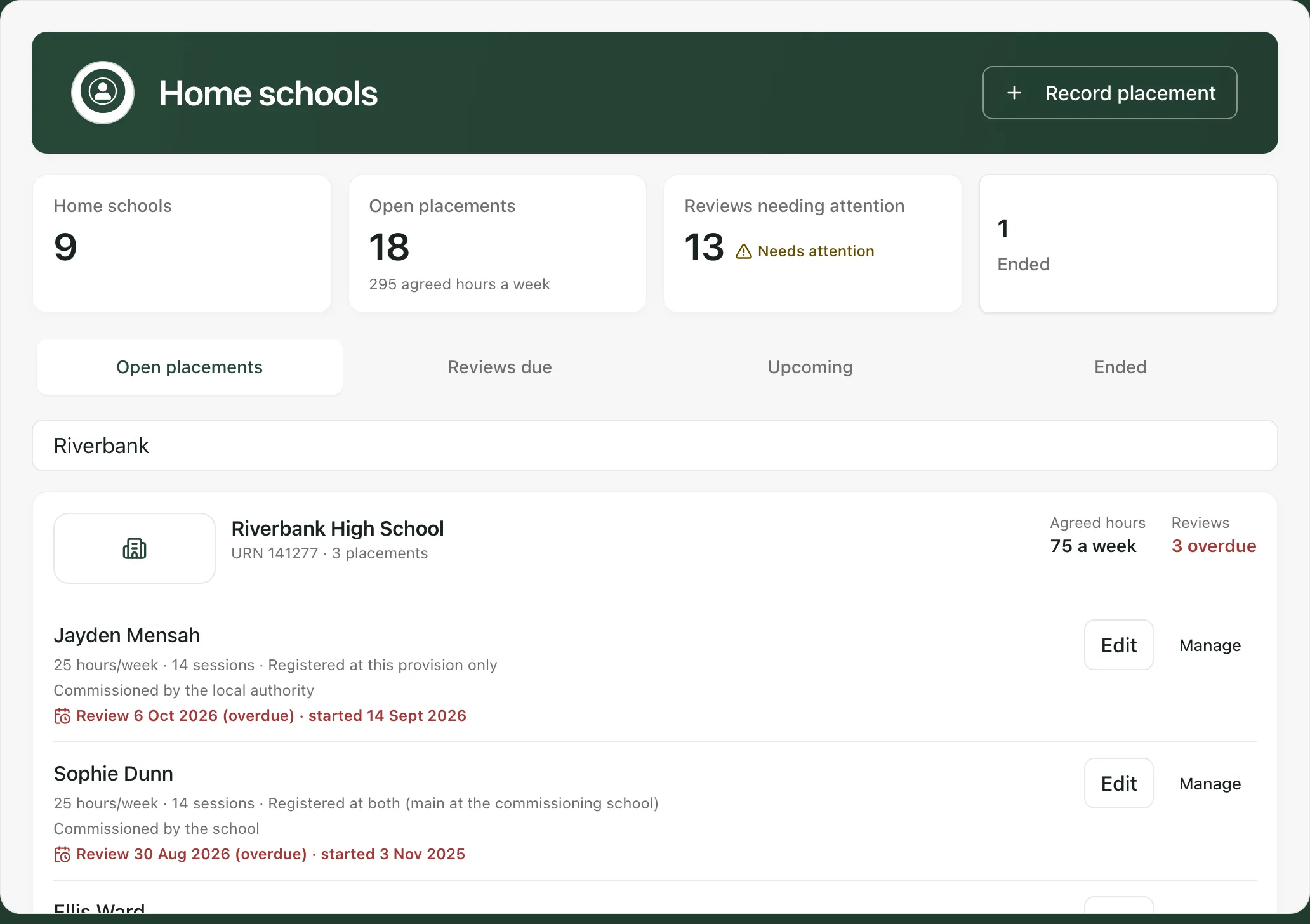
- The cards count your schools, open placements and their agreed hours a week, reviews needing attention and ended placements.
- Use Open placements, Reviews due, Upcoming and Ended to change the list. Reviews due shows reviews that are overdue or due in the next 14 days.
- Search by pupil, school or URN.
Each placement shows the agreed hours and sessions, the pupil’s registration, who commissioned it, and its review and start dates. Overdue reviews are shown in red. Review and expected end dates also appear on Today.
Record a placement
Section titled “Record a placement”-
Click Record placement.
-
Choose the pupil. They need to be on your roll first.
-
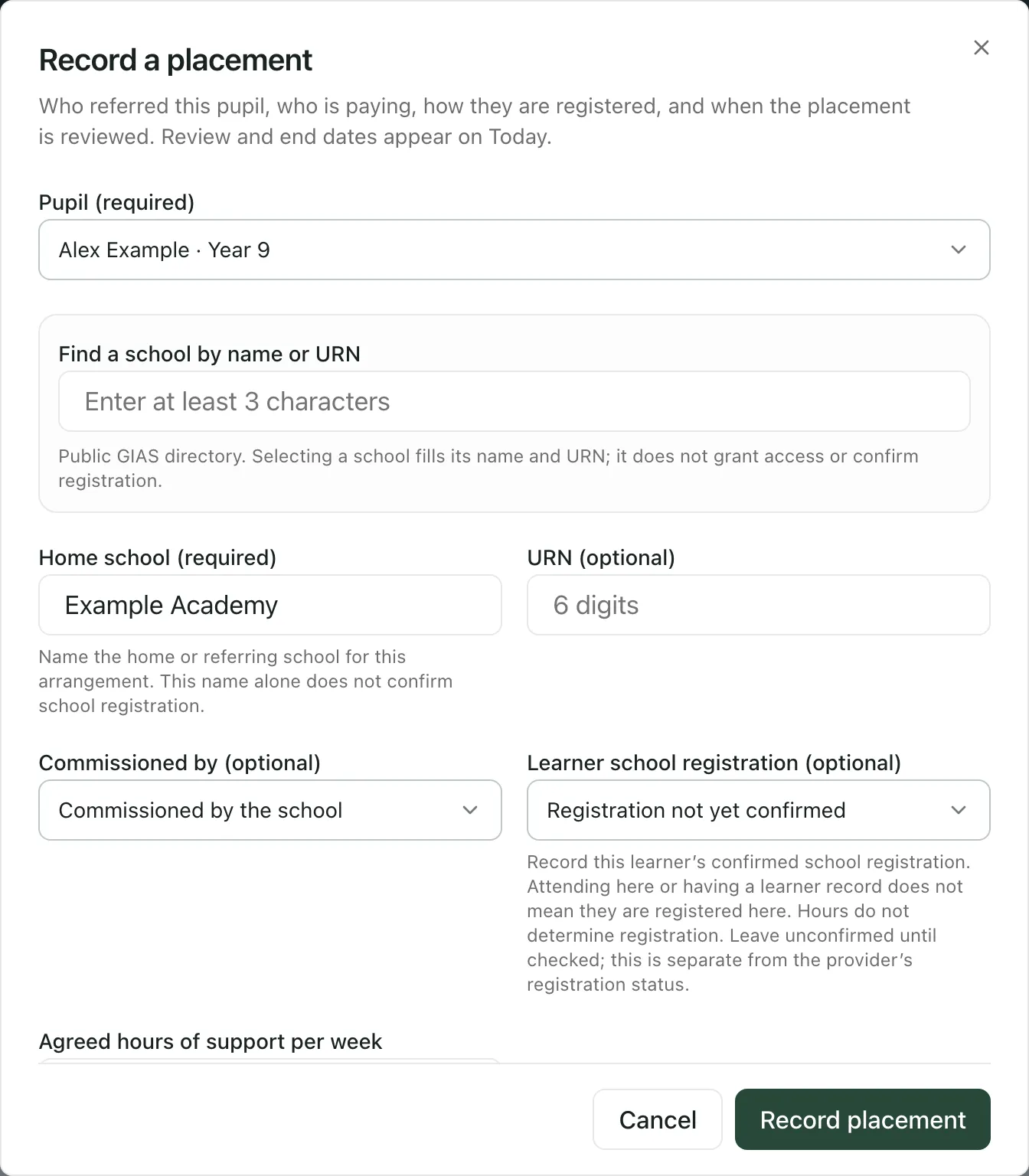
Under Find a school by name or URN, type at least three letters and choose the school, or type its name in the school box. Choosing a school fills in its name and URN. It doesn’t give the school any access.
-
Fill in the rest of the form:
Field What to enter Commissioned by (optional) Who arranged and pays for the place, for example the school or the local authority. Learner school registration (optional) Where the pupil is registered. Leave it as not yet confirmed until you’ve checked. Agreed hours of support per week The agreed hours here each week. This isn’t attendance, and it doesn’t decide registration. Agreed weekly session pattern (optional) The agreed sessions. They appear on the weekly rota between the start and end dates. Status (required) Active, or Planned if it hasn’t started yet. Start (required) The first day of the placement. Expected end (optional) When the placement is expected to finish. Next review (optional) When it’s next reviewed. Key worker The member of staff who leads on the placement. Reason for placement (optional) A short reason, such as a managed move. -
Click Record placement.
You’ll see “Placement recorded”. To change it later, click Edit next to the placement, make your changes and click Save changes.
Manage a placement
Section titled “Manage a placement”Click Manage next to a placement. Depending on your access, you’ll see:
- Attendance plan and pause: pause the placement and arrange a review, or correct a recorded attendance plan.
- Attendance responsibility: who follows up attendance for this placement.
- Communication and access: what the commissioning school can see. See the next section.
- The pencil button edits the placement, and the cross ends this placement only. The pupil stays on roll and their other placements carry on. To record a pupil leaving altogether, see Record a pupil leaving or returning.
Share updates with the commissioning school
Section titled “Share updates with the commissioning school”Click Manage, then Communication and access. Access is for one named person and this pupil only. Safeguarding records, medical records, EHCP documents and your internal daily notes are never included.
Invite a member of the school
Section titled “Invite a member of the school”This works when the commissioning school also uses Student Radar.
- Click Invite school member.
- Enter their School sign-in email and the Purpose of sharing.
- Enter your Agreed DSA or legal-basis reference.
- Under Information the school may receive, tick what to share. Placement dates and type are always included. You can add Attendance coverage, Published review summaries and Published timetable windows.
- Set when Sharing ends.
- Tick the box to confirm the sharing agreement covers this person, then click Create invitation.
The invitation appears in the school’s placement, on its Provider updates tab. Nothing is shared until they accept. Both schools need the pupil’s records to have the same verified UPN.
If the school doesn’t use Student Radar, the window offers named access for a confirmed contact there instead. For a local authority, use Named local authority access. In both cases, the named person signs in and accepts before they see anything.
Publish a review summary or timetable
Section titled “Publish a review summary or timetable”Once the school member has accepted, their entry shows Publish review summary and Publish timetable if you chose to share those.
- Click Publish review summary.
- Choose the Signed report revision. Only review packs that have been signed off can be published. See Prepare and sign off a review pack.
- Write the Title for the school and the Summary for the school. Use approved wording, and say what’s still uncertain and what needs discussing.
- Set Publication available until.
- Check the preview, tick the box to approve that exact preview, and click Publish for school.
Publish timetable works in the same way: tick the weekly windows to share, check the preview and click Publish for school.
Renew, withdraw or stop sharing
Section titled “Renew, withdraw or stop sharing”- Renew sharing sets up the same access for a new period. The school member accepts it again.
- Withdraw publication takes a published review summary or timetable back.
- Suspend sharing, Revoke access and Close sharing stop future access. Each asks for a reason. They can’t recall anything the school has already copied.
Attendance alerts and reports
Section titled “Attendance alerts and reports”Under Attendance alerts and scheduled reports, you can set up notices for a named recipient at the school, such as a confirmed absence or a weekly attendance report. Attendance sharing must be active for the placement first.
- Your access: the full page is for AP leaders. Other staff see a simpler Placements list of the records they can access.
- Wording: your setting profile decides what the page and its fields call the schools that place pupils with you. “Commissioning school” is the default. The demo provision in the screenshots says home school instead.
- Demo provisions: in a demo provision, Communication and access shows example settings only. Sharing, invitations and exports are switched off there.
If something doesn’t work
Section titled “If something doesn’t work”| What you see | What to do |
|---|---|
| “AP access could not be confirmed.” | Student Radar couldn’t confirm your access, so nothing was loaded. Refresh the page, or ask your administrator. |
| Record placement is greyed out | You have no pupils on roll yet. Add the pupil first. |
| “No placements match these filters.” | Clear the search box or choose Open placements. |
| “No school sharing has been set up for this placement.” | Nobody at the school has access yet. Click Invite school member to start. |
| “No signed report revisions are available to publish for this account.” | Sign off a review pack for this placement first, then publish it. |
| “No active timetable windows are assigned to this pupil.” | Set up the pupil’s sessions on the weekly rota first. |
| Invite school member isn’t shown | The placement isn’t linked to a school on Student Radar, or your account can’t share. Use the named access form, or ask an AP leader. |