Set your setting type, country and wording
Written for: Headteachers and school administrators.
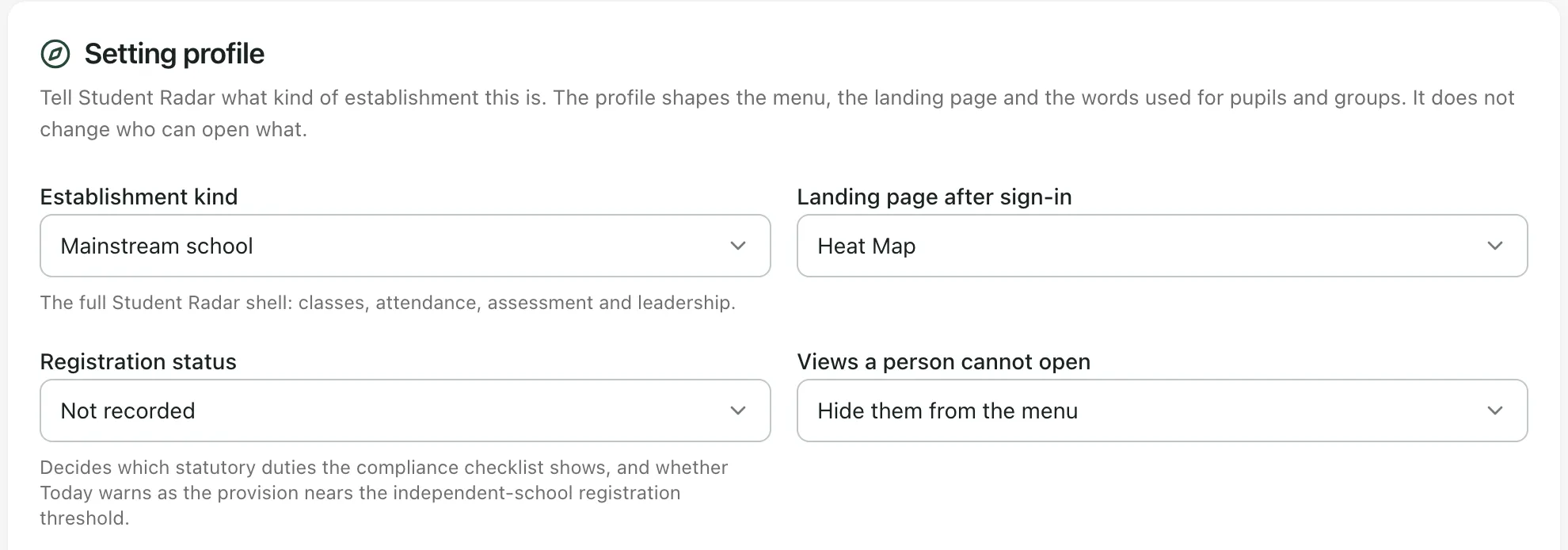
The Setting Profile tab in School Settings tells Student Radar what kind of establishment you are. Your profile shapes the menu, the page staff land on after signing in, and the words used for pupils and groups. It never changes who can open what. The same tab shows your country and region, which Student Radar sets for you, and the inspection framework you use for self-evaluation.
Check and change your setting profile
Section titled “Check and change your setting profile”-
In the sidebar, click Settings, then School Settings.
-
Click the Setting Profile tab. You might need to scroll the row of tabs to see it.
-
Check each field and change any that are wrong:
Field What it decides Establishment kind Mainstream school, Special school or Alternative provision. An alternative provision gets a smaller menu designed for small settings. Landing page after sign-in The page staff see first: Staff Home, Heat Map or, for an alternative provision, Today (alternative provision). Registration status Whether you’re a Registered school (PRU, AP academy or independent school) or an Unregistered provider (not a school). It decides which statutory duties the compliance checklist shows. Views a person cannot open Whether pages someone can’t open are hidden from their menu, or shown greyed out with a lock. Where pupils come from Synced from the MIS, MIS plus hand-entered pupils or Entered by hand or imported. Pupil cap on the licence The most pupils that can be added by hand. Leave it blank for no cap. -
Click Save profile.
You’ll see “Setting profile saved”. To undo changes you haven’t saved, click Discard changes.
Important: choosing a different Establishment kind resets every other field on the card to that kind’s defaults, including the vocabulary and Where pupils come from. Check every field again before you click Save profile.
Change the words Student Radar uses
Section titled “Change the words Student Radar uses”Under Vocabulary, you can change four words to match the ones your setting uses:
- A child on roll is a…, for example pupil, learner or student.
- A teaching grouping is a…, for example class or group.
- A commissioning school is the…: the school that places a pupil with you, for example commissioning school or home school.
- The headteacher role is shown as…, for example Headteacher or Provision Lead.
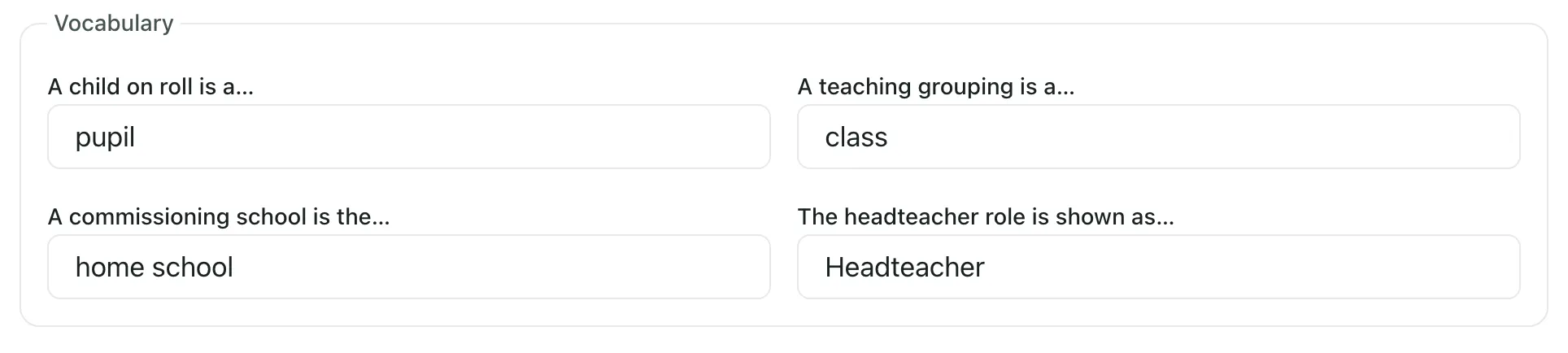
Type the words in lower case, unless they’re always written with capitals. Then click Save profile.
Student Radar uses your words on the screens that support them, mainly the alternative provision pages. For example, if a child on roll is a learner, the Today page offers to add a learner rather than a pupil.
Schools with no MIS
Section titled “Schools with no MIS”If your school doesn’t have a management information system (MIS), switch on No MIS — manage pupils manually and click Save profile. A Set up your school tab then appears where you add pupils, year groups and classes by hand. Switching it on doesn’t disconnect an existing MIS connection. See Set up a school that has no MIS.
Check your country and region
Section titled “Check your country and region”The Country and region card shows the settings that come from your school’s country:
- Country, Time zone, Currency and Dialling code
- Medical emergency number
- School year starts and Terms
- Statutory framework: whether England’s statutory checks and reporting apply
- Turned off for this country: features that only apply in England, which are switched off for schools elsewhere
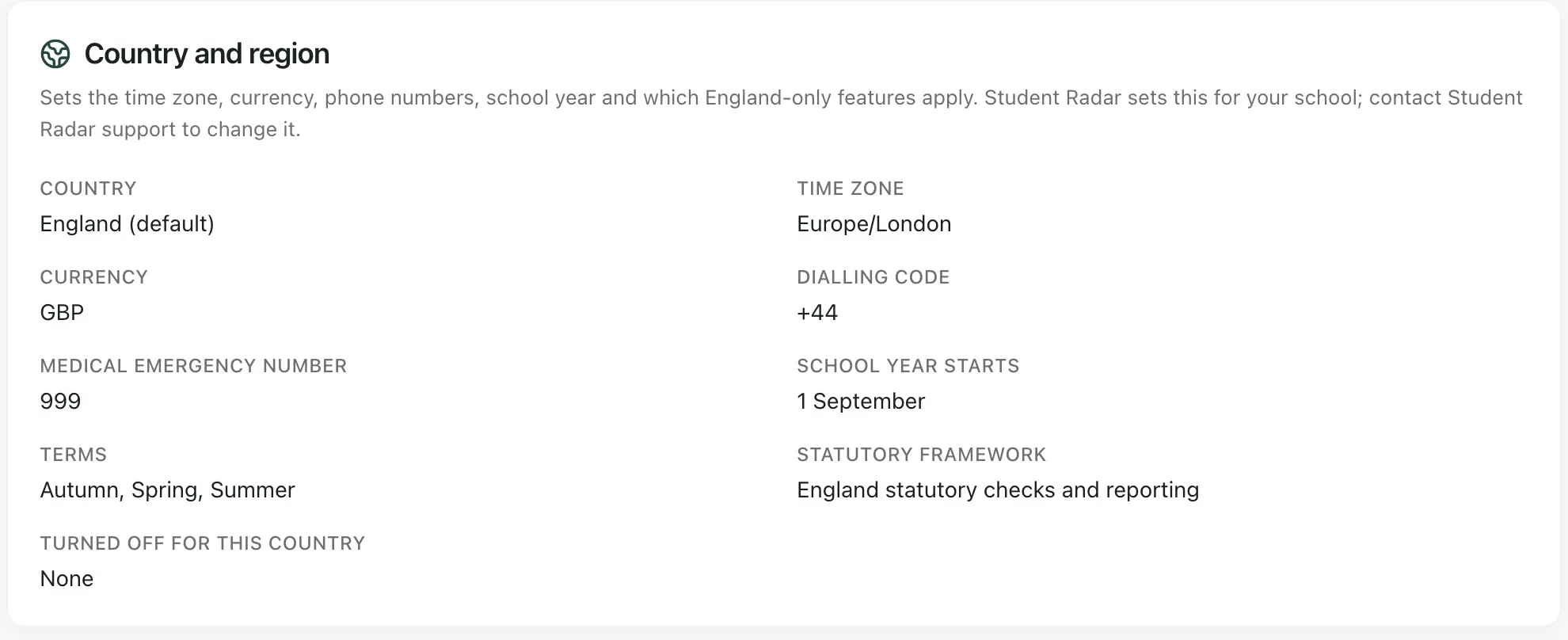
You can’t change these settings yourself. Student Radar sets them for your school. If anything is wrong, for example your school isn’t in England, contact Student Radar support. See Contact Student Radar support.
Choose your inspection framework
Section titled “Choose your inspection framework”The Leadership inspection framework card sets the framework your self-evaluation uses. Choose it under Leadership framework, tick Include early years provision or Include post-16 provision if they’re offered and apply to you, then click Review framework selection and Confirm framework. It controls Leadership evaluations and reports. It doesn’t decide which inspectorate inspects you. See Write your self-evaluation.
- Who can change the profile: by default, headteachers and administrators can change the setting profile. Other staff see “You can view this profile, but you do not have permission to change it.”
- Alternative provision operations: if you manage alternative provision, you might see an Alternative Provision operations section. Changing the Establishment kind never switches AP operations on or off.
- Take the tour: click Take a tour at the top of School Settings for a short guide to each tab.
If something doesn’t work
Section titled “If something doesn’t work”| What you see | What to do |
|---|---|
| “We could not save the setting profile. Your changes are still here. Check your access or connection, then try again.” | Check your connection and click Save profile again. If it keeps happening, ask your administrator. |
| “You can view this profile, but you do not have permission to change it.” | Ask your headteacher or Student Radar administrator to make the change. |
| “Unable to load school settings. Retry before making changes.” | Click Retry school settings before you change anything. |
| “Leadership framework settings are unavailable with the current connection or access.” | Click Retry framework settings. |