Record a child missing education
Written for: Attendance leads, safeguarding leads and other staff who track children missing education.
The Children missing education register in Statutory cohorts is where your school keeps track of pupils it’s monitoring because they may be missing education. It records each pupil’s monitoring status, such as whether they’ve been referred, alongside any long run of absence. Student Radar records what your school has done. Your school’s procedures and your local authority’s children missing education process decide what you should do and when.
Safeguarding: if you’re worried about a pupil’s safety, don’t wait for the register. Follow your school’s safeguarding procedure and click Raise concern on the pupil’s profile.
Open the register
Section titled “Open the register”- In the sidebar, click Attendance, then Statutory cohorts.
- The page opens on Children missing education. If it doesn’t, click that tab.
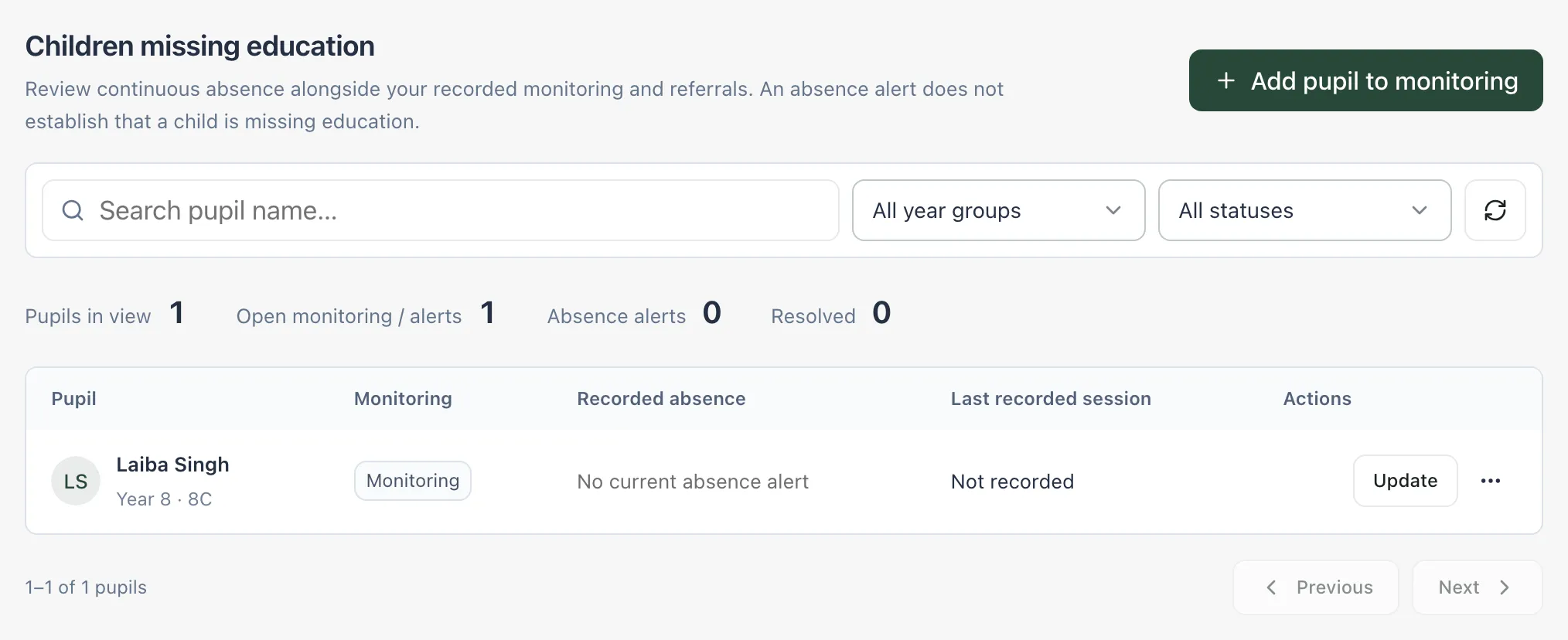
Above the table, the counts show Pupils in view, Open monitoring / alerts, Absence alerts and Resolved.
For each pupil, the table shows:
- Monitoring: the status your school recorded: Monitoring, Referred or Resolved. Not yet recorded means nobody has added the pupil yet.
- Recorded absence: if the pupil has missed 10 or more full days in a row, a Continuous absence alert and the number of days. Otherwise “No current absence alert”.
- Last recorded session: the date of the pupil’s last recorded session, and when they were last present.
Use Search pupil name…, the year group list and the status list to narrow the register. Choose Absence alerts in the status list to see pupils with a long run of absence. An absence alert is a prompt to check on the pupil. On its own, it doesn’t mean a child is missing education.
Add a pupil to the register
Section titled “Add a pupil to the register”-
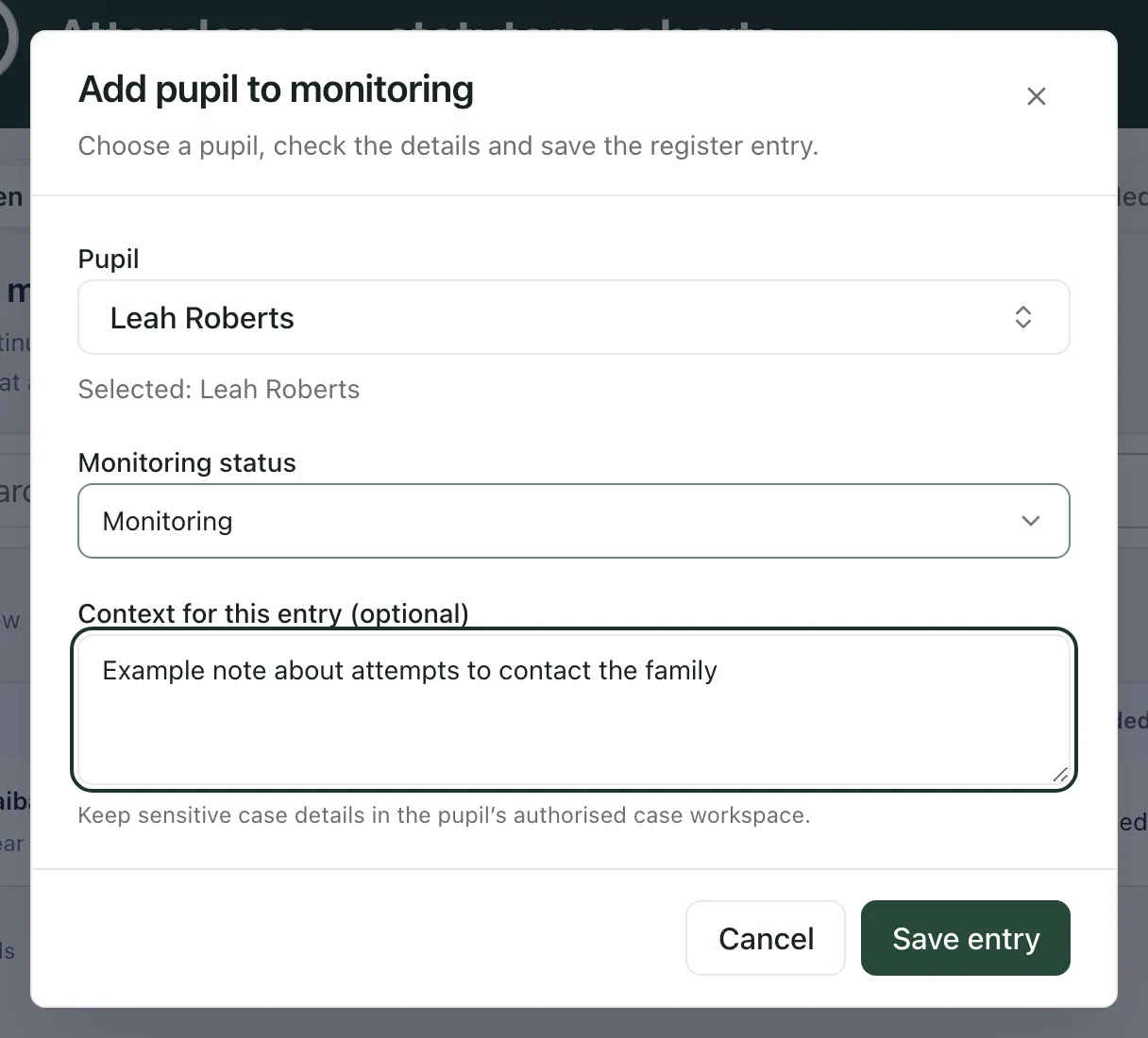
Click Add pupil to monitoring.
-
Under Pupil, click Search for a pupil, type at least two letters of their name and choose them.
-
Choose the Monitoring status: Monitoring, Referred or Resolved.
-
If you like, add a short note under Context for this entry (optional), for example what you’ve done so far. Keep sensitive case details in the pupil’s safeguarding or case record, not here.
-
Click Save entry.
The pupil appears in the register with the status you chose, and a message confirms the register was updated.
Update a pupil’s status
Section titled “Update a pupil’s status”When the situation changes, for example when you refer the pupil to the local authority or they’re back in education:
- Click Update on the pupil’s row. This also works for a pupil who has an absence alert but no status yet.
- Change the Monitoring status and update the note if you need to.
- Click Save entry.
To see the pupil’s attendance, click their name, or click ⋯ and choose Open pupil profile.
Remove an entry
Section titled “Remove an entry”If a pupil was added by mistake, click ⋯ on their row, choose Remove register entry, then click Remove entry. This removes only the entry in this register. Other registers, timetable plans, notes and recorded attendance are kept. If the pupil still has a long run of absence, their absence alert can still appear.
- England only: Statutory cohorts follows English attendance law and guidance, so it isn’t available to schools in other countries.
- Who can change the register: your school decides who can add, update and remove entries. If Add pupil to monitoring or Update is greyed out, your account can view the register but not change it.
- Other registers: the other tabs hold the school’s registers for Part-time timetables, Elective home education, Medical absence and Penalty consideration. See Set up a part-time timetable and Record a penalty notice decision.
- From Analytics: in Attendance, Analytics, open the Statutory tab and click Open CME view to come straight here.
If something doesn’t work
Section titled “If something doesn’t work”| What you see | What to do |
|---|---|
| “No pupils in this view” | Nothing matches your search or filters. Click Clear filters. |
| “Enter at least two characters to search by name.” | Keep typing the pupil’s name. |
| “This record already exists. Refresh to review the current entry.” | Someone has already added this pupil. Click the refresh button beside the filters, then use Update. |
| “Your access could not be verified. Ask your school administrator to check your attendance permissions.” | Ask your school’s Student Radar administrator to check your access to statutory attendance. |
| “Register unavailable” | Click Try again. If it keeps happening, wait a minute and try again. |
| “The register could not be loaded or saved. Please try again. Your entries have been kept.” | Try again. What you typed is still in the form. |
| “Too many requests. Wait a moment, then try again.” | Wait a moment, then try again. |