Find your way around your Student Radar space
Written for: Pupils.
Student Radar has a space just for you. You can see your homework, log your reading, check your targets and more. This guide shows you where everything is.
To sign in, see Sign in with your username or emoji password.
Use the menu
Section titled “Use the menu”The menu shows all the parts of your space. Click a part to open it.
- On a computer, the menu is down the left side of the page.
- On a phone or tablet, tap Menu at the bottom of the screen. Help is there too.
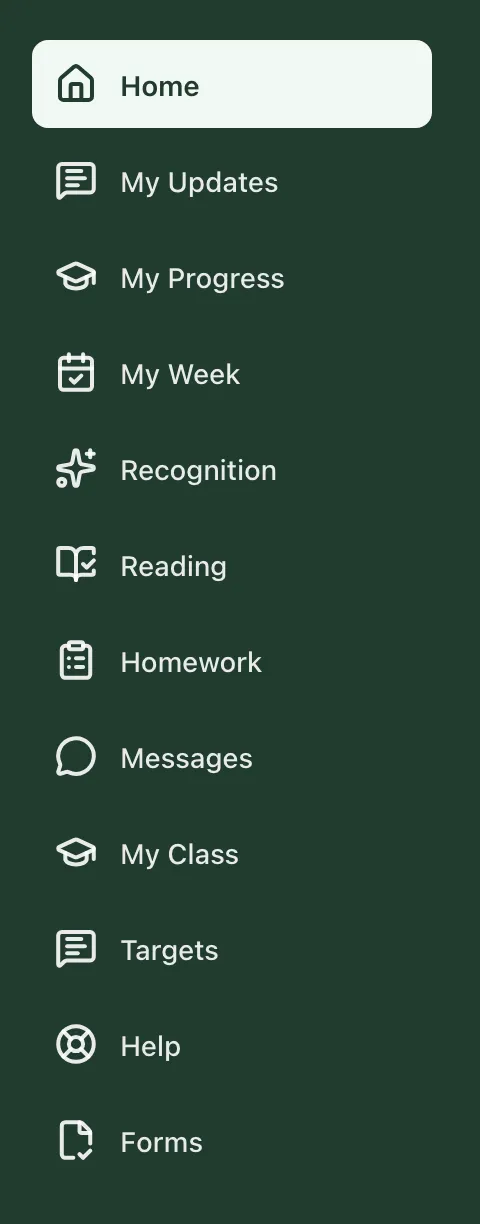
| Part | What it’s for |
|---|---|
| Home | Your starting page. It helps you choose what to do next. |
| My Updates | Updates your school has shared with you. |
| My Progress | Progress results your school has shared with you. |
| My Week | How your week is going. Every on-time morning counts. |
| Recognition | Celebrations and other behaviour your school has shared with you. |
| Reading | Log your reading and see the books you’ve read. |
| Homework | See what’s due and tick off what you’ve finished. |
| Messages | Messages from your school. |
| My Class | Your class, your teachers, and events coming up. |
| Targets | Your targets, and a place to tell adults what’s helping. |
| Help | What to do if you need help or something is worrying you. |
| Forms | Forms your school has asked you to fill in. |
Your Home page
Section titled “Your Home page”Your space opens on Home. At the top, it says hello and gives you a short message.
Under that is a button for your next step. It might show your next piece of homework, or Next: log today’s reading.
Then there are five small cards. Click a card to open that part of your space.
- Books logged: how many books you’ve logged.
- Homework due: how much homework you still need to do.
- On time: how your mornings are going this week.
- Upcoming: the next event for your class.
- Targets: how many targets your school has shared with you.
Under What should I do next? are three ideas: something to read, your next homework, and your targets or what’s coming up. Pick one small thing to do.
Further down are updates your school has shared with you.
Some parts might be empty
Section titled “Some parts might be empty”Your school chooses what to share with you. If a part is empty, your school might not have shared anything there yet. For example, you might see “Your school has not shared targets here yet.” That’s fine. Check again another day.
Sign out
Section titled “Sign out”When you’ve finished, click your picture or initial at the top right of the page. Then click Log out.
Need help?
Section titled “Need help?”Open Help in the menu. It tells you how to get help or tell someone you’re worried. See Get help or tell someone you’re worried.
If something doesn’t work
Section titled “If something doesn’t work”| What you see | What to do |
|---|---|
| “Your school information could not be loaded” | Click Try again. If it keeps happening, ask your teacher to help you. |
| “Your school has not enabled updates here yet.” | Your school doesn’t share updates here. You don’t need to do anything. |
| “Your school has not shared any updates with you here yet.” | Nothing has been shared yet. Check again another day. |