Subscribe to a Student Radar calendar
Written for: School staff.
You can see Student Radar calendar events in Outlook, Google Calendar or another calendar app by subscribing to them. Student Radar gives you a private link for one calendar, such as your own, a room’s or a resource’s, and your calendar app keeps it up to date. The subscription is read-only: changes you make in your calendar app don’t go back into Student Radar.
Create a subscription link
Section titled “Create a subscription link”- In the sidebar, open Overview and choose Calendar.
- Click My subscriptions.
- In Find a person, room or resource, type a name and press Enter. The list only shows the people, pupils, rooms and resources you’re allowed to subscribe to.
- Click the calendar you want. Student Radar fills in the Subscription label for you. Change it if you’d like a different name.
- Check the Expiry date. The link stops working after this date. It’s set to about six months ahead, and you can choose any date up to two years away.
- Click Create private ICS subscription.
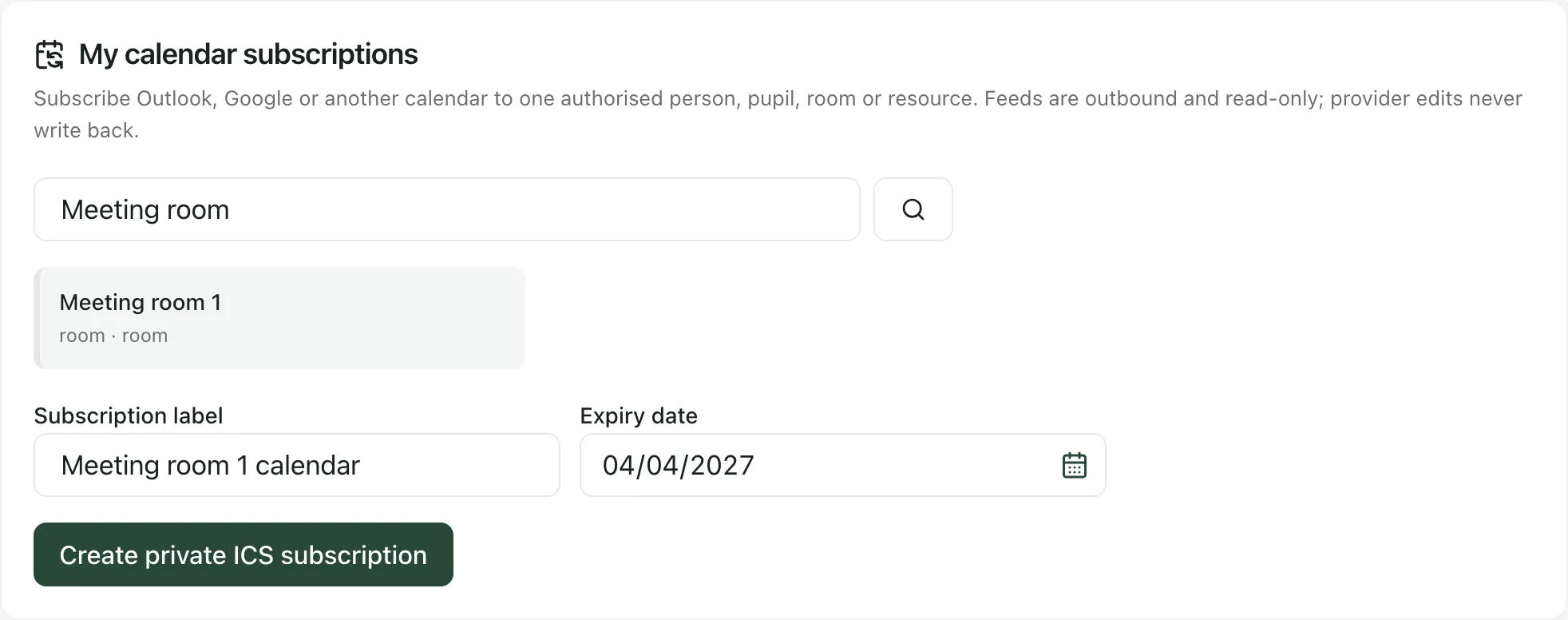
Add the link to your calendar app
Section titled “Add the link to your calendar app”After you create a subscription, Student Radar shows Save this private link now.
- Click Copy ICS link.
- In Outlook, Google Calendar or your other calendar app, choose the option to add or subscribe to a calendar from a web address (URL), and paste the link.
- Back in Student Radar, click I have saved it.
The link is shown only once. If you close it without saving it, rotate the subscription to get a new link (see below).
Your calendar app checks the link for changes on its own schedule, so new or changed events can take a while to appear there.
Keep your link private
Section titled “Keep your link private”Anyone who has the link can see that calendar’s events until the link expires or is revoked. Don’t share it, post it anywhere or send it to anyone else. The link also stops working if your role or relationship changes so that you’re no longer allowed to see that calendar.
Your subscriptions are listed under Issued subscriptions, with when each one expires and when it was last used. Only subscriptions you created are shown.
- Rotate gives you a new link and stops the old one working. Use it if you’ve lost the link or think someone else has it. Confirm in the window that opens, then add the new link to your calendar app.
- Revoke stops the link working for good. Confirm in the window that opens.
Your calendar app may keep showing events it has already downloaded until it next refreshes.
- If you don’t see My subscriptions, your school hasn’t given your role access to calendar subscriptions. Ask your school’s Student Radar administrator.
- A subscription marked “No longer usable under your current role or relationship.” can’t be used any more. Revoke it.
- Sharing the school calendar with parents or the public is different. It’s managed on the Sharing & integrations tab by the staff who look after the school calendar.
If something doesn’t work
Section titled “If something doesn’t work”| What you see | What to do |
|---|---|
| “No current staff link, family relationship, room or resource matches this search.” | Check the spelling, or search for a different person, room or resource. |
| “Calendar subscriptions are unavailable. Access has not been widened.” | Click Try again. |
| “Outbound calendar subscriptions are not enabled for this school.” | Your school has switched off calendar subscriptions. Ask your school’s Student Radar administrator. |
| “Your current role or relationship does not allow that calendar subscription.” | You can’t subscribe to that calendar. Choose a different one. |
| “That subscription or scope is no longer available. Refresh and choose again.” | Reload the page and choose the calendar again. |
| “That command was already completed, so its secret link cannot be shown again. Rotate the subscription if you did not save it.” | The link was created earlier and can’t be shown again. Click Rotate to get a new one. |
| “The calendar subscription action could not be completed. Nothing was widened.” | Nothing changed. Try again. |