Check medical needs and allergies for your class
Written for: Staff who teach or support a class.
Before a lesson, a trip or a cover lesson, check which pupils in your class have a recorded medical condition, allergy or care note. The Medical Needs page for a class lists those pupils with their recorded conditions, severity and review state, and links to their care plans, medication and allergy records. It’s the same page as Health → Medical Needs, already filtered to your class.
Open Medical Needs for your class
Section titled “Open Medical Needs for your class”- In the sidebar, click Classes.
- Choose the class:
- In a secondary school, click Tutor groups, then the year group and the tutor group. For a subject class, click Teaching classes, then the subject and the class.
- In a primary school, click the year group, then the class.
- Click Medical Needs.
- Click Health Needs to see the pupils.
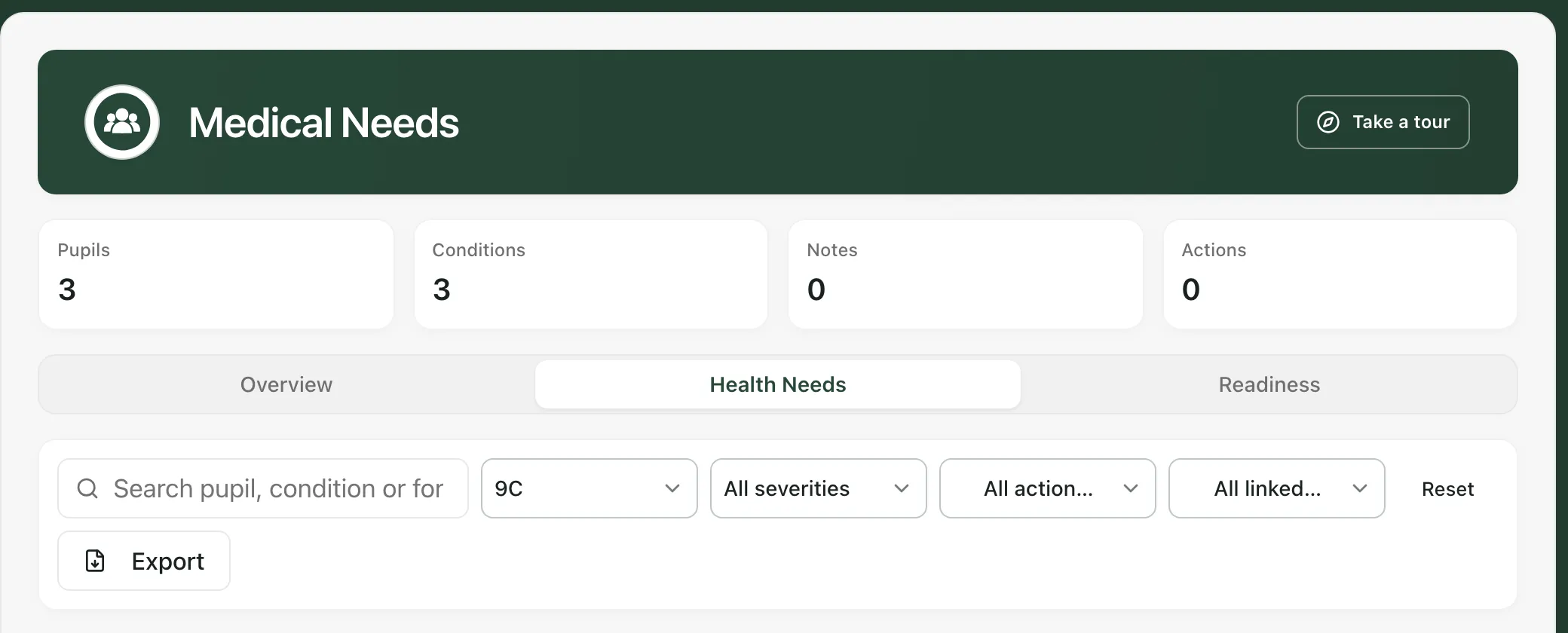
The cards at the top count the Pupils, Conditions, Notes and Actions for the pupils shown.
Read the list
Section titled “Read the list”Each row is one pupil in the class who has something recorded.
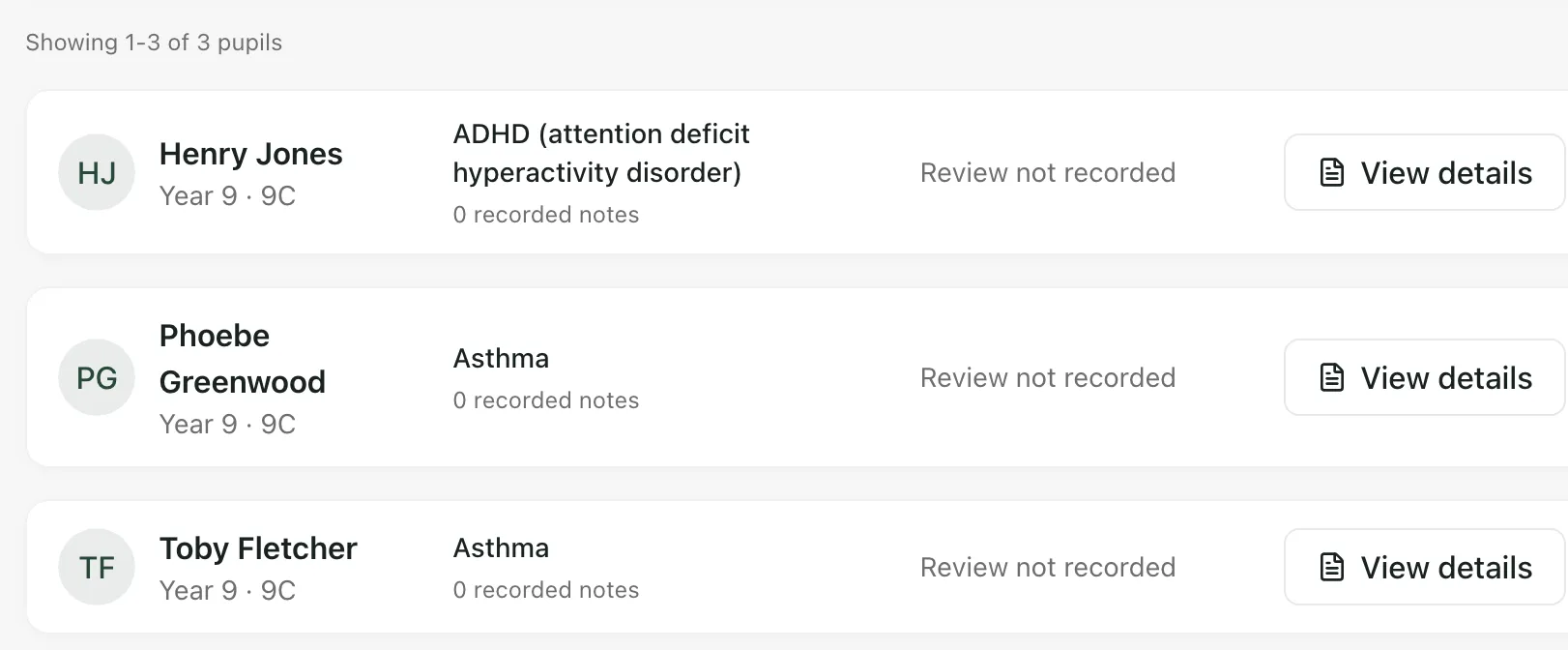
From left to right, each row shows:
- The pupil’s name, year group and class.
- Their recorded conditions, and how many notes are recorded. Notes only · no condition recorded means there are care notes but no named condition.
- Whether a review of their medical information has been recorded: Review recorded, Review not recorded, Follow-up needed or Review overdue.
- View details, to open the full record.
The list shows 50 pupils at a time. Use Next and Previous at the bottom for more.
Open a pupil’s details
Section titled “Open a pupil’s details”Click View details on a pupil’s row.
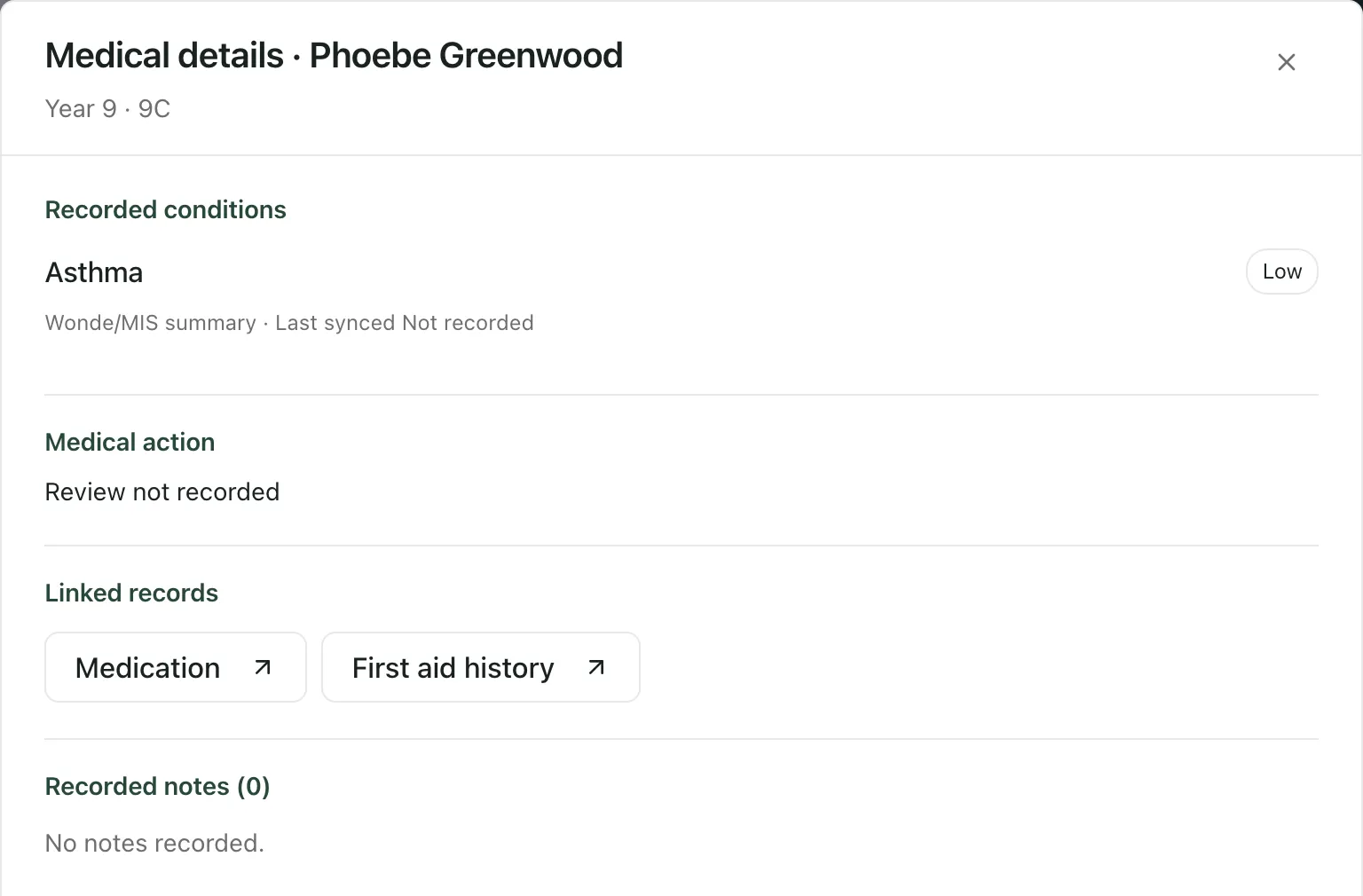
The details show:
- Recorded conditions: each condition, its recorded severity, any note about it, and where it came from, such as your school’s MIS, with when it was last synced.
- Medical action: whether a review has been recorded, any follow-up note and its due date.
- Linked records: buttons that open the pupil’s related records, such as Care plan / IHCP, Medication, Allergy register, PEEP or First aid history. Only the records that exist and that you can open are shown.
- Recorded notes: notes recorded about the pupil’s medical needs, newest first.
Click Close when you’ve finished.
Use the recorded guidance alongside your knowledge of the pupil. If the record looks out of date or something’s missing, tell your school’s medical lead.
Find pupils with allergies
Section titled “Find pupils with allergies”- In the filters, open All linked records.
- Choose Allergy-linked. The list shows only pupils with a recorded allergy, including pupils flagged with an anaphylaxis risk.
- Click View details. If the pupil has an allergy register record, click Allergy register to open it.
The same list also offers Has current IHCP, Has medication, Review due and Source conflict. A row marked Source difference to review has a difference between records that someone needs to check.
Narrow the list
Section titled “Narrow the list”- Search: type a pupil’s name, a condition or a form in the search box.
- Class: the class you opened from is chosen already. Choose All classes to see every pupil in the scope you opened.
- Severity: show only one recorded severity.
- Action state: show pupils whose medical follow-up is in a particular state, or choose Attention required.
Click Reset to clear your filters. On a phone or in a narrow window, the filters are under Filters.
Take a list with you
Section titled “Take a list with you”Click Export and choose a PDF of the pupils currently shown:
- Class brief: the current medical needs of the pupils shown.
- Cover summary: the essential medical information for staff supervising the class.
- Trip pack: a working copy for the pupils going on a trip.
- Expiry watch: the pupils’ active medication that expires within 28 days or has already expired.
The PDF downloads to your device, and each export is recorded in the audit log. Keep printed or downloaded copies secure, as your school’s data policy requires.
- Overview and Readiness: Overview summarises the conditions recorded for the pupils shown, such as how many pupils have each type of condition. Readiness checks school-wide arrangements such as policy, consents, devices, training and drills. Depending on your role, you may see only Health Needs.
- Updating actions: some roles, such as medical leads, SENCos, safeguarding leads, senior leaders and office managers, also see Update action, to record a review or a follow-up. If you don’t see it and something needs following up, tell your school’s medical lead.
- Supply staff: pupils’ names are shown as initials, and condition names and notes are hidden.
- Corrections: you can’t edit a condition on this page. If one looks wrong, tell your school’s medical lead.
- Tour: click Take a tour at the top of the page for a step-by-step guide.
If something doesn’t work
Section titled “If something doesn’t work”| What you see | What to do |
|---|---|
| “Medical needs could not be loaded. This does not mean there are no records.” | Click Retry medical records. Don’t assume the class has no medical needs until the list loads. |
| “Medical records are incomplete or unavailable. An empty list does not mean there are no records.” | Some records couldn’t be checked. Try again later, and ask your school’s medical lead before relying on the list. |
| “No medical conditions or notes are available in the current authorised roster.” | No pupils you can access in this class have a medical record in Student Radar. |
| “No pupils match the current medical needs filters.” | Click Reset medical filters. |
| “Medical actions could not be loaded. Action counts and review states are unavailable.” | Click Retry actions. Until then, review states show Review unavailable. |
| “Some supporting checks are unavailable” | Some linked records, such as medication or care plans, couldn’t be checked. Click Retry supporting checks. |
| “Unable to export medical PDF” | Nothing was downloaded. Check your connection and try again. If it keeps happening, ask your administrator to check access. |