Read and reply to messages from school
Written for: Parents and carers.
Messages in the parent portal is where you read posts from your child’s school, such as newsletters, reminders and polls. This guide explains what you can see there and how to get in touch with the school when you want to reply.
Open your messages
Section titled “Open your messages”In the menu, click Messages. You can also click Open messages under Latest update on Home, which shows the school’s newest post.
At the top of the page you’ll probably see New messages not activated. This means your school hasn’t switched on two-way conversations in the parent portal. Below it, you can still read the posts the school has published.
Read posts from school
Section titled “Read posts from school”The school’s posts are listed under Connect archive.
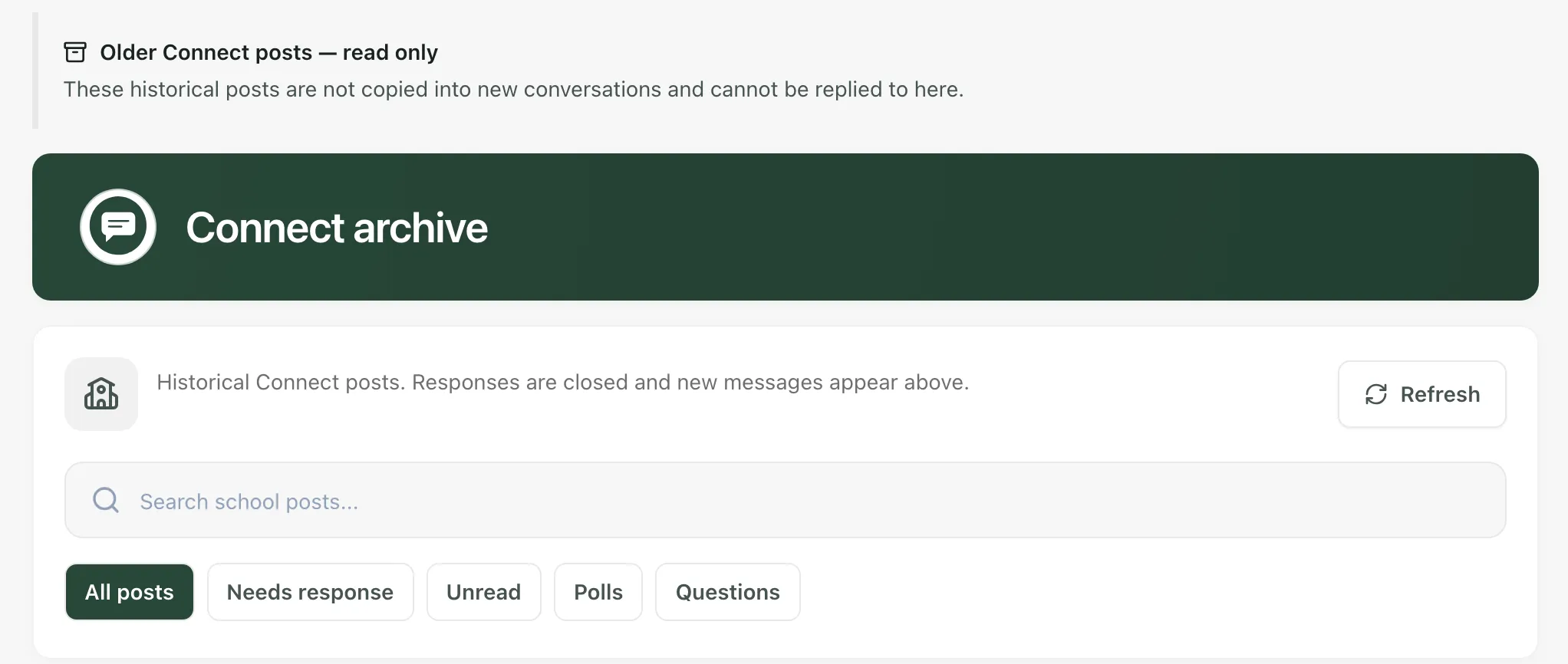
Each post shows who it’s from, when it was sent and who it was sent to, such as the whole School or your child’s class. Posts you haven’t read yet are marked New. Some posts are also marked as a Poll, a Question, or an Acknowledgement the school asked you to confirm.
To find a post:
- Type a word from it into Search school posts….
- Use the filters: All posts, Needs response, Unread, Polls or Questions.
- Click Refresh to check for anything new.
Replying to the school
Section titled “Replying to the school”These posts are marked Read-only archive. You can read them, and any earlier comments under Archived comments, but you can’t vote, answer, comment or react to them in the portal. The buttons are greyed out.
To reply to the school, or to ask about something in a post, contact the school office in the usual way, for example by phone or email.
For some things, the portal has its own way to tell the school:
- To explain an absence, use Requests. See Report or explain an absence.
- To tell school about something you’ve noticed at home, use Parent log. See Add a parent log entry.
- To fill in a form or give consent, use Forms. See Complete a form or consent request.
Read posts in another language
Section titled “Read posts in another language”If you’ve chosen another language for the portal, posts can be translated for you. Under a translated post you’ll see a short note. Click Show original English to see the school’s own wording, which is always the official version. If a translation looks wrong, click Is this translation incorrect? to report it.
To change your language, see Change the portal language.
If something doesn’t work
Section titled “If something doesn’t work”| What you see | What to do |
|---|---|
| “No school posts yet” | The school hasn’t published any posts to you yet. |
| “No matching posts” | Clear the search box, or click All posts. |
| “We couldn’t load school posts” | Click Try again. |
| “New messages are temporarily unavailable” | Click Try again. If it keeps happening, contact the school office. Older posts are still shown. |
| “Messages are not available for this account” | Contact the school office. They can check how your account is set up. |
| “Message notifications are unavailable. Open Messages to check access.” | Your notifications still work for other updates. Open Messages to see the school’s posts. |