Record an intervention session
Written for: All school staff who deliver interventions.
After you run an intervention session, record it in the Intervention Planner: whether it went ahead, which pupils came and anything you noticed about their progress. Each part is recorded separately, so the plan’s review can see what was delivered, who attended and how pupils are getting on.
Find the session
Section titled “Find the session”- In the sidebar, open Inclusion and choose Intervention Planner.
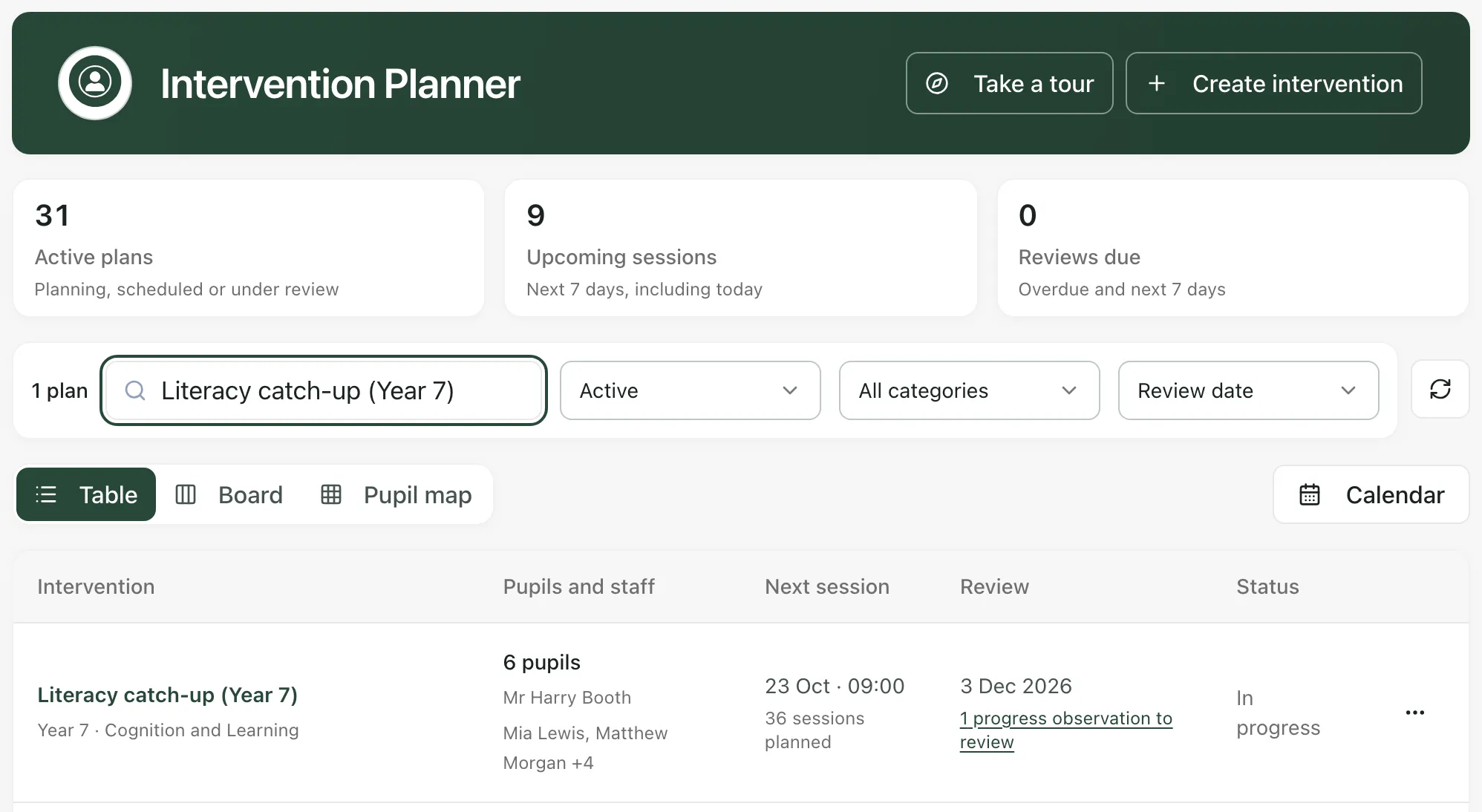
- Find the plan. Type in Search plan, pupil or staff…, or choose Awaiting delivery record in the filter (it shows Active to start with) to list plans with a past session that hasn’t been recorded yet.
- Click the plan’s name. The plan opens in a window with its sections along the top.
Record whether the session happened
Section titled “Record whether the session happened”- Click Schedule. Sessions are listed in date order. A past session that hasn’t been recorded shows Awaiting delivery record.
- Under the session, click Record delivery.
- Enter the Actual minutes the session ran for and the Staff who delivered it. If more than one person delivered it, separate their names with commas.
- Click Mark delivered next to the session.

Mark delivered stays greyed out until you’ve entered the minutes (a whole number up to 480) and at least one member of staff. Once it’s saved, the session shows as delivered, with the actual minutes and staff underneath. To correct it later, click Edit delivery record, change the details and click Save delivery record.
If the session didn’t go ahead as planned:
- It didn’t happen: under Record delivery, say why in Delivery reason, then click Record not delivered.
- It’s moving to another time: enter a Delivery reason, a Replacement date and a Replacement time, then click Reschedule session. A new session is added at the new time, with the same length, staff and room.
- It’s cancelled: click Cancel session, then Confirm cancellation. A cancelled session is left out of the attendance figures. Click Keep session if you change your mind.
To add a session that isn’t in the schedule, click Schedule a session at the top of the Schedule tab, fill in the Date, Start time, Minutes, Staff, Room and Focus, then click Add session.
Take the pupil register
Section titled “Take the pupil register”- Click Attendance. Each session is listed with how many places have been marked.
- Click the session to open its register.
- Choose Present, Late, Absent or Not expected for each pupil. To start with everyone present, click Mark all present, then change anyone who wasn’t.
- Click Save attendance.
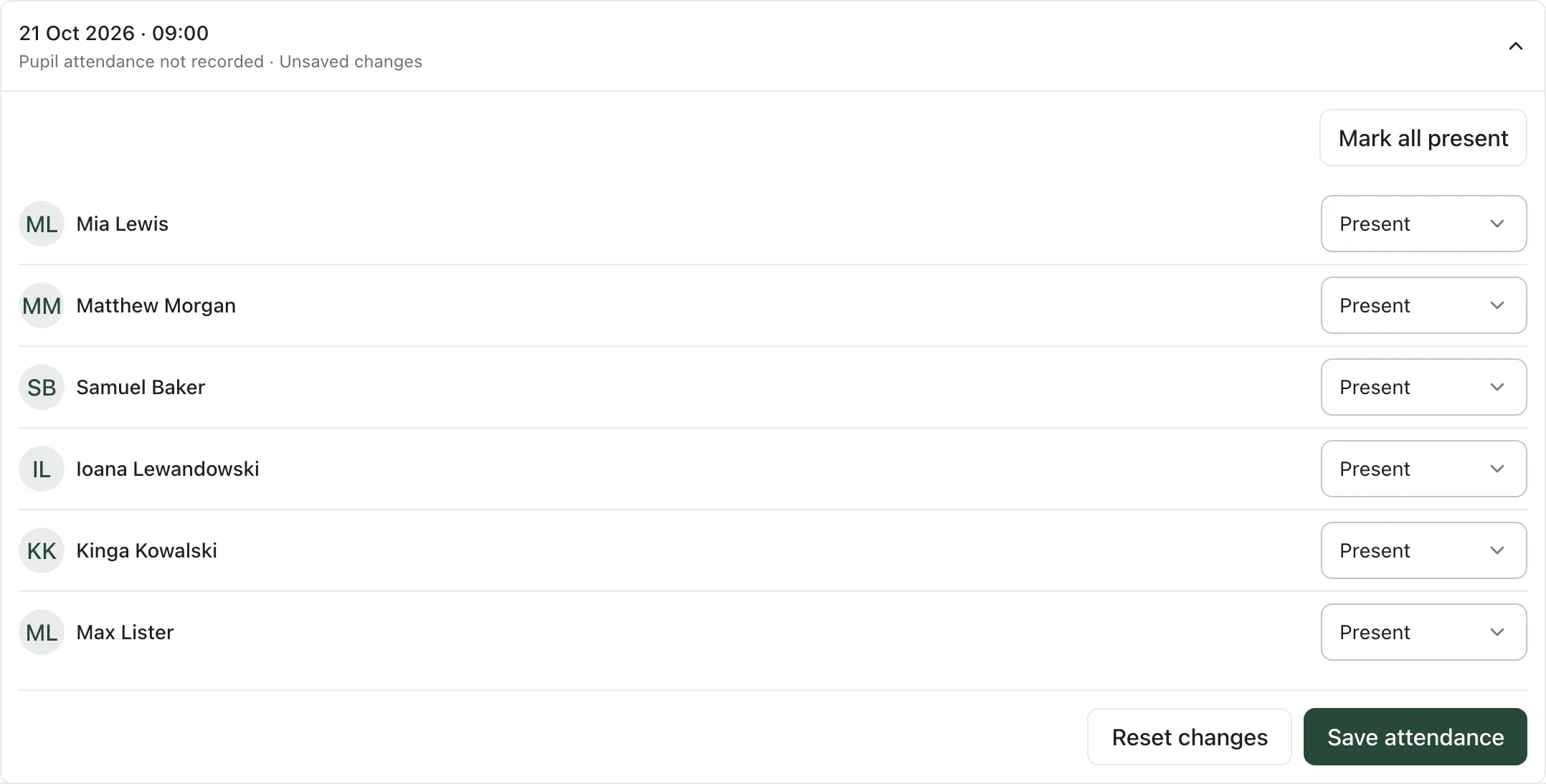
Reset changes puts the register back the way it was last saved.
At the top of the Attendance tab, Attendance among marked places shows the share of marked places where the pupil was present or late. Pupils marked Not expected and cancelled sessions are left out, and a pupil who hasn’t been marked isn’t counted as absent. Click How attendance is calculated for the detail.
Note how pupils got on
Section titled “Note how pupils got on”Attendance only records who was there. Record your judgement about progress separately:
- On the Schedule tab, under the session, click Session notes and progress.
- Choose a Staff judgement: Improving, On track, Needs support or Missed. Leave it as Not assessed if you didn’t judge progress this time.
- Add what you saw in Evidence and observations.
- Click Save observation.
The same form is at the bottom of the Review tab, where you can pick the Session. Sessions judged Needs support show in the planner list as progress observations to review, so the person leading the plan can look at them. The Needs review filter lists those plans.
Close the plan
Section titled “Close the plan”Click Close. If you’ve started something and not saved it, you’ll be asked whether to discard it. Click Keep editing to go back, or Discard changes to close without saving.
- Any member of staff can record sessions on plans created in the Intervention Planner.
- Plans that come from your MIS or from Provision Map are view only, and show View only in the list. Record their sessions where they’re managed. For a Provision Map plan, click Open in Provision Map.
- Recording sessions doesn’t review the plan. To judge whether the intervention is working, use Record intervention review on the Review tab.
- Click Calendar on the planner page to see intervention sessions in the Calendar.
- For a short guide to the planner, click Take a tour.
If something doesn’t work
Section titled “If something doesn’t work”| What you see | What to do |
|---|---|
| Mark delivered is greyed out | Click Record delivery and enter the Actual minutes and the Staff who delivered. |
| “You have view-only access to this intervention.” | You can read this plan but not record against it. Ask the person who leads the plan. |
| “You have view-only access to this imported intervention.” | The plan comes from your MIS. Record its sessions in your MIS. |
| “The session was not updated. Please try again.” | Check your connection and try again. Your details are still in the form. |
| “Rescheduling was not saved. Please try again.” | Check the replacement date and time, then click Reschedule session again. |
| “Attendance was not saved. Your changes are still here; please try again.” | Click Save attendance again. If it keeps happening, close the plan, reopen it and re-enter the marks. |
| “The observation was not saved. Your changes are still here.” | Click Save observation again. |
| “No pupils are linked to this intervention. Add pupils in Overview to record their attendance.” | The plan has no pupils yet. Ask the plan lead to add them on the Overview tab, then take the register. |
| “Interventions could not be loaded” | Click Try again. |