Add a bookable resource
Written for: Headteachers and Student Radar administrators.
Add the rooms, equipment and vehicles your school shares to Resource Booking, such as the hall, an ICT suite, a laptop trolley or the minibus. Once a resource is added, staff can see when it’s free and book it.
Add the resource
Section titled “Add the resource”- In the sidebar, open Administration and choose Resource Booking.
- Click Add Resource at the top of the page.
- Type the Resource name, for example Library room or Laptop trolley A.
- Choose the Type: Room, Equipment, Vehicle or Other.
- If you like, add:
- Location: where to find it, such as Science block.
- Capacity: how many people or items it holds, as a whole number.
- Description: anything staff should know before booking.
- Leave Active resource switched on so staff can book it straight away.
- Click Save resource.
“Resource created” confirms it, and the resource’s week opens so you can see its bookings.
What staff see
Section titled “What staff see”The resource joins the list on the Resource Booking page, with its type, location and capacity. Approval shows Auto, so bookings are confirmed straight away, and Status shows Active.
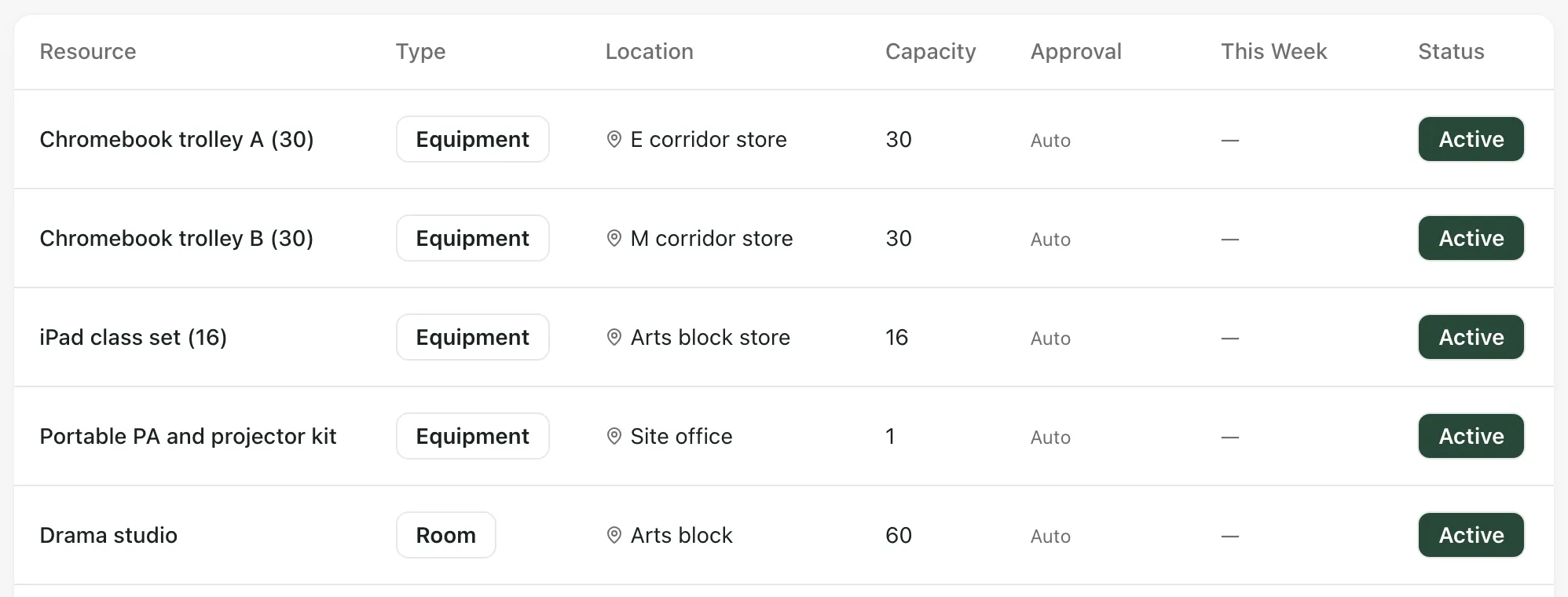
To book it, staff follow Book a room or resource.
- Leave Requires approval switched off. Bookings for a resource that requires approval stay pending, and Resource Booking doesn’t yet have a way to approve them.
- A resource with Active resource switched off shows as Inactive and can’t be booked.
- You can’t edit a resource on this page once it’s saved, so check the details before you save.
- Add Resource is greyed out unless you’re a headteacher or Student Radar administrator.
If something doesn’t work
Section titled “If something doesn’t work”| What you see | What to do |
|---|---|
| Add Resource is greyed out | Ask your headteacher or Student Radar administrator to add the resource. |
| “Resource name is required” | Type a name for the resource. |
| “Capacity must be a whole number.” | Enter the capacity without decimals, or leave it blank. |
| “Failed to create resource.” | Check the details and try again. If it keeps happening, contact Student Radar support. |
| “We couldn’t load resource bookings” | Click Retry. |