Set homework for a class
Written for: Teachers and other staff who set homework.
Use the Homework Planner to set homework for a teaching class. You write the task, add any resources and a deadline, and assign it. Once it’s assigned, it’s visible to the pupils in the class, and you can follow up returned work from the same page.
Open the homework planner for your class
Section titled “Open the homework planner for your class”- In the sidebar, click Classes.
- Click Teaching classes, then the subject and the class.
- Click Homework.
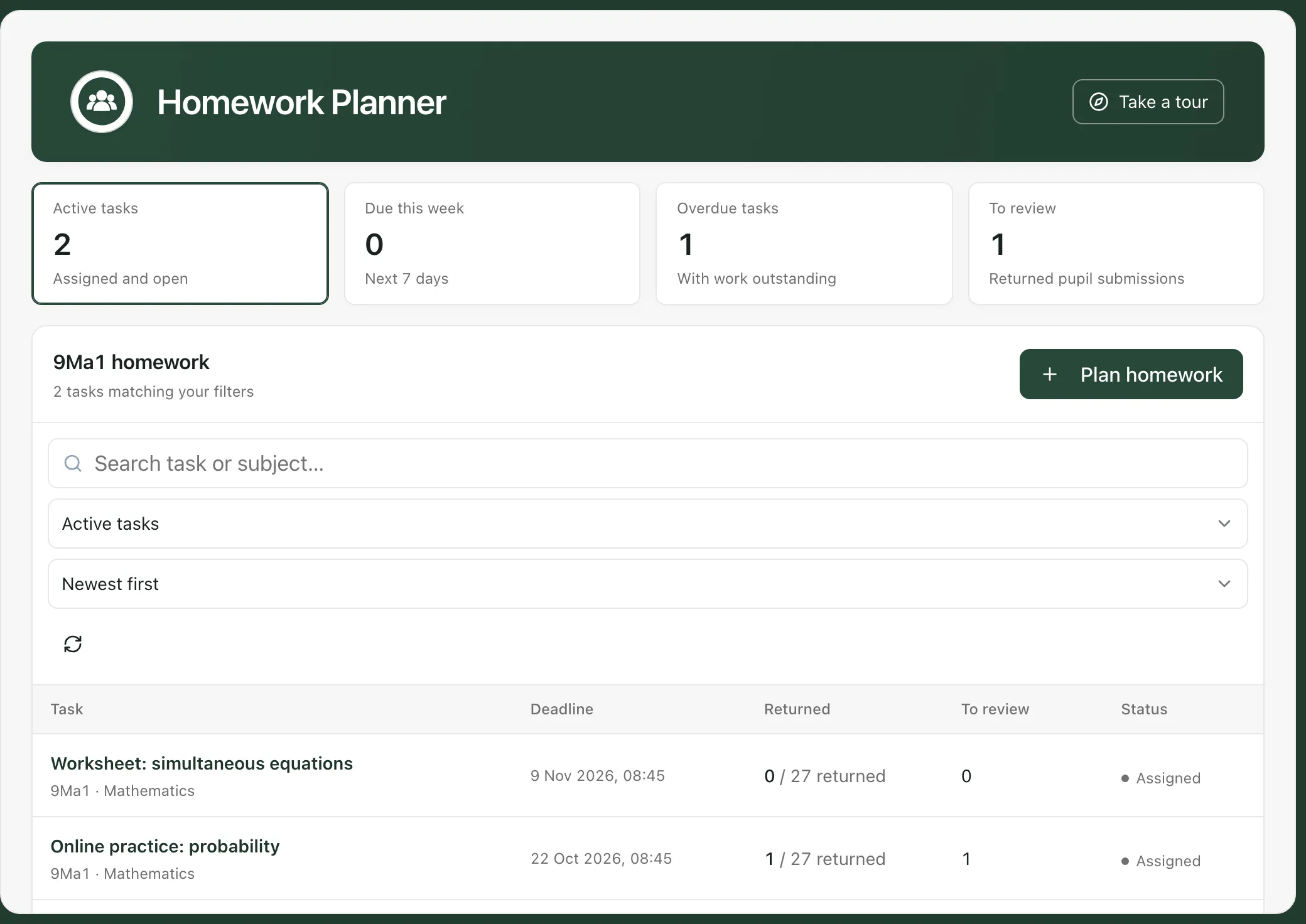
The Homework Planner opens with the homework already set for that class.
Homework is set for teaching classes, not tutor groups. If you open Homework from a tutor group, Student Radar may ask you to choose one of that year group’s homework classes instead.
Plan the homework
Section titled “Plan the homework”-
Click Plan homework.
-
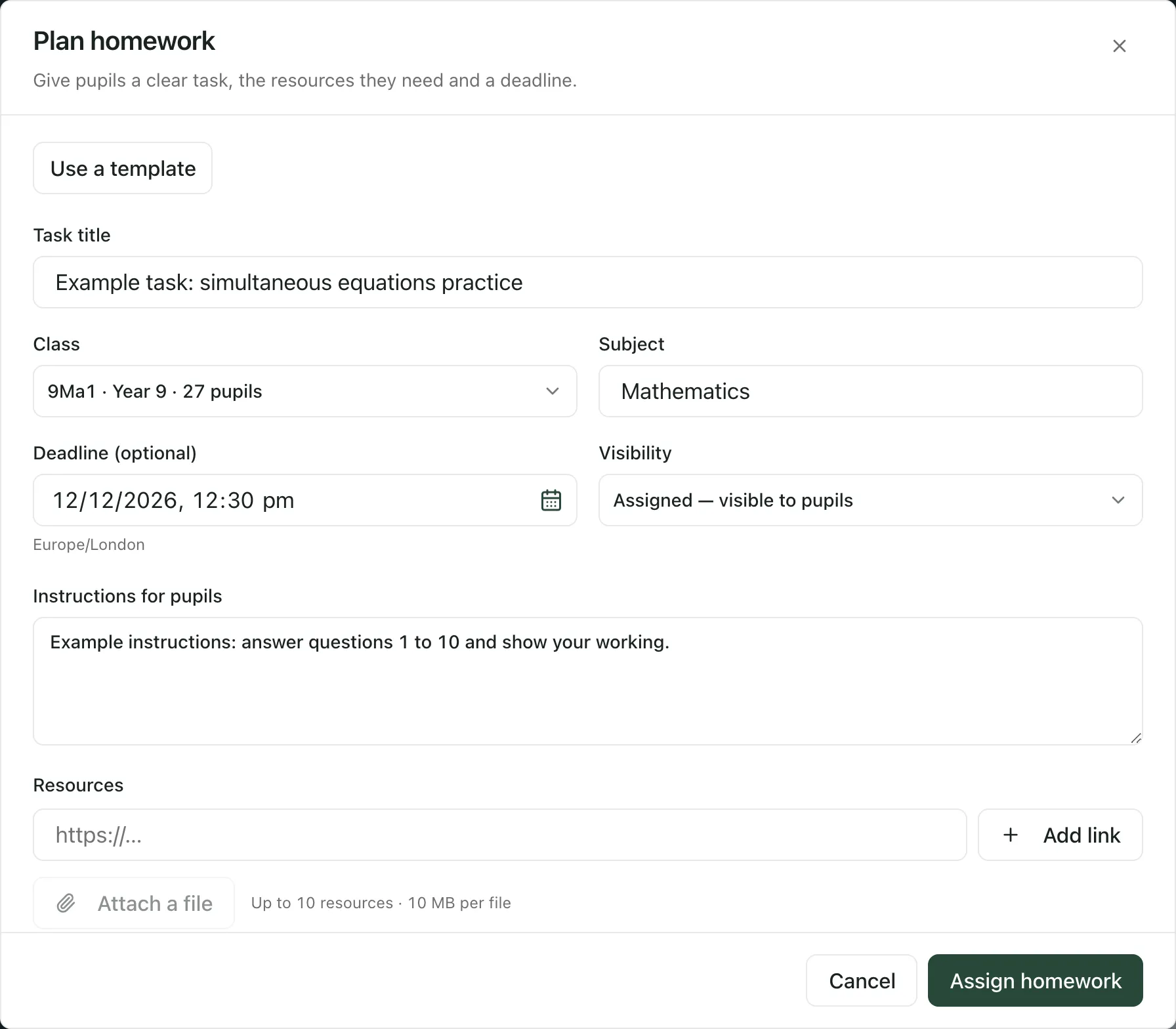
Enter a Task title.
-
Check the Class and Subject. When you start from a class, the class is already chosen. You can change the subject.
-
If the work has a deadline, set the Deadline (optional) date and time. The time zone is shown under the box.
-
Under Visibility, choose:
- Assigned — visible to pupils, to set the homework now.
- Draft — staff only, to keep working on it before pupils see it.
-
Under Instructions for pupils, say what pupils should do and what they should hand in.
-
Add any Resources pupils need:
- For a website, paste the link (it must start with https://) and click Add link.
- For a file, click Attach a file. You can attach PDF, Word, PowerPoint, PNG, JPG and text files of up to 10 MB each.
You can add up to 10 resources.
-
Click Assign homework, or Save draft if you chose a draft.
When the homework is saved, it opens so you can check it, and it appears in the list.
More options
Section titled “More options”- Use a template: at the top of the window, click Use a template and choose from Start from a template. The template fills in the title, subject, instructions and resources, and you can change them before you assign.
- Staff notes and submission options: click this to add Staff notes, which only staff can see, or to tick Allow submissions after the deadline. If you leave it unticked, pupils can’t mark the homework as done once the deadline has passed.
- Show reviewed marks in Markbook: if you see this option, tick it to add a column for the task to the Digital Markbook. When you review a pupil’s work, the mark you give is saved in the markbook too.
Change or archive homework
Section titled “Change or archive homework”- In the list, click the task’s title.
- Click Edit task, make your changes, then click Save changes. Once homework has been assigned, you can’t turn it back into a draft.
- To take a task out of your active list, click Archive task. To see it again, choose Archived in the status list.
You’ll only see Edit task and Archive task if your account can change assessments for every pupil the task was set for.
Keep track of homework
Section titled “Keep track of homework”The four figures along the top count your tasks. Click one to show only those tasks:
- Active tasks: assigned and still open.
- Due this week: due in the next 7 days.
- Overdue tasks: past their deadline with work still outstanding.
- To review: returned work waiting for your review.
To find a task, type in Search task or subject…, or use the lists to choose a status, such as Drafts or Marked, and to sort by Newest first or Deadline first.
In the list, Returned shows how many pupils have handed the work in, and To review shows how many returned pieces of work you haven’t reviewed yet. To review them, see Review homework submissions.
- Who can set homework: any member of staff can open the Homework Planner by default. Plan homework is greyed out if your account can’t record assessments for every pupil in the class. Schools can change who has access.
- Reminders: homework reminders are sent through Communications, which isn’t available yet. You can’t send homework reminders from Student Radar at the moment.
- Tour: click Take a tour at the top of the page for a step-by-step guide.
If something doesn’t work
Section titled “If something doesn’t work”| What you see | What to do |
|---|---|
| “Enter a title and choose a class.” | Give the homework a Task title and make sure a Class is chosen. |
| “Choose a valid deadline.” | Check the date and time in Deadline (optional), or clear it. |
| “Enter a complete HTTPS link.” | Paste the whole web address, starting with https://. |
| “Templates could not be loaded. You can still write the task.” | Write the homework without a template, or close the window and try again later. |
| “No homework matches these filters” | Choose another status, clear the search box, or click Plan homework to set a new task. |
| “Class choices could not be loaded.” | Click Retry classes. |
| “Homework could not be loaded or saved. Please try again.” | Click Retry load. If you were saving, check your connection and try again. |
| “No homework classes are currently available to you.” | Your account doesn’t have a teaching class for homework. Ask your school’s Student Radar administrator. |
| “Your school could not be verified. Please sign in again.” | Sign out, then sign in again. |