Ask for help in school
Written for: All school staff.
Use In-School Support when you need a colleague to come and help, for example with a pupil who has left a supervised area, a medical problem or a behaviour situation. Student Radar sends your request to the right team in your school and shows you when someone has accepted it.
Sending a request alerts real colleagues straight away. Only send one when you need help.
Send a request for help
Section titled “Send a request for help”-
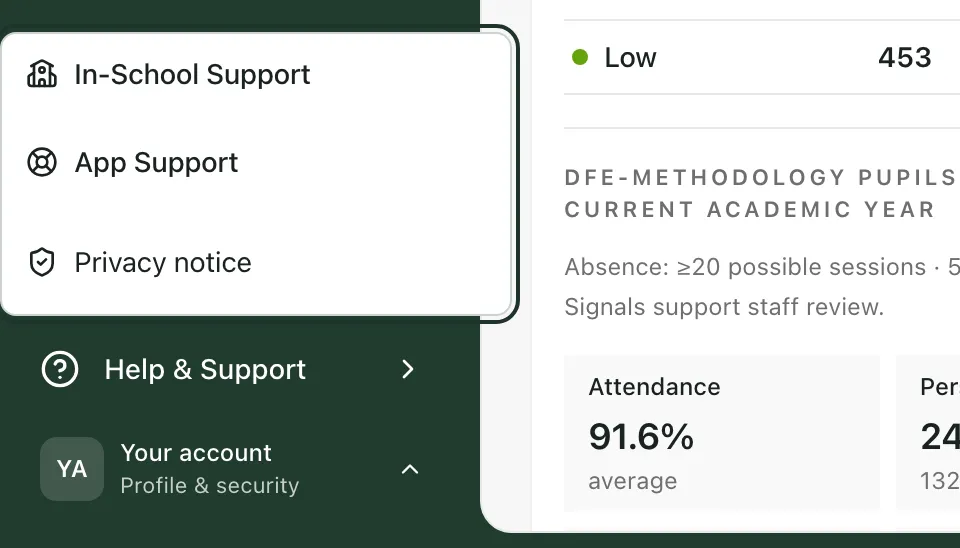
In the sidebar, click Help & Support, then In-School Support. On a phone, tap Menu at the bottom of the screen first.
-
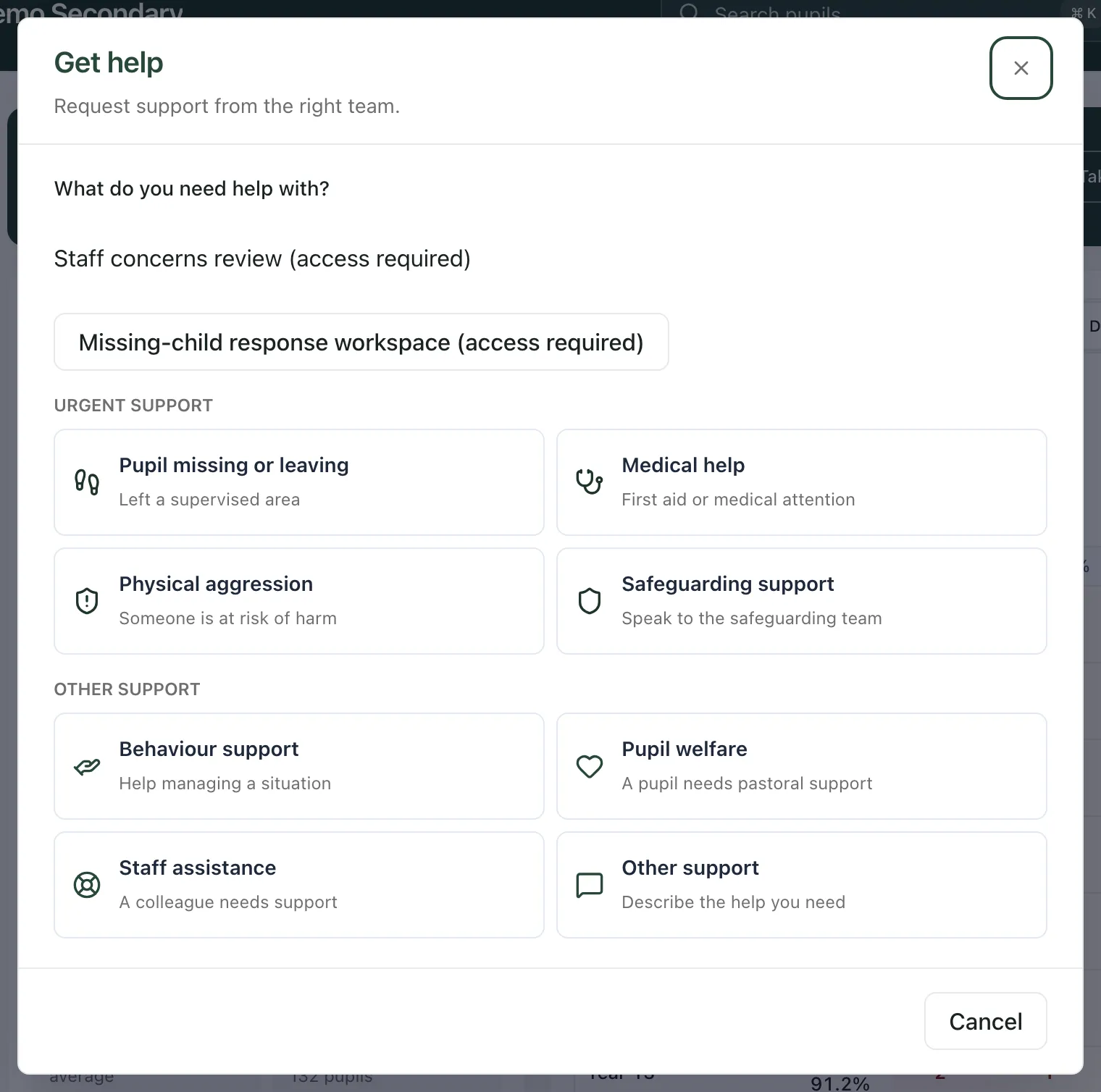
Under What do you need help with?, click the kind of help you need.
-
Check who the request will go to, shown under the title after To:. To choose a different kind of help, click Change.
-
In Where is help needed?, type the room or place, such as the main hall. If you don’t know where, tick Location not known instead.
-
If the request is about particular pupils, search for them under Pupils and choose them. You can link one pupil, or up to five for medical help, physical aggression and behaviour support. Leave it blank if you don’t know who’s involved.
-
Add anything that will help the team respond in Useful details, in up to 250 characters. For Other support, this box is called What help do you need? and you must fill it in.
-
Click Send request.
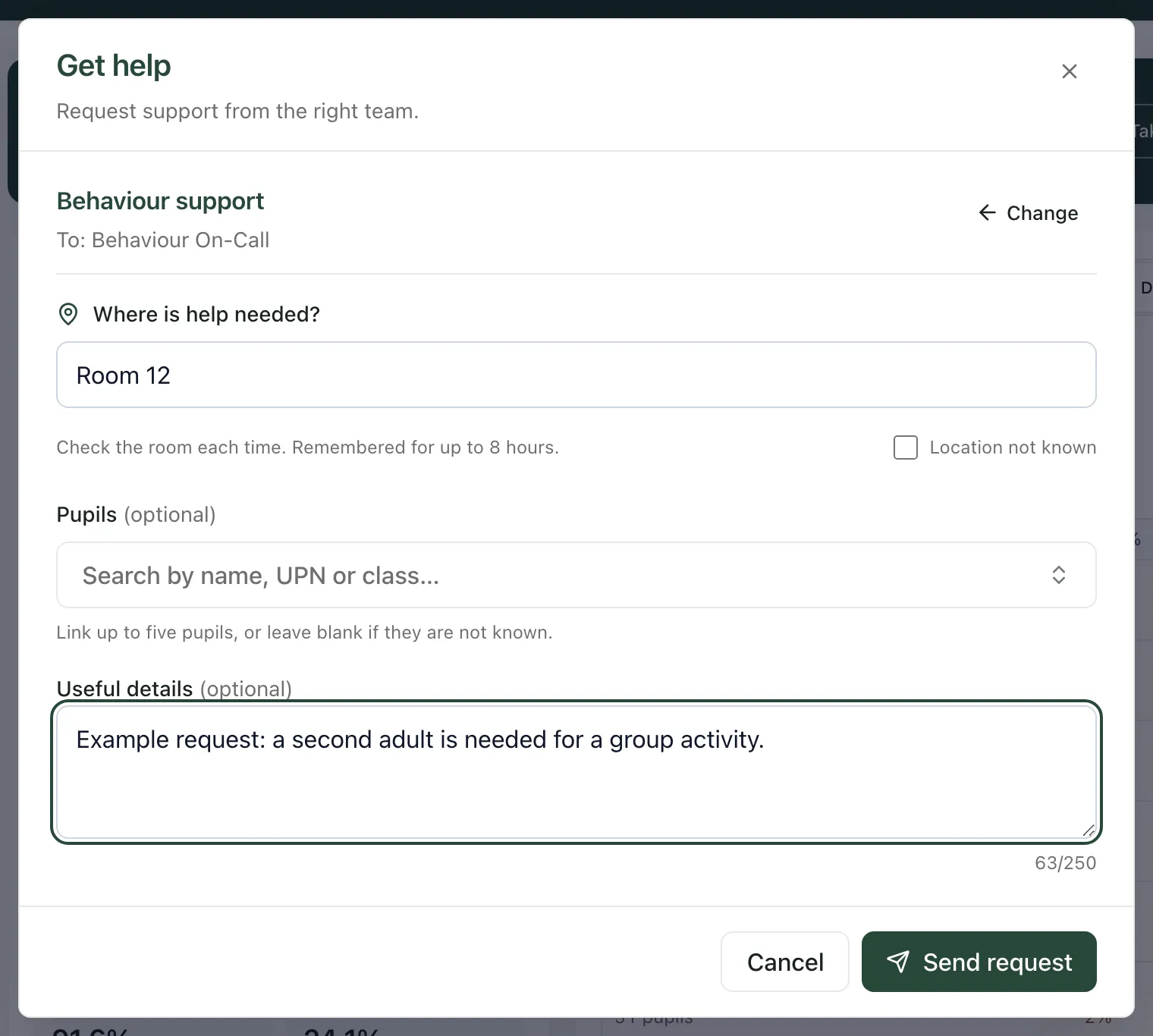
Student Radar remembers the location you entered on this device for up to 8 hours, so it’s filled in next time. Check it’s still right before you send another request.
Who receives your request
Section titled “Who receives your request”| You choose | It goes to |
|---|---|
| Pupil missing or leaving | DSL, deputy DSL, SLT, on-call staff and the school office |
| Medical help | First Aid On-Call |
| Physical aggression | Behaviour On-Call |
| Safeguarding support | DSL, deputy DSL, SLT and on-call staff |
| Behaviour support | Behaviour On-Call |
| Pupil welfare | DSL, deputy DSL and on-call staff |
| Staff assistance | SLT and on-call staff |
| Other support | SLT and on-call staff |
After you send it
Section titled “After you send it”Support requested appears with a summary of your request: the team, the location and any pupils you linked. A status line shows how the request is going, for example “Waiting for a responder to accept.” or “A responder has accepted this request.”
Student Radar records the request for the team. That doesn’t confirm that someone is on their way. If help is urgent and nobody has accepted it, contact the team directly.
- Click New request to ask for help with something else.
- Click Done to close the window.
- If View response queue is shown, click it to follow the request.
If a pupil is missing
Section titled “If a pupil is missing”Choosing Pupil missing or leaving also opens a missing-child incident for the response team. The request doesn’t record that the pupil has been found. Follow your school’s missing child procedure. If the window says the incident wasn’t opened, follow your school’s usual emergency procedure and contact the response lead directly.
Safeguarding support
Section titled “Safeguarding support”Safeguarding support asks the safeguarding team to come and help. It doesn’t record a safeguarding concern. Record the full concern with Raise concern and follow your school’s safeguarding procedure.
- In-School Support is for school staff. Governors see it greyed out, with the message “In-school support is available to school staff.”
- In a trust workspace, open one of your schools first.
- Staff who respond to requests also see links at the top of the window to the staff concerns review and the missing-child response workspace. You can only open these if you have access.
- For help with Student Radar itself, use App Support in the same menu instead.
If something doesn’t work
Section titled “If something doesn’t work”| What you see | What to do |
|---|---|
| Send request is greyed out | Enter a location or tick Location not known. For Other support, also describe the help you need. |
| “Remove the additional pupils before sending.” | You’ve linked more pupils than this kind of request allows. Remove one by clicking its name. |
| “We could not confirm the request. Try again to check the same request, or contact the team directly if help is urgent.” | Click Try again. Student Radar checks the same request rather than sending a second one. If help is urgent, contact the team directly. |
| “Notification delivery could not be confirmed. Contact the team directly if help is urgent.” | Your request is recorded, but Student Radar couldn’t confirm the team was told. Contact them directly if you need help now. |
| “Open a school workspace to request in-school support.” | You’re in a trust workspace. Switch to a school first. |