Find and open a report
Written for: Teachers, school leaders and governors.
The Reports Catalogue lists Student Radar’s assessment reports, grouped by the question they answer: where pupils are now, how they’ve progressed, how groups compare and so on. Each report shows what it’s for and which filters it supports, so you can pick the right one before you open it.
Open the catalogue
Section titled “Open the catalogue”In the sidebar, open Assessment, then Reports, and choose Reports Catalogue.
At the top of the page:
- Prepared packs group several reports for a common job, such as the Governor Pack or SLT Monday. Click Open pack to see them together.
- Frequent reports are common starting points. Once you’ve pinned reports, this becomes Pinned reports and shows your pins instead.
Choose a collection
Section titled “Choose a collection”Under Browse by collection, click the kind of question you want to answer.
| Collection | Use it for |
|---|---|
| Overview (Now) | The latest recorded outcomes. |
| Progress (Then → Now) | Pupil progress between two comparable points. |
| Comparisons & Gaps | Comparisons between measures, such as quadrant and Venn views. |
| Targets | Recorded targets and progress towards them. |
| Cohorts | Comparisons between groups, such as SEND or Pupil Premium. |
| Statutory | EYFS and end-of-key-stage outcomes for one academic year. |
| People | One pupil’s assessment evidence. |
| Subjects & Tests | Subject outcomes and test results. |
| Meetings | Evidence for pupil progress meetings. |
Each report in the collection has a card.
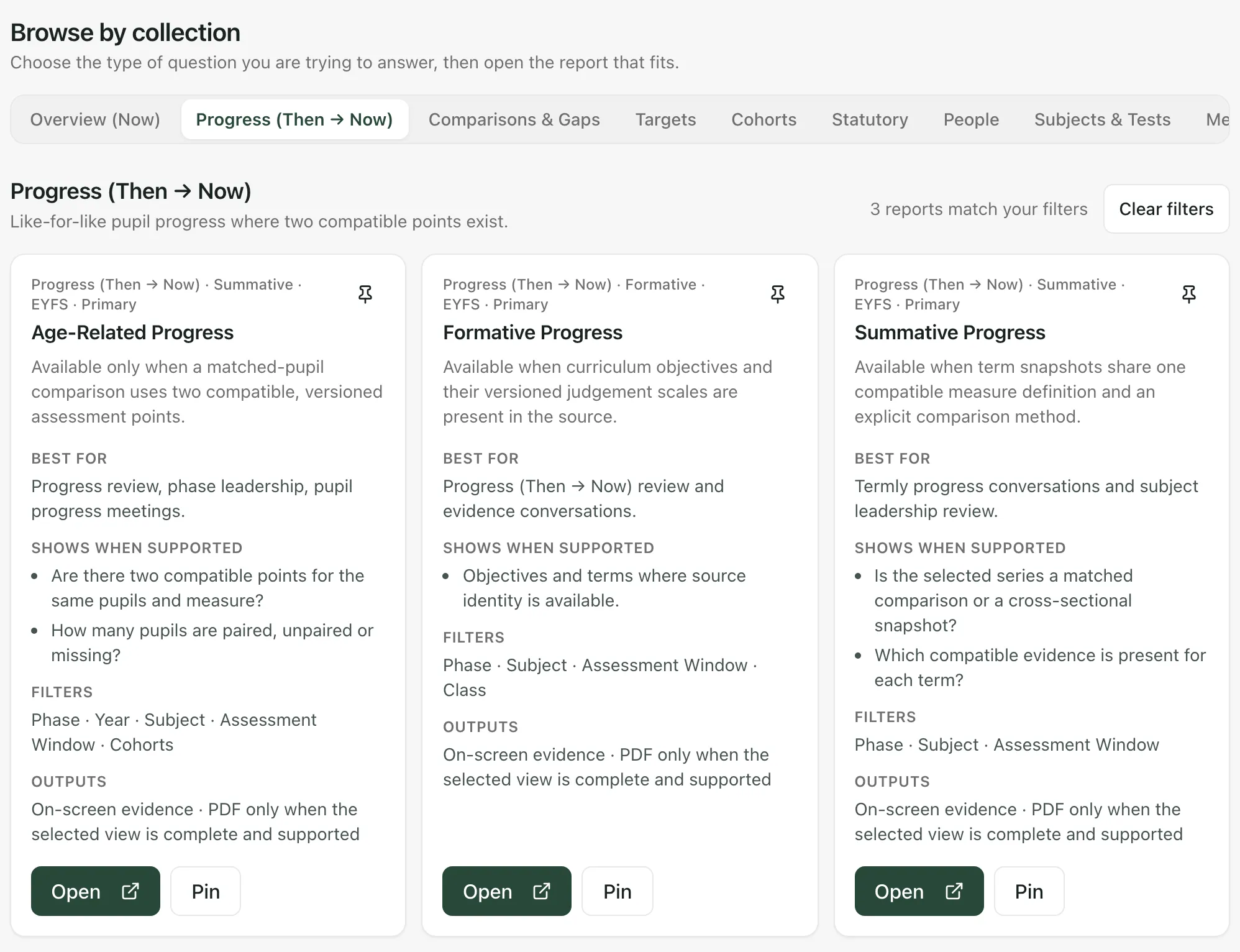
On each card:
- Best for says when the report is useful, for example termly progress conversations.
- Shows when supported lists the questions it answers when the data it needs is there.
- Filters lists the filters the report can use.
- Outputs reminds you that a PDF is only available when the report is complete.
Narrow the list
Section titled “Narrow the list”Use the panel above the collections to narrow what’s shown:
- Type in Search reports by name, question, or purpose. The search looks within the collection you’ve chosen.
- Pick an Academic year and any of the filters, such as Year, Class, Subject, Assessment Window or Cohorts. Filters that the chosen collection doesn’t use are greyed out.
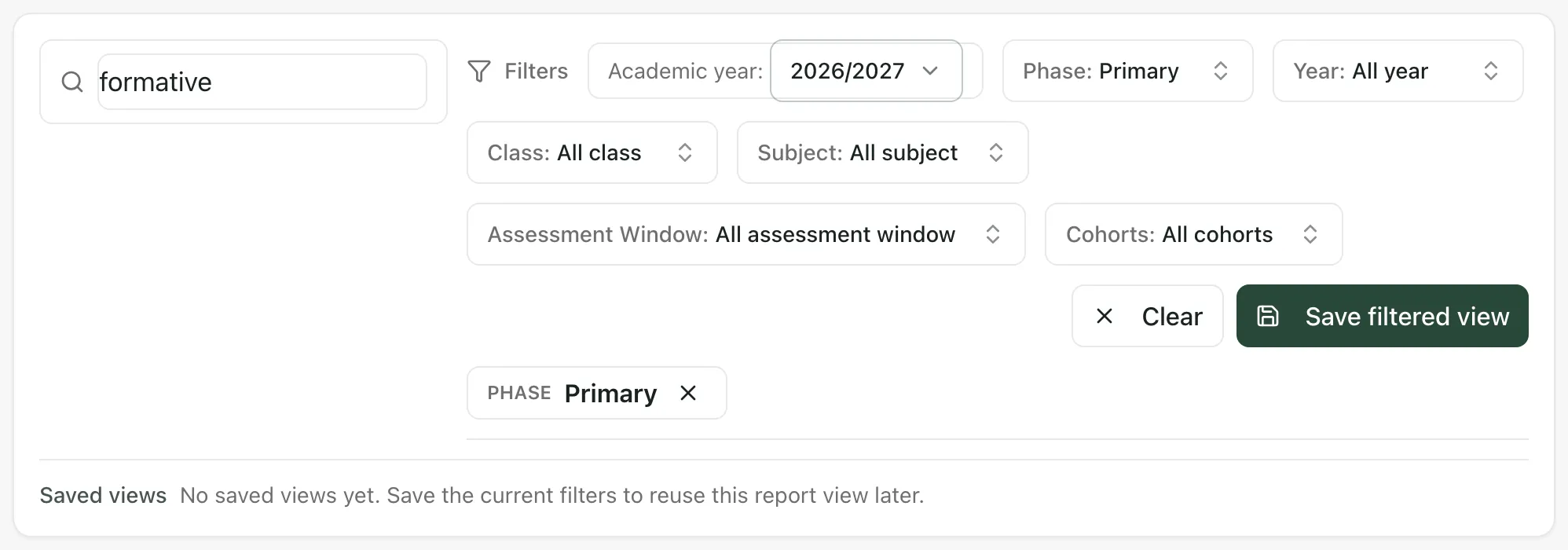
The collection shows how many reports match. If none do, you’ll see “No reports match your filters yet.” Click Clear filters (or Clear in the panel) to start again. The filters you choose carry over into the report you open.
Open a report
Section titled “Open a report”Click Open on the report’s card. The report opens on its own page.
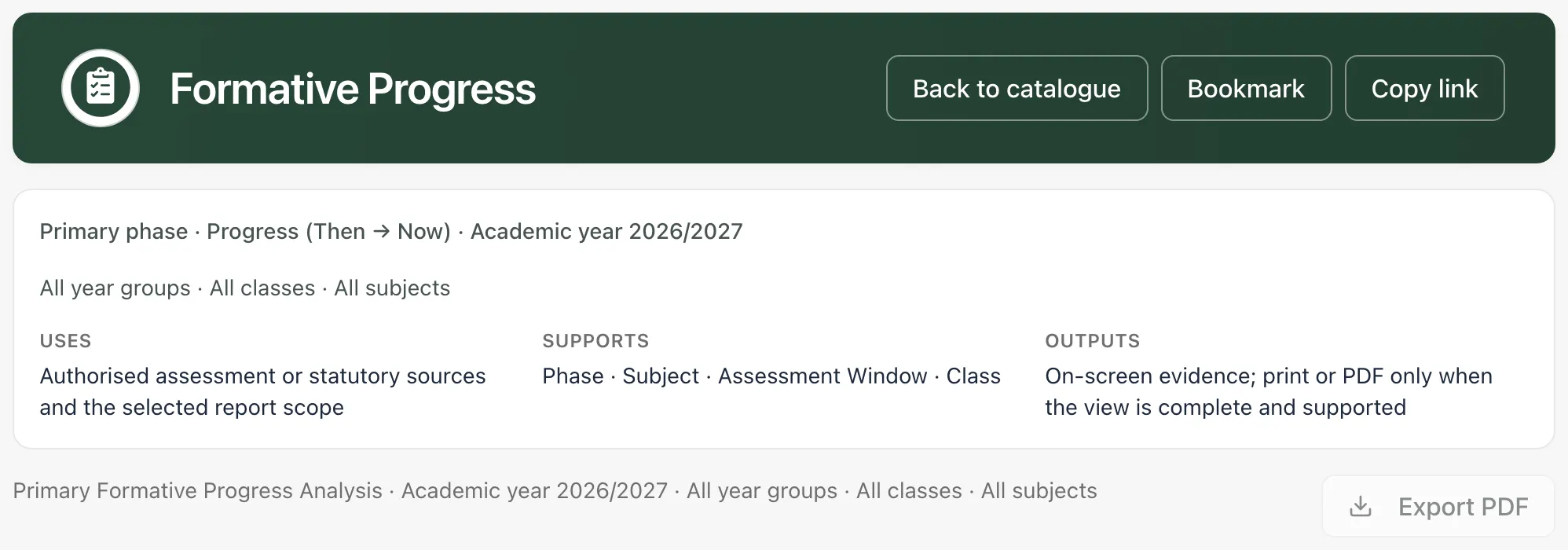
- The box at the top shows what the report covers: the phase, collection, academic year and the year groups, classes and subjects.
- Export PDF saves the report as a PDF. It’s greyed out until the report has the data it needs to be complete.
- Copy link copies the report’s address, with its filters, so you can send it to a colleague. They’ll only see what their own access allows.
- Back to catalogue returns you to the catalogue with your filters still set.
For Single Pupil Overview, choose the pupil from Pupil first.
Keep reports to hand
Section titled “Keep reports to hand”- Pin a report: click Pin on its card, or Bookmark on the report’s page. Pinned reports appear at the top of the catalogue and first in their collection. Pins are just for you.
- Save a filtered view: set the filters, click Save filtered view, give it a View name and click Save view. It appears under Saved views. Click its name to apply those filters again.
- Secondary schools: the catalogue currently holds EYFS and primary reports. For secondary outcomes and imported marks, click Assessment Reports in the note at the top of the catalogue.
- Reports only show evidence your account is allowed to see, and say when data is missing or can’t be compared, rather than filling the gap.
- If a report says its definitions need approving, someone who manages assessment settings at your school has to set it up before it shows results.
- Teaching assistants don’t have the Reports Catalogue.
- Print pack in a prepared pack stays unavailable while any report in it is incomplete. Use Export PDF on each report instead.
If something doesn’t work
Section titled “If something doesn’t work”| What you see | What to do |
|---|---|
| “No reports match your filters yet.” | Click Clear filters, or try another collection. |
| “Someone who manages assessment settings at your school can approve them from this report.” | The report hasn’t been set up for your school yet. Ask the person who manages assessment settings. |
| “Assessment report configuration or evidence could not be loaded.” | Click Retry report. |
| “Too many assessment reports have been opened in the last minute. Wait a moment, then retry.” | Wait a minute, then click Retry report. |
| “A saved pupil filter is no longer available” | Click Clear year and class filters, then choose the filters again. |
| “Report not found” | The link is out of date. Click Back to catalogue and choose the report again. |
| “The PDF could not be created. Please try Export PDF again.” | Click Export PDF again. |
| “Pinned reports unavailable.” | Click Retry pinned reports. |
| “Saved views unavailable.” | Click Retry saved views. |