Print pupil login cards and reset a pupil's password
Written for: Office staff, DSLs, headteachers and Student Radar administrators.
Pupils need their own account to sign in to Student Radar. You create pupil accounts in Account Connections, then hand out login cards with each pupil’s username and password. If a pupil forgets their password, you can give them a new one.
Login cards hold pupils’ passwords. Print them only when you need them, hand each card to the right pupil, and shred any spares.
Find pupil accounts
Section titled “Find pupil accounts”- In the sidebar, open Administration and choose Account Connections.
- Make sure the Student Accounts tab is open.
- Narrow the list with Search, Year group, Class or Status.
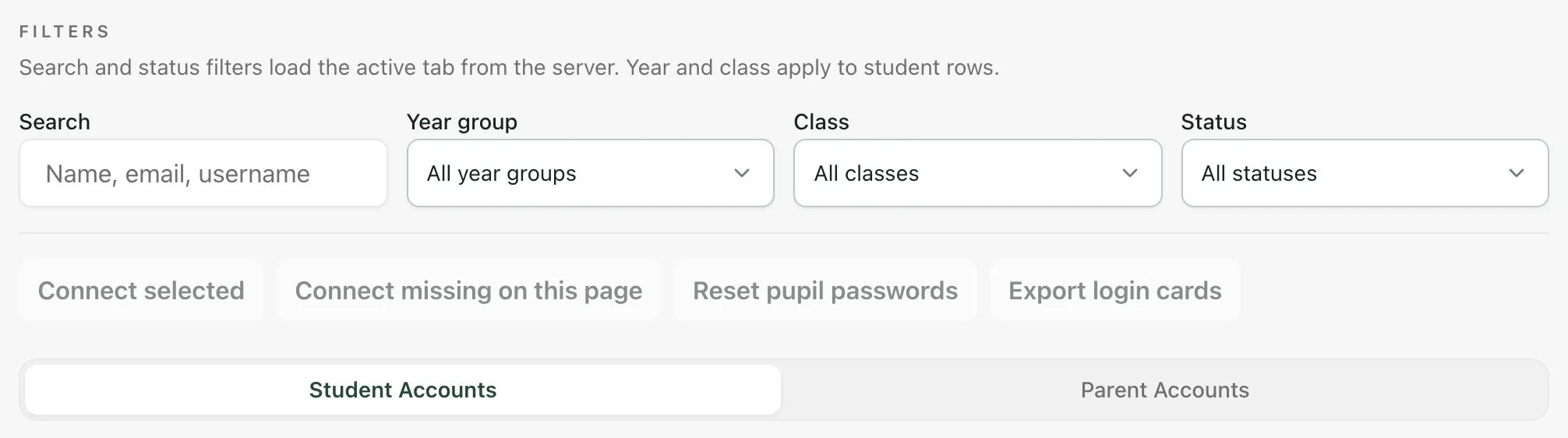
Each row shows the pupil’s class, username, Account status and when they last signed in. Connected means the pupil has an account; Not connected means they don’t yet.
Create accounts and print login cards
Section titled “Create accounts and print login cards”- Tick the pupils who need an account, then click Connect selected. To create accounts for every pupil in the list who hasn’t got one, click Connect missing on this page instead.
- A window lists each pupil’s username and password. The passwords are shown only once.
- Click Export cards. Student Radar saves a text file of login cards, one for each pupil, with their name, username and password.
- Click Close.
- Open the file, print it and cut out the cards.
You can also click Export login cards above the list to save the cards again, until you leave the page.
Reset a pupil’s password
Section titled “Reset a pupil’s password”- Find the pupil on the Student Accounts tab.
- Click Reset emoji in their row. To reset several pupils, tick them and click Reset pupil passwords.
- A window shows the new password. Click Export cards to save a login card, or note the password down for the pupil.
- Click Close.
The old password stops working straight away. Reset emoji is greyed out until the pupil’s account is connected.
Look at a pupil’s login card
Section titled “Look at a pupil’s login card”Click View login card in the pupil’s row. It shows their username, and their password only if you created or reset it during this visit to the page. If you need the password again later, reset it.
Take the built-in tour
Section titled “Take the built-in tour”Click Take a tour at the top of Account Connections for a short guide.
- Connecting accounts and resetting pupil passwords is done by DSLs, Student Radar administrators, headteachers and office managers. Other staff see “Student account changes are read-only”.
- Connect selected and Reset pupil passwords are greyed out until you tick at least one pupil. Export login cards is greyed out until you’ve created or reset passwords.
- To invite parents, see Invite a parent to the parent app.
If something doesn’t work
Section titled “If something doesn’t work”| What you see | What to do |
|---|---|
| “Student provisioning failed” | Try again. If it keeps happening, contact Student Radar support. |
| “Password reset failed” | Check that the pupil’s account is connected, then try again. |
| “No credentials returned” | No new passwords were made, so there’s nothing to print. Check the pupils’ account status. |
| “No login cards to export” | Create or reset passwords first, then export the cards. |
| “Account connections unavailable” | Click Refresh. If it keeps happening, contact Student Radar support. |