Take the detention register
Written for: All staff.
When you’re running a detention, record whether each pupil turned up. The register lists every pupil set that detention, so you can mark them in a few taps, on a computer, tablet or phone. Their outcomes then show in the Detentions page for everyone who follows up.
Open the register
Section titled “Open the register”- In the sidebar, open Behaviour, then Response and Escalation, and choose Detentions.
- Find the session:
- Today’s duty registers, at the top of the page, lists the detentions set in Student Radar for yesterday, today and tomorrow. It’s the quickest way in when you’re on duty.
- For other dates, find the session in the Detention register below. Use From, To and Detention type to narrow the list.
- Click Mark register on the session.
Mark each pupil
Section titled “Mark each pupil”-
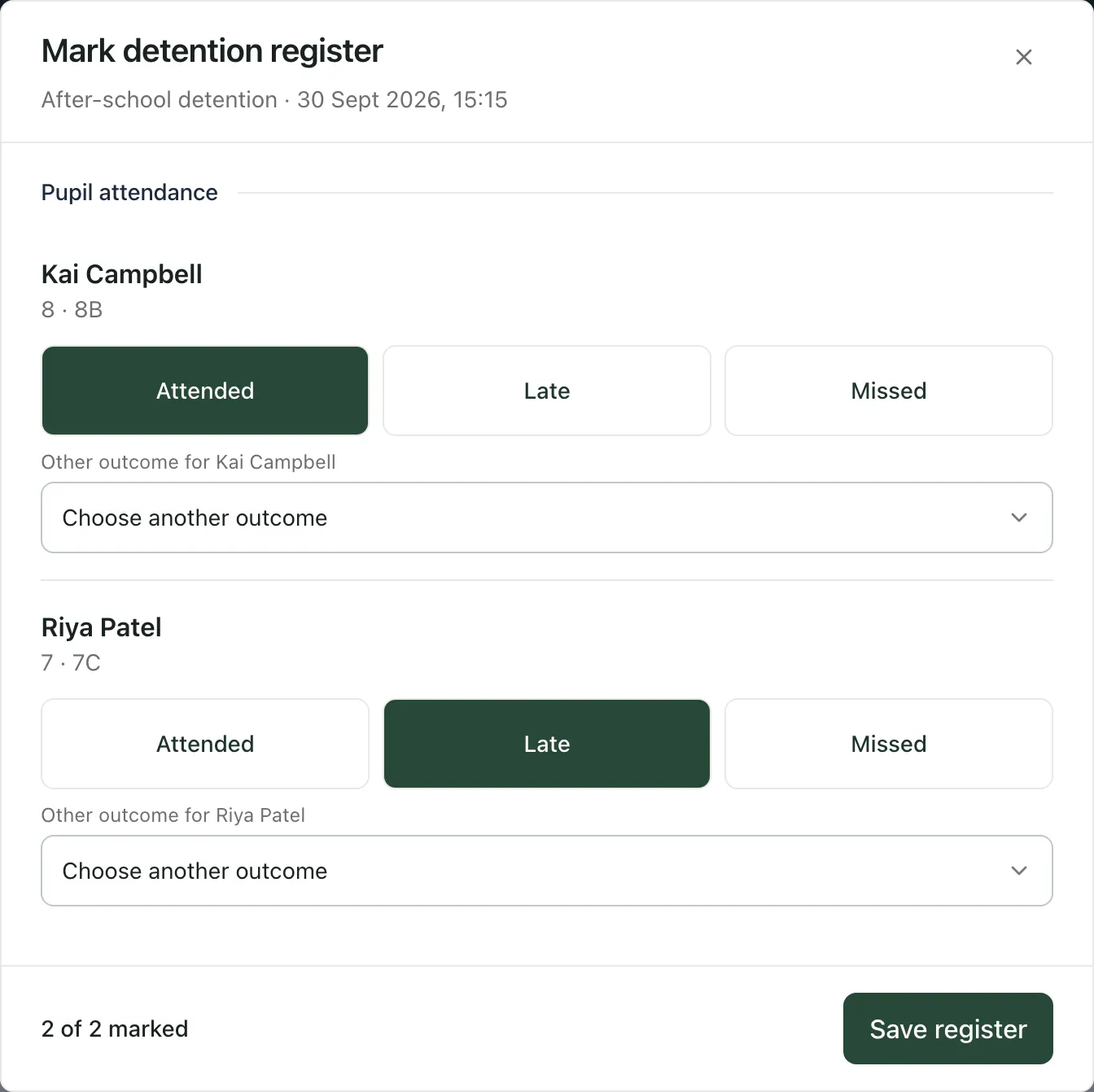
For each pupil, click Attended, Late or Missed.
-
For any other outcome, choose it from the list under the pupil, which starts as Choose another outcome.
-
Check the count at the bottom, for example 2 of 2 marked.
-
Click Save register. The window closes and the register on the Detentions page updates.
You don’t have to mark everyone at once. Only the pupils you’ve marked are saved, so you can come back for the rest. To change a mark later, click Mark register again. The saved marks are already selected: change the ones you need, then click Save register.
Other outcomes
Section titled “Other outcomes”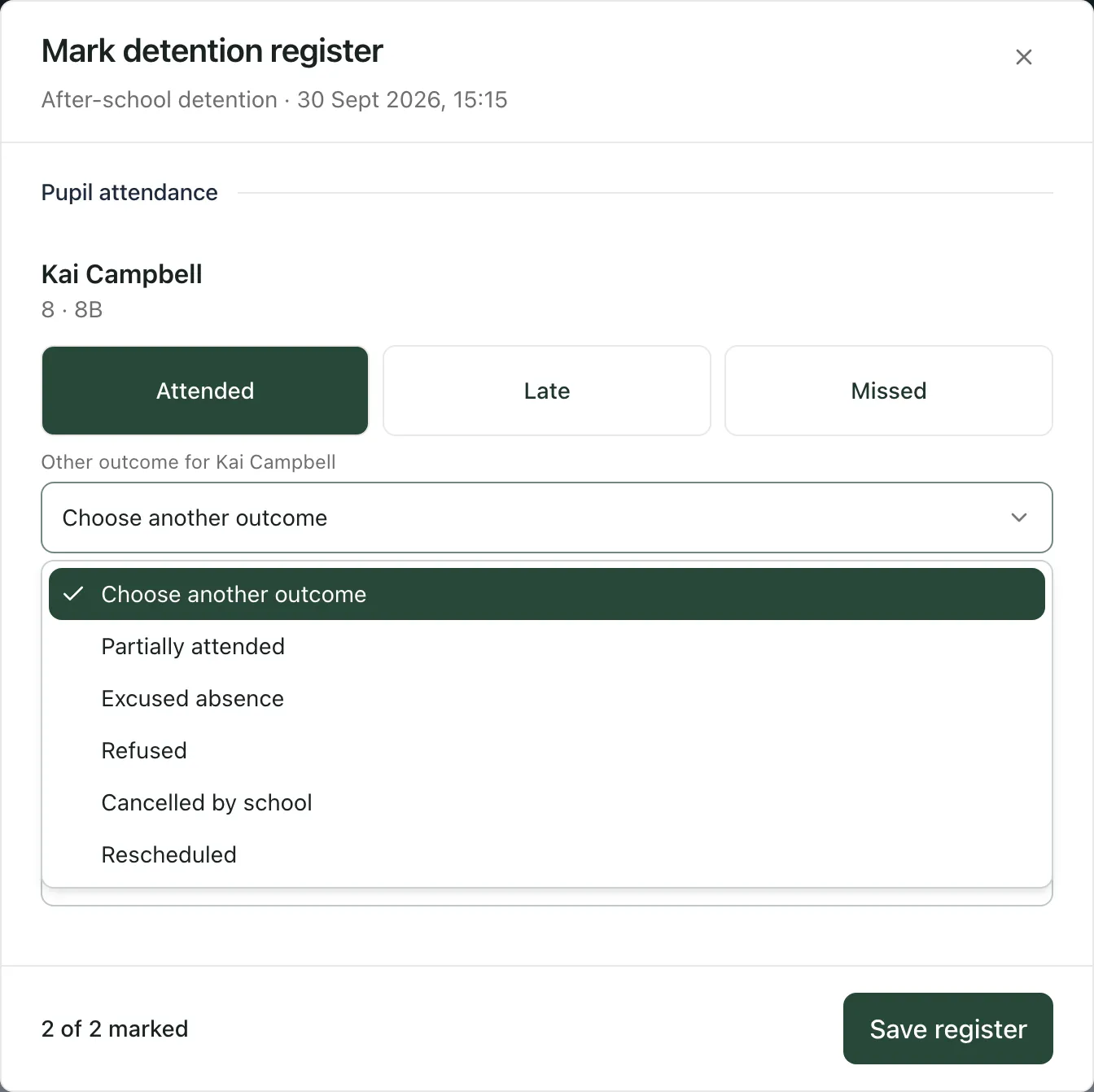
| Outcome | Use it when |
|---|---|
| Partially attended | The pupil came but didn’t stay for the whole detention. |
| Excused absence | The pupil had a reason for missing it that your school accepts. |
| Refused | The pupil refused to attend. |
| Cancelled by school | The school called off the detention for this pupil. |
| Rescheduled | The pupil’s detention has been moved to another session. |
Follow your school’s behaviour policy on what happens after a missed or refused detention.
If a pupil has missed earlier detentions, you’ll see how many beside their year and class.
See the outcomes
Section titled “See the outcomes”In the Detention register, the Attendance outcomes column sums up each session, such as Attended: 2. Click the arrow at the start of a row to see each pupil’s outcome and the reason for their detention. Before a register is marked, a pupil’s outcome says:
- Not yet marked, before the detention starts.
- In progress, while it’s running.
- Register not marked, once it has ended. These are the ones to follow up.
To see one pupil’s detentions over time, click the Pupils tab.
- Detentions from your MIS: sessions marked MIS-synced come from your school’s management information system. They don’t have a Mark register button. Record their attendance in your MIS.
- More than one person marking: if someone else saves the same register while you’re marking it, Student Radar won’t overwrite their marks. Close the register, open it again and check the marks before you save.
If something doesn’t work
Section titled “If something doesn’t work”| What you see | What to do |
|---|---|
| “This register changed while you were marking it. Reload before saving again.” | Someone else saved this register. Close it, click Mark register again, check the marks and save. |
| A message starting “Not saved” | Your marks weren’t saved but are still selected. Click Retry save. |
| “You do not have access to the detention register.” | Your account can’t mark this register. Ask your school’s Student Radar administrator. |
| “No active pupil assignments were found.” | Every pupil has been taken out of this detention, or it was cancelled. Click Refresh on the page. |
| “Could not load detentions” | Click Try again. |
| “No detentions found” | Try a different date range or detention type, or clear Find a pupil. |