Set up an annual review
Written for: SENCos and inclusion leads.
Each EHCP annual review in Student Radar moves through five stages: Prepare, Meet, Report, Decision and Close. This article covers setting the review up: arranging the meeting, then using the Prepare stage to record who’s coming, gather advice and views, and send the pre-meeting pack. To run the meeting and send the report, see Run the annual review meeting and send the report.
Student Radar helps you track the work and the dates. It doesn’t replace your local authority’s annual review procedures or your school’s own process. Check the LA’s timetable and requirements for each review.
Open the annual review register
Section titled “Open the annual review register”In the sidebar, open Inclusion, then SEND, then Reviews & Documents, and choose Annual Review.
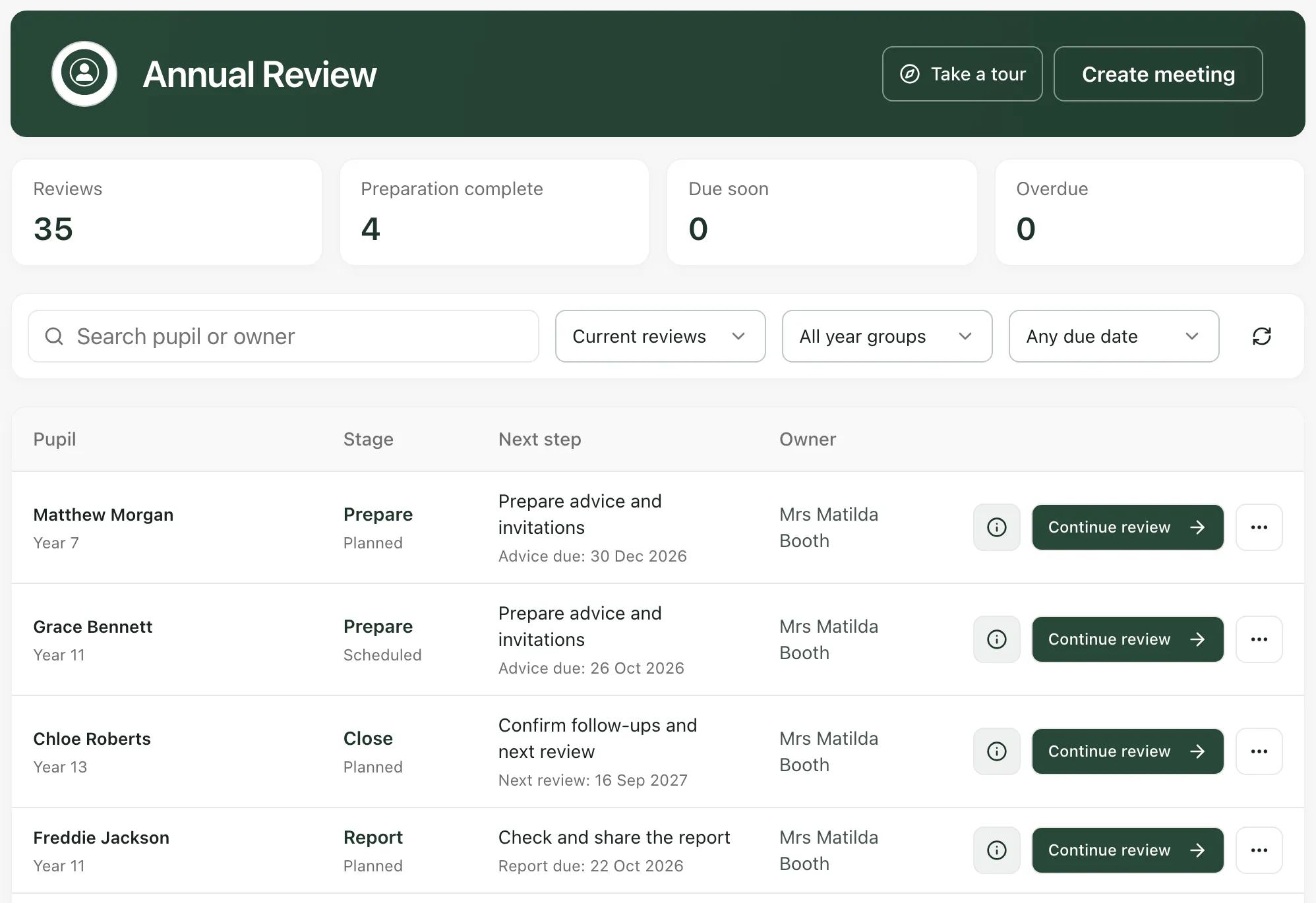
Across the top, Reviews, Preparation complete, Due soon and Overdue count the reviews in your register. Each row shows:
- the pupil and their year group
- the Stage the review has reached, such as Prepare or Report
- the Next step, with the date it’s due
- the Owner who’s leading the review.
To find a review, type in Search pupil or owner, or narrow the list with the filters. Choose Review history or All cycles to see completed reviews, and Due within 7 days or Overdue to see what needs attention first.
Click the information button (ⓘ) on a row to see the review’s Statutory timing: Review due by, Reports circulated by, Meeting, LA decision due and Next anniversary. The circulation and decision dates are worked out from the meeting date, so check them against your LA’s timetable.
Arrange the meeting
Section titled “Arrange the meeting”- Click Create meeting.
- Under Pupil, choose the pupil. Only pupils with an EHCP in your school are listed.
- Under Meeting details, enter the Date and Time, and choose the Format: In person, Online or Hybrid.
- Enter the Review due date: the deadline for this annual review.
- Under Responsibility, enter the Chair / owner leading the review and, if you like, their Role.
- Click Create meeting.
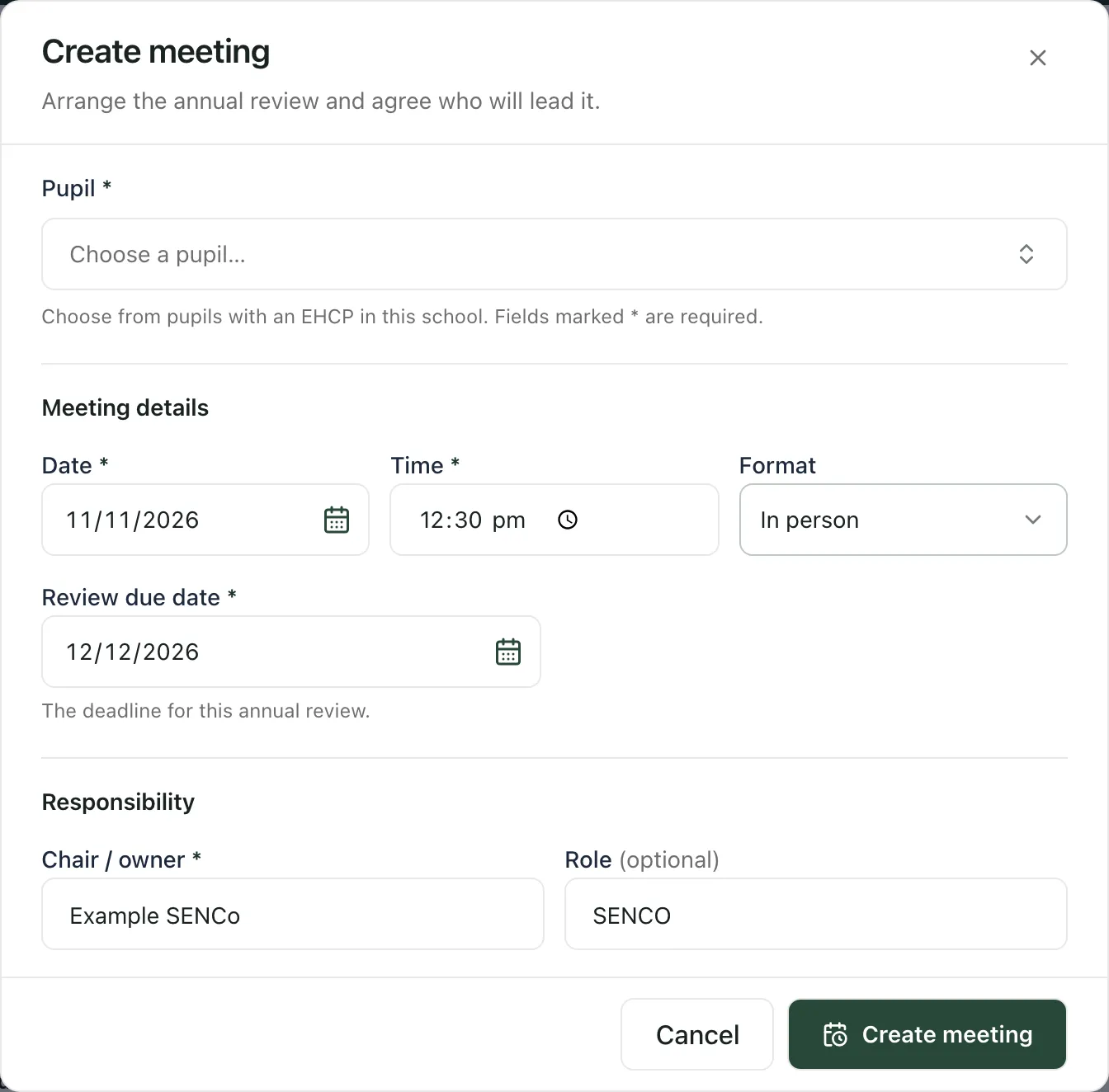
You’ll see “Meeting created”. The review appears in the register at the Prepare stage, with its dates worked out from the meeting date.
If the pupil already has an active review, the window says “This pupil already has an active review. Saving updates its meeting details and keeps its notes and evidence.” and the button says Update meeting.
Prepare for the meeting
Section titled “Prepare for the meeting”On the pupil’s row, click Continue review. The review opens at the stage it has reached. For a new review, that’s Prepare.
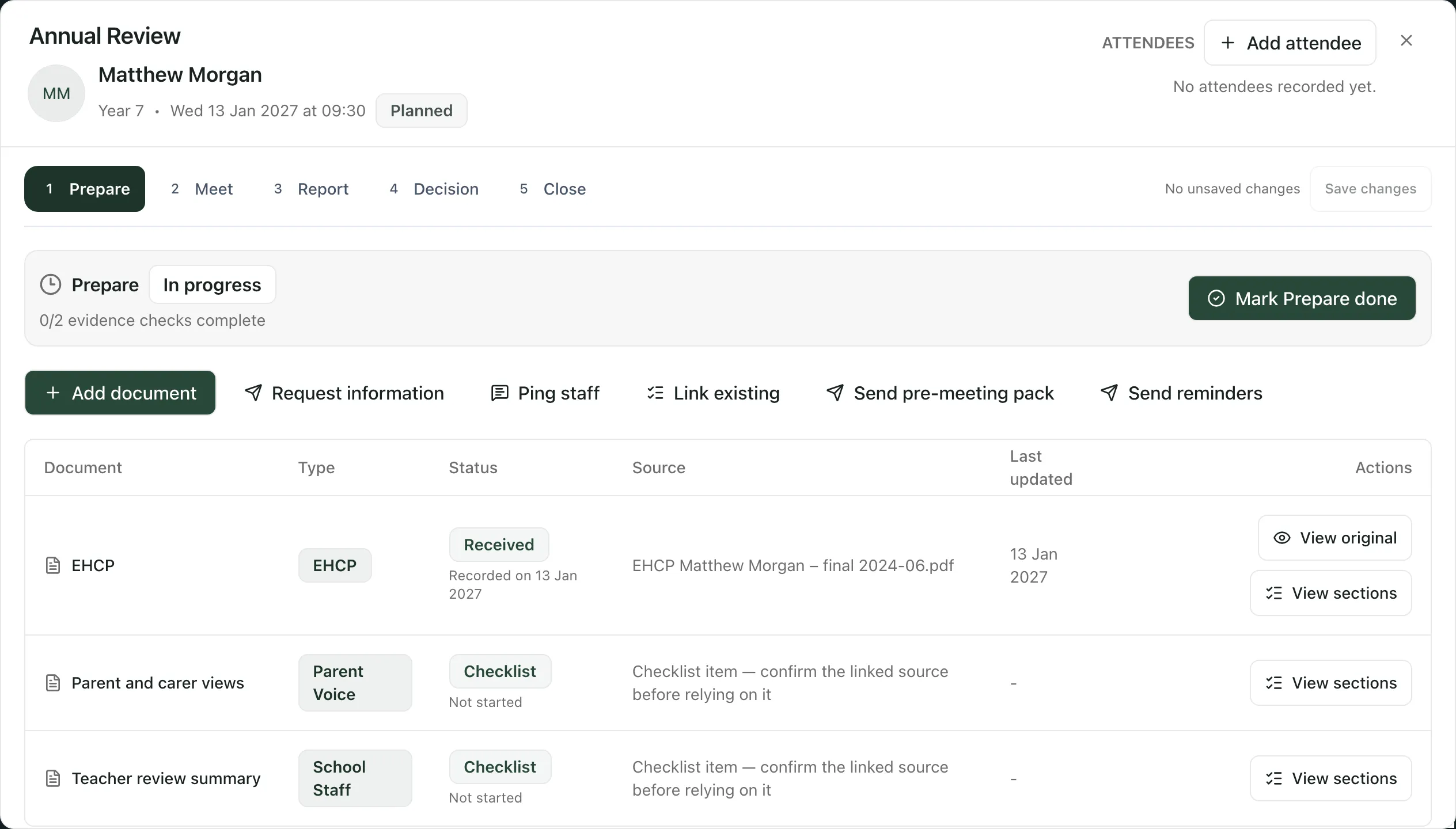
The Prepare summary shows how many evidence checks are complete. The table lists the review’s documents and evidence: the pupil’s EHCP, checklist items such as parent and carer views, requests you’ve sent and files you’ve received. Click View original to open a document, or View sections to read the EHCP sections that the meeting will work through.
Record who’s attending
Section titled “Record who’s attending”- Click Add attendee at the top of the review.
- In Annual review attendees, fill in a row for each person: Name, Role and Email. Click Add row for more people.
- Set each person’s Status to Pending, Attending or Apologies. For apologies, you can add an Apology reason.
- Click Save without inviting to record the list, or Invite attendees to save it and email each person an invitation.
Add everyone who should receive the final report, including your local authority contact: the final report is sent to the attendees who have an email address.
Gather advice and views
Section titled “Gather advice and views”Use the buttons under the Prepare summary:
- Add document: add a document to the review pack. Give it a name under Document, choose its Status, and attach a file under Upload attachment if you have one.
- Request information: email parents or professionals a secure link to send back their views or a report. In Send new request, choose the Request type (Information or Document upload), give it a Request title, enter the Recipients’ email addresses, check the Response due date and write the Request details. Then click Send request. The response date starts at two weeks before the meeting; change it if your timetable is different.
- Ping staff: ask a colleague, such as a class teacher or TA, for their input. Their reply is attached to the review. Click Send Ping to send it.
- Link existing: attach a Ping you’ve already sent about this pupil. Click Link next to it.
Requests appear in the table as they’re sent and answered. Check that every response you need has arrived before you rely on it.
Send the pre-meeting pack
Section titled “Send the pre-meeting pack”- Click Send pre-meeting pack.
- Under Documents, tick the documents to share. Only files that can be sent are listed.
- Under Recipients, tick who should receive them. Known recipients are already ticked. To add someone else, enter their email address and click Add.
- Check the Shared message.
- Click Send secure links.
Each recipient gets their own link to the same documents. The links expire on the date shown in the window. To chase people who haven’t responded, click Send reminders.
Finish preparing
Section titled “Finish preparing”When all the information you asked for has arrived and the pack has gone to every attendee, click Mark Prepare done in the Prepare summary. The window Mark Prepare as done? asks you to confirm; click Confirm and prepare Meet. Click Not yet if you’re not ready.
Student Radar then reads the shared documents and current ISP evidence in the background and adds suggestions to each EHCP section in the Meet stage. The suggestions are a starting point for the meeting. They aren’t agreed decisions: check them against the evidence and record what’s actually discussed and agreed.
Other things you can do
Section titled “Other things you can do”- Go to a stage: click the ⋯ button on a review’s row, then choose a stage under Go to stage.
- Cancel a review: click ⋯, choose Cancel review, then confirm with Cancel review. Click Keep review if you change your mind. Cancelling removes the scheduled review from the active workflow.
- Take the built-in tour: click Take a tour at the top of the page.
- England only: the Annual Review page is only available to schools in England.
- EHCPs: uploading and checking a pupil’s EHCP gives the review its sections to work through. See Upload a pupil’s EHCP.
- Permissions: many staff can open the Annual Review page, but what you can change depends on the permissions your school has given you.
If something doesn’t work
Section titled “If something doesn’t work”| What you see | What to do |
|---|---|
| “Select a pupil, meeting date/time, due date, and owner to create the review.” | Fill in every field marked *, then click Create meeting again. |
| “No pupils with an EHCP are available in this school.” | Pupils appear once they have EHCP status on the SEND register or in their pupil record. |
| “Unable to save the annual review meeting.” | Your details are still in the window. Wait a moment and try again. |
| “No current reviews match these filters.” | Click Reset filters, or choose All cycles. |
| “Annual reviews could not be loaded” | Click Try again. |
| “Add at least one recipient email.” | Enter one or more email addresses under Recipients, separated by commas. |
| “Request saved, but email failed to send.” or “Request saved, but email delivery is pending.” | The request is recorded on the review. Check later whether it was delivered before you chase the person. |
| “No sendable files are available yet.” | Add or receive at least one file in the review before sending the pack. |
| “Pack history could not be loaded.” | Click Retry pack history. |
| “This review is not available in the current school.” | Check you’re in the right school. Use the switcher at the top of the screen if you work in more than one school. |