Manage the intervention library and plan templates
Written for: SENCos and inclusion leads.
The SEND Hub holds two things that shape SEND planning across your school. The Intervention Library is your catalogue of the interventions your school actually runs, with who delivers them, the evidence behind them and whether there’s room. Templates set how Individual Support Plans (ISPs) and pupil passports look in your school. Keep both up to date so plans reflect support you can really deliver.
To open them, go to Inclusion, then SEND, then SEND Hub in the sidebar, and click the Intervention Library or Templates tab.
Browse the intervention library
Section titled “Browse the intervention library”The Intervention catalogue lists each intervention with its Tier, Evidence level and Capacity. Click an intervention to see its Intervention details: need areas, tier, delivery model, staffing, sessions per week, session length, duration and any citations.
To find one, type in Search intervention, tier, need area….
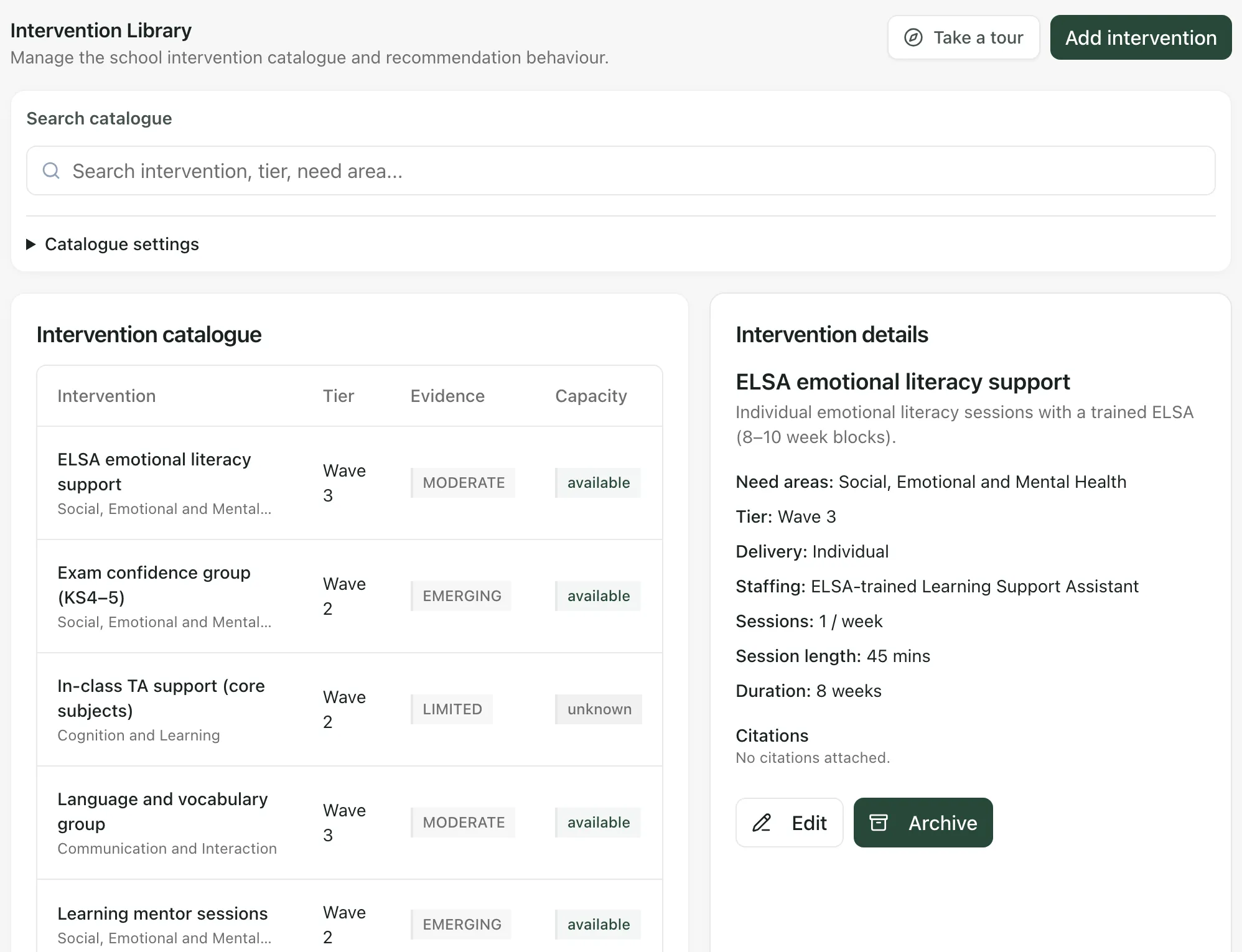
The catalogue describes the support your school can offer. It doesn’t show that any pupil has received it: that’s recorded against each pupil’s provision.
Add an intervention
Section titled “Add an intervention”- Click Add intervention.
- Under Intervention overview, enter the Intervention name and a Summary of what it is and the impact you expect.
- Under Targeting and delivery:
- Tick the Need areas and Staffing that apply. To add one that isn’t listed, type it in Add another option and click Add.
- Choose the Tier (Wave 1 to Wave 4), Delivery model and Evidence level.
- Under Schedule and capacity, enter the Session length (mins), Sessions per week and Duration (weeks). Choose a Capacity status (Unknown / not assessed, Available, Limited or Full), add a Capacity total (optional), and switch on Has capacity if there’s room.
- Tick I have reviewed school staffing and made a capacity decision (including unknown).
- Under Evidence sources, add the sources behind the intervention: a Title, URL and optional Note. Click Add citation for more.
- Click Add intervention.
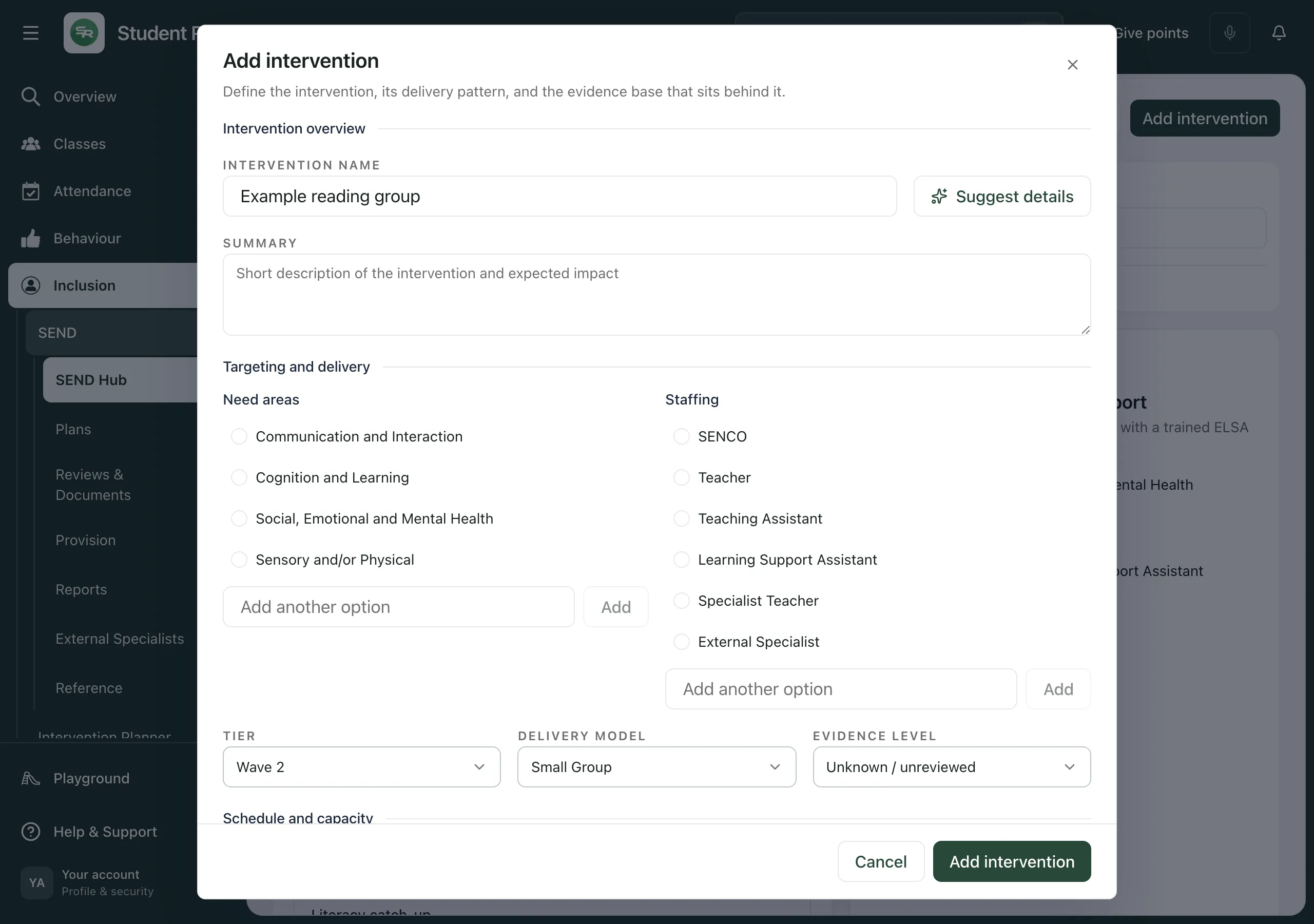
You’ll see “Intervention added”, and it appears in the catalogue.
Suggest details uses AI to fill in the summary, need areas, tier, delivery pattern and possible sources from the intervention’s name. It doesn’t fill in staffing or capacity, and it leaves the evidence level as Unknown / unreviewed. As the window says, “AI suggestions are unreviewed. Check each source and make a human evidence and capacity decision before saving.” Only set an evidence level once you’ve checked a source yourself.
Edit or archive an intervention
Section titled “Edit or archive an intervention”Click the intervention in the catalogue, then:
- click Edit, make your changes and click Save changes
- click Archive to take it out of the catalogue. It’s archived straight away, with no confirmation step, so check you’ve chosen the right one.
Choose how the catalogue is used
Section titled “Choose how the catalogue is used”Click Catalogue settings to see two switches. Each one is saved as soon as you change it.
- Prioritise catalogue in recommendations: “When enabled, catalogue interventions are ranked first in recommendation flows.”
- Restrict ISP creation to catalogue interventions only: “When enabled, free-form ISP/provision creation is blocked unless linked to this catalogue.” While it’s on, the tab shows “Catalogue-only ISP creation is enabled. Provision creation paths now require a linked catalogue intervention.”
Set up ISP templates
Section titled “Set up ISP templates”Click Templates, then Support plans. ISP templates lists your school’s templates, with the one in use marked Default. Below, National templates are ready-made starting points.
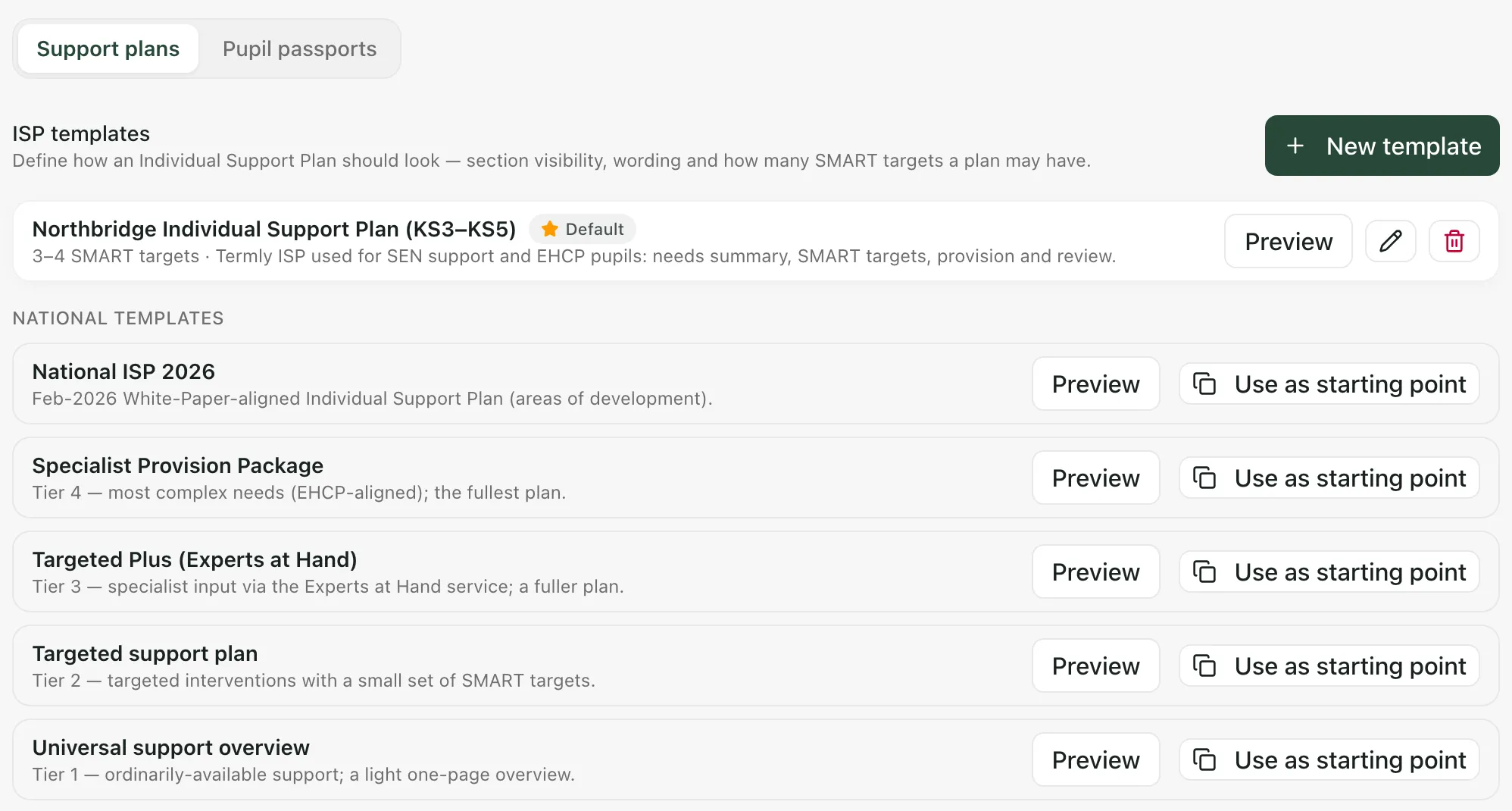
- Click Preview to see a template’s sections in order.
- Click Use as starting point on a national template to copy it, or New template to start from scratch.
- Click Set default to make one of your templates the school default.
- Click the pencil to edit a template, or the bin to archive it. You’ll be asked to confirm before it’s archived.
To create or edit a template:
- Enter a Name and a Description of when to use it.
- In Plan wording and Target wording, enter what your school calls the plan and its targets.
- Set how many targets and criteria a plan can have, from Min targets and Max targets to Min priorities and Max priorities.
- Choose the categories staff pick needs and targets from: SEND Code of Practice areas (default) or DfE areas of development (Feb 2026).
- Under the sections shown when authoring, tick Needs analysis and SMART targets to include them. Plan details are always included.
- For a new template, tick Use this template for all new ISPs to make it the default.
- Click Create template, or Save changes for an existing one.
The default template shapes the ISPs staff write themselves: “Staff creating an ISP will follow this template and cannot choose a different one.” An ISP drafted from a pupil’s EHCP follows the EHCP instead. See Create an ISP from an EHCP.
Set up pupil passport templates
Section titled “Set up pupil passport templates”Click Templates, then Pupil passports. Passport templates works in the same way as ISP templates, with Preview, Use as starting point, New template and Set default. Until your school has a default, passports use the standard ten-section layout.
To create or edit a passport template:
- Enter a Name and Description.
- In Document wording, enter what your school calls the document, such as One-Page Profile.
- For each section, tick it to show it, change its label, and use the arrows to move it up or down. At least one section must be shown.
- Click Create template or Save changes.
Hiding a section only hides it: “Hiding a section only hides it from view — any content saved in it is kept.”
Who can make changes
Section titled “Who can make changes”Anyone who can open the SEND Hub can browse the library and preview templates. Adding, editing and archiving interventions, changing catalogue settings and managing templates depend on the permissions your school gives you. If a change isn’t saved, the message explains why.
If something doesn’t work
Section titled “If something doesn’t work”| What you see | What to do |
|---|---|
| “No interventions added yet. Use Add intervention to start your school catalogue.” | Click Add intervention to add the first one. |
| “No interventions match this search.” | Check the spelling, or clear the search box. |
| “Catalogue and capacity are unavailable.” | Click Retry catalogue. |
| “Catalogue settings are unavailable.” | Click Retry settings. |
| “Intervention name is required.” | Enter an Intervention name. |
| “Enter an intervention name before using Suggest details.” | Enter the Intervention name first, then click Suggest details. |
| “Review school staffing and make a capacity decision before saving.” | Tick I have reviewed school staffing and made a capacity decision (including unknown). |
| “Link a reviewed evidence source before setting evidence strength, or choose Unknown.” | Add a source under Evidence sources, or set Evidence level to Unknown / unreviewed. |
| “Citation URLs must be valid http(s) links.” | Check each URL starts with https:// or http://. |
| “Unable to save intervention” | Read the reason in the message. Your details are still in the window. |
| “Templates are unavailable” | Click Retry loading templates. |
| “A template with that name already exists. Choose a different name.” | Give the template a different Name. |
| Create template is greyed out | Read the reasons shown beside it, such as “Give the template a name”, and fix each one. |