Start a wellbeing episode
Written for: All school staff.
When a pupil is upset, anxious or overwhelmed and you step in to help, record it as a wellbeing episode. It’s a short record of what you noticed, the support you gave and what happened next, so colleagues who support the pupil can see it and follow up. It isn’t a diagnosis or a counselling note.
Important: if the pupil mentions self-harm, suicidal thoughts or something that suggests they’re at risk of harm, or anyone is in immediate danger, this isn’t a wellbeing episode. Follow your school’s safeguarding procedure and tell the Designated Safeguarding Lead (DSL) straight away. See Use safeguarding instead.
Open the form
Section titled “Open the form”- In the sidebar, open Health, then Wellbeing, and choose Wellbeing episodes.
- Click New wellbeing episode.
You can also start from a pupil’s profile: open the Wellbeing section and click Record episode. The pupil is then filled in for you.
Say who, when and where
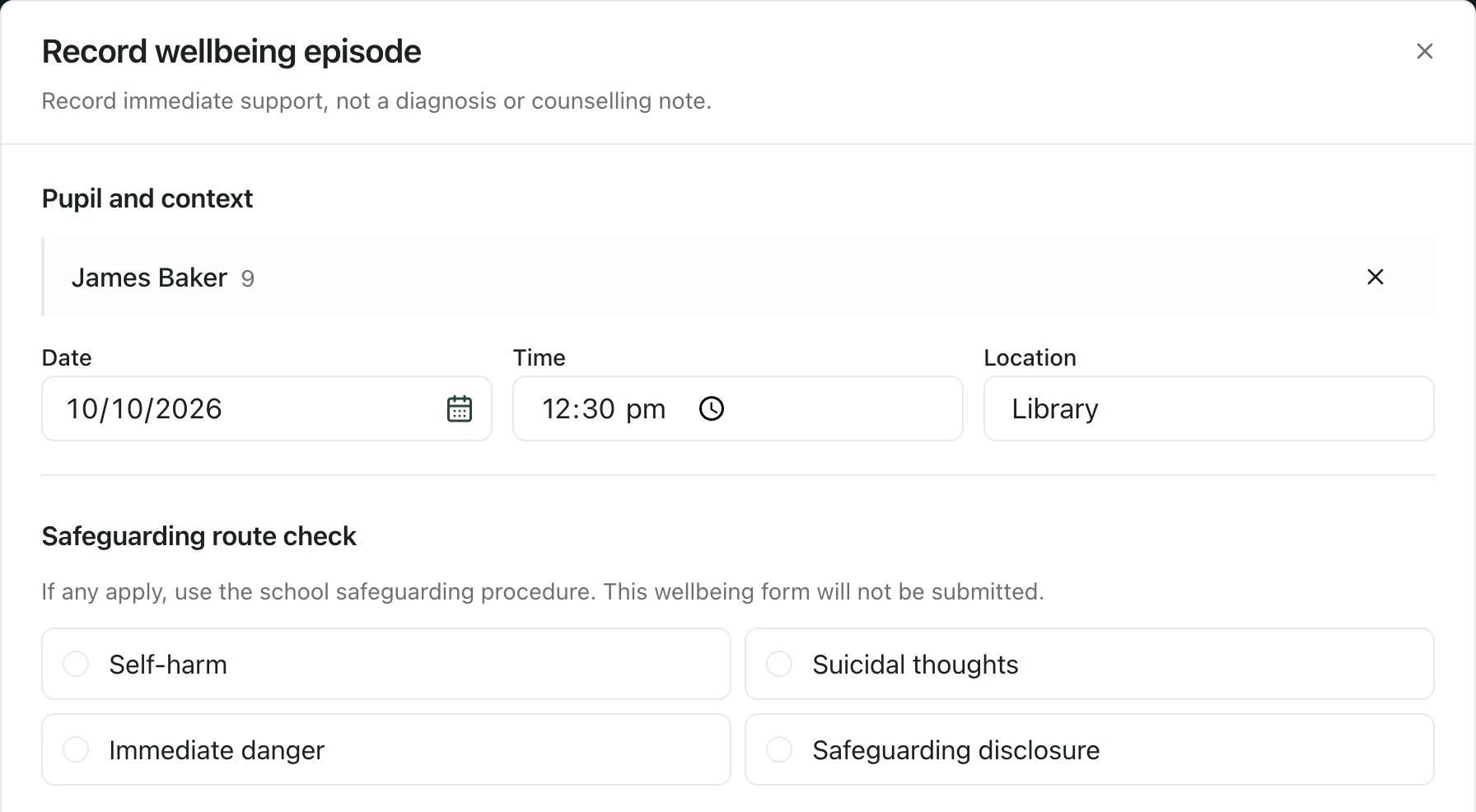
Section titled “Say who, when and where”- Under Pupil and context, type part of the pupil’s name in Search pupils and click them in the list. To change pupil, click × next to their name.
- Date and Time are filled in with now. Change them if you’re recording something that happened earlier.
- Enter the Location, such as the classroom or the library.
Check the safeguarding route
Section titled “Check the safeguarding route”Before you go on, read the Safeguarding route check. Tick a box if any of these apply:
- Self-harm
- Suicidal thoughts
- Immediate danger
- Safeguarding disclosure
If none apply, leave them all unticked and carry on.
Use safeguarding instead
Section titled “Use safeguarding instead”If you tick any box, the form shows Use safeguarding and won’t let you record a wellbeing episode. What you’ve typed stays in the form, but nothing has been recorded.
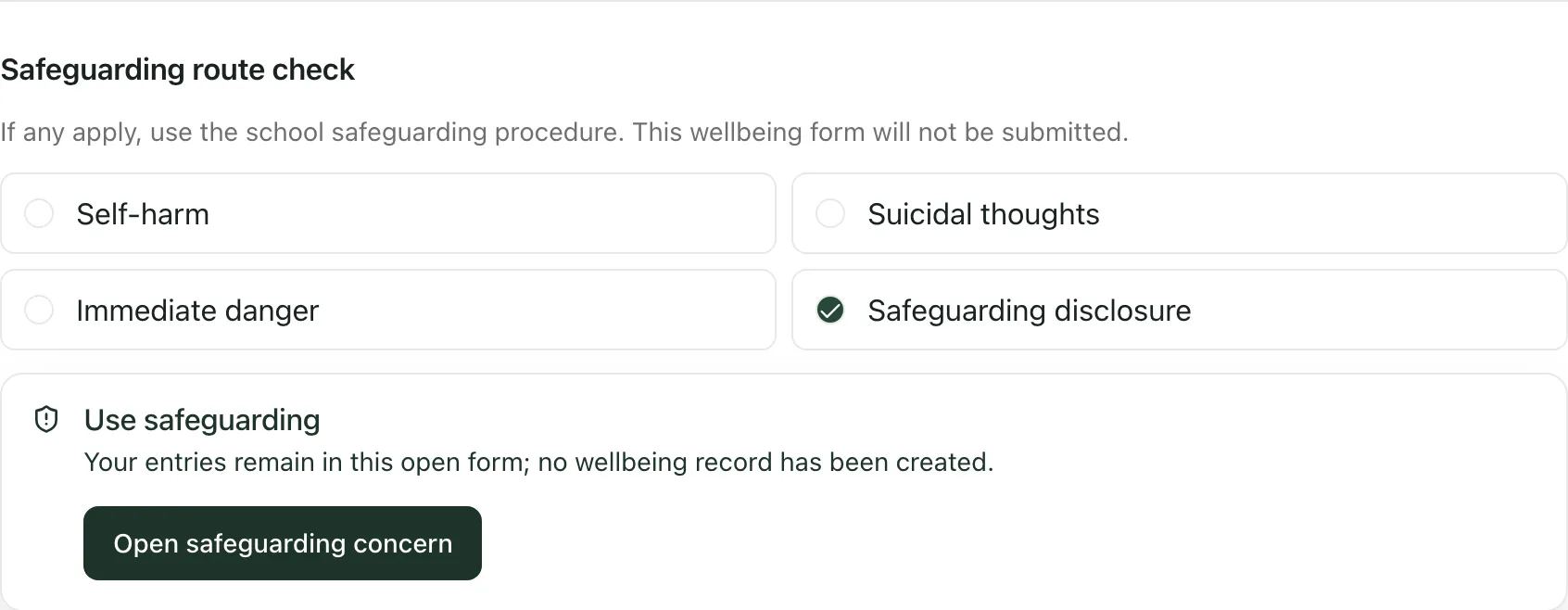
- Click Open safeguarding concern. Student Radar’s Safeguard area opens in a new tab.
- Raise the concern there and follow your school’s safeguarding procedure. See Raise a safeguarding concern about a pupil.
- If anyone is in immediate danger, follow your school’s emergency procedure first.
When you’re done, close the wellbeing form with Cancel. If you ticked a box by mistake, untick it to carry on.
Describe what happened and the support you gave
Section titled “Describe what happened and the support you gave”- Choose the Basis for this record: Observed by staff, Reported by pupil, or Observed and pupil-reported.
- Enter roughly how long you spent supporting the pupil in Approximate support time (minutes).
- Under Presentation, tick what you saw, such as Tearful distress, Withdrawal or Agitation. Tick at least one.
- If you like, add What the pupil said, in their own words, and What staff observed. Keep to the facts.
- Under Support provided, tick what you did, such as Quiet space, Trusted adult or Time to regulate. Tick at least one.
Record the outcome and any follow-up
Section titled “Record the outcome and any follow-up”- Choose the Immediate outcome: Returned to lesson, Remained with support, Collected by parent/carer, Transferred to medical support or Emergency response.
- If you spoke to a parent or carer, tick Parent/carer contact recorded and say how in Contact method or evidence. It starts as Telephone call.
- If you need to check in with the pupil again, tick Follow-up required (assigned to me) and set when it’s due in Follow-up due. The follow-up is yours.
- Click Record episode.
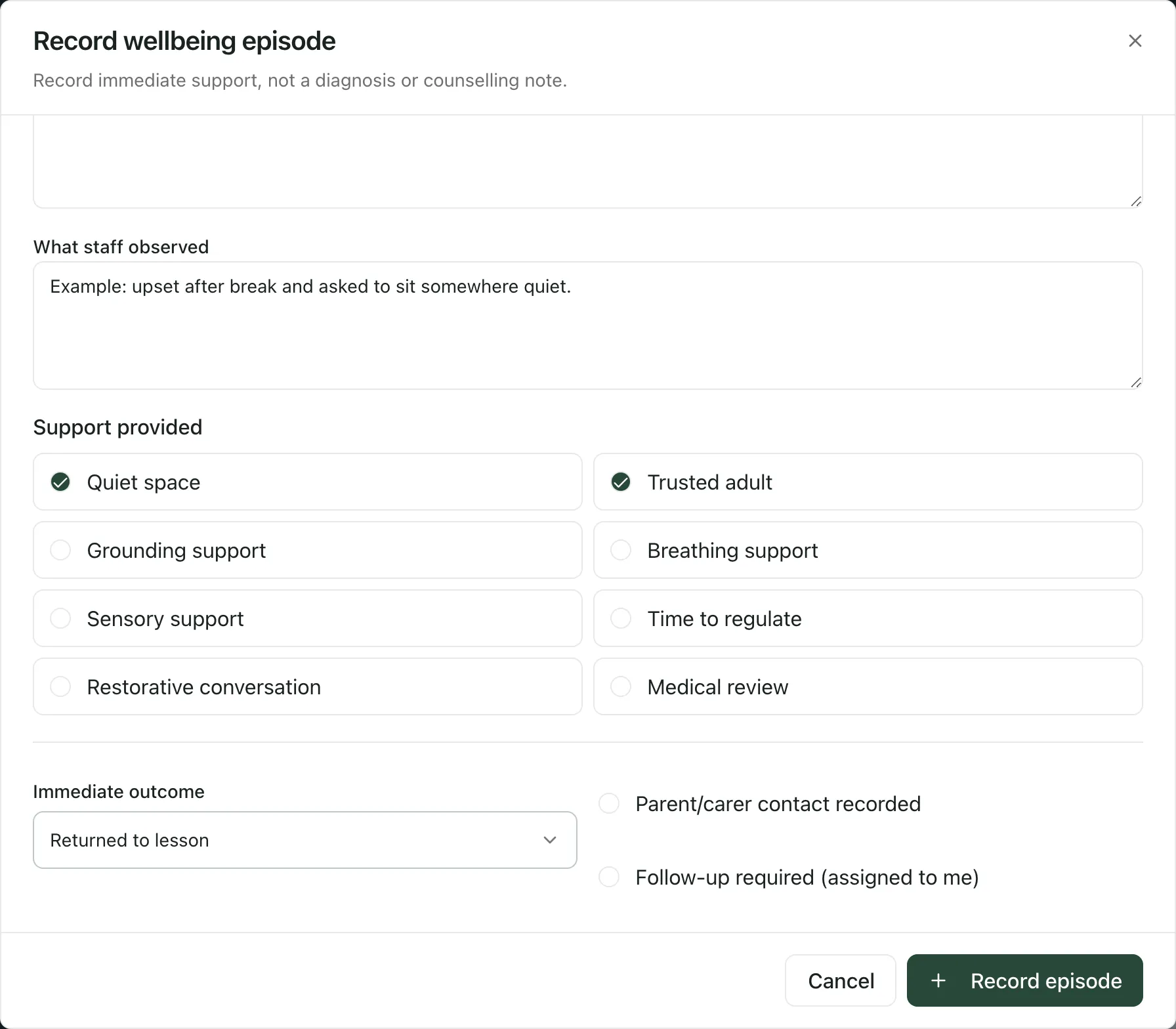
Record episode stays greyed out until you’ve chosen a pupil, entered a location, and ticked at least one presentation and one kind of support. It also stays greyed out while a box in the safeguarding route check is ticked.
A “Wellbeing episode recorded” message confirms it’s saved.
After you’ve recorded it
Section titled “After you’ve recorded it”- The episode appears under My records, newest first, grouped by pupil. Each one shows the outcome, whether a follow-up is due and whether it’s been reviewed.
- Leaders such as the DSL and SENCo can read the full record and review it. Other staff who support the pupil see a summary under Pupils I support, without what the pupil said or what you observed.
- Until a lead has reviewed it, you can correct your own record: click Edit, give a Reason, change What the pupil said or What staff observed, and click Save correction. The original stays in the record’s history.
- Reviewed, corrected and withdrawn records are also listed under History.
- Your school can choose to prompt the DSL when a pupil has several episodes in a short time. The prompt is for the DSL to look at the wider picture. It isn’t a judgement about the pupil.
If something doesn’t work
Section titled “If something doesn’t work”| What you see | What to do |
|---|---|
| “No accessible pupils found.” | Check the spelling. You can only record episodes for pupils you can access, usually those you teach or support. If the pupil should be there, ask your Student Radar administrator. |
| New wellbeing episode isn’t shown | Your role can’t record wellbeing episodes for any pupil. Ask your Student Radar administrator. |
| “Use safeguarding” | A box in the Safeguarding route check is ticked. Follow Use safeguarding instead, or untick the box if it was a mistake. |
| “Episode not recorded” | Nothing was saved, and your entries are still in the form. Check your connection and click Record episode again. |
| “No records in this view” | Try another view, such as Pupils I support, or check the search box is empty. |
| “Wellbeing Episodes are unavailable” | Click Refresh. It doesn’t mean there are no episodes. If it keeps happening, contact support. |