Set a detention
Written for: All staff.
You set a detention from the Detentions page. One detention can include up to 50 pupils, so you can add everyone who’s due at the same session in one go. You choose the type of detention, when it happens and why, and you can let parents and carers know at the same time.
Open the Detentions page
Section titled “Open the Detentions page”In the sidebar, open Behaviour, then Response and Escalation, and choose Detentions.
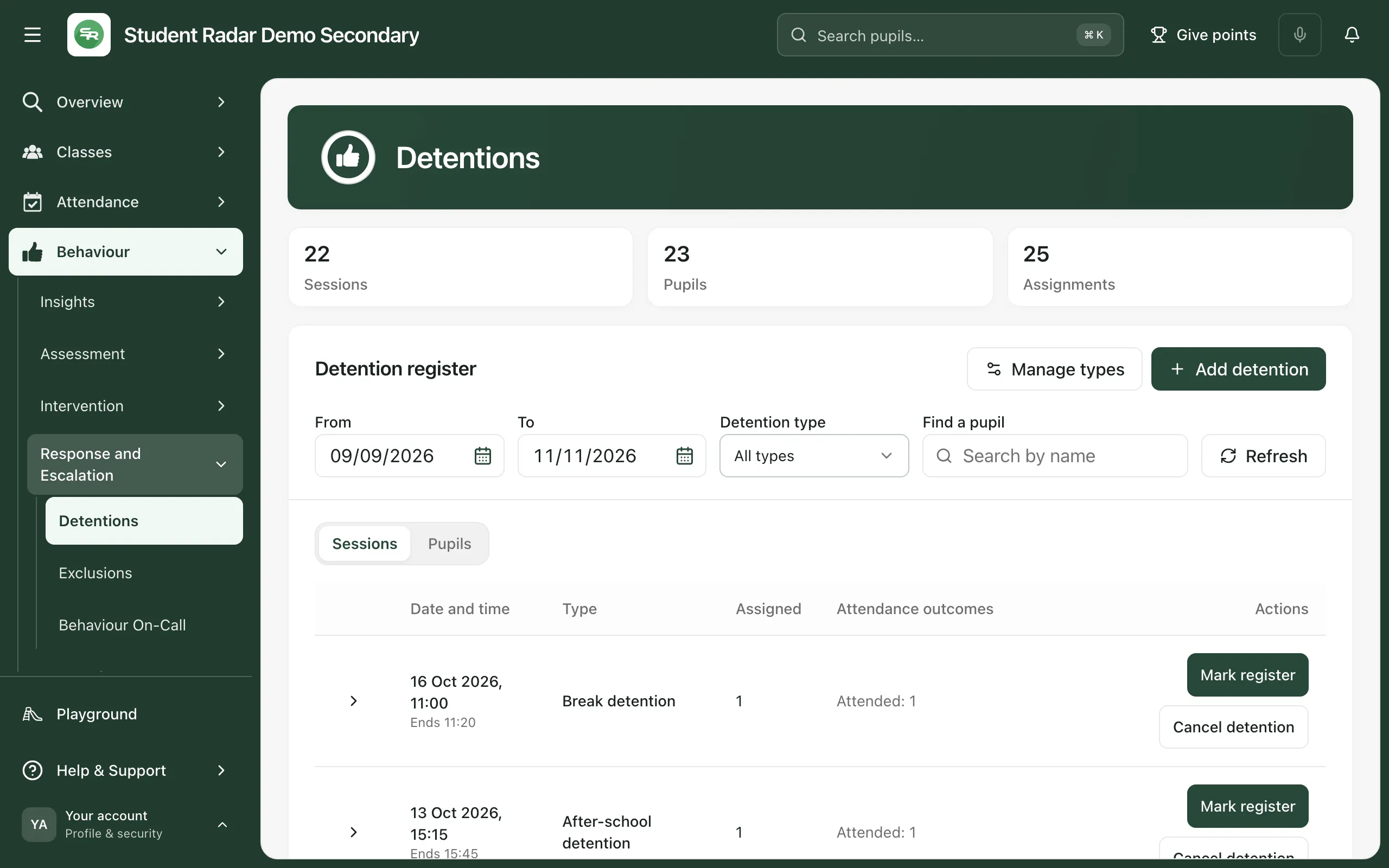
The Detention register shows detention sessions from the last 30 days up to tomorrow. Change From and To to see other dates.
Add a detention
Section titled “Add a detention”-
Click Add detention.
-
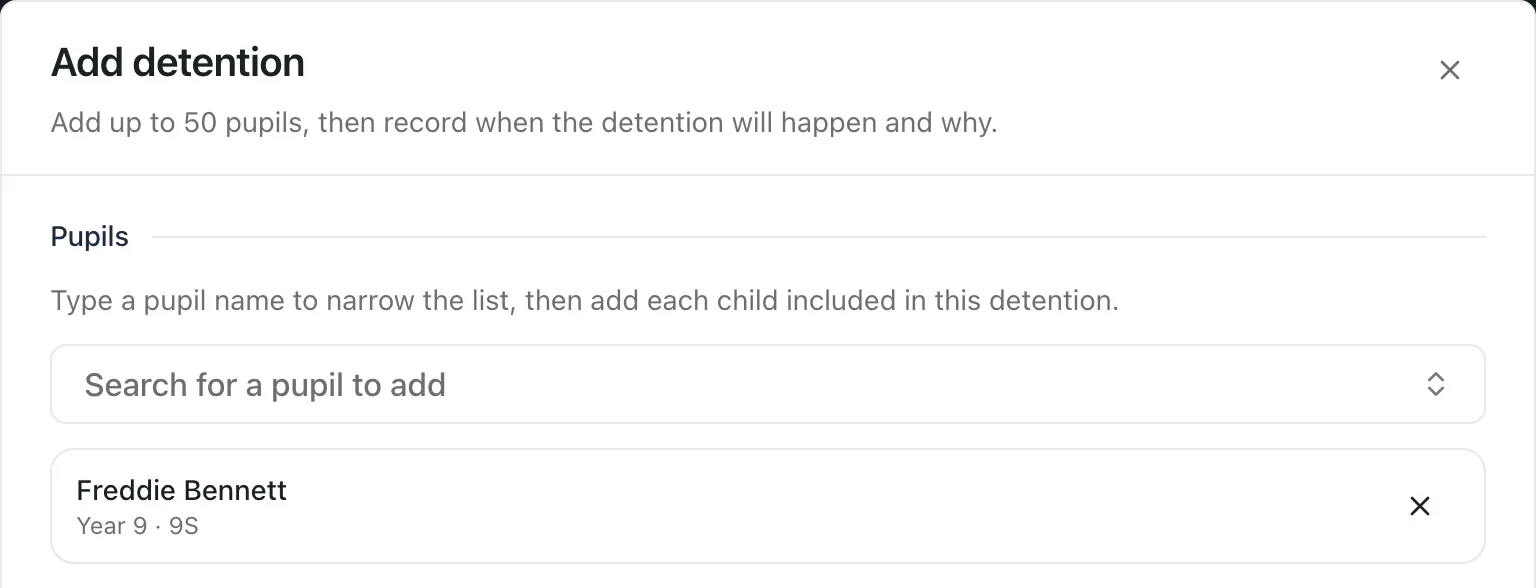
Under Pupils, click Search for a pupil to add, type the pupil’s name and choose them from the list. Repeat for each pupil who’s in the same detention. To take a pupil off, click × beside their name.
-
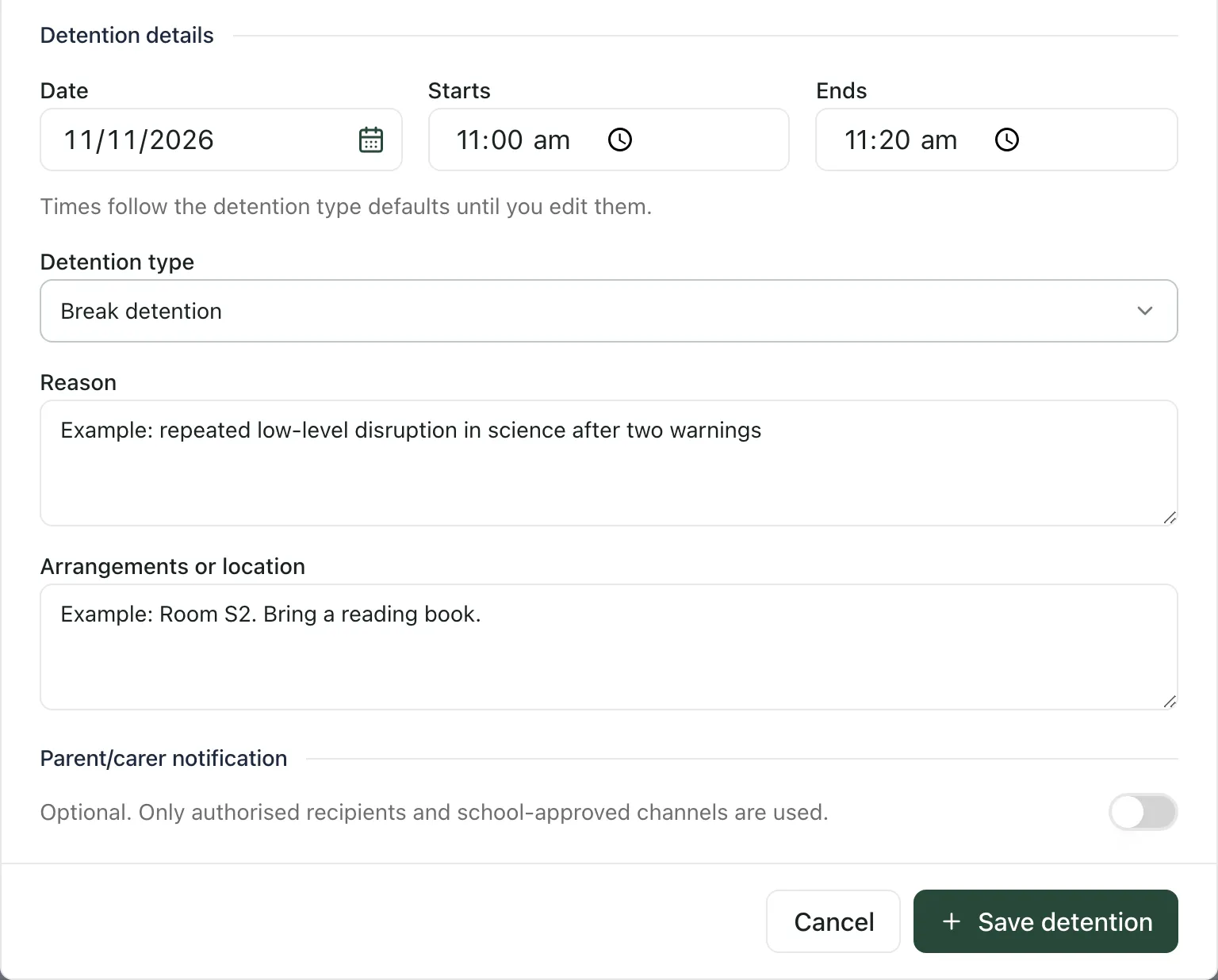
Choose the Detention type. Starts and Ends fill in with the usual times for that type of detention.
-
Set the Date. If the detention is at a different time from usual, change Starts and Ends. To go back to the usual times, click Use type defaults.
-
In Reason, describe the behaviour or the reason for the detention. You must fill this in.
-
If you want to, add Arrangements or location, such as the room or what to bring.
-
To let parents and carers know, turn on the switch under Parent/carer notification. See the next section before you do.
-
Click Save detention. The detention is added to the register.
Save detention stays greyed out until you’ve added at least one pupil, written a reason and set an end time after the start time.
Let parents and carers know
Section titled “Let parents and carers know”Turning on Parent/carer notification is optional. When it’s on, Student Radar lists, for each pupil, the contacts it will notify and how. Only contacts your school has authorised, and channels your school has approved, are used. Check the list before you save.
When you save, the update to parents and carers is queued and you’ll see “Detention saved”. If Student Radar can’t find a contact it’s allowed to notify, you’ll be asked to turn the switch off and save without sending.
Cancel a detention
Section titled “Cancel a detention”To see who’s in a session, click the arrow at the start of its row. To take one pupil out, click Cancel pupil assignment under their name. To cancel the whole session, click Cancel detention. Either way, type a Reason for cancellation, then click Confirm cancellation. The reason and your name are kept in the audit history.
- Detentions from your MIS: if your school also sets detentions in its management information system (MIS), they appear in the register too, marked as MIS-synced. Change or cancel those in your MIS. Detentions set in Student Radar are marked School-entered.
- Detention types: the types and their usual times are set by your school. Staff who can change them see Manage types on this page.
- Marking attendance: to record who turned up, see Take the detention register.
If something doesn’t work
Section titled “If something doesn’t work”| What you see | What to do |
|---|---|
| “Choose an end time after the start, on the same day.” | Change Starts or Ends, or click Use type defaults. |
| “No authorised recipients with a valid channel were found. Turn notification off to save the detention without sending.” | Turn off Parent/carer notification and save. Contact the family in the way your school usually does. |
| “Recipient details could not be verified. Turn notification off or try again.” | Turn the switch off and on again. If it keeps happening, save without notifying and contact the family another way. |
| “Some pupil identities need checking.” | Remove any pupil marked as unavailable. Ask the school office to check their name, year and class. |
| “Pupil identities could not be verified. Close and reopen this draft to try again.” | Click Cancel, then click Add detention again. |
| “Check the pupils, date, times, detention type and reason.” | Nothing was saved. Correct the details, then click Save detention again. |
| “You do not have permission to add this detention.” | Your account can’t set this detention. Ask your head of year or your school’s Student Radar administrator. |
| “The detention could not be saved.” | Nothing was saved. Wait a moment, then click Save detention again. |
| “The parent/carer update was not queued. No message was sent.” | The detention was saved, but parents and carers weren’t told. Contact them in the way your school usually does. |
| “Detention types could not be loaded. The register is still available; refresh before adding a detention.” | Click Refresh, then try Add detention again. |