Review homework submissions
Written for: Teachers and other staff who set homework.
When pupils return homework, the Homework Planner shows it as work to review. You open the task, go through the pupils who have returned it, and record a mark and feedback for each one.
Pupils return homework by marking it as done in Student Radar. Student Radar records that they’ve returned it and when, but not the work itself, so look at the work wherever pupils handed it in before you review it.
Find work to review
Section titled “Find work to review”- In the sidebar, click Classes, then Teaching classes, the subject and the class.
- Click Homework.
- Click To review at the top of the page. The list now shows only tasks with returned work waiting for review.
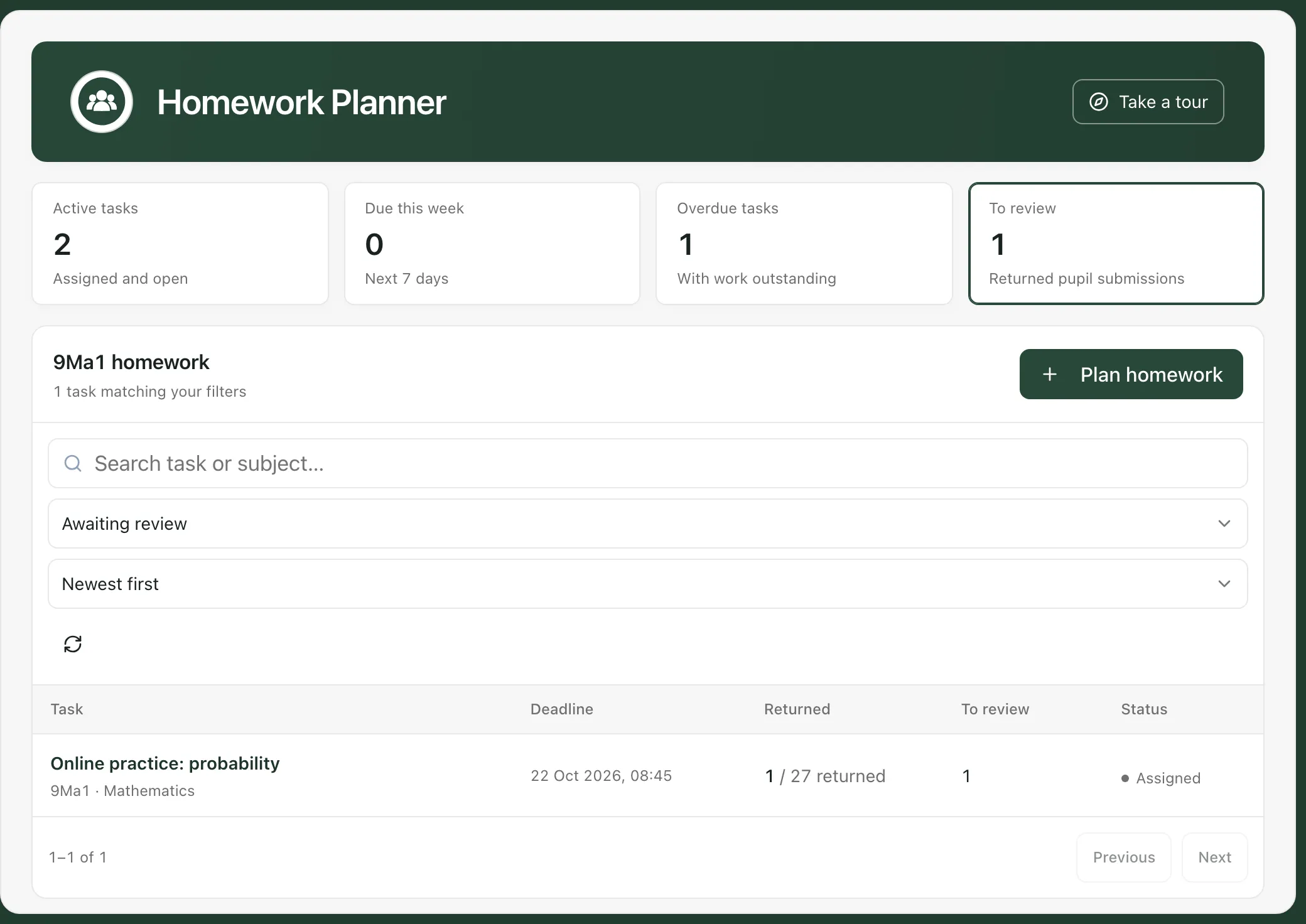
In the list, Returned shows how many pupils have handed the task in, and To review shows how many of those you haven’t reviewed yet. You can also choose Awaiting review in the status list.
Review a pupil’s work
Section titled “Review a pupil’s work”-
Click the task’s title. It opens on the Task tab, which shows the instructions and resources pupils were given.
-
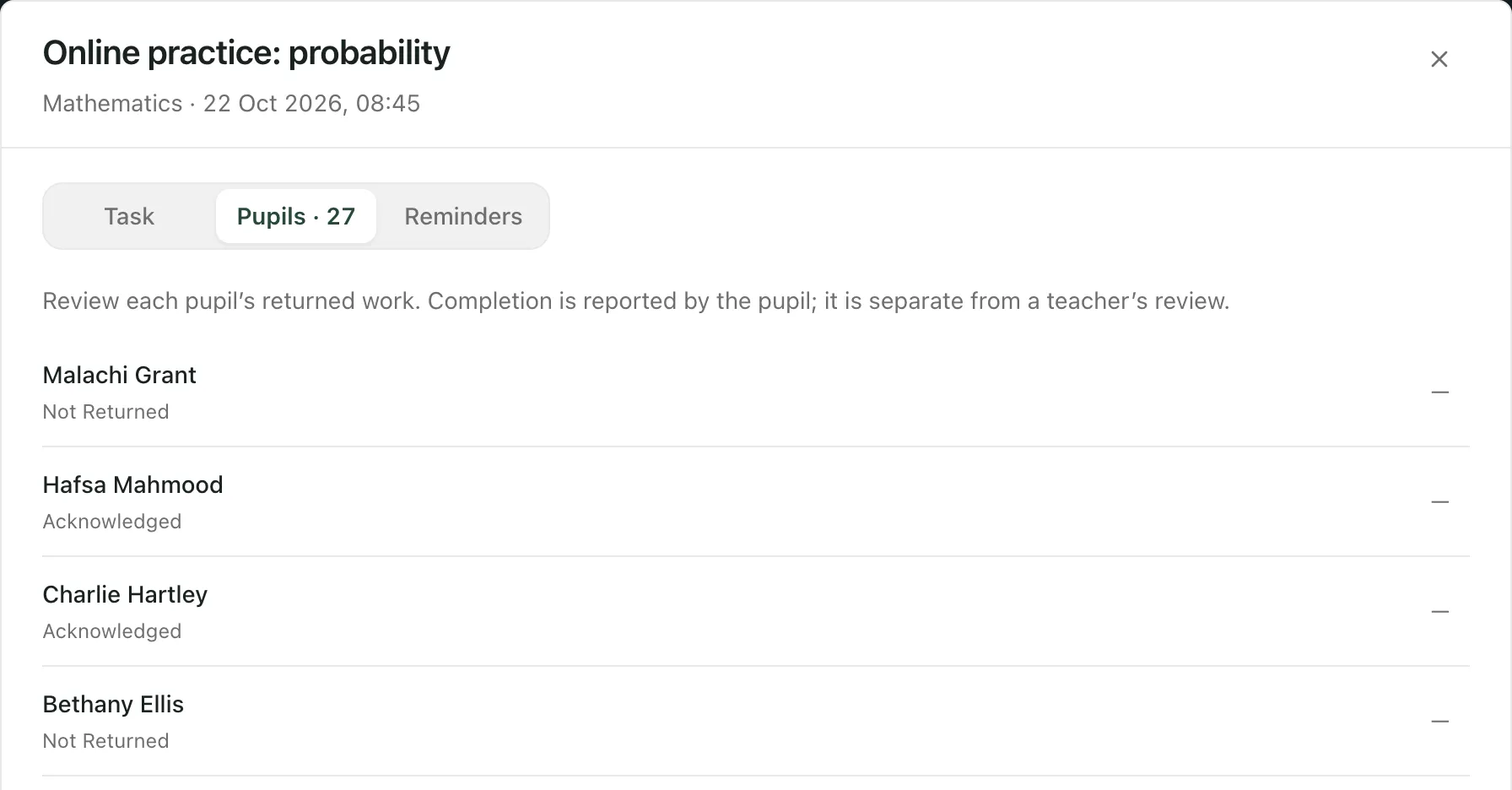
Click the Pupils tab. Each pupil is listed with the state of their work and, if they’ve returned it, the date and time.
-
Next to a pupil whose work has been submitted, click Review.
-
Enter a Mark, such as Complete or 8/10.
-
If you want to, add Feedback for the pupil.
-
Click Save review.
The pupil now shows as marked, with the mark you gave. To go back without saving, click Back to pupils. You can open a review again later to change the mark or feedback.
When you’ve reviewed every pupil’s work, the task’s status changes to marked.
What each state means
Section titled “What each state means”| On the Pupils tab | What it means |
|---|---|
| Not returned | The pupil hasn’t marked the homework as done yet. |
| Acknowledged | The pupil has acknowledged the task but hasn’t returned it yet. |
| Submitted | The pupil has returned the homework. It’s waiting for your review. |
| Marked | You or a colleague has reviewed it. The mark is shown beside it. |
The tab reminds you that “Completion is reported by the pupil”. A pupil marking homework as done isn’t the same as a teacher’s review.
- Linked to the markbook: if the task was set up to show reviewed marks in the markbook, the review window says so, and each mark you save is also saved in the Digital Markbook. Click Open Markbook at the bottom of the task to see the column.
- Who can review: you’ll only see Review if your account can change assessments for every pupil the task was set for. Schools can change who has access.
- Reminders: the Reminders tab is for sending reminders through Communications, which isn’t available yet. You can’t send homework reminders from Student Radar at the moment.
- Tour: click Take a tour at the top of the Homework Planner for a step-by-step guide.
If something doesn’t work
Section titled “If something doesn’t work”| What you see | What to do |
|---|---|
| No Review button next to a pupil | Only submitted or marked work can be reviewed. If it’s missing for those too, ask your administrator about your access. |
| Save review is greyed out | Enter a Mark first. Feedback is optional. |
| A message that the submission changed | The pupil or a colleague changed it while you were reviewing. Close the task, open it again, then review again. |
| “No homework matches these filters” | There’s no returned work waiting. Click Active tasks to see all your open homework. |
| “Homework could not be loaded or saved. Please try again.” | Click Retry or Retry load. If it keeps happening, check your connection and try again later. |
| “Homework returned an unexpected response. Refresh the page and try again.” | Refresh the page, then open the task again. |