Import medications from a spreadsheet
Written for: Staff who look after medicines in school.
If your school already keeps its medicines in a spreadsheet, such as an export from Medical Tracker, you can bring them into Student Radar in one go. Student Radar checks the file first and shows you every problem before anything is imported. Imported medicines arrive as inactive drafts. They aren’t part of the medication round until a member of staff has checked each one.
Importing is for staff who manage medications: by default the SENCo, headteacher, DSL and deputy DSLs, admins, office managers and medical leads. Other staff don’t see Import CSV.
Get your file ready
Section titled “Get your file ready”Save the spreadsheet as a CSV file. It must be smaller than 1 MiB, and only the first 500 rows are checked, so split a larger file into parts.
Student Radar reads these columns. Only the medicine name and the expiry date are required.
| Column | What to put in it |
|---|---|
| Pupil | The pupil’s full name, as it appears in Student Radar. |
| Medication | The name of the medicine. Required. |
| Dose or instructions | The dose and how to give it. |
| Quantity | How many units the school holds, as a whole number. |
| Batch number | The batch or lot number on the packaging. |
| Storage location | Where the medicine is kept. |
| Reorder threshold | The stock level at which to ask for more, as a whole number. |
| Expiry date | Required. Write it as 2026-12-31 or 31/12/2026. |
| Notes | Anything else staff should know. |
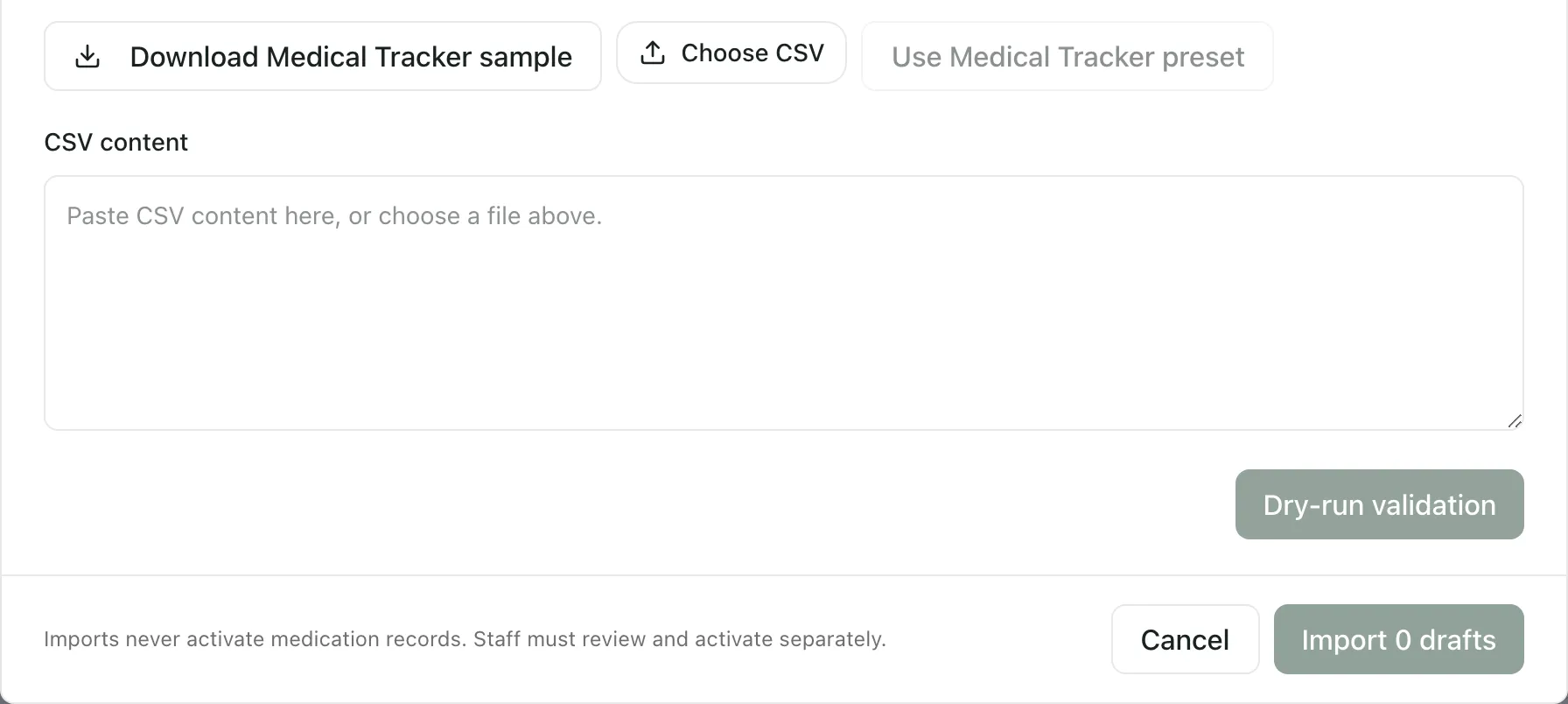
Your column headings don’t have to match exactly. Common headings such as Student, Medicine, Dosage, Qty, Lot number, Expires or Comments are recognised. To see the expected layout, click Download Medical Tracker sample in the import window. It downloads a CSV with the headings and one example row.
Import the file
Section titled “Import the file”-
In the sidebar, click Health, then Medication & Clinical Safety, then Medications.
-
Click Import CSV, next to New Medication.

-
In the Import medication drafts window, click Choose CSV and pick your file. You can also paste the contents of the file into CSV content.
-
Click Dry-run validation. If your file came from Medical Tracker with its usual headings, click Use Medical Tracker preset instead. It matches the columns and runs the check in one step.
-
Read the results:
- Rows in file, Drafts ready, Errors and Warnings sum up the check.
- Under Column mapping, check that each field is matched to the right column. Choose a different column from the list if not, or Auto / not mapped to leave it out. The check runs again when you change a column.
- Validation issues lists each problem with its row number.
- Draft preview shows the first 10 medicines as they will be imported.
-
Fix any errors in your spreadsheet, choose the file again and repeat the check. You can’t import while there are errors.
-
When you’re happy, click the import button at the bottom right. It shows how many drafts will be imported.
-
When the import is confirmed, click Finish and close.
Nothing is saved until you click the import button. The dry run only checks the file on your computer.
After the import
Section titled “After the import”The new medicines appear under Medication import drafts on the Medications page, with the status Inactive. Each one has the note “Imported as draft. Check authorisation, dose, storage and stock before activation.” If the file had no dose, the instructions ask you to check the dose before activation.
Inactive drafts aren’t in Today’s medication round or Active medications on site, and they aren’t marked as controlled drugs. Click a draft to open it and check it against the parent’s authorisation and the pharmacy label. To ask the parent to authorise it, see Ask parents to authorise a medication.
Note: The Medications page doesn’t have a button to make a checked draft active. Ask your Student Radar administrator how your school brings checked drafts into use. To add a medicine that’s ready to use now, see Add a medication and its schedule.
How pupils are matched
Section titled “How pupils are matched”Student Radar matches the name in the Pupil column to the pupils you can access.
- If the name matches one pupil, the draft is linked to them.
- If it matches nobody, you’ll see a warning, and the draft would be imported without a pupil. Correct the name in your spreadsheet before you import.
- If it matches more than one pupil, it’s an error and the row can’t be imported. Add that medicine with New Medication instead, so you can choose the right pupil.
If something doesn’t work
Section titled “If something doesn’t work”| What you see | What to do |
|---|---|
| “Map a medication name column.” | Under Column mapping, choose the column that holds the medicine names for Medication. |
| “Map an expiry date column.” | Under Column mapping, choose the column that holds the expiry dates for Expiry date. |
| “Medication name is missing.” | A row has no medicine name. Fill it in, or remove the row. |
| “Expiry date is missing or invalid. Use YYYY-MM-DD or DD/MM/YYYY.” | Fix the date on that row, for example 31/12/2026. |
| A quantity or reorder threshold must be a whole number | Use whole numbers only, with no units, or leave the cell blank. |
| A pupil matches multiple available pupils | Remove that row and add the medicine with New Medication, so you can choose the right pupil. |
| “CSV exceeds 1 MiB. Split the file before import.” | Split the spreadsheet into smaller files and import each one. |
| “CSV is empty.” | The file has no rows. Check you saved the right sheet as CSV. |
| “CSV contains an unclosed quoted field.” | A cell has an opening quotation mark with no closing one. Fix it in the spreadsheet and save it again. |
| “A current authorised school session is required.” | Sign out and back in, check the right school is selected, then try again. |
| “Status unavailable. Recover this operation, or re-upload and review the original batch to replay the same operation.” | Click Recover import status. Don’t start a different import until it’s resolved, so nothing is imported twice. |