Draft a priority from your data with AI
Written for: Headteachers and senior leaders who plan school improvement.
The AI-assisted route on School Priorities turns what your data is telling you into a structured draft priority. You describe the improvement you want, answer a few questions, and AI suggests a title, measures, actions, monitoring and staff development themes that fit your school’s inspection framework. Nothing is created until you’ve reviewed the draft and chosen what to keep.
The draft is based only on what you write and on the framework your school has selected. It doesn’t read your school’s records, so any figures in it, including the baselines for its measures, must be checked against your own data. It’s a starting point for your leadership team’s judgement, not a finished plan.
Describe what you want to improve
Section titled “Describe what you want to improve”- In the sidebar, open Leadership, then Strategy & assurance, and choose School Priorities.
- Click Create priority, then choose AI-Assisted.
- Under What would you like to improve?, describe the improvement you have in mind. It can be broad or specific, for example a subject, a year group or a group of pupils. Include what your data shows, such as a recent attendance or attainment figure, but don’t include pupils’ names or other personal details.
- Click Continue.
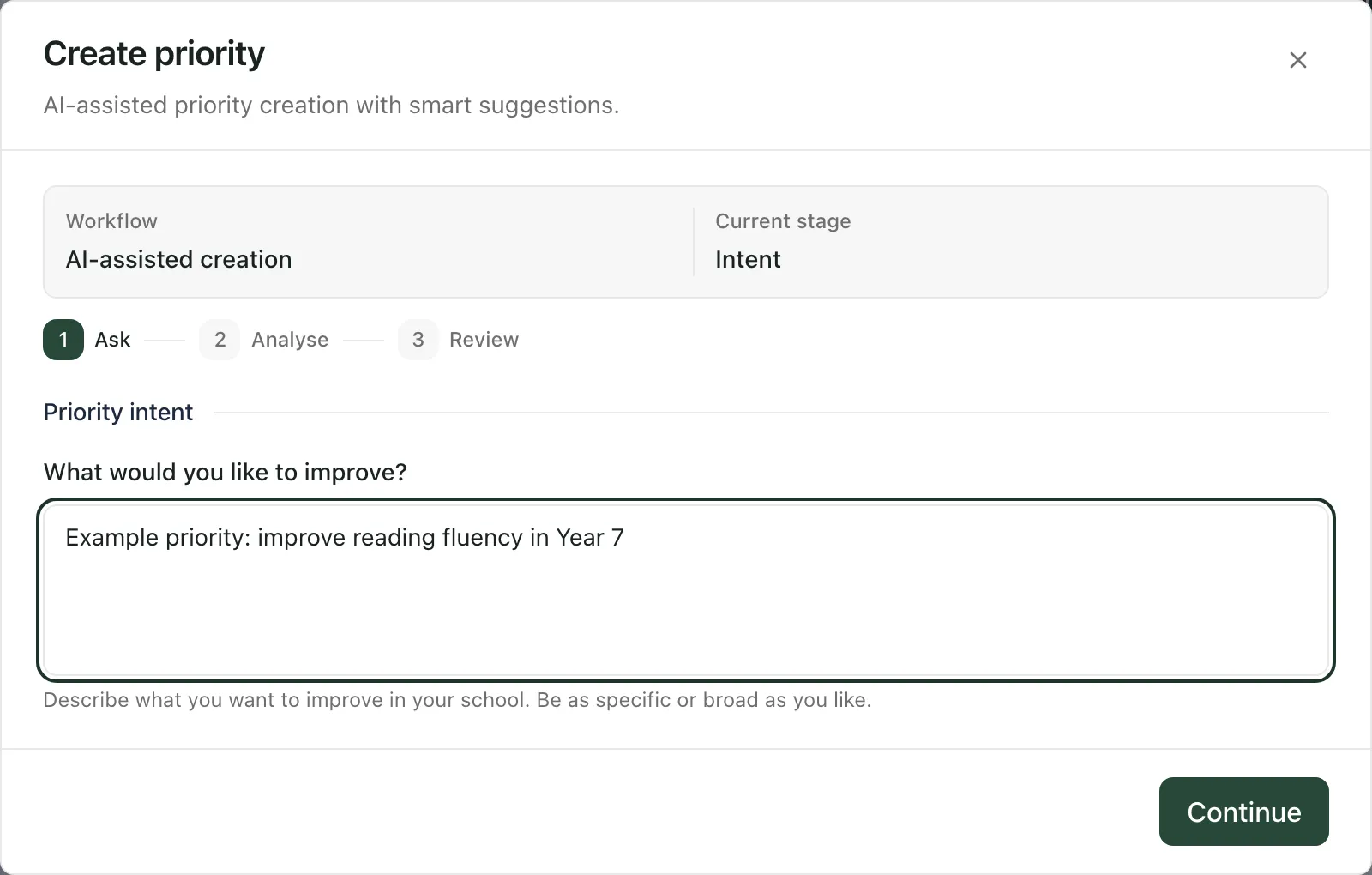
The steps across the top show where you are: Ask, Analyse and Review.
Answer the follow-up questions
Section titled “Answer the follow-up questions”Student Radar summarises what it understood and asks a few questions under A few useful details to narrow the focus. Some answers may be filled in already. Check them, change any that are wrong, then click Analyse school data. The draft is prepared from your description, your answers and your school’s inspection framework.
While the analysis runs, you’ll see “Reviewing your brief and selected framework…”. If it’s taking too long or you’ve changed your mind:
- Click Cancel analysis to stop.
- Click Skip to quick create to write the priority yourself in the manual form instead.
Review the draft
Section titled “Review the draft”The draft opens under Review suggestions. Read it all before you create anything.
- Read the summary at the top. It explains the reasoning behind the draft.
- Under Priority details, check and edit the Title, Description and Evaluation area.
- Work through the suggestions. Everything is ticked to start with. Untick anything you don’t
want to create.
- Suggested KPIs: the measures you’d use to judge progress, each with a baseline and a target. The baselines haven’t been checked against your school’s records, and the baseline is saved as the measure’s starting value. Untick any measure whose baseline you can’t confirm, and change the Target if it isn’t right for your school.
- Suggested actions: the work to deliver the priority, with a suggested due date. Click an action’s title to reword it.
- Suggested monitoring: monitoring activities, how often to do them and when the first is due.
- Suggested CPD themes: staff development ideas, kept with the priority for later.
- Click Show rationale under any suggestion to see why it was suggested.
- When you’re happy, click Create priority with the number of items you’ve kept. To start again, click Start over.
When it’s done, you’ll see Priority created. Click View priority to open it.
Check before you create: AI suggestions can be wrong, miss what matters to your school or quote figures that don’t match your records. Confirm the evidence, baselines and targets, and make sure the priority reflects your leadership team’s own judgement. The draft doesn’t decide anything on its own.
After you create it
Section titled “After you create it”The draft doesn’t choose who does the work. The new priority opens with the message “This priority has no lead”. Then:
- click Assign a lead to choose the priority’s owner, and set a next review date
- give each action an owner, and check its due date
- add any actions, measures or evidence the draft missed.
See Create a school improvement priority for what each part of a priority is for.
If only part of the draft was saved
Section titled “If only part of the draft was saved”If the priority was saved but some suggested items weren’t, the window says “The priority is saved. Some suggested items still need to be created. Retry uses the same saved priority and items, or open the priority to review completed work.”
- Click Retry to create the missing items. It won’t create the priority twice.
- Click Open saved priority to look at what was saved.
If you close the window at this point, Student Radar asks you to confirm. The saved priority and the items already created stay. The rest aren’t created.
Who can use it
Section titled “Who can use it”Creating a priority, including with AI, needs permission to manage the school’s self-evaluation. By default, headteachers, senior leaders, DSLs, SENCos and administrators have it. Your school’s inspection framework must also be confirmed in Self-Evaluation (SEF).
If something doesn’t work
Section titled “If something doesn’t work”| What you see | What to do |
|---|---|
| “Choose an area from the framework used for this draft before creating the priority.” | Choose an Evaluation area under Priority details. |
| “The framework changed. Start a new priority draft.” | Your school’s inspection framework changed while you were working. Close the window and start again. |
| “The draft response could not be confirmed. Try again to check the same request.” | Click Retry. Student Radar checks the same request rather than starting a new one. |
| “Load the confirmed framework sections before creating a priority draft.” | Your school’s framework isn’t confirmed yet. Ask a leader who can configure the framework to confirm it in Self-Evaluation (SEF). |
| “This priority has already started saving. Retry unchanged or open the saved priority to reconcile changes.” | Click Retry without changing anything, or click Open saved priority. |
| “Something went wrong” | Click Retry, or click Skip to quick create to write the priority yourself. |