Set up the behaviour on-call rota
Written for: Staff who manage Behaviour On-Call, such as behaviour leads and senior leaders.
When a member of staff asks for behaviour on-call support, Student Radar sends the request to whoever is on the duty rota at that time. You set up the rota by placing staff in the times (or lessons) they’re on duty, Monday to Friday. You can also choose whether urgent requests send a text message as well.
If nobody is on the rota at the time of a request, it goes to your school’s leadership team.
Open the rota and settings
Section titled “Open the rota and settings”- In the sidebar, open Behaviour, then Response and Escalation, and choose Behaviour On-Call.
- Click Rota & settings at the top of the page. This opens the Rota and settings tab.
You’ll see Rota & settings only if your account is allowed to manage Behaviour On-Call.
Choose the dispatch settings
Section titled “Choose the dispatch settings”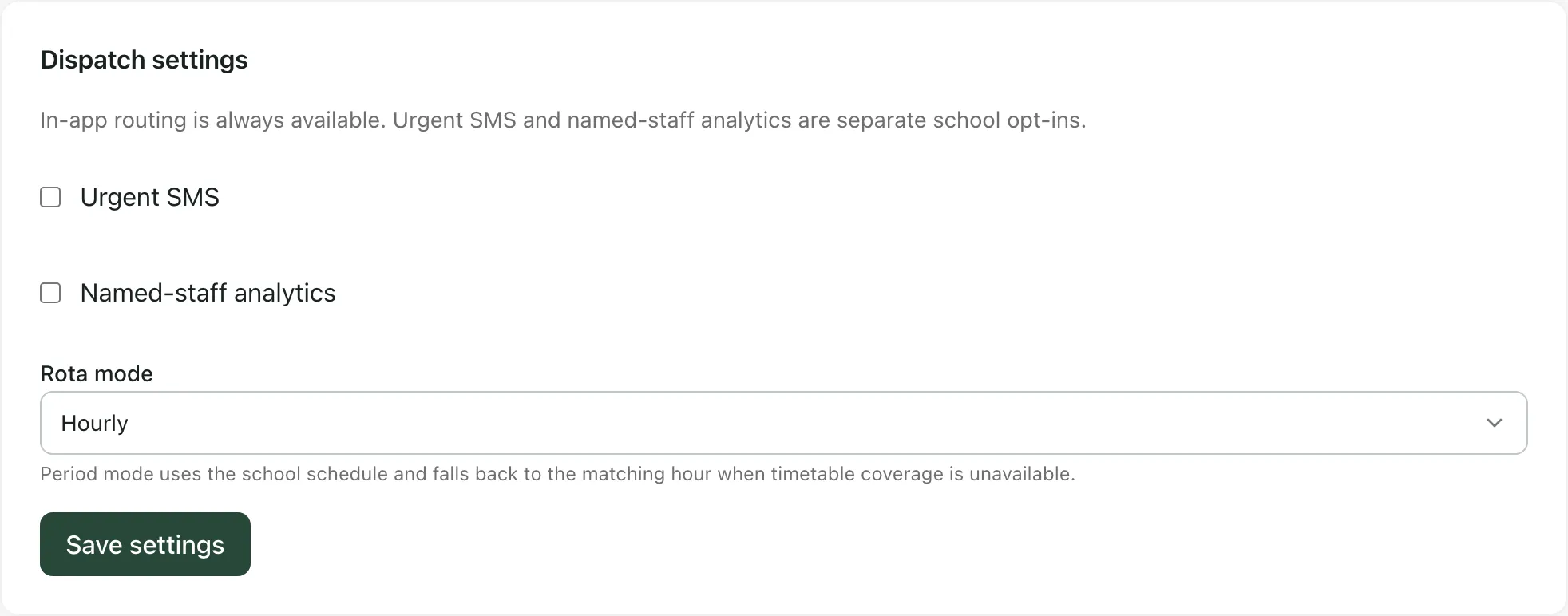
Requests always appear in Student Radar for the staff on duty. Under Dispatch settings you can also choose:
- Urgent SMS: when ticked, requests marked Urgent or Immediate also send a text to the staff on duty, using the mobile numbers on their staff records.
- Named-staff analytics: when ticked, on-call analytics can be broken down by named member of staff. Leave it unticked unless your school has agreed to this.
Click Save settings to save these two choices.
Choose the rota mode
Section titled “Choose the rota mode”Rota mode sets what the rows of the rota mean:
- Hourly: each row is an hour of the day, such as 09:00.
- Timetable periods: each row is a period in your school’s timetable. When no lesson is timetabled at the time of a request, the matching hour is used instead.
Choose the mode before you build the rota. Changing the mode is saved straight away, and it clears the duty rota, because a slot number means something different in each mode. If the rota has slots, Student Radar asks you to confirm first. After a change, add the duty slots again.
Build the duty rota
Section titled “Build the duty rota”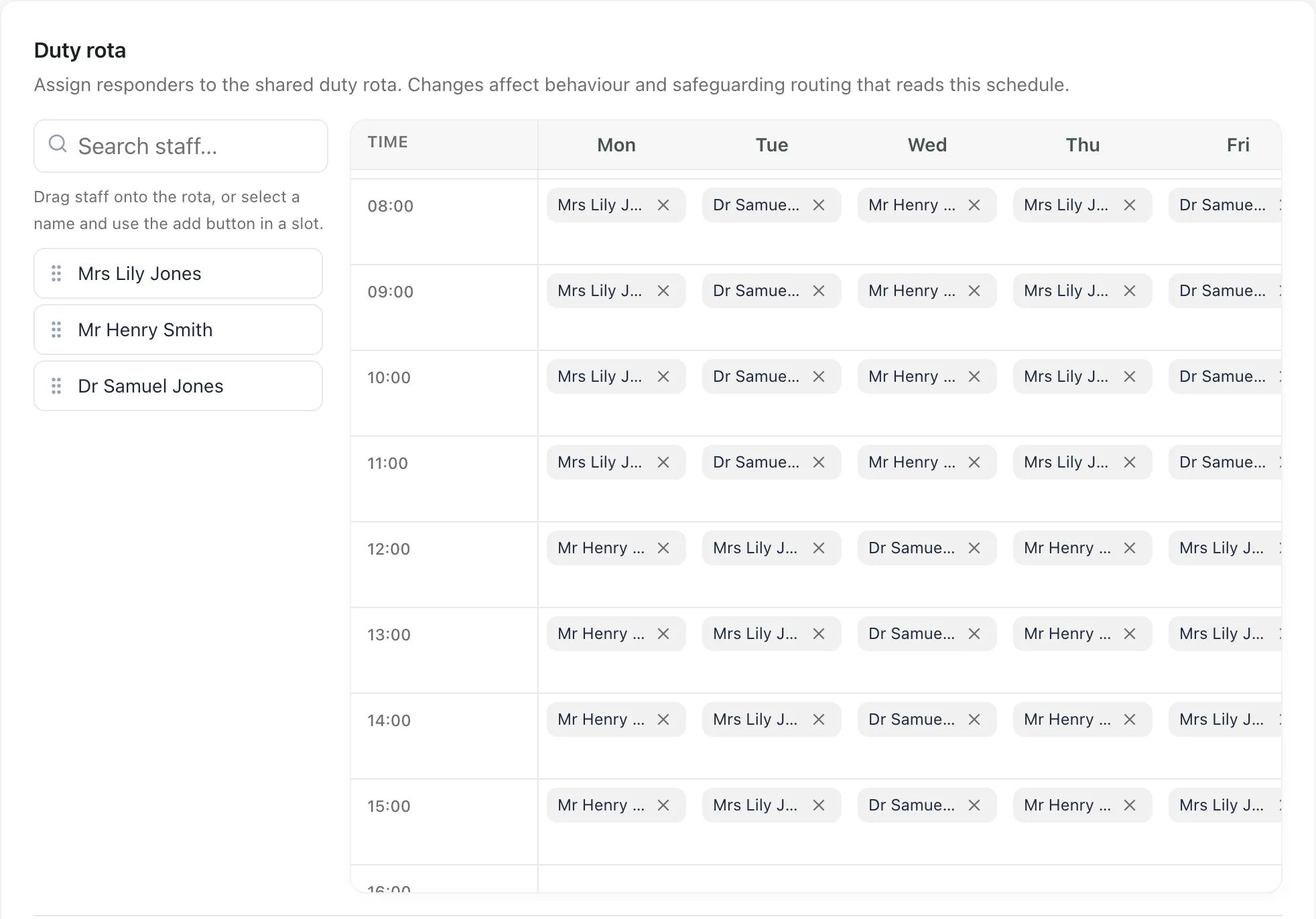
The staff you can put on the rota are listed on the left. Type in Search staff… to find someone. To put someone on duty:
- Drag their name onto a time and day in the grid, or
- Click their name, then click + Add in each slot where they’re on duty, or
- Under Add without dragging, choose the day, the time and the Staff member, then click Add slot.
To move someone, drag their name to a different slot. To take them off a slot, click × next to their name. You can put more than one person in a slot.
The line at the bottom shows how many assignments are ready to save. When you’ve finished, click Save rota. You’ll see “On-call rota saved”. Your changes aren’t used until you save.
Things to know
Section titled “Things to know”- Shared rota: this is the same duty rota that safeguarding routing reads. Changing it here changes who is on duty there too.
- Empty rota: if no slots are saved, you’ll see “No duty slots configured. Leadership remains the fallback.” Requests then go to the leadership team.
- Who responds: staff on duty at the time, and the leadership team, see the Live queue and can respond to requests. See Call for behaviour on-call support.
- Staff who can’t be added: a name marked Verify identity can’t be put on the rota until their staff record is checked. Ask a staff administrator to check it. Existing assignments are kept.
- Assignments needing attention: after a change of mode, any slot that can never match a request is listed here. Click Remove, then add the right slot.
- Teaching assistants: teaching assistants can’t open Behaviour On-Call.
If something doesn’t work
Section titled “If something doesn’t work”| What you see | What to do |
|---|---|
| “Rota and settings are unavailable. Refresh to try again.” | Click Refresh at the top of the page. |
| “Rota not saved” | Your changes weren’t saved. The reason is shown under the message. Click Save rota again. |
| “Rota mode not changed” | The mode stayed as it was. Read the message: if it says the rota was cleared, add the slots again. |
| “No staff found.” | Check the spelling in Search staff…, or clear the search. |
| “Behaviour On-Call is unavailable.” | Click Refresh. If it keeps happening, ask your school’s Student Radar administrator. |