Set up DSL on-call cover and respond to alerts
Written for: Designated Safeguarding Leads, deputies, senior leaders and office staff.
When a member of staff asks for help through In-School Support, the request appears on On-Call & Alerts. Here the safeguarding team, leaders and the school office can see who is waiting for help, say they’re on their way and close each request once the response is complete. DSLs can also set the weekly cover rota and record the school’s DSL cover arrangements.
For how staff send a request, see Ask for help in school.
Open On-Call & Alerts
Section titled “Open On-Call & Alerts”In the sidebar, open Safeguard, then Concerns & Response, and choose On-Call & Alerts. There are three tabs:
- Alerts: help requests that are waiting or being handled.
- Roster: who is on call each hour of the school week.
- Settings: escalation, recipients and DSL cover arrangements. Only the DSL, deputy DSLs, the headteacher and administrators see this tab.
Respond to an alert
Section titled “Respond to an alert”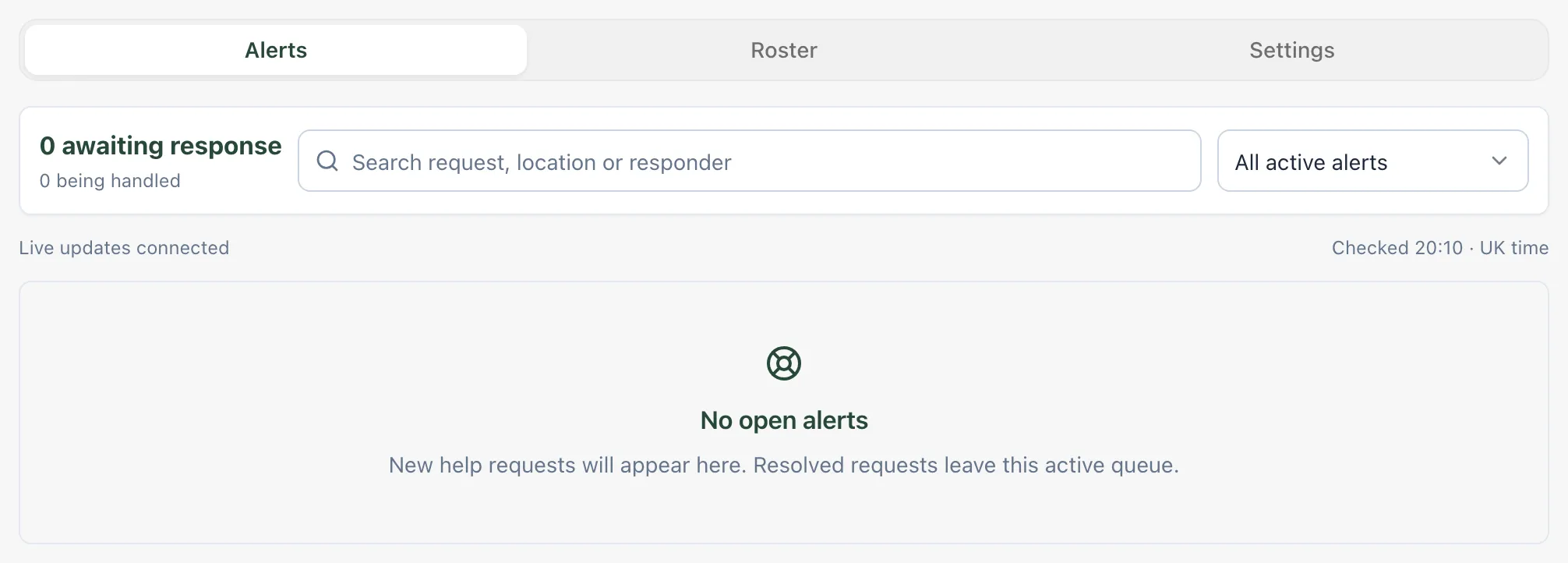
At the top of Alerts you can see how many requests are awaiting a response and how many are being handled. Use the search box to find a request by what it’s about, where it is or who is responding. Use All active alerts to show only Awaiting response or Being handled.
Each alert shows its priority, the kind of help needed, how long ago it was sent, any pupil linked, the location, who raised it and their message. Requests still waiting come first, most urgent first.
- If you’re going to the request, type how many minutes it will take you to get there in the ETA (min) box. This is optional.
- Click Acknowledge. The alert shows that it’s being handled, with your name and your expected arrival time, so colleagues know someone is on the way.
- When the response is complete, click Resolve.
- In Resolve alert, add a Handover note (optional) saying what was done and what happens next, then click Confirm resolve. The alert leaves the active queue.
Unanswered requests escalate to leadership after the time set in Settings.
Important: Resolving an alert closes the help request only. It doesn’t record a safeguarding concern. If what you found worries you, use Raise Concern and follow your school’s safeguarding procedure.
The page updates by itself while “Live updates connected” shows under the search box. If it says “Reconnecting · refresh to check the queue”, click Refresh.
Check the weekly cover rota
Section titled “Check the weekly cover rota”Roster shows Weekly cover: who is on call each hour, Monday to Friday. The same pattern repeats every week. Help requests that go to on-call staff are sent to the people on the rota at that time.
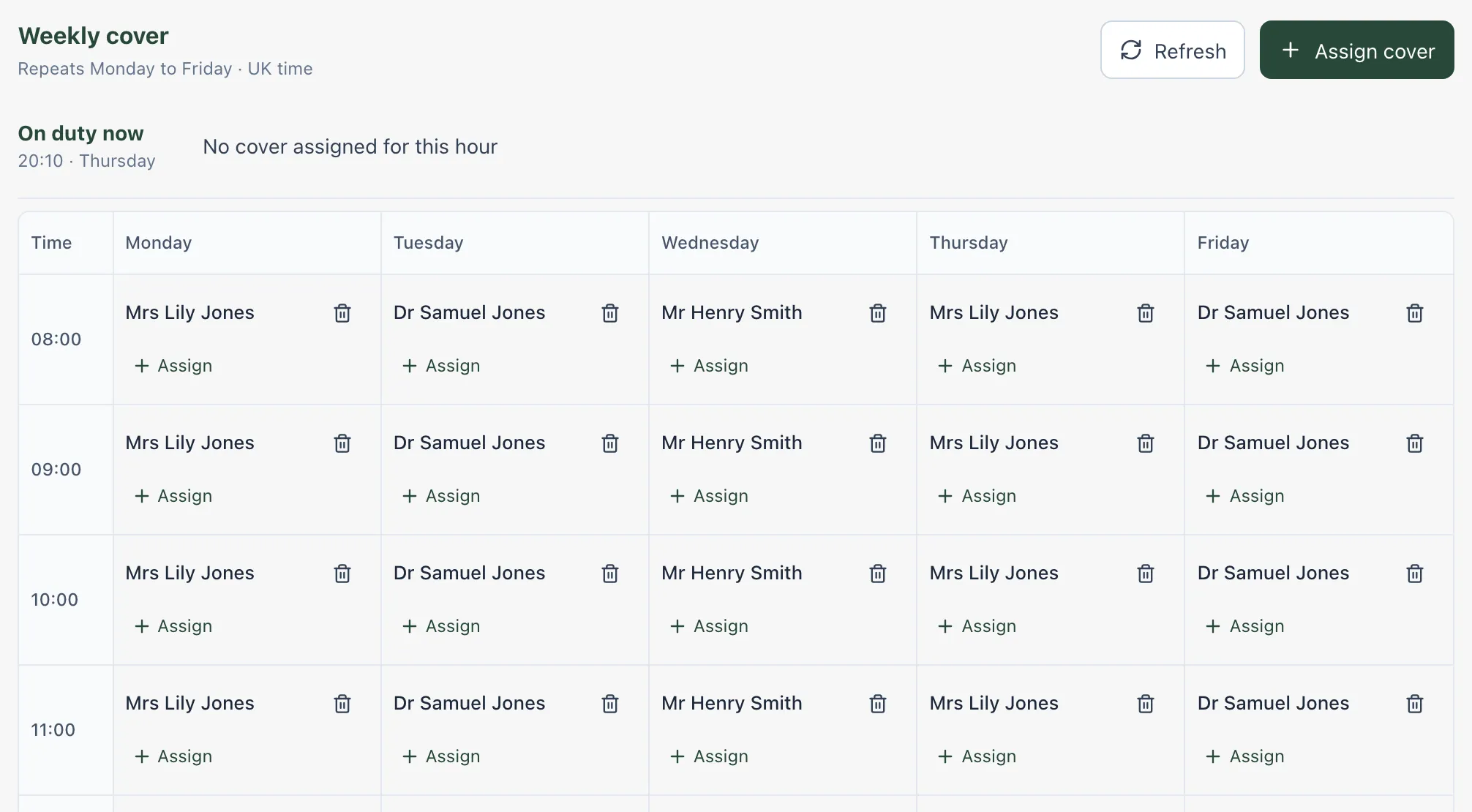
On duty now shows who is covering at this moment. A cell that reads No cover assigned has nobody on call for that hour. On a phone, choose a Day to see that day’s hours.
Times are UK time. In schools outside England, they’re shown in the school’s own time zone.
Change the rota
Section titled “Change the rota”If you can manage the rota, you’ll see Assign cover and an Assign button in each hour.
- Click Assign cover, or click Assign in the hour you want to fill.
- Under Find staff, type part of a name, role or email, and choose the person under Staff member.
- Choose the Day and Time.
- Click Assign cover.
To take someone off an hour, click the bin icon next to their name, then click Remove assignment. Their other hours stay in place.
A name on the rota tells Student Radar who to send alerts to at that time. It doesn’t confirm that a message was delivered or that anyone responded.
Set alert delivery and DSL cover arrangements
Section titled “Set alert delivery and DSL cover arrangements”On Settings:
- Under Alert delivery, set Escalate unanswered alerts after (minutes): how long a request can wait without a response before it goes to leadership. Enter a whole number from 1 to 240.
- Under Office recipients, enter the Email addresses that receive alerts routed to the office.
- Under Behaviour leads, use Find a behaviour lead and tick the staff who receive behaviour alerts. Only staff with a linked Student Radar account can receive an alert in the app.
- Under DSL cover assurance, write down who receives, monitors and acts on safeguarding concerns when the DSL isn’t available: Receives new concerns, Monitors the channel, Acts and escalates, Confidential channel, Handover and absence trigger and Review cadence.
- Click Save dispatch settings. To discard your changes, click Cancel changes.
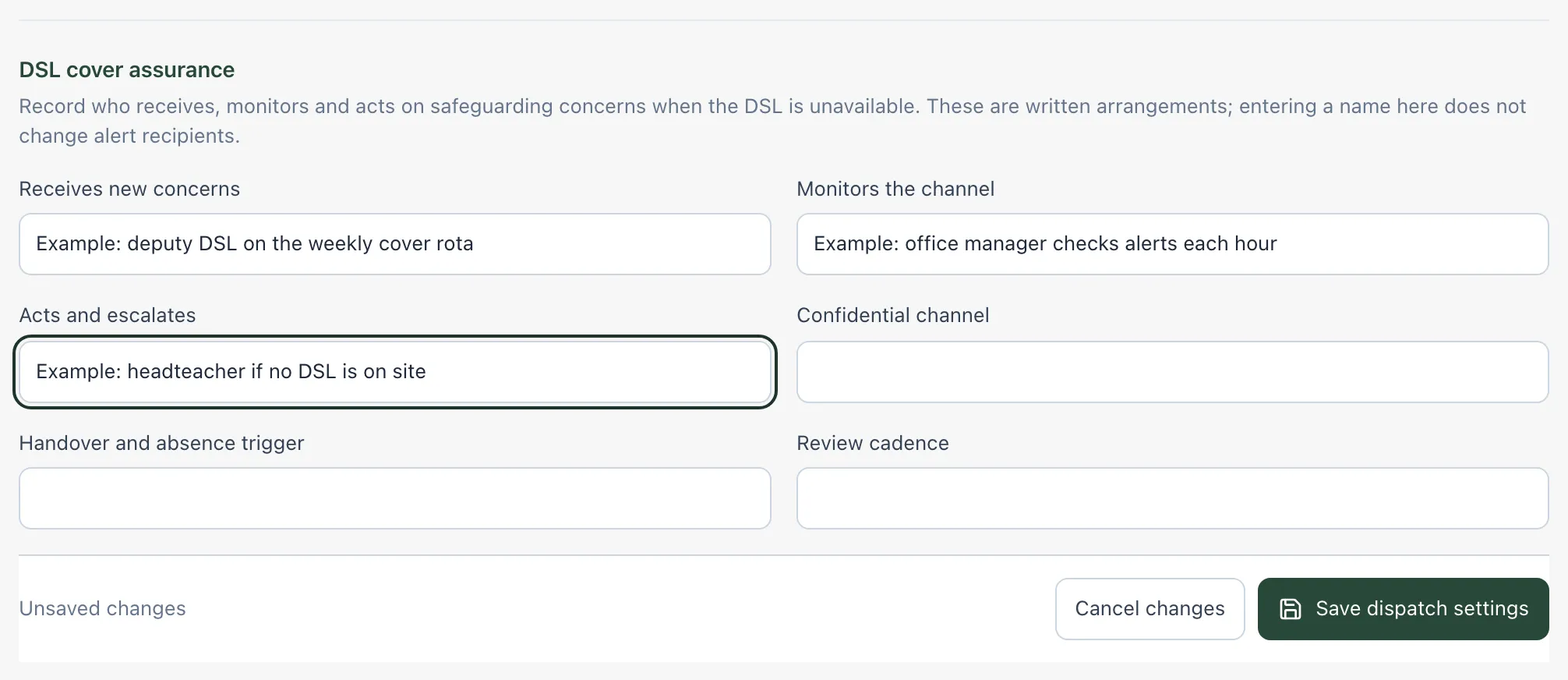
The DSL cover assurance notes are a written record of your arrangements. Entering a name there doesn’t change who receives alerts: to do that, change the rota. Keep the notes in line with the cover arrangements in your school’s safeguarding policy.
Medical help requests always use the school’s first aid, office and on-call routing. Quiet hours are set in each person’s notification preferences.
Who can do what
Section titled “Who can do what”- The DSL, deputy DSLs, the headteacher, senior leaders, administrators, office managers and reception can open On-Call & Alerts and respond to alerts.
- Only the DSL, deputy DSLs, the headteacher and administrators can change Settings.
- Changing the rota needs permission to manage it. Without it, you can view the rota but not change it.
Schools can change these defaults.
If something doesn’t work
Section titled “If something doesn’t work”| What you see | What to do |
|---|---|
| “The alert queue could not be loaded completely. Please refresh.” | Click Retry. Until the queue loads, don’t assume no one is waiting for help. |
| “Response not recorded” | Your acknowledgement or resolution wasn’t saved. A colleague may have responded first. The queue refreshes so you can see the current state. |
| “Enter an arrival estimate from 0 to 240 minutes.” | Change the ETA (min) to a whole number of minutes from 0 to 240, or leave it blank. |
| “The response was not recorded. Your note is still here; check the current alert before trying again.” | Check whether someone else has already resolved the alert, then click Confirm resolve again if it’s still open. |
| “You can view cover. An authorised roster manager can make changes.” | Ask the person who manages your on-call rota to make the change. |
| “This person is already assigned to that hour.” | Choose a different person, day or time. |
| “No account or email is recorded for this person. Check their contact route before relying on this cover.” | Student Radar may not be able to alert them. Check how they’ll be contacted, or ask your administrator to link their account. |
| “Enter a whole number from 1 to 240 minutes.” | Change Escalate unanswered alerts after (minutes) to a whole number from 1 to 240. |
| “Settings changed elsewhere while you were editing. Cancel to load the latest settings, then reapply your changes.” | Click Cancel changes, then make your changes again. |
| “Settings could not be saved. Your changes are still here.” | Click Save dispatch settings again. If it keeps happening, wait a minute and try again. |