Upload a pupil's EHCP
Written for: SENCos and inclusion leads.
Upload a pupil’s Education, Health and Care plan (EHCP) so Student Radar can organise it into its sections. You then check each section against the original document and save it. The checked sections are what the rest of Student Radar works from, for example when you create an ISP or assign provision from the EHCP, and they set up the pupil’s annual review.
The original file stays available to view and download. Student Radar’s sections are a working copy, so always check them against the original.
Find the pupil
Section titled “Find the pupil”- In the sidebar, open Inclusion, then SEND, then Plans, and choose EHCPs.
- Find the pupil. Type in Search pupil, form or need…, or narrow the list with All years, All documents and Any review date. To see only pupils who still need their EHCP uploaded, choose Needs upload in All documents.
The page lists every pupil with EHCP status on the SEND register or in their pupil record. Across the top, EHCP pupils, EHCP uploaded, Ready to review and Needs upload count where each pupil’s document is up to.
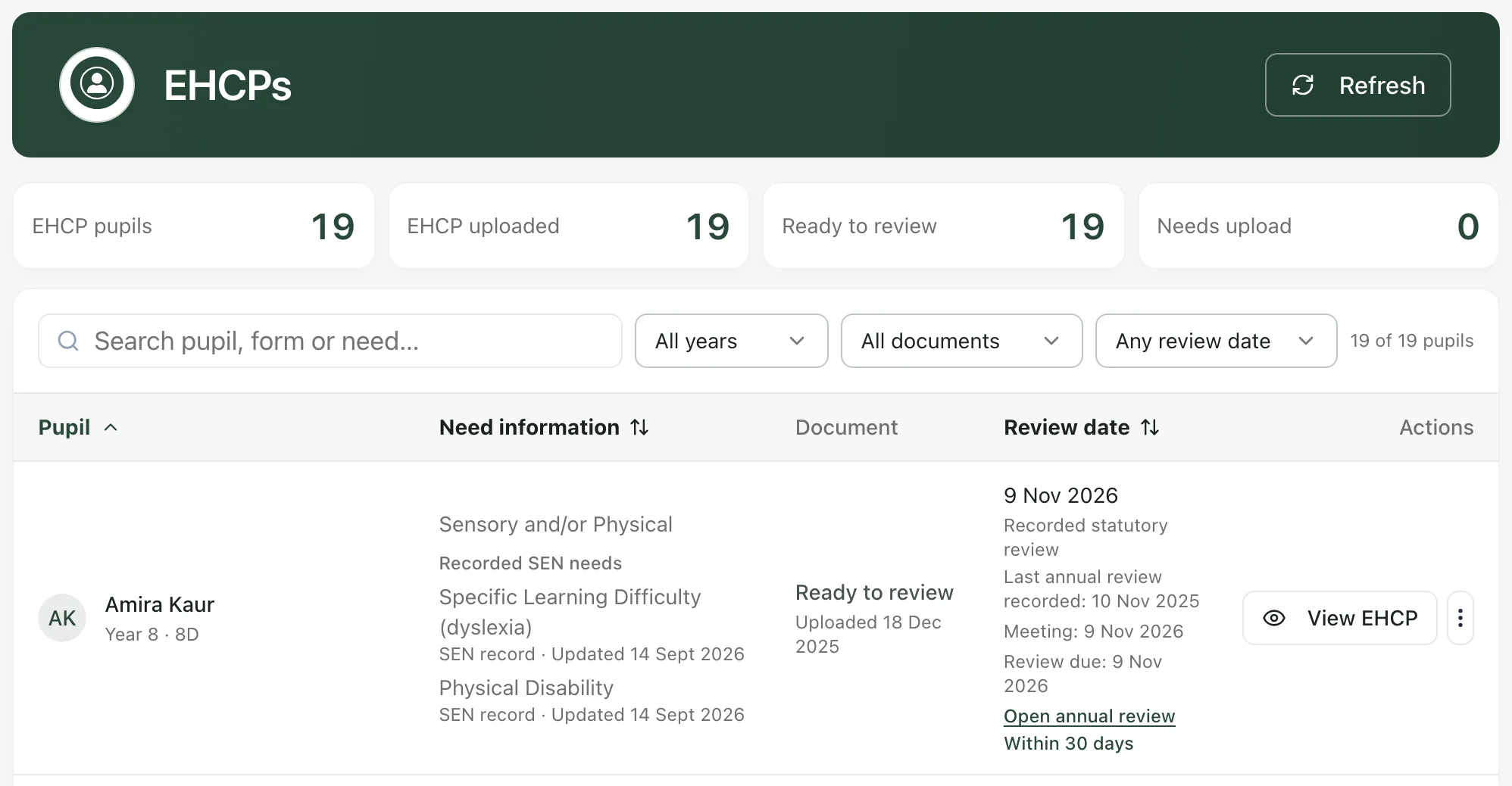
Each row shows the pupil’s recorded needs, where their document is up to and their next review date. Open annual review takes you to the pupil’s annual review.
Upload the EHCP
Section titled “Upload the EHCP”-
On the pupil’s row, click Upload.
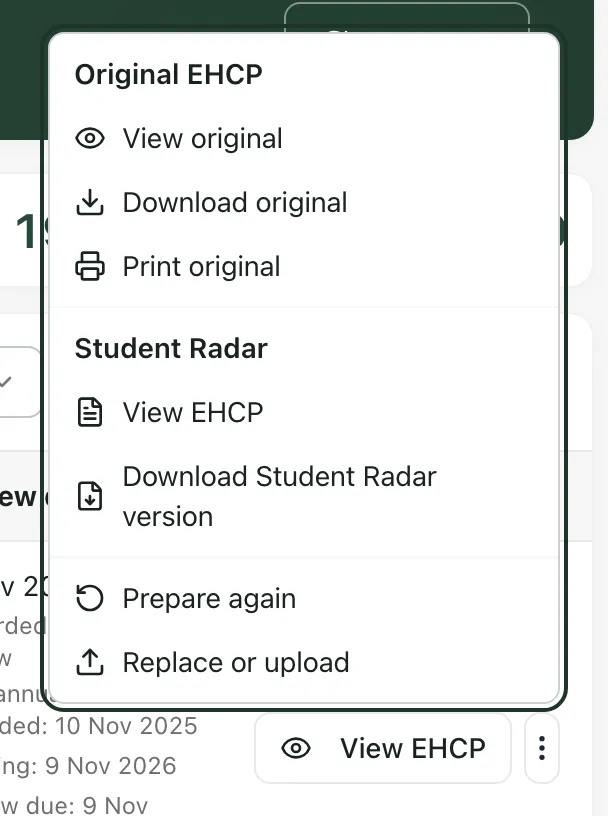
If an EHCP has already been uploaded, the button says View EHCP instead. To add a newer version, click the menu button (⋮) beside it and choose Replace or upload.
-
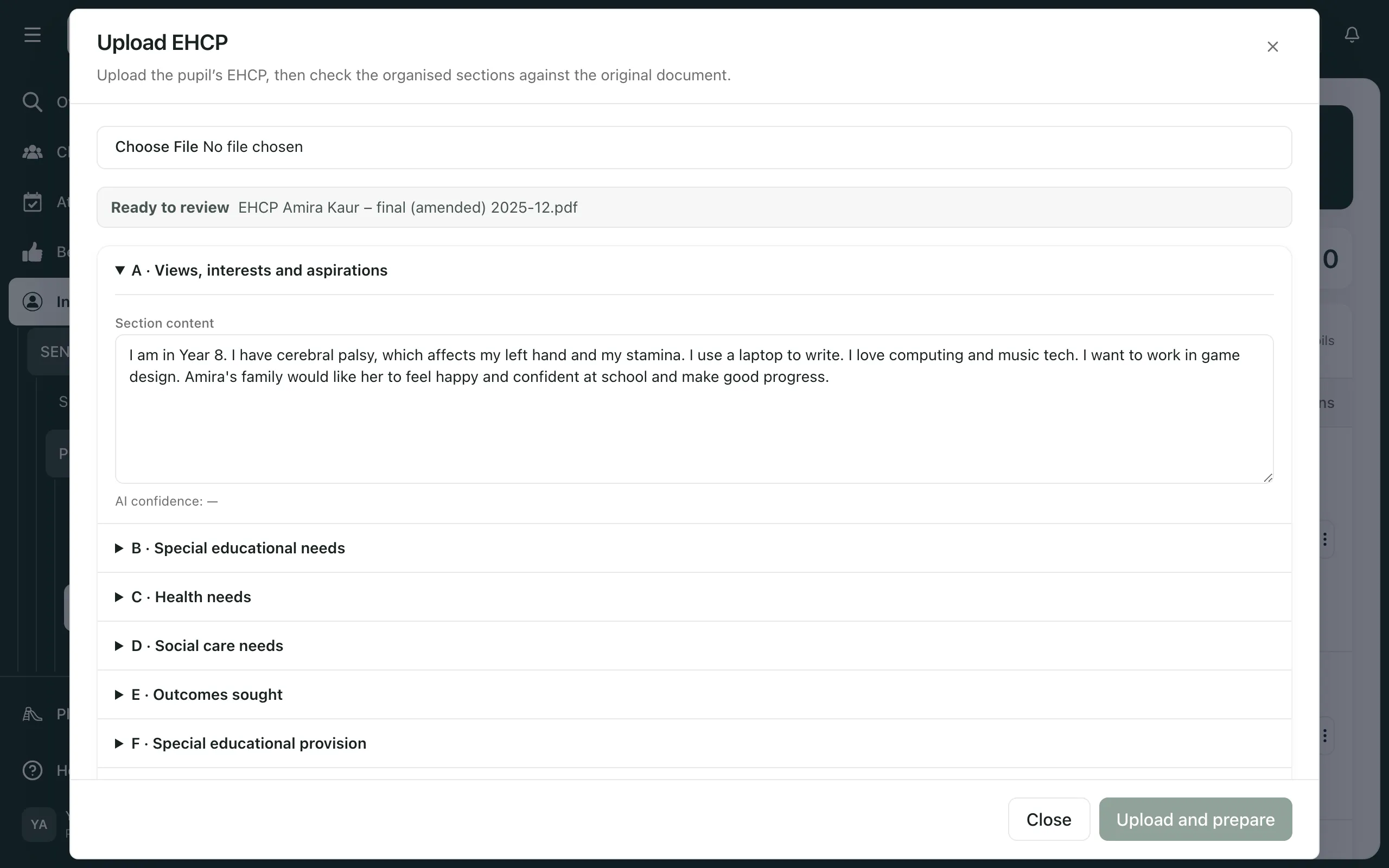
In the Upload EHCP window, click the file box and choose the EHCP. It can be a PDF, a Word document (.docx or .doc) or an RTF file.
-
Click Upload and prepare.
You’ll see “EHCP uploaded” and the message “Your document is being prepared. You can review the sections when it is ready.” The document shows as Uploaded, then Preparing…, then Ready to review. You can close the window while it’s being prepared: the EHCPs list updates by itself.
Check the sections and save them
Section titled “Check the sections and save them”When the document is Ready to review, its sections appear in the Upload EHCP window, from section A (views, interests and aspirations) to section K (advice and information). To open the window again later, click the menu button (⋮) on the pupil’s row and choose Replace or upload.
- Click each section to open it, and compare its Section content with the original EHCP. Student Radar organised the text into sections automatically, so check that each section is complete and in the right place.
- Correct anything that’s wrong. Your edits change Student Radar’s working copy only, not the original file.
- Click Save sections and set up review.
You’ll see “EHCP sections saved” with “Your changes are saved and the annual review is ready.” The pupil’s annual review is set up from the EHCP.
If you close the window with unsaved edits, you’ll be asked “Discard unsaved EHCP edits?”. Click Keep editing to go back, or Discard changes to close without saving.
Read or download an uploaded EHCP
Section titled “Read or download an uploaded EHCP”Click View EHCP to read Student Radar’s organised sections. The menu button (⋮) on the pupil’s row has more options:
- View original, Download original and Print original open or save the uploaded file. For a Word document, you’ll see View converted preview and Print converted preview: a text preview whose layout may differ from the original.
- Download Student Radar version saves the organised sections as a PDF.
- Prepare again organises the sections again from the uploaded file.
Upload from the SEND Hub
Section titled “Upload from the SEND Hub”You can also upload an EHCP from a pupil’s support story in the SEND Hub. If the pupil has EHCP status but no document, Records needing attention shows Upload EHCP. It opens the same Upload EHCP window. See Work your SEND caseload in the SEND Hub.
- England only: the EHCPs page is only available to schools in England.
- Permissions: many staff can open the EHCPs page, but uploading an EHCP and editing its sections depend on your EHCP permissions for each pupil. Your school decides who has them.
If something doesn’t work
Section titled “If something doesn’t work”| What you see | What to do |
|---|---|
| “You do not have permission to upload an EHCP for this pupil.” | Your account can’t upload an EHCP for this pupil. Ask your SENCo. |
| Upload and prepare is greyed out | Choose a file first. If “Checking upload permission…” is showing, wait a moment. |
| “EHCP upload failed” | Read the reason in the message, check the file type, then try again. |
| Preparation failed | Click Try again in the Upload EHCP window, or choose Try again from the menu button (⋮) on the pupil’s row. |
| “EHCP permissions could not be checked. Editing is unavailable until access can be verified.” | Close the window and open it again. If it keeps happening, wait a minute and try again. |
| “EHCP save failed” | Your edits are still in the window. Read the reason in the message, then click Save sections and set up review again. |
| “Your changes are saved. Annual review setup could not finish; open Annual Review to continue.” | The sections are saved. Open Annual Review to finish setting up the review. |
| “EHCP information could not be loaded” | Click Try again. Your records haven’t been treated as missing. |
| “No current EHCP pupils” | Pupils appear here once they have EHCP status on the SEND register or in their pupil record. |
| “The EHCP preview could not be displayed inline.” | Click Download original and open the file in your usual document reader. |