Give points from anywhere
Written for: All school staff.
The Give points button at the top of every page lets you recognise a pupil’s achievement in a few clicks, without leaving what you’re doing. You can also record a needs-work observation privately. The categories and points come from your school’s own behaviour settings.
Give positive points
Section titled “Give positive points”-
Click Give points at the top of the screen. On a phone, it’s the trophy icon.
-
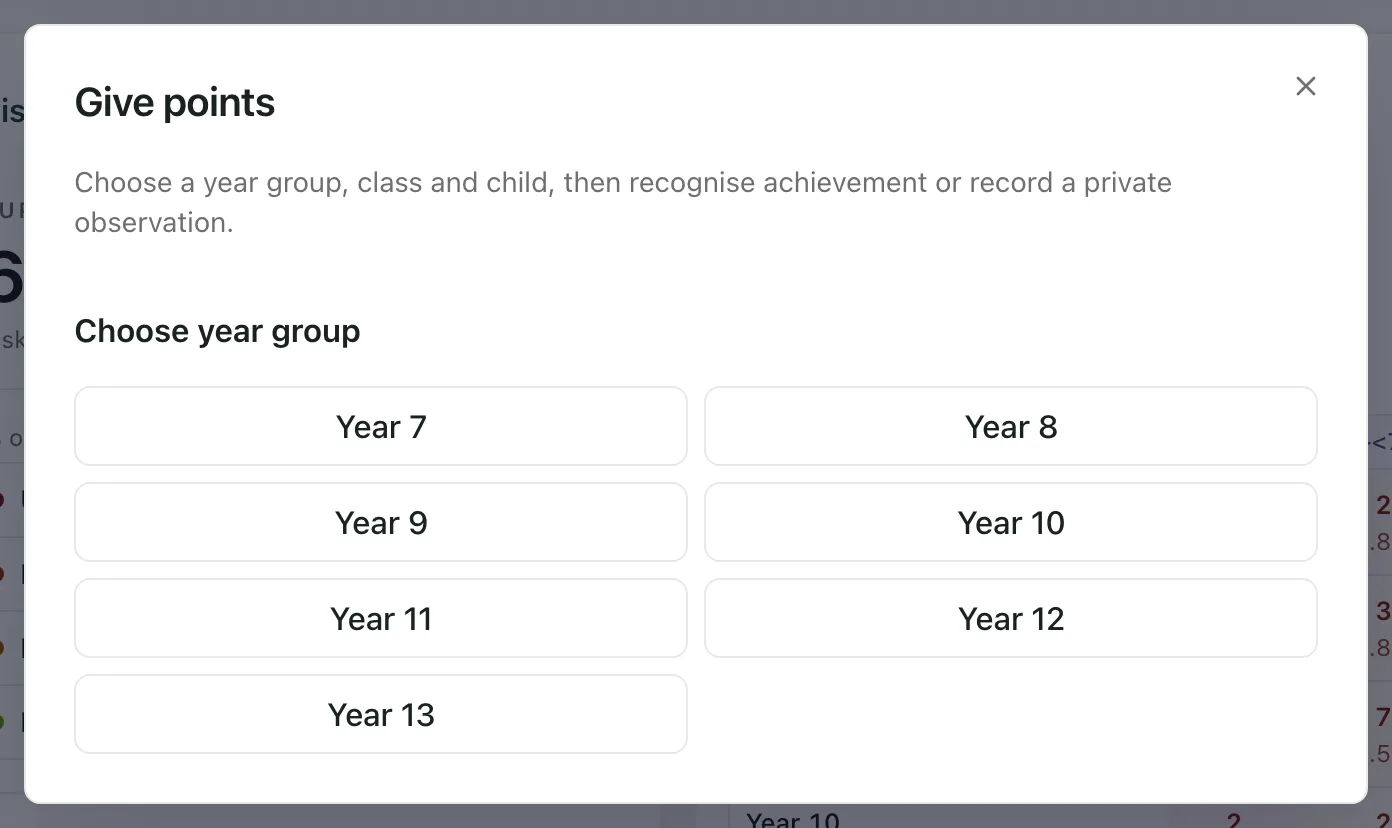
Under Choose year group, click the pupil’s year group.
-
Click their class.
-
Click the pupil’s name. Award points opens with their name at the top.
-
Make sure Positive is selected, then click the category that fits. Your school sets the categories. The number on the right of each one is how many points it gives.
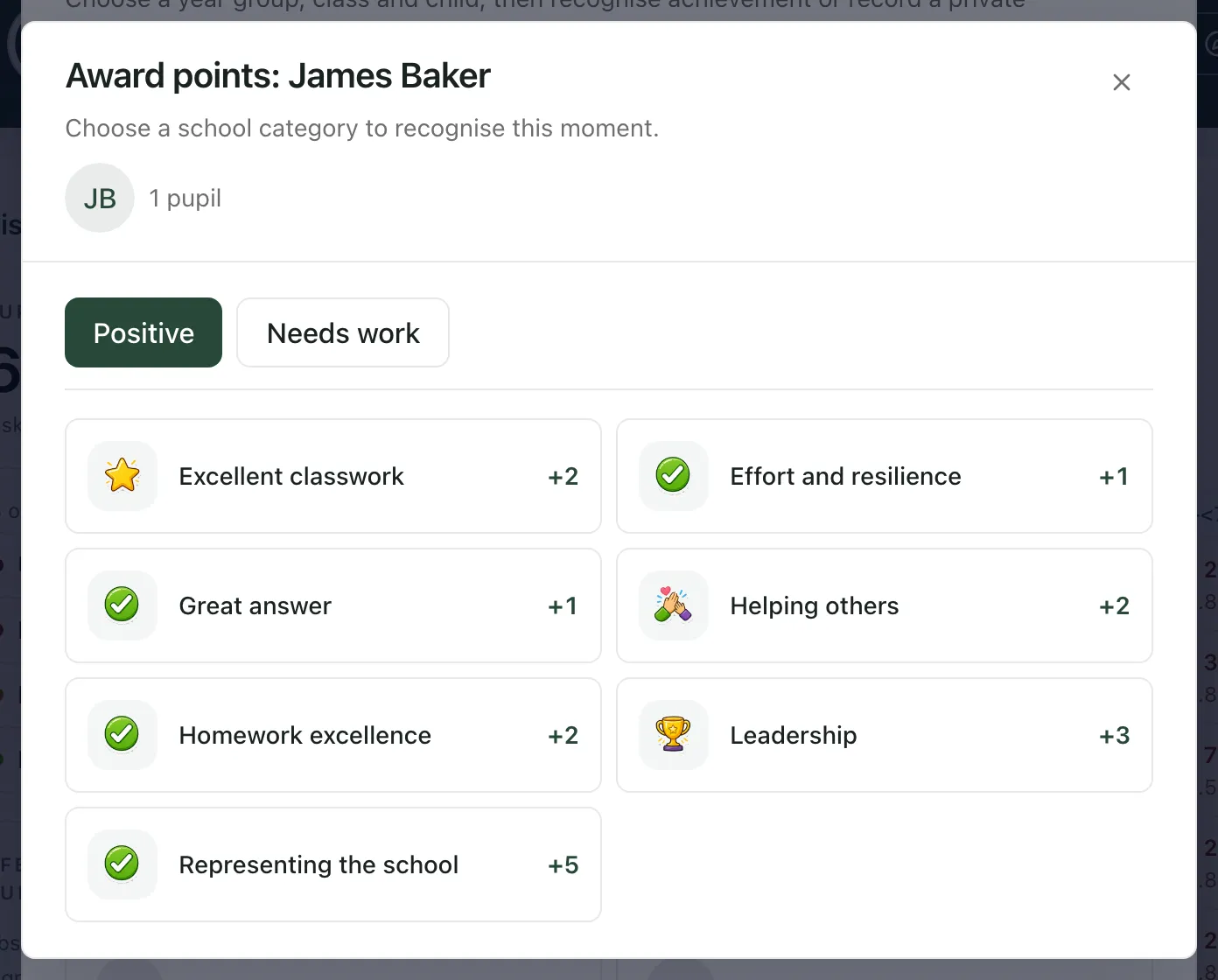
Clicking a positive category awards the points straight away. There’s no separate confirm step, so check you’ve chosen the right pupil first.
You’ll see a short celebration and a message saying how many points were awarded and to whom. You’re then back at the class list, ready to choose another pupil. Close the window with × when you’ve finished.
To choose a different group, click Change year group or Change class at the top of the window.
Record a needs-work observation
Section titled “Record a needs-work observation”Needs-work points are recorded privately. They don’t change the pupil’s positive points total.
- Follow steps 1 to 4 above.
- Click Needs work, then click the category that fits.
- In Observation and follow-up context, describe what happened and any support or follow-up you’ve agreed. You need to write at least five characters.
- Click Confirm to record it. The button shows the points that will be recorded.
To pick a different category before saving, click Back to categories. For anything that needs further follow-up, use the pupil’s behaviour record.
- You only see pupils you have access to. A pupil’s name is greyed out if you can’t give them points.
- Categories and point values are set by your school in School Settings, under Behaviour. Your school can also set limits on how many points can be given. If a limit applies, the message after you give points says so.
- Pupils without a class are listed under No Class in their year group.
If something doesn’t work
Section titled “If something doesn’t work”| What you see | What to do |
|---|---|
| “Give points could not be loaded. Please try again.” | Click Try again. |
| “No permitted pupils are available.” | Your account can’t give points to any pupils. Ask your school’s Student Radar administrator to check your access. |
| “You do not have permission to give points to this class.” | Choose another class, or ask your administrator to check your access. |
| “Student Radar award rules have not been configured or activated for this school.” | Your school hasn’t set up its points categories yet. Ask your administrator to set them up in School Settings, under Behaviour. |
| “This school has no active award categories.” | Ask your administrator to switch on at least one category in School Settings, under Behaviour. |
| “School points rules could not be loaded. Please try again.” | Click Retry loading. |
| “No points added: the school limit has been reached.” | Your school’s limit stopped this award. Nothing was added. |
| “The award could not be confirmed. Retry the same choice to check the request without creating a duplicate.” | Click the same category again. Student Radar checks whether the first award went through, so the pupil won’t get the points twice. |
| “Points are saved; some behaviour summaries have not refreshed yet.” | The points were awarded. Totals elsewhere in Student Radar will catch up shortly. |