Create an intimate care plan and daily log
Written for: Staff who plan or give intimate care.
Some pupils need help from an adult with personal care, such as toileting, changing or washing. An intimate care plan records how the school gives that help in a way that protects the pupil’s dignity, privacy and comfort: which care is agreed and which isn’t, who gives it, how the pupil’s agreement is checked each time, and what the family has consented to. Each time care is given, staff record it in the plan’s daily log.
Intimate care is personal. Write only what the plan needs, keep to the facts, and use respectful language you’d be comfortable for the pupil and their family to read. Make sure the pupil’s own views shape the plan.
Open intimate care plans
Section titled “Open intimate care plans”In the sidebar, click Health, then Care & Support Plans, then Intimate Care Plans.
The cards along the top count the Plans, how many are Active and how many are Review due. The list shows each plan’s pupil, Status, parent Consent, Date of review and when it was Last updated. Click Open to read a plan, or Edit to change it.
Create a plan
Section titled “Create a plan”-
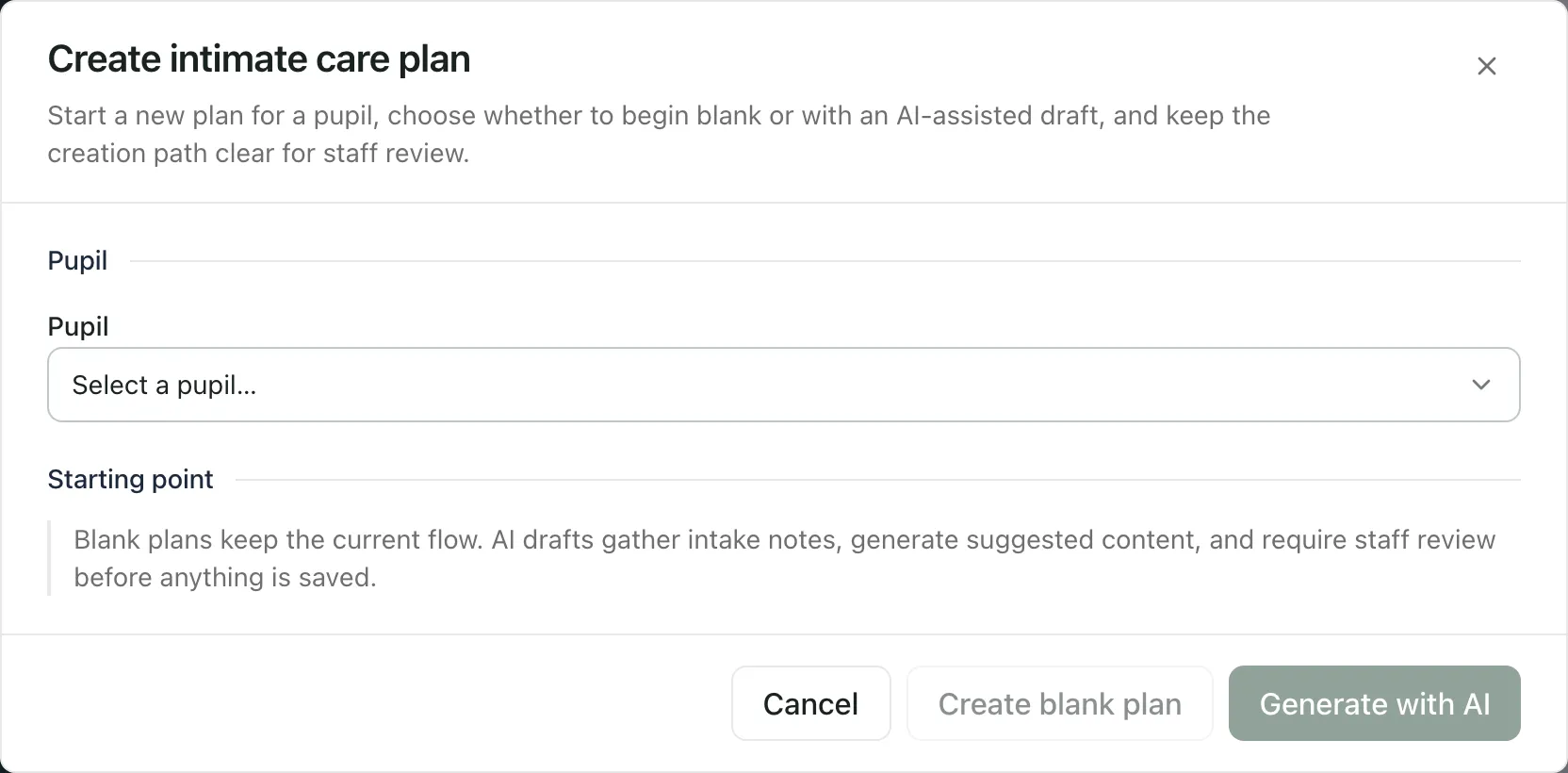
Click Create intimate care plan.
-
Choose the Pupil.
-
Choose how to start:
- Create blank plan adds a draft plan to the list. Click Edit on its row to fill it in.
- Generate with AI drafts the plan from notes you already have. See the next section.
Draft a plan with AI (optional)
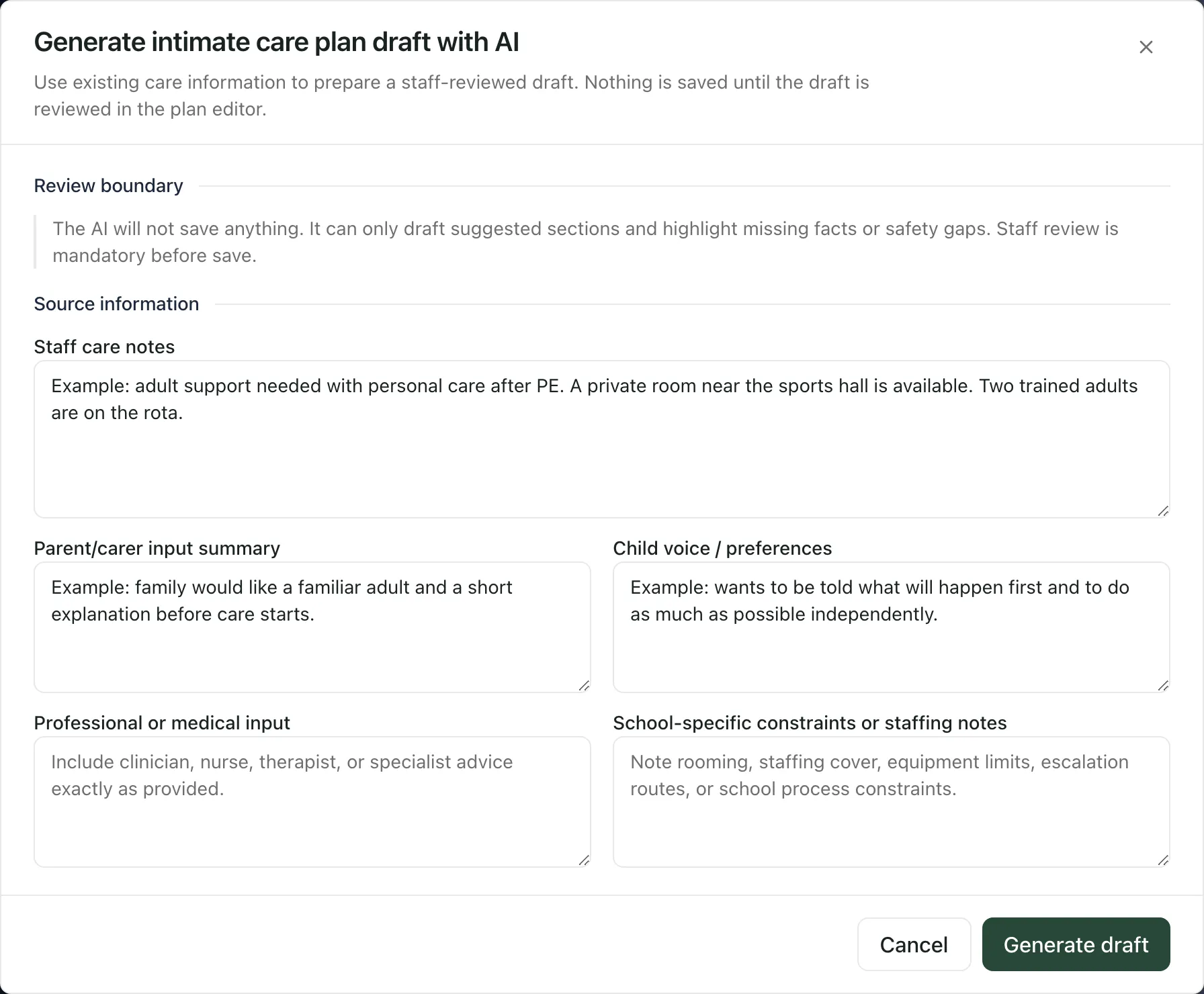
Section titled “Draft a plan with AI (optional)”The AI only drafts. It doesn’t save anything, and a member of staff must review every part of the draft before it’s kept.
-
Under Source information, write the Staff care notes. This box is required.
-
Add what you know under Parent/carer input summary, Child voice / preferences, Professional or medical input and School-specific constraints or staffing notes. Include professional advice exactly as it was given.
-
Click Generate draft.
-
Read the result on its three tabs: Suggested content, Open questions for facts the draft couldn’t fill in, and Safety review for gaps to fix before the plan is used.
-
Click Review draft in editor to check and change every section, or Back to inputs to change your notes.
-
In the editor, leave the status as a draft and click Create plan.
If the pupil had an earlier plan, the AI treats it as history only, not as current fact. An AI draft can’t be activated straight away. It must be saved as a draft and reviewed first.
Complete the plan
Section titled “Complete the plan”Click Edit on the plan’s row. The plan is organised into tabs:
| Tab | What it records |
|---|---|
| Overview | The plan’s Status, Parent consent status and Review due date, and whether the pupil’s views have been recorded, under Child views. |
| Care | Reason for intimate care, Care tasks agreed, Care tasks not agreed, the Assent and refusal process, Frequency and timing, Staff involved / roles, Privacy and dignity arrangements, and equipment needed. |
| Daily logs | Each time care is given. See below. |
| Safeguarding | The Safeguarding concern process, Safeguarding measures, and Recording and reporting. |
| Consent | The Consent date, any Consent limits, and Consent notes. |
| Review | How the plan will be checked and kept up to date. |
| Staff and training | Who is assigned to the plan and whether their training is confirmed. |
| Signatures | Parent or carer and school sign-offs. |
Click Save changes when you’ve finished.
Agree the plan with the pupil, as far as they’re able, and with their parents or carers, and include any professional advice. Care tasks not agreed matters as much as what is agreed: it tells staff what they must not do.
Make the plan active
Section titled “Make the plan active”When the plan is complete and the parent’s consent is granted, set Status on the Overview tab to Active and click Save changes. Student Radar checks the plan first. If anything is missing, you’ll see Plan is not ready to activate with a list of what to complete, such as the pupil’s date of birth.
After sign-offs are recorded on the Signatures tab, the plan is locked. To change the agreed arrangements, open the plan and click Create new version. Review the copied arrangements, save the review date and parent consent, record fresh sign-offs, then click Activate reviewed version. The previous version is archived.
Record care in the daily log
Section titled “Record care in the daily log”Record each time care is given, as soon as you can afterwards.
-
Click Open on the plan’s row, then click the Daily logs tab. The plan must be saved first.
-
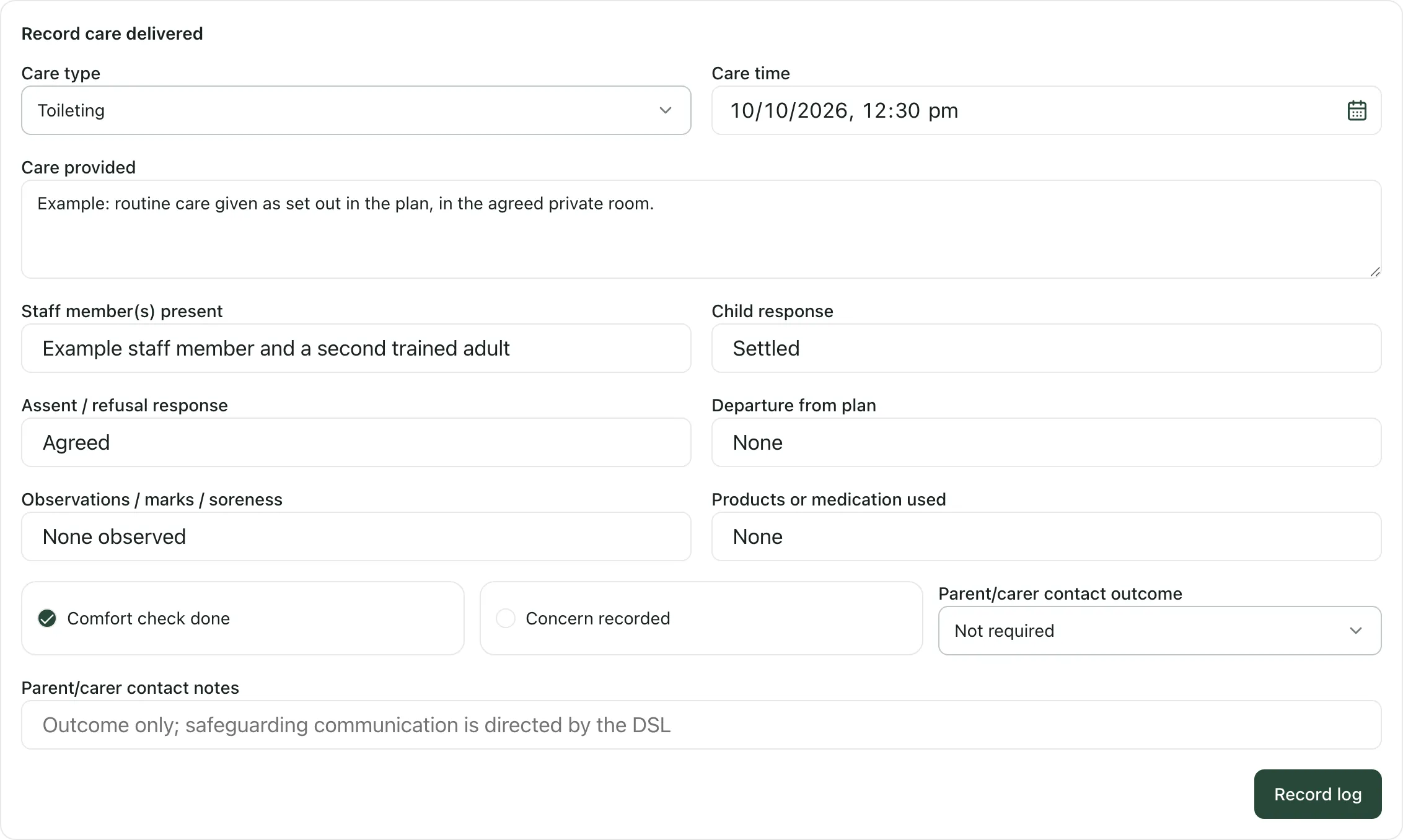
Under Record care delivered, choose the Care type and set the Care time.
-
Under Care provided, describe briefly what was done, following the plan.
-
Under Staff member(s) present, name every adult who was there.
-
Under Child response and Assent / refusal response, record how the pupil responded and whether they agreed. If they paused or refused, say what you did.
-
Record any Departure from plan, any Observations / marks / soreness, and any Products or medication used. If there were none, say so.
-
Comfort check done is ticked. Untick it if no comfort check was done.
-
Choose the Parent/carer contact outcome and add Parent/carer contact notes if needed.
-
Click Record log.
The log appears in the list below the form, with who recorded it and when. To correct a log, click Edit on it.
If you’re worried about a pupil
Section titled “If you’re worried about a pupil”If anything during intimate care worries you, such as something the pupil says, a mark, or a change in how they respond, follow your school’s safeguarding procedure straight away.
In the daily log, tick Concern recorded and write the facts in Concern details. The Parent/carer contact outcome changes to DSL decision pending, because the DSL decides who is told and when. After you click Record log, click Escalate on the log to pass the concern to the DSL. You can also click Raise concern at the top of the pupil’s profile.
Reviews
Section titled “Reviews”When a plan’s review date has passed, opening it shows Review overdue. Click Acknowledge and continue to read the plan, then review and update it as soon as you can.
Take the built-in tour
Section titled “Take the built-in tour”Click Take a tour at the top of the page for a short walk-through of the list, creating a plan and the plan’s tabs.
If something doesn’t work
Section titled “If something doesn’t work”| What you see | What to do |
|---|---|
| “Unable to load intimate care plans. Please refresh and try again. This does not mean there are no plans.” | Refresh the page. |
| “Save this plan before recording daily care logs.” | Save the plan first, then open it again. |
| Record log is greyed out | Fill in Care time, Care provided, Staff member(s) present and Assent / refusal response. |
| “Check the care time” | Enter a valid date and time, then click Record log again. |
| “Plan is not ready to activate” | Complete the items listed in the message, save, then try again. |
| “Human review required” | Save the AI draft as a draft first. Review it before making it active. |
| “This plan has recorded sign-offs and is locked for editing. Create a new version if the agreed care arrangements need to change.” | Click Create new version to change the plan. |
| “This care plan is unavailable or you do not have access.” | Check with the plan’s owner or your DSL. |