Set default provision costs and review periods
Written for: SENCos and SEND leaders.
Provision Settings holds your school’s defaults for costing SEND provision and setting review dates. Student Radar uses them when provision comes from a pupil’s ISP and doesn’t have its own hourly rate, hours or review date. The defaults are shared by everyone in your school. Everyone can read them, but only SEND leads and school leaders can change them.
Open Provision Settings
Section titled “Open Provision Settings”In the sidebar, open Inclusion, then SEND, then Provision, and choose Provision Settings. You can also click Change cost defaults at the top of the Provision Map.
Under Cost & Provision Defaults, a line tells you where the values come from:
- “Built-in defaults. Nobody has saved defaults for this school yet.” means nobody at your school has saved their own values, so Student Radar’s built-in values are in use.
- Otherwise it says School defaults, with who last saved them and when.
Change the defaults
Section titled “Change the defaults”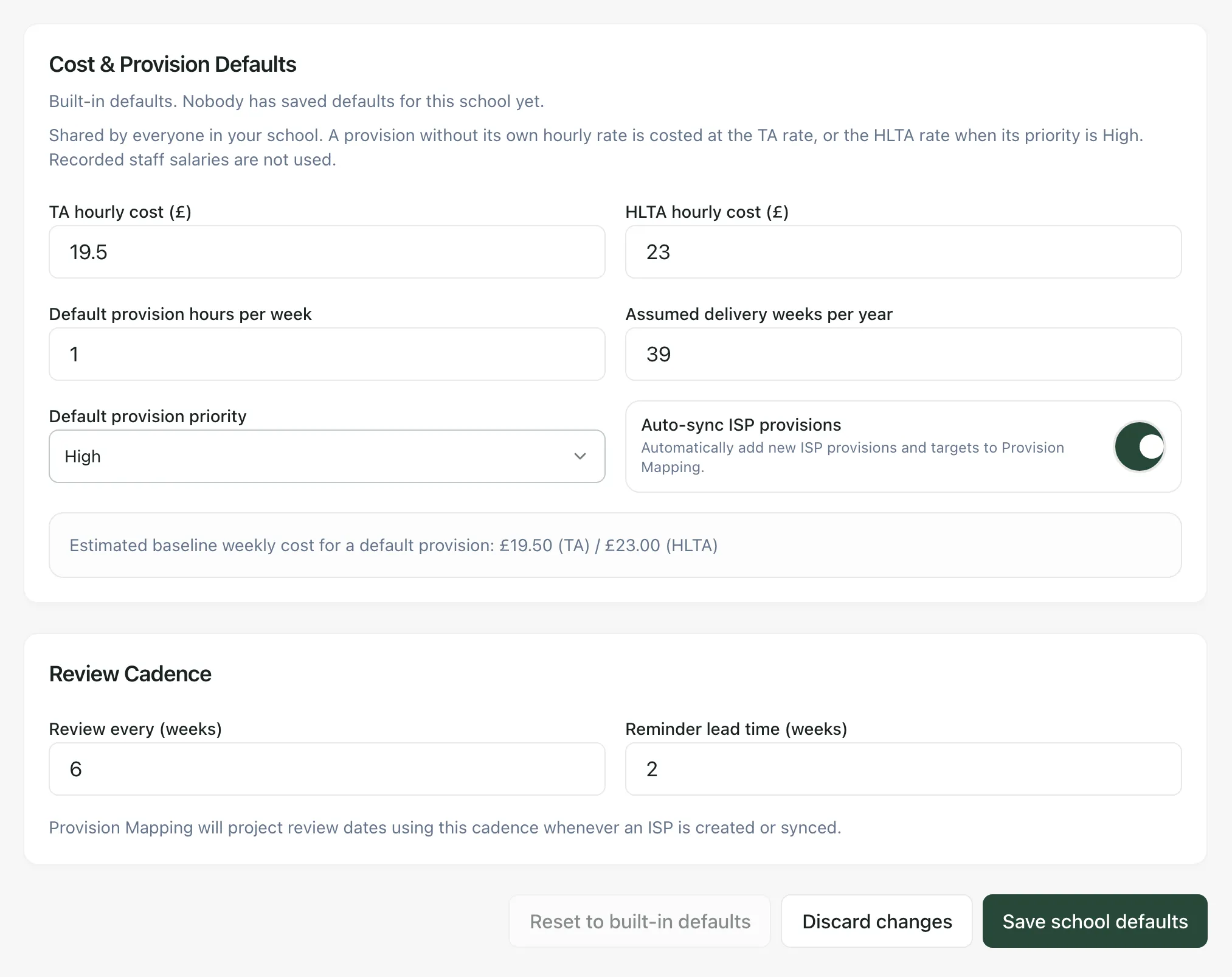
-
Change the values you need:
Setting What it’s used for Built-in value TA hourly cost (£) The hourly staff cost for ISP provision without its own rate. £18 HLTA hourly cost (£) The hourly staff cost instead of the TA rate when the provision’s priority is High. £23 Default provision hours per week The weekly hours for ISP provision when none are recorded. 1 Assumed delivery weeks per year The number of weeks used to turn a weekly cost into a yearly cost for ISP provision. 39 Default provision priority The priority given to ISP provision when none is set: High, Medium or Low. High Review every (weeks) How long after a provision starts its review date is set, when an ISP is created or synced. 6 -
Check Estimated baseline weekly cost for a default provision. It shows what one default provision would cost each week at the TA and HLTA rates.
-
Click Save school defaults.
Everyone in your school uses the new values straight away. Costs already recorded against a provision keep their own amounts.
As the page says, “Recorded staff salaries are not used.” The rates are your school’s estimates, so the costs worked out from them are estimates too.
The page also has Auto-sync ISP provisions and Reminder lead time (weeks). These are saved with your school’s defaults. The reminder lead time can’t be longer than the review cycle.
To undo changes you haven’t saved, click Discard changes. To go back to Student Radar’s built-in values for everyone, click Reset to built-in defaults.
The yearly estimates on the Provision Map always use 38 school weeks, whatever you set here. To record a different yearly cost for a provision there, type it into Annual cost override (£). See Add and cost a provision.
Who can change the defaults
Section titled “Who can change the defaults”By default, SENCos, safeguarding leads, senior leaders and headteachers can save the defaults. Everyone else, including governors, sees the same values but can’t change them: the page says “Only SEND leads and school leaders can change these.” Your school can change who has each permission.
If something doesn’t work
Section titled “If something doesn’t work”| What you see | What to do |
|---|---|
| “Enter an hourly rate from £0 to £200, to the penny.” | Type a rate between 0 and 200, with no more than two decimal places. |
| “Enter 0 to 40 hours a week, up to 2 decimal places.” | Change Default provision hours per week. |
| “Enter 1 to 52.14 weeks, up to 2 decimal places.” | Change Assumed delivery weeks per year. |
| “Enter a whole number of weeks from 1 to 52.” | Change Review every (weeks) to a whole number. |
| “The reminder cannot be longer than the review cycle.” | Make Reminder lead time (weeks) shorter than or equal to Review every (weeks). |
| “Someone else changed the school defaults while you were editing. Reload the latest values, then save again.” | Click Reload latest values, make your change again and save. |
| “Only SEND leads and school leaders with settings access can change school defaults.” | Ask your SENCo or headteacher to make the change. |
| “Too many requests in a short time. Wait a minute and try again.” | Wait a minute, then save again. |
| “The school’s SEND cost defaults could not be loaded.” | Click Retry. Until they load, the built-in values are shown and provision cost changes can’t be saved. |
| “Use the SEND settings saved in this browser for the whole school?” | This browser kept its own settings from before they were shared. Click Use for the whole school or Keep school defaults. |