Report a concern about a member of staff
Written for: All school staff.
If an adult who works at your school does or says something that worries you about the safety or wellbeing of children, you can report it in Student Radar. Your report goes to the safeguarding team, who decide what happens next. Reporting a concern doesn’t mean an allegation is proven. The safeguarding team will make sure the process is fair, confidential and proportionate.
Important: your school’s procedure for concerns about adults who work with children still applies, including who you should tell and how quickly. Student Radar records and routes your report. It doesn’t replace telling the right person straight away if a child may be at immediate risk. If anyone is in immediate danger, follow your school’s emergency procedure first.
Don’t interview the member of staff or discuss the concern with other people.
Open the concern form
Section titled “Open the concern form”In the sidebar, open Safeguard, then Concerns & Response, and choose Raise Concern. The Report a concern form opens.
Say who the concern is about
Section titled “Say who the concern is about”- Under Who is this concern about?, click Member of staff.
- In Staff member name (or unknown), start typing the person’s name, then choose them from the list.
- If you don’t know who it was, click Mark as unknown. To type a name again, click Enter a staff name instead.
- If you like, add their Role (optional), such as teacher, TA or volunteer, and your Relationship to reporter (optional), such as colleague or supervisor.
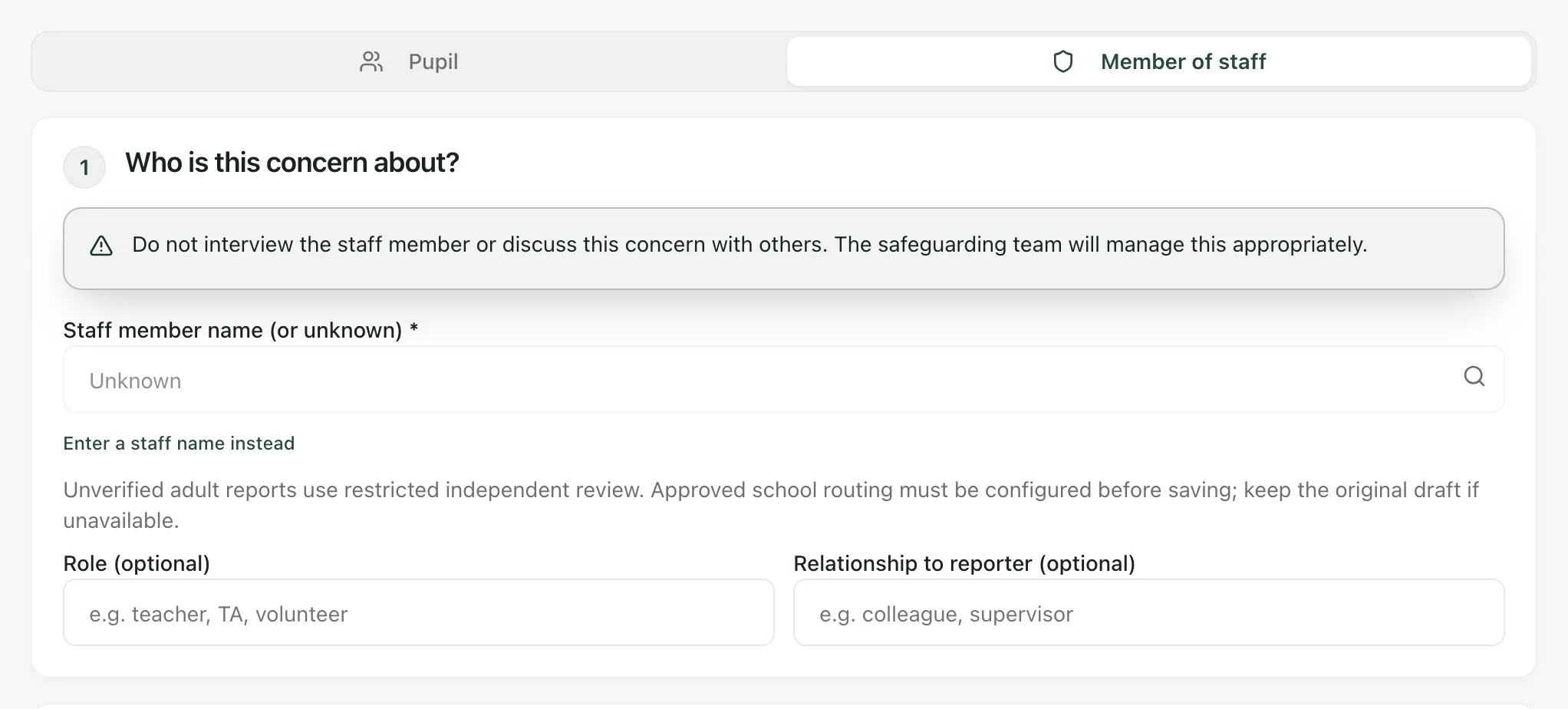
If you don’t choose the person from the list, for example because you’ve marked them as unknown, the form shows “Unverified adult reports use restricted independent review.” Your school must have set up where these reports go. If Student Radar can’t accept the report, keep your draft open and report the concern using your school’s procedure.
Describe what happened
Section titled “Describe what happened”- Under What happened, check the Date and Time this happened, and enter the Location. Tick Time unknown / approximate if you aren’t sure of the time.
- Under What did you observe or become aware of?, describe the specific actions, words or behaviour you saw or were told about. Stick to what happened and avoid guessing why. Click What to include for prompts.
- If you know the exact words used, add them under Exact words used, if known.
- Under Was this witnessed directly or reported to you?, you can choose Witnessed directly, Reported to me or Not sure. This is optional.
- Under What actions did you take immediately, if any?, record what you did. Often the right action is to record and report only. If you took no action, say why. Click Examples for ideas.
- Under Additional information, add anything else the safeguarding team should know, such as who else was present.
- Click Review concern.
Check and submit
Section titled “Check and submit”The review screen shows everything you’ve entered. Click Edit next to any part to change it, or Back to edit to return to the form.
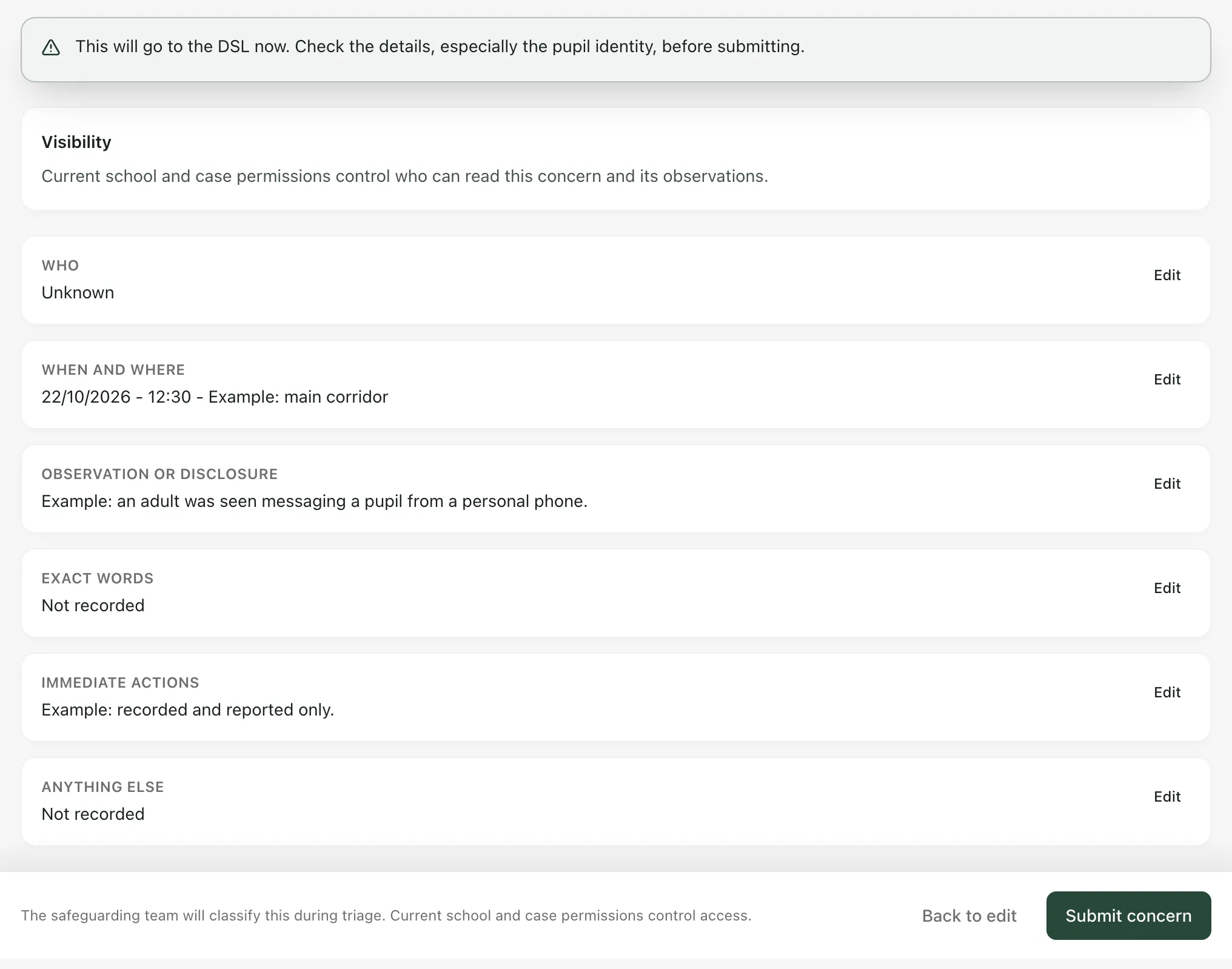
When you’re happy, click Submit concern. Wait until you see Concern submitted and a reference. That confirms your report has been accepted for the safeguarding team to review.
You don’t need to choose a category or priority. The safeguarding team classifies the concern when they review it. Your school’s safeguarding permissions control who can read it.
- Only on the Safeguard page: the Raise concern button on a pupil’s profile is for concerns about that pupil. Use the Safeguard form for concerns about adults.
- Safeguarding switched off: your school can turn off Student Radar’s safeguarding tools. When it’s off, the Safeguard menu items are greyed out. Follow your school’s procedure for concerns about adults instead.
- Concerns about a pupil: see Raise a safeguarding concern about a pupil.
If something doesn’t work
Section titled “If something doesn’t work”| What you see | What to do |
|---|---|
| “Please address these issues:” with a list such as “Staff member name is required” | Fill in each missing part, or click Mark as unknown if you don’t know who it was. Then click Review concern again. |
| “Staff lookup is unavailable. Your text is still here. Follow your school safeguarding procedure if you cannot select the person.” | Try typing the name again. If the list still doesn’t load, report the concern using your school’s procedure. |
| “Your report has not been confirmed as submitted. Your text is still here. Try again, or contact your safeguarding team if the problem continues.” | Keep the page open and click Submit concern again. If it still fails, report the concern in person. |
| “The original report may already be recorded.” | Click Confirm original submission rather than sending the concern again. |