Contact Student Radar support
Written for: All school staff.
If you’re stuck in Student Radar, or something isn’t working as you expect, you can send a message to the Student Radar support team from any page. Your message goes with the address of the page you were on, so the team can see where the problem happened.
This is for help with Student Radar itself. If you need a colleague to come and help in school, use In-School Support instead.
Send a request for help
Section titled “Send a request for help”- Go to the page where you had the problem.
- In the sidebar, click Help & Support, then App Support. On a phone, tap Menu at the bottom of the screen first.
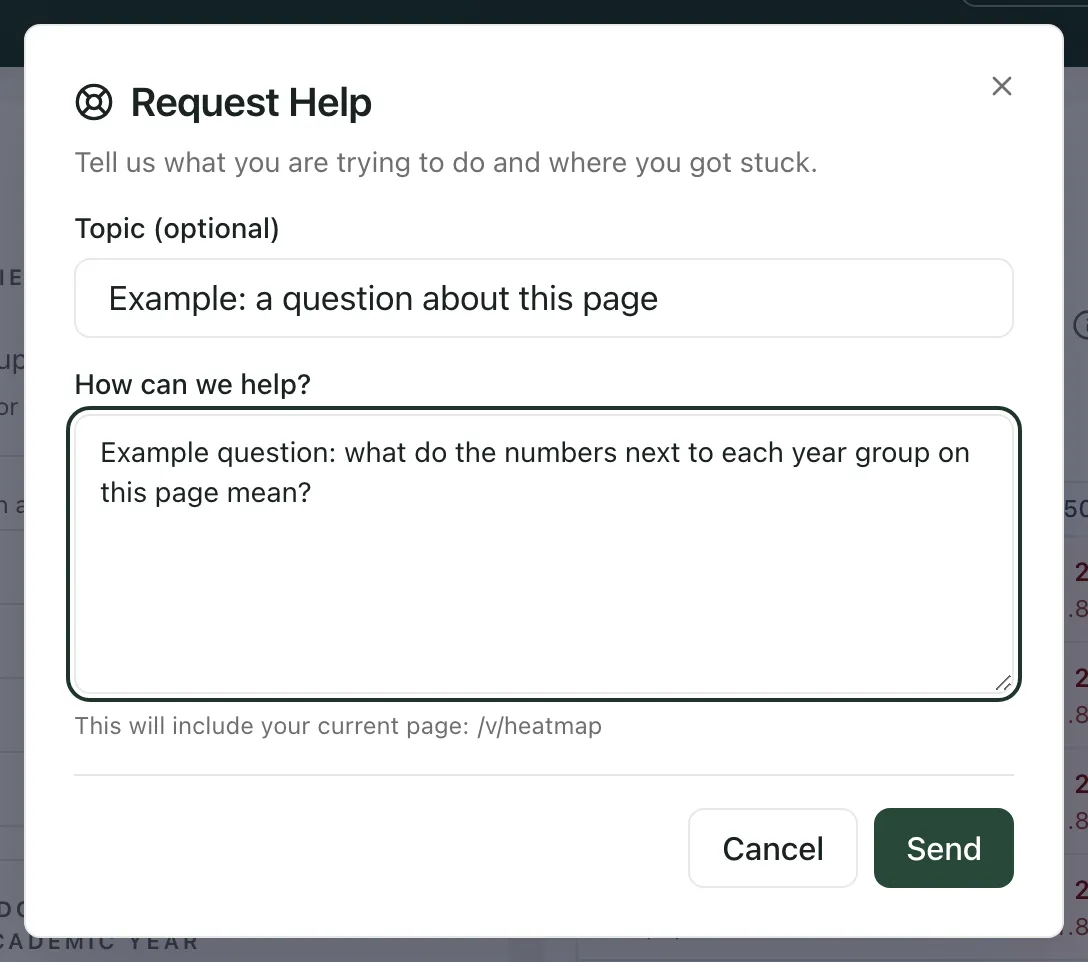
- Request Help opens. In Topic (optional), give your request a short title if you like.
- In How can we help?, say what you were trying to do and what happened instead. If you can, list the steps that lead to the problem.
- Click Send.
A message confirms “Thanks. Your request has been recorded.” and the form closes.
What’s sent with your request
Section titled “What’s sent with your request”- Your topic and message.
- Your school and your account.
- The page you were on, shown under the message box after “This will include your current page:”. Only the page address is sent, not any search words or filters in it.
- Basic details of your web browser, which help the team reproduce the problem.
You don’t need to include pupils’ names or other personal details to describe a problem.
- You can contact support from a school workspace or a trust workspace.
- If App Support is greyed out, the menu shows the reason underneath, such as “Open a school workspace to contact app support.”
If something doesn’t work
Section titled “If something doesn’t work”| What you see | What to do |
|---|---|
| “Please add a short message before sending.” | Fill in How can we help?, then click Send again. |
| “Checking your school access before you can send this request.” | Wait a moment. Send becomes available when Student Radar has checked your school. |
| “Open a school workspace before sending this request. Your school must be verified first.” | Switch to one of your schools, then open App Support again. |
| “Failed to send” | Your request wasn’t sent. Copy your message, reload the page and try again. |