Create a club and add pupils
Written for: All school staff who run clubs and activities.
Set up an after-school club, lunchtime activity or other enrichment group in Student Radar, then add the pupils who are taking part. Each club has a capacity, so once it’s full, new pupils go on a waitlist instead of overfilling it.
Open Clubs & Enrichment
Section titled “Open Clubs & Enrichment”In the sidebar, open Parents and choose Clubs & Activities. The Clubs & Enrichment page opens.
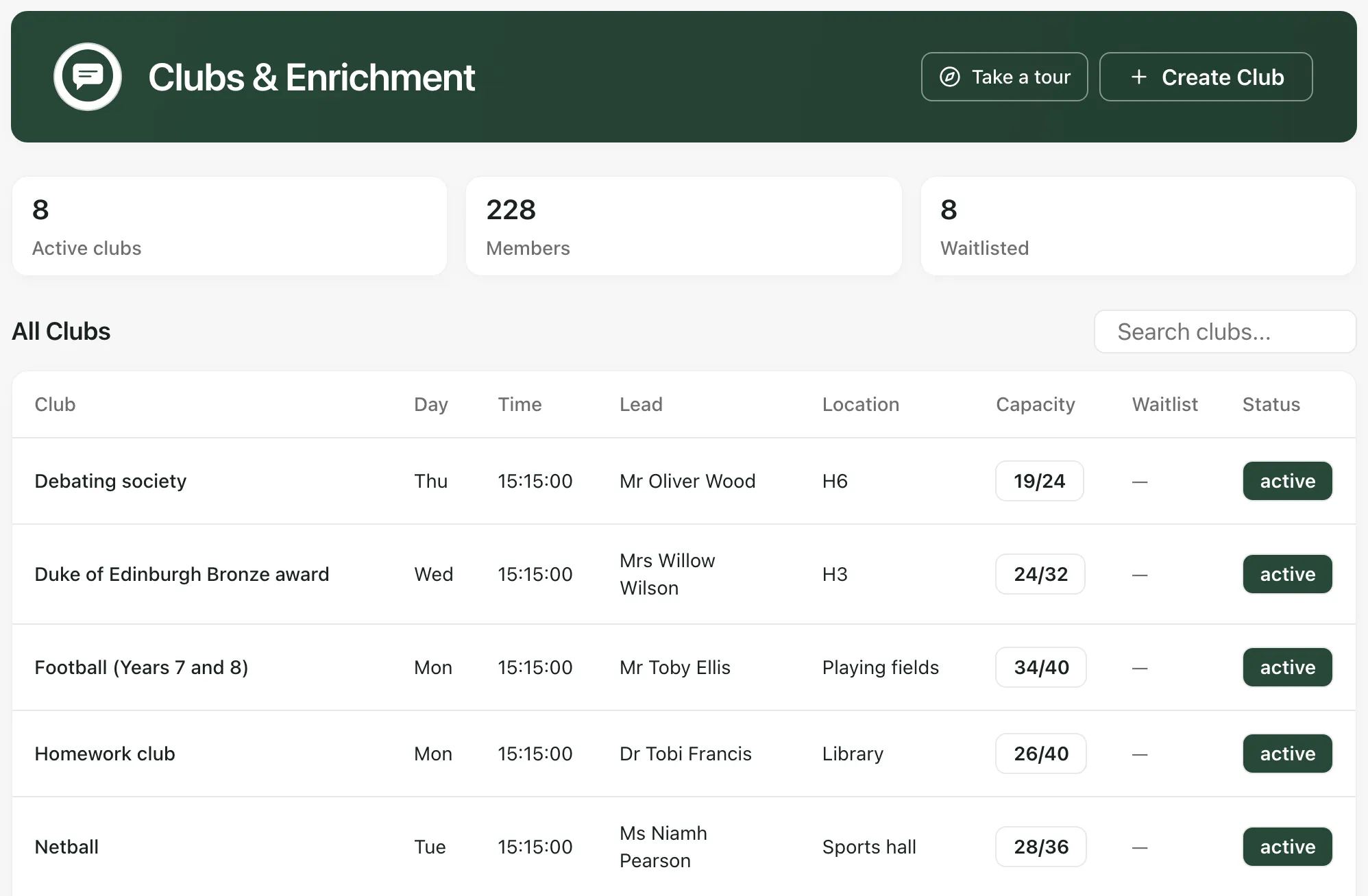
The totals show your Active clubs, how many pupils are confirmed Members and how many are Waitlisted. Under All Clubs, the Capacity column shows confirmed members against the number of places, and Waitlist shows how many pupils are waiting. Type in Search clubs… to find a club by its name, lead or day.
Create a club
Section titled “Create a club”- Click Create Club.
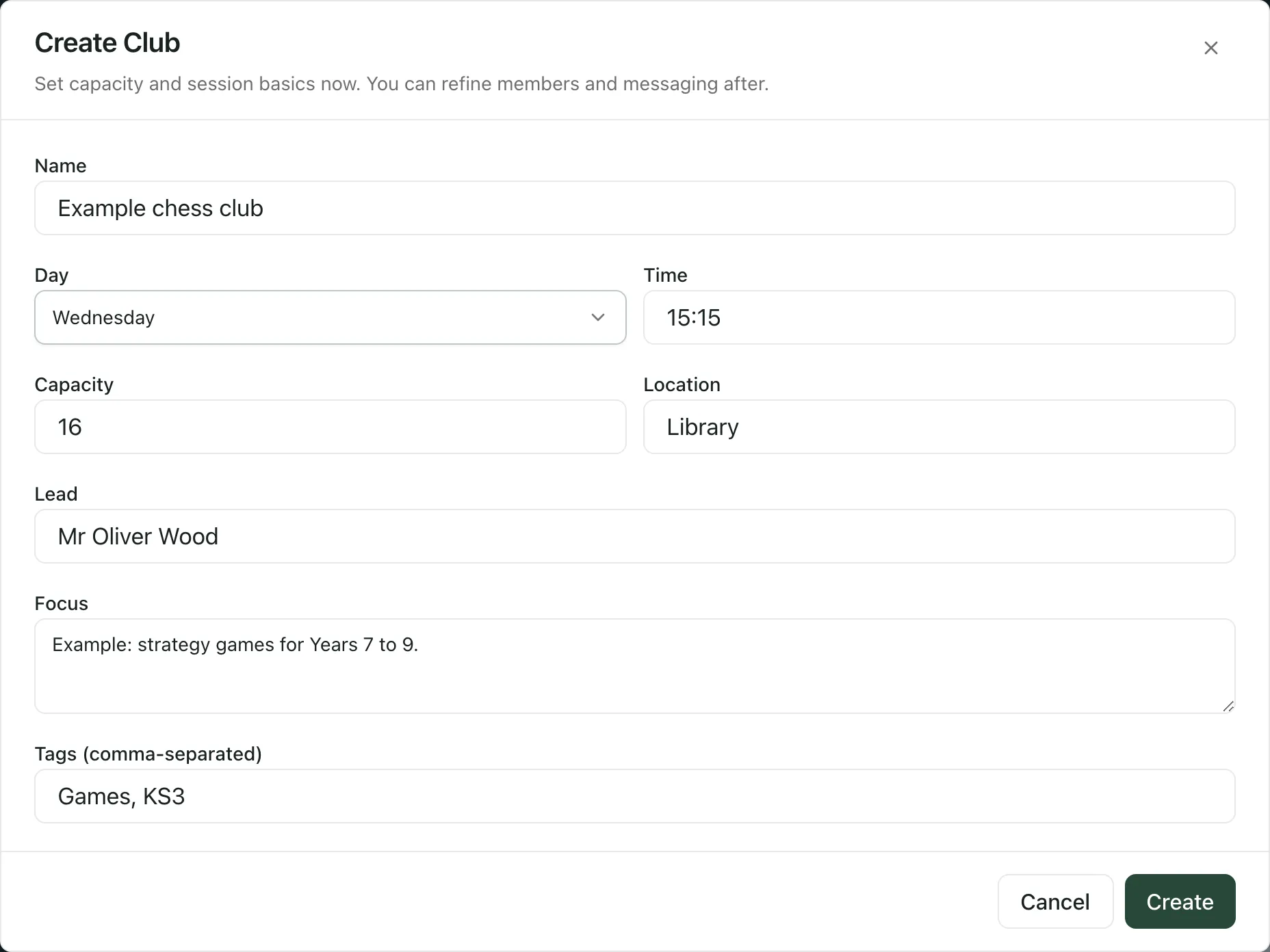
- Enter the club’s Name.
- Choose the Day it runs and enter the Time it starts, in 24-hour format, such as 15:15.
- Set the Capacity: the most pupils who can attend. It starts at 12.
- If you like, add the Location, the Lead (it starts with your name), the club’s Focus, and Tags (comma-separated) to help colleagues find it.
- Click Create.
A “Club created” message confirms it, and the new club opens so you can add pupils straight away. Clubs run once a week, on the day you chose.
Add pupils
Section titled “Add pupils”- Under All Clubs, click the club’s name to open it.
- Scroll down to Add student.
- Click Student, type part of the pupil’s name in Type a student name… and choose them.
- Click Add (auto waitlist if full).
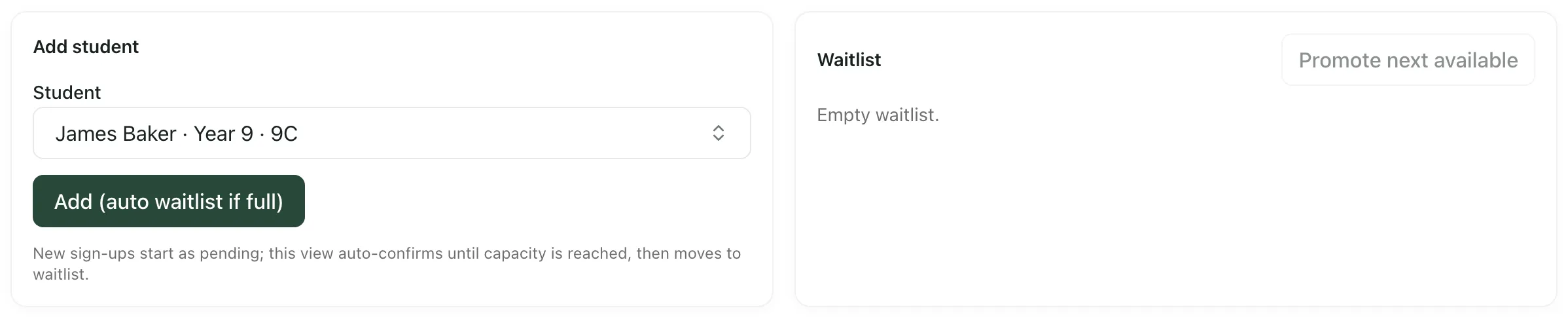
A “Member added” message confirms it. If the club has a free place, the pupil is confirmed and appears in the Roster. If it’s full, they go on the Waitlist instead. Repeat for each pupil.
Fill places from the waitlist
Section titled “Fill places from the waitlist”When a place comes free, click Promote next available in the Waitlist panel. The free places are offered to the next pupils on the waitlist, and each offer is time-limited. You’ll see “Club offer issued”. If there are no free places, it says “No spaces available.”
- Messaging families from a club isn’t available yet.
- A pupil shown with Identity check needed can’t be added until their details are checked. Ask the school office to check the pupil’s name and class in your MIS, then reload the page.
- Once pupils are in the club, take the register each session. See Take a club register.
- For a short guide to the page, click Take a tour.
If something doesn’t work
Section titled “If something doesn’t work”| What you see | What to do |
|---|---|
| Create is greyed out | Enter the club’s Name. |
| “Invalid time format (HH:MM)” | Enter the Time in 24-hour format with a colon, such as 15:15. |
| “Club creation failed” | Check the details and try again. If it keeps happening, your role may not be able to create clubs. Ask your Student Radar administrator. |
| “No pupils available” | There are no pupils you can add. Ask your Student Radar administrator to check your access. |
| “No students match your search.” | Check the spelling, or type just the pupil’s first name or surname. |
| “Add member failed” | Try again. If it keeps happening, your role may not be able to add pupils to clubs. Ask your Student Radar administrator. |
| “No clubs match your search” | Check the spelling, or clear Search clubs… to see every club. |