Log inspector requests on the day
Written for: Headteachers and senior leaders coordinating an inspection.
During an inspection, inspectors ask for documents, data and conversations, often at short notice. The Inspection day tab of the Inspection Hub keeps a list of every request: what’s needed, who’s getting it and when it’s due. Each request goes to its owner as a piece of work, and you record what was supplied when it’s done.
Open the request log
Section titled “Open the request log”- In the sidebar, open Leadership, then Strategy & assurance, and choose Inspection Readiness.
- Open the Inspection day tab.
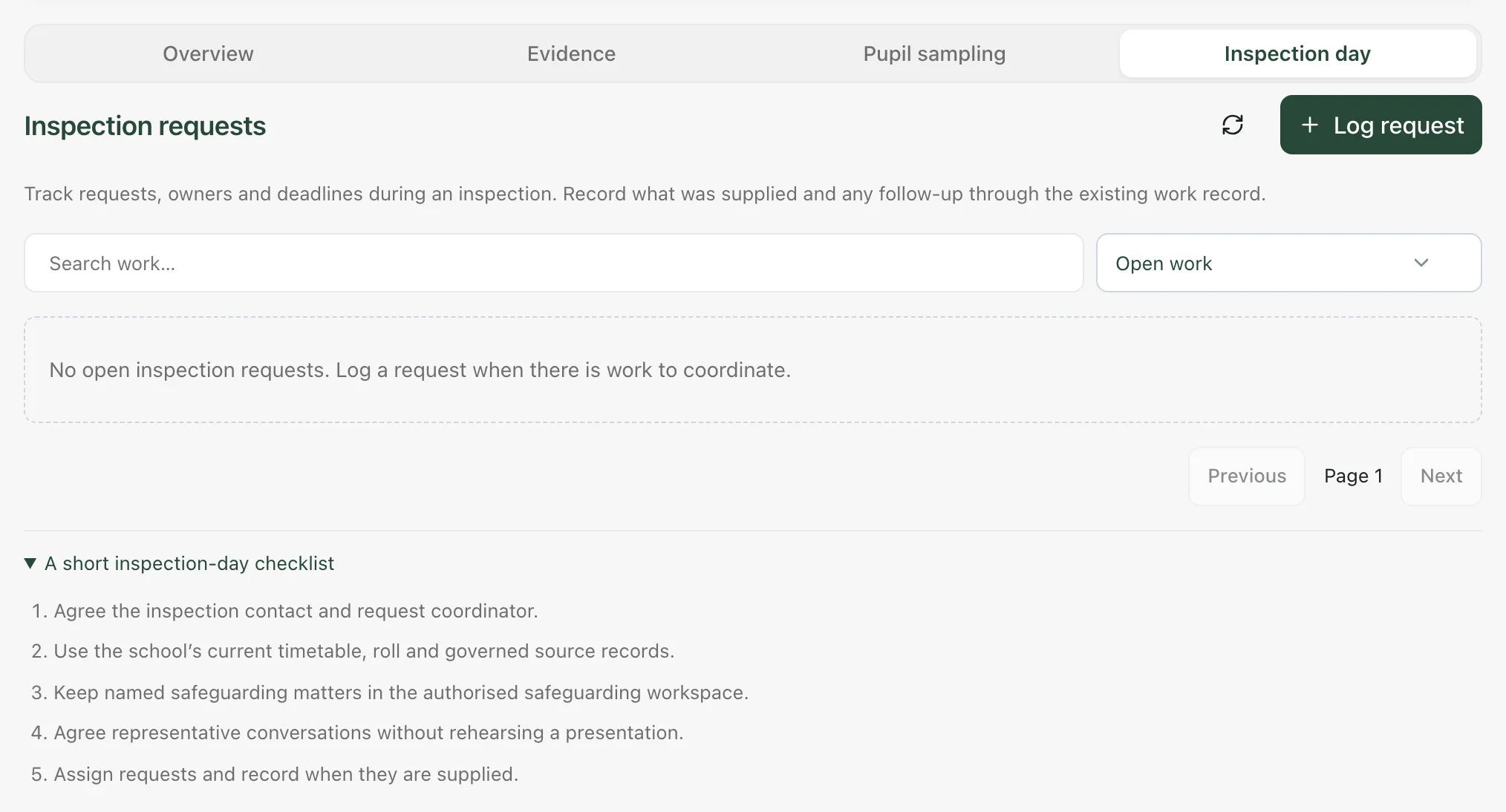
Inspection requests lists the open requests, each with its owner, due time and status. A request that’s past its due time is marked overdue. Use Search work… to find a request, and change Open work to Closed work or All work to see finished requests.
Open A short inspection-day checklist under the list for a reminder of what to agree at the start of the day.
Log a request
Section titled “Log a request”- Click Log request.
- Under Request, write what the inspector has asked for.
- Under Context and source records, add any detail, and say where the information is, such as an existing report or record.
- Click the Owner box and choose the member of staff who’ll deal with it.
- Set the Due / review date and time.
- Click Create work.
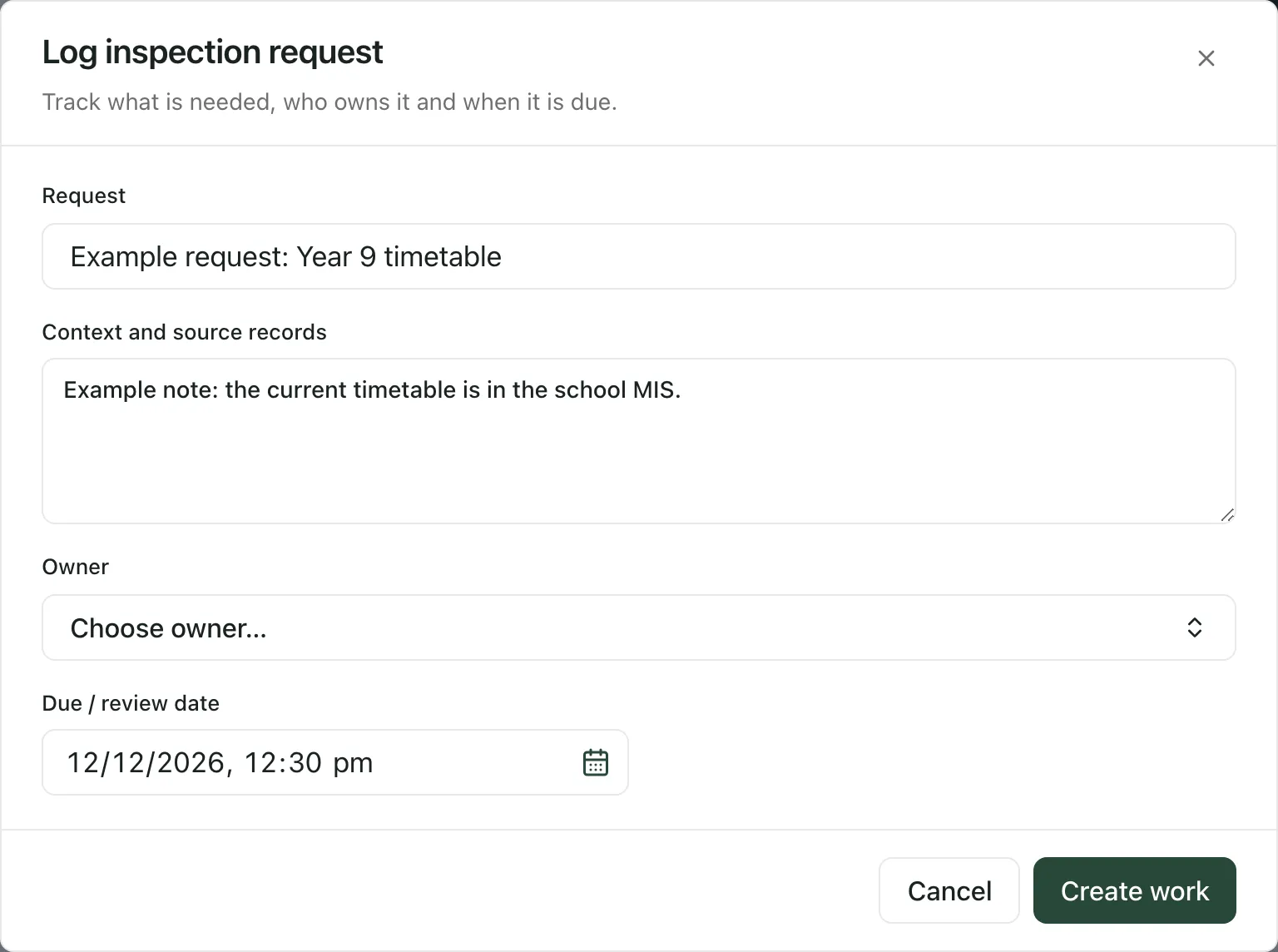
The request appears in the list. Its owner also sees it with their other work in My Actions, where Open inspection work brings them back to it.
Keep it general: Describe the request, not individual pupils or cases. Keep named safeguarding matters in the authorised safeguarding part of Student Radar, and refer to the record instead of copying details into the request.
Update a request and record what was supplied
Section titled “Update a request and record what was supplied”- Click Open work next to the request.
- Change the Status to In progress, Blocked, Completed or Cancelled.
- Under Review update / outcome, record what was supplied or found, and anything that should happen next.
- Click Save changes.
You must record an outcome before you mark a request Completed or Cancelled. A closed request can’t be changed, but its outcome is kept under Last recorded update so you have a record of what the inspectors were given.
Who can log requests
Section titled “Who can log requests”Logging and updating requests needs permission to manage the school’s self-evaluation. By default, headteachers, senior leaders, DSLs, SENCos and administrators have it. Other staff and governors who can open the Inspection Hub can read the requests. When they open one, they see “You can review this work. Managing it requires the school’s SEF management permission.” Schools can change who has access.
If something doesn’t work
Section titled “If something doesn’t work”| What you see | What to do |
|---|---|
| “Add a title, owner and due date, and choose a pupil for a sample review.” | Fill in Request, Owner and Due / review date, then click Create work again. |
| “Record the outcome or reason before closing this work.” | Write a Review update / outcome, then save. |
| “Someone has updated this record. Close the editor and refresh before making further changes.” | A colleague changed the request. Close the window, click the refresh button and open it again. |
| “This work is already closed. Refresh to see the saved outcome.” | Someone has already closed it. Refresh the list to see the outcome. |
| “That owner is no longer available. Choose a current member of staff.” | Choose a different owner. |
| “Too many requests. Please wait a moment and try again.” | Wait a minute, then try again. |
| “No open inspection requests. Log a request when there is work to coordinate.” | There are no open requests. Click Log request to add one. |
| “You do not currently have access to this record or action. Refresh the workspace to check your access.” | Refresh the page. If it keeps happening, ask your headteacher or administrator. |
| “The request could not be completed. Your changes are still here; please try again.” | Check your connection and click Create work or Save changes again. |