Set up your assessment subjects and scales
Written for: Assessment leads and others who manage their school’s assessment set-up.
Before staff can record your school’s own assessments, someone needs to set up what’s being assessed. In Assessment setup you add each subject or named assessment, and choose how it’s recorded: as a judgement on a scale such as WTS, EXS and GDS, as a score, or both. Nothing is fixed by Student Radar, so you can match the way your school assesses.
Open assessment set-up
Section titled “Open assessment set-up”- In the sidebar, click Assessment, then Entry, then Non-Statutory Assessments.
- Check that Assessment scheme is set to School assessments.
If you can manage your school’s assessment set-up, you’ll see New assessment and Assessment setup below the filters.
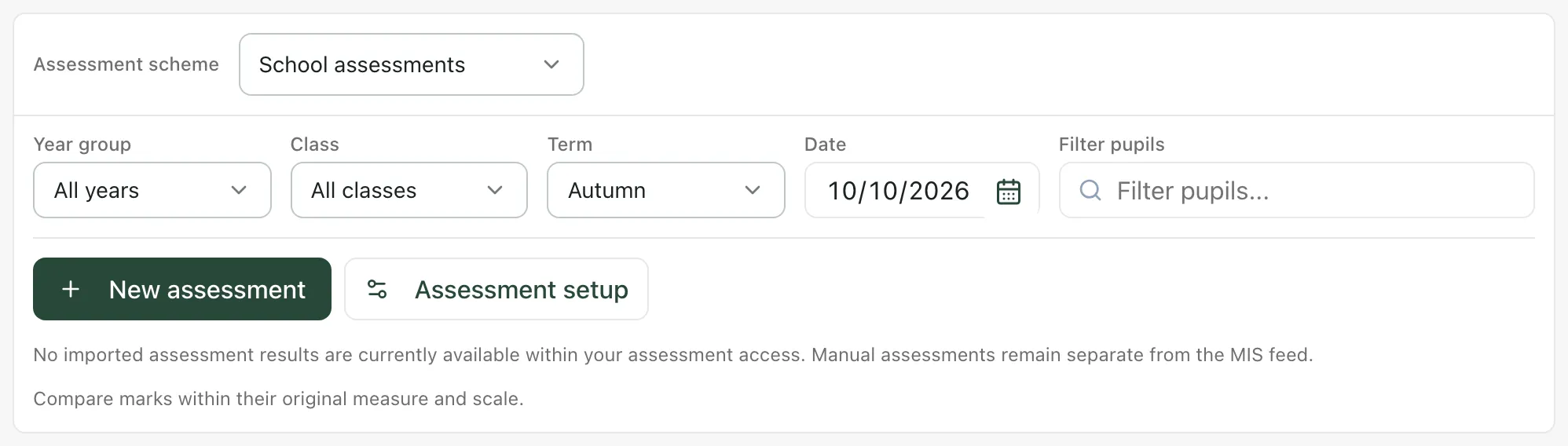
See the subjects you have
Section titled “See the subjects you have”Click Assessment setup. Under Configured subjects is every subject or assessment staff can record. For each one you’ll see:
- How it’s recorded: labels only, score only, or labels and score.
- The name of its score, if it has one.
- Its subject key, which Student Radar uses to keep its results together.
- Its labels, for example Emerging / Developing / Secure / Mastered.
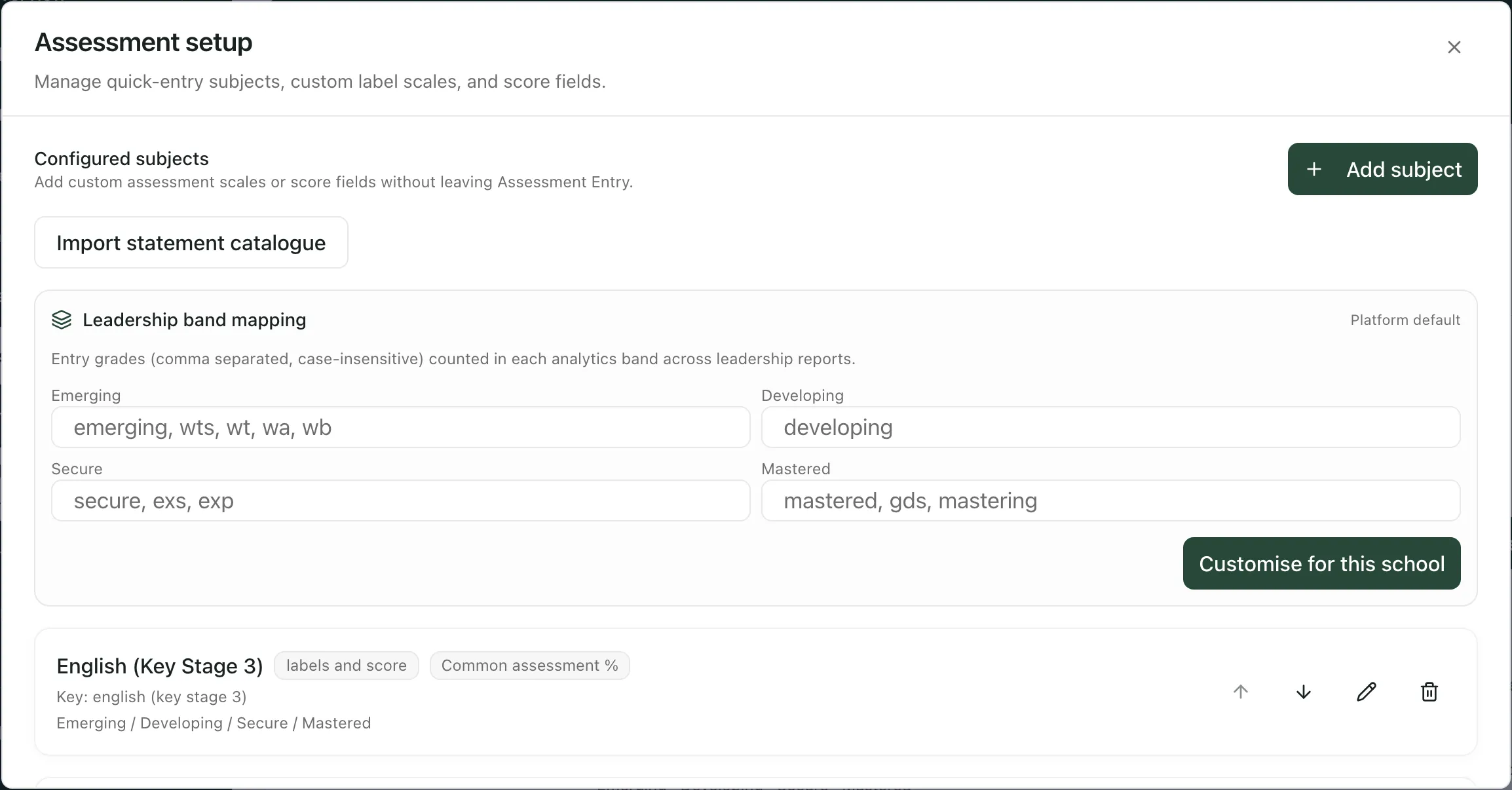
Beside each subject are buttons to:
- Move it up or down. This changes the order of the subjects on the page where staff enter results, and is saved straight away.
- Edit it (the pencil).
- Archive it (the bin). This takes the subject off the entry page straight away. Results already recorded for it are kept.
Add a subject or assessment
Section titled “Add a subject or assessment”-
Click New assessment on the page, or Add subject in Assessment setup.
-
To start from a common scale, click one of the Quick options:
Quick option What it sets up Developing / Secure / Mastering Three labels: Developing, Secure and Mastering. WTS / EXS / GDS Three labels: WTS, EXS and GDS. Standardised scores A score from 70 to 140, in whole numbers. Scaled scores A score from 80 to 120, in whole numbers. -
Type the Assessment name, for example Year 4 reading. The Subject key fills in by itself.
-
Check the Entry mode:
- Labels only: staff choose a judgement.
- Score only: staff type a score.
- Labels and score: staff can record both.
-
Change the Display order if you want the subject further up or down the entry page.
-
For labels, fill in each Label under Label options, with a Descriptor if it helps staff choose. Use Add option for more labels, or the bin to remove one. Put the labels in order, lowest first: staff can type a label’s number on the entry page to choose it.
-
For a score, fill in the Score label, Minimum score, Maximum score and Score step. The step is the smallest change allowed, for example 1 for whole numbers or 0.1.
-
Click Save assessment.
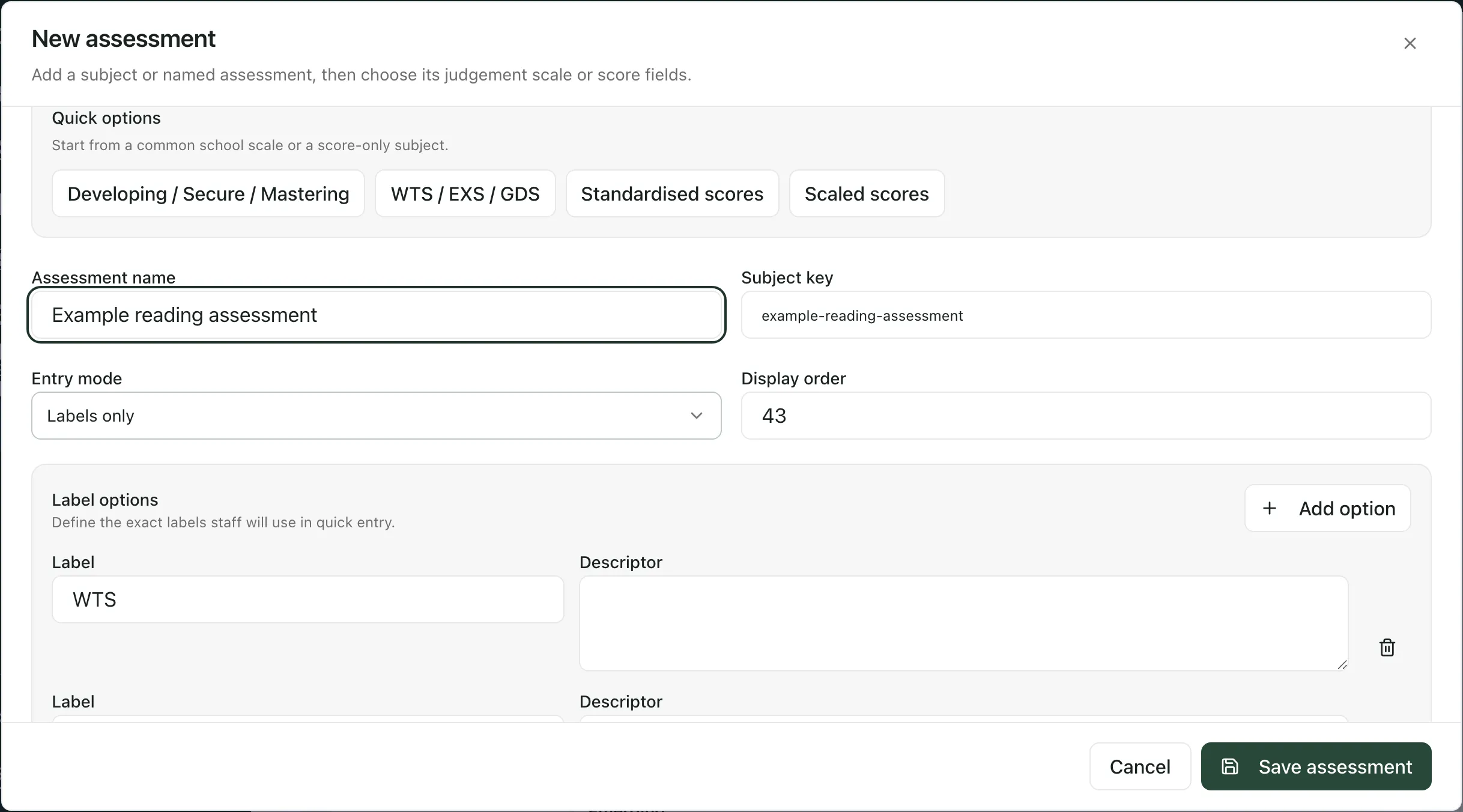
You’ll see “Assessment setup saved” and the subject appears under Configured subjects. Staff can start recording it straight away.
Describe what scores mean
Section titled “Describe what scores mean”For a subject with a score, you can add bands that describe ranges of scores, for example from a test publisher’s manual. Under Score interpretation:
- Choose the Band source: Publisher bands configured by school or School-defined bands.
- Fill in where the bands come from: Source assessment name, Edition / version, Comparison group and Source reference.
- For each band, type its label and its Minimum and Maximum score. Use Add band to add more. Limits include the scores you type, and bands mustn’t overlap.
Student Radar doesn’t check publisher bands, so make sure they match the publisher’s documentation.
Use an assessment from your MIS
Section titled “Use an assessment from your MIS”If your school’s MIS is connected to Student Radar through Wonde, the New assessment box starts with Use a Wonde assessment. Search under Search MIS assessment names, then click Use definition beside the assessment. This adds it for entry in Student Radar. Results you record here stay in Student Radar, and marks imported from your MIS stay in each pupil’s attainment history.
Change or archive a subject
Section titled “Change or archive a subject”- Click Assessment setup.
- Click the pencil beside the subject, change what you need, and click Save assessment.
You can’t change the subject key of a subject that’s already saved. Subjects added from your MIS or from a statement catalogue can’t be edited here either: add the updated version instead.
To stop staff recording a subject, click the bin beside it. You’ll see “Subject archived”.
Decide which judgements count as expected
Section titled “Decide which judgements count as expected”Leadership reports group judgements into four bands: Emerging, Developing, Secure and Mastered. Leadership band mapping in Assessment setup says which of your labels count in each band.
- In each box, type the labels that belong in that band, separated by commas. Capital letters don’t matter.
- The first time, click Customise for this school. After that, click Save banding.
You’ll see “Banding saved”. Reports use the new grouping from their next refresh. Until you customise it, the page shows Platform default, the standard grouping.
This changes how results are grouped in reports such as Review attainment from whole school to pupil. It doesn’t change any results.
- Who can do this: you’ll only see New assessment and Assessment setup if your account can manage your school’s assessment set-up. Schools decide who can.
- Recording results: see Enter assessment marks for your class.
- Importing results: see Import assessment results from a spreadsheet.
- Tour: click Take a tour at the top of the page. It includes a guide to the set-up.
If something doesn’t work
Section titled “If something doesn’t work”| What you see | What to do |
|---|---|
| “Enter a subject label before saving.” | Type an Assessment name. |
| “Add at least one label option for this subject.” | Fill in at least one Label, or change the Entry mode to Score only. |
| “Another subject already uses that subject key.” | A subject with the same name already exists. Give this one a different Assessment name. |
| “Complete the source fields and add 1–20 labelled, finite, non-overlapping inclusive bands.” | Check Score interpretation: fill in the source, give every band a label, and make sure no bands overlap. |
| “Score interpretation isn’t available right now. You can still save other assessment settings.” | Save the subject without score bands, and add them later. |
| “Could not save subject setup.” | The subject wasn’t saved. Check your connection and try again. |
| “Could not archive the subject.” | The subject is still there. Try again. |
| “Could not save the new subject order.” | Reload the page to see the saved order, then try again. |
| “Could not save banding” | The band mapping wasn’t saved. Try again. |
| “Could not load Wonde definitions. Search again to retry.” | Click Search again. If your school isn’t connected through Wonde, add the subject yourself below. |