Accept a safeguarding file from another school
Written for: Designated Safeguarding Leads, deputies and senior leaders.
When a pupil joins you from another school that uses Student Radar, their previous school can send the child protection file to you through Record Transfer. The file waits on your Inbound tab until an authorised member of your safeguarding team checks it, accepts it and imports it into the pupil’s record. Student Radar records each step on both schools’ records.
Deciding what to do with the information in the file is the designated safeguarding lead’s job. Follow your school’s safeguarding procedure for receiving a file, and check the current statutory guidance if you’re unsure. This article explains how to use Student Radar. It isn’t legal advice.
Open the Inbound tab
Section titled “Open the Inbound tab”In the sidebar, open Safeguard, then Case Records, and choose Record Transfer. Click the Inbound tab. When a file is waiting for you, the tab shows how many are waiting and the page opens on it.
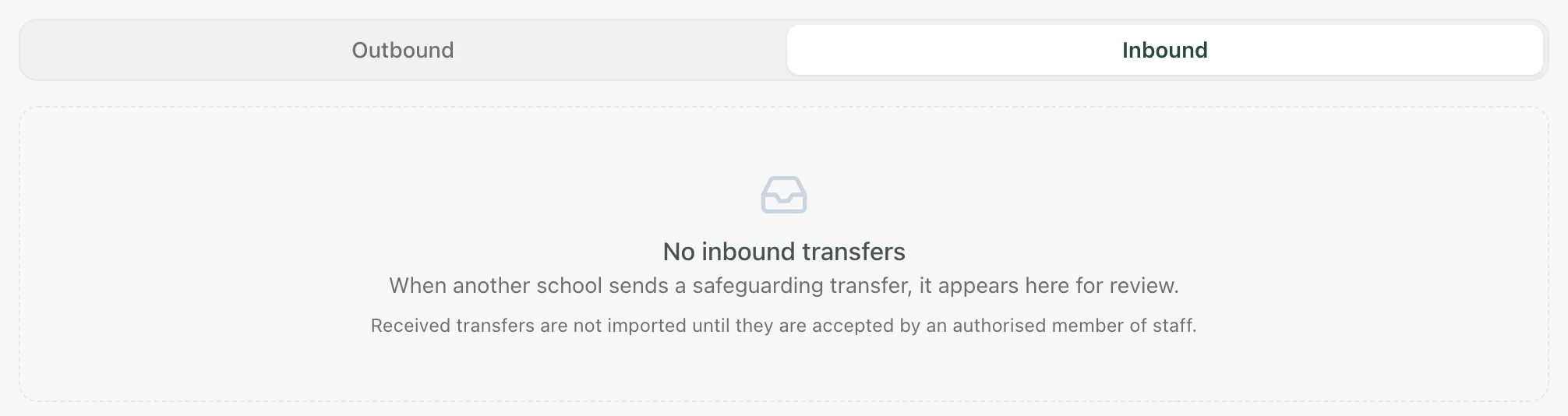
Only files sent to your school in Student Radar appear here. If the previous school sent the file another way, such as a secure download link or by hand, follow your school’s procedure for adding it to the pupil’s record.
Check the transfer
Section titled “Check the transfer”Each transfer shows its reference, its status, the pupil’s name and date of birth, the school it came from, when it was Received and when it Expires.
- Click Preview manifest. The Transfer manifest shows the pupil, the Sending school, when the file was received and an Integrity check: a code that identifies this exact sealed file.
- Check the transfer is for a pupil who is joining your school. If anything looks wrong, contact the sending school’s DSL before you go any further.
Student Radar matches each transfer to a pupil on your roll by their unique pupil number (UPN). Until it finds exactly one match, the transfer shows “Awaiting a unique pupil match. Pupil and pack details are unavailable.” and you can’t accept it. This usually means the pupil hasn’t been added to your roll yet. It clears once the pupil is on your roll with the UPN the sending school recorded.
Accept or reject the transfer
Section titled “Accept or reject the transfer”- Accept transfer: accept the file so you can download and import it. You see “Transfer accepted”.
- Reject transfer: decline the file, for example if it was sent to the wrong school. The sending school sees that you declined it. Speak to their DSL first, so the file can reach the right place.
Accepting the transfer doesn’t add anything to the pupil’s record yet.
Download and import the file
Section titled “Download and import the file”- Click Download pack. The sealed file opens in a new tab and your browser saves it. Store it as your school’s procedure requires.
- Click Import into pupil record. Student Radar adds the concern records from the file to the pupil’s safeguarding record and tells you how many it retained.
The import brings across selected records, not the whole file. Attachments such as body maps, secure notes and the sending school’s internal references stay out. If you need anything that wasn’t imported, ask the sending school’s DSL.
After each step, the status on the transfer changes. Pack access stage recorded means the file has been made available to download. Selected source import recorded means the import has run. Neither status confirms that anyone has read the file.
Review the imported records
Section titled “Review the imported records”The imported concerns join the pupil’s safeguarding record with no owner. Open them from the DSL Action Board or the Chronology, like any other case.
Each imported case shows Transferred source — receiving review required, with the transfer reference, the sending school and when the file was captured and imported. Use Inspect source material to read the original concern, chronology, actions and log as the sending school recorded them. The original authors and dates are kept, so it’s always clear your school didn’t write them.
Then, following your school’s procedure:
- Read the imported records and decide what happens next.
- Give each case an owner and a review date.
- Confirm to the sending school’s DSL that you’ve received the file, and record that you have.
Who can do this
Section titled “Who can do this”Senior leaders can open Record Transfer. Accepting and importing a file needs safeguarding access to the pupil, and importing is limited to the designated safeguarding lead, deputies, the headteacher and administrators. If you can’t take a step, ask your DSL.
If something doesn’t work
Section titled “If something doesn’t work”| What you see | What to do |
|---|---|
| “No inbound transfers” | Nothing has been sent to your school in Student Radar. If you’re expecting a file, check with the sending school’s DSL how and when they sent it. |
| “Awaiting a unique pupil match. Pupil and pack details are unavailable.” | The pupil isn’t on your roll with a matching UPN. Wait until they’ve been added. If they’re already on roll, ask your Student Radar administrator to check the pupil’s UPN. |
| “Parked for pupil match” | The import is waiting for the pupil match above. Try Import into pupil record again once the pupil is on your roll. |
| “Transfer details are currently unavailable.” | You don’t currently have access to this transfer’s details. Ask your DSL. |
| The transfer has expired | It can no longer be accepted. Ask the sending school’s DSL to send it again. |
| “Inbound transfers could not be loaded.” | Click Try again. |
| “Transferred source is unavailable for this access context.” | Your account can’t see the original records for this case. Ask your DSL. |