Your parent portal at a glance
Written for: Parents and carers.
The parent portal shows you what your child’s school has chosen to share with you, such as attendance, behaviour updates and school events. You can also use it to explain an absence, share what you notice at home and fill in forms. This guide shows you where everything is.
Find your way around
Section titled “Find your way around”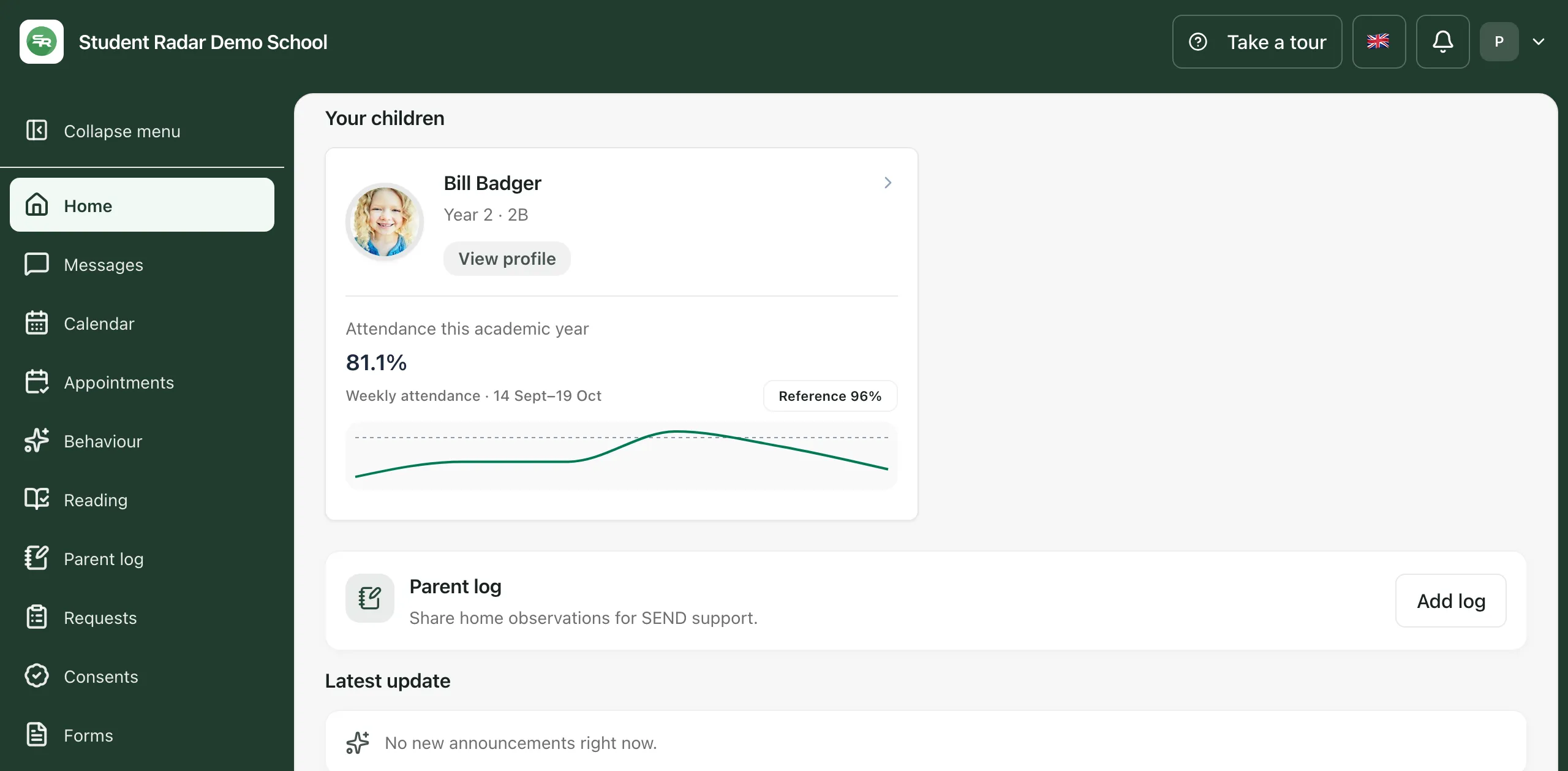
Along the top of every page you’ll see:
- your child’s school name
- Take a tour, which walks you through the portal
- a flag: click it to change the language the portal is shown in
- a bell for your notifications
- your initials: click them, then Log out to sign out
The menu down the left takes you to each part of the portal:
| Menu item | What it’s for |
|---|---|
| Home | A summary for each of your children, school updates and upcoming events. |
| Messages | Posts and messages from school. |
| Calendar | Term dates and upcoming school events. |
| Appointments | Booking times for parents’ evenings and other meetings, when the school invites you. |
| Behaviour | Recognition and behaviour updates the school has chosen to share with you. |
| Reading | Your child’s reading diary, where you can log reading at home. |
| Parent log | A place to tell school what you’ve noticed at home. |
| Requests | Absence requests: tell the school about an absence and see what’s happened to it. |
| Consents | Consent decisions you made in the past. New consent requests arrive in Forms. |
| Forms | Forms the school has asked you to fill in. |
If your school runs its clubs through Student Radar, you’ll also see Activities.
To make the menu narrower, click Collapse menu. Click Expand menu to open it again.
On a phone, the menu is hidden. Tap Menu at the bottom of the screen to open it.
What’s on Home
Section titled “What’s on Home”Under Your children there’s a card for each child linked to your account. Each card shows:
- your child’s name, year group and class
- Attendance this academic year: the percentage of school sessions your child has attended so far this year
- a small chart of how attendance has changed week by week. The dashed line marks a reference of 96%.
- Recognition: positive points from school, if your school shares them on Home
Click View profile on a card to open your child’s page. See Read your child’s attendance and behaviour.
Further down Home you’ll find:
- Parent log: click Add log to tell school about something you’ve noticed at home.
- Latest update: the newest post from school. Click Open messages to read more.
- Upcoming events: the next school events and trips. Click View calendar to see the full calendar.
- School values, if your school has added them. Point at a value to read what it means.
If school records your child as absent today, a notice may appear at the top of Home. Click Explain absence to tell the school why. See Report or explain an absence.
Notifications
Section titled “Notifications”When something new arrives, a number appears on the bell. Click the bell to see your notifications, then click one to open it. Click Mark updates read to clear the number.
Take the built-in tour
Section titled “Take the built-in tour”The tour opens by itself the first time you sign in. To see it again, click Take a tour at the top of the page, or at the bottom of the menu.
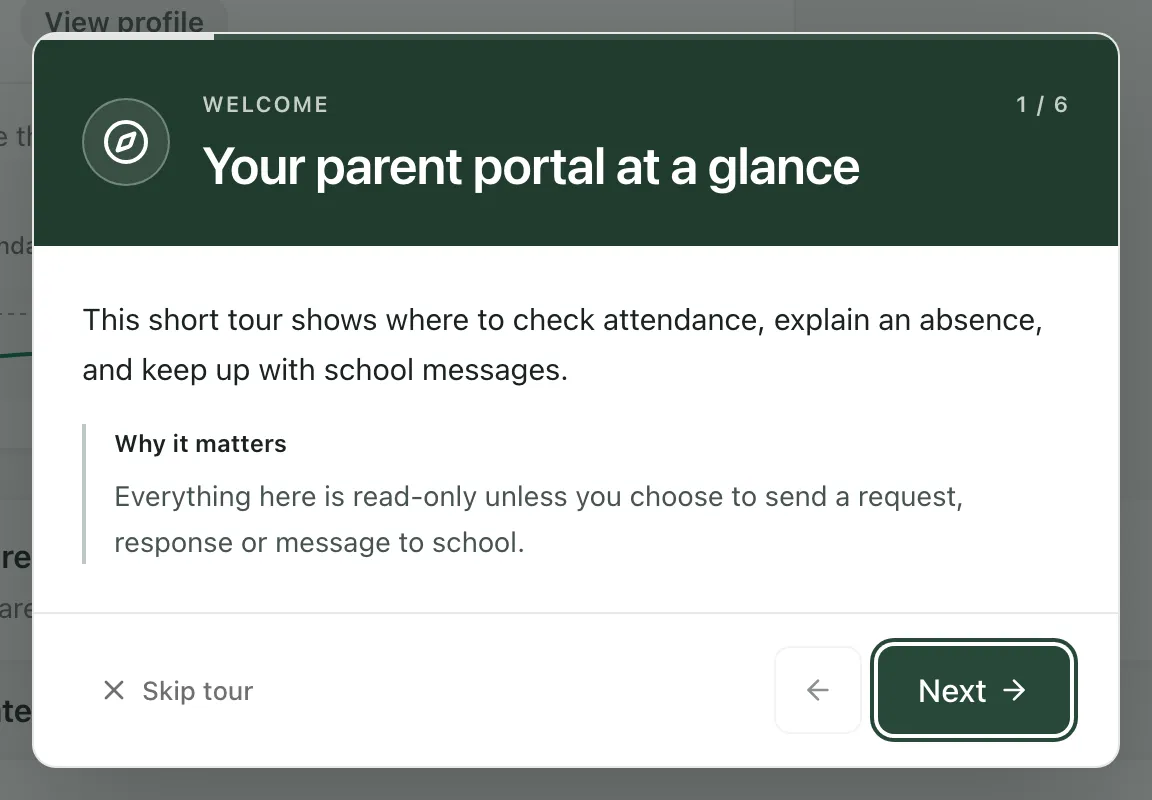
Click Next to move through the steps, or Skip tour to close it.
Getting help
Section titled “Getting help”The portal only shows what the school has chosen to share with your account. As it says at the bottom of the menu: “For help with access or your child’s information, contact the school office.”
If something doesn’t work
Section titled “If something doesn’t work”| What you see | What to do |
|---|---|
| “Linked children will appear here once the school connects your account.” | The school hasn’t linked your account to your child yet. Contact the school office. |
| “Child information could not be loaded. Please try again.” | Click Try again. If it keeps happening, wait a few minutes and sign in again. |
| “Some child information could not be loaded.” | Part of your child’s card couldn’t be loaded. Click Try again. |
| “School updates could not be loaded. Please try again.” | Click Try again. |
| “School display settings could not be loaded. Please try again.” | Click Try again. The rest of Home still works. |
| “Some upcoming events could not be loaded. Open Calendar to retry the unavailable feed.” | Click View calendar, then use the retry button shown there. |
| “Notifications could not be loaded. Please try again.” | Close the notifications and open them again in a minute. |
| Attendance unavailable or Not shared on a child’s card | The attendance figure couldn’t be loaded, or the school hasn’t shared it. Try again later, or ask the school office. |