Run the annual review meeting and send the report
Written for: SENCos and inclusion leads.
Once the review is prepared, use the Meet, Report, Decision and Close stages to record the meeting section by section, write and send the report, record the local authority’s decision and set the next review date. To arrange the meeting and gather views first, see Set up an annual review.
Student Radar keeps the record and tracks the dates. Your local authority’s procedures and your school’s process decide what the review must cover and when the report and decision are due.
Open the review
Section titled “Open the review”- In the sidebar, open Inclusion, then SEND, then Reviews & Documents, and choose Annual Review.
- On the pupil’s row, click Continue review. The review opens at the stage it has reached.
To open a different stage, click a stage tab at the top of the review, or click ⋯ on the pupil’s row and choose a stage under Go to stage. A tick next to a stage means it’s been marked done.
Run the meeting
Section titled “Run the meeting”Open the Meet stage. The meeting works through the EHCP one section at a time, from section A to section K.
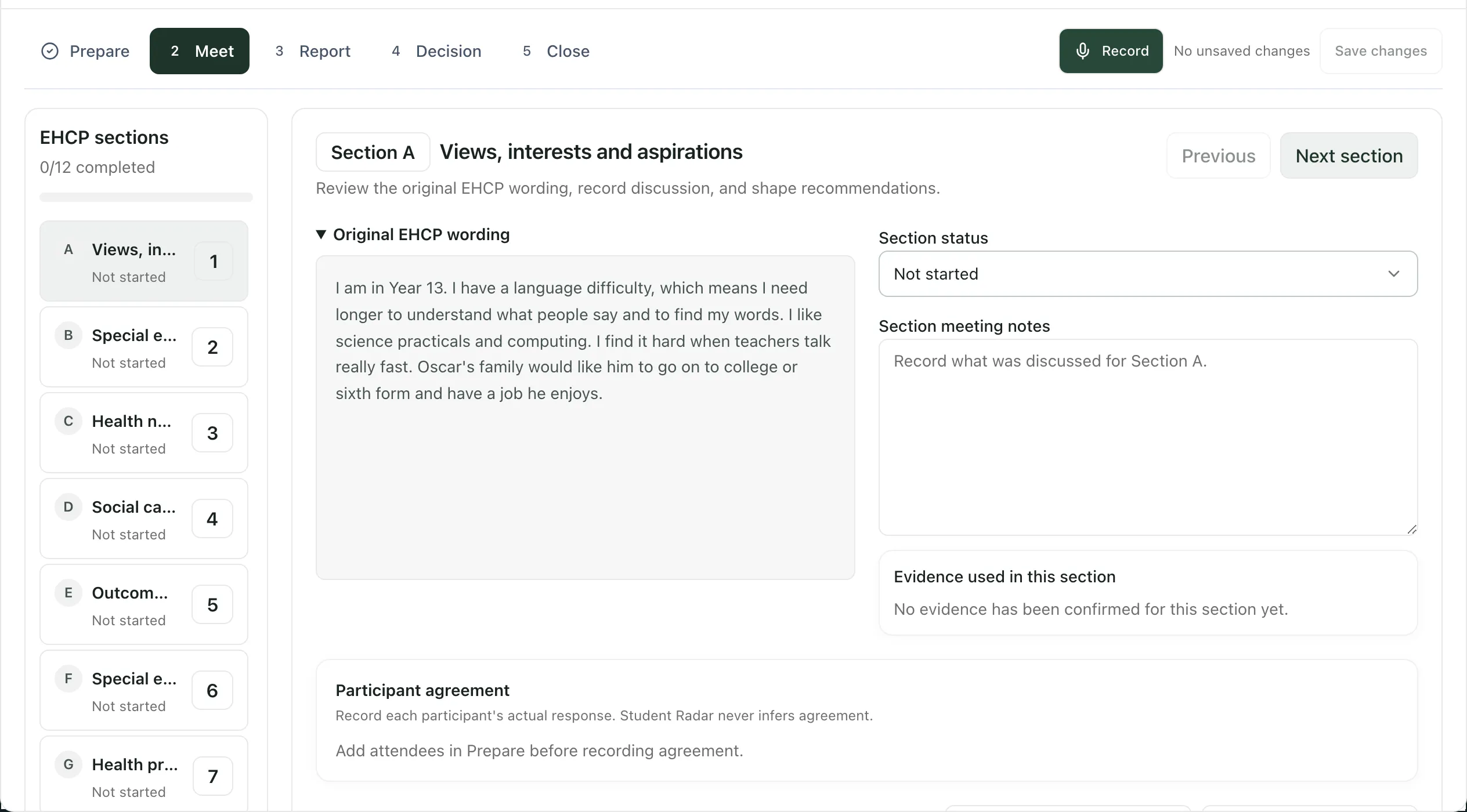
For each section:
- Choose it under EHCP sections, or use Previous and Next section.
- Read the Original EHCP wording. Click View full EHCP to open the whole plan.
- Write what was discussed under Section meeting notes.
- Set the Section status: Discussed, No change, Amend, Needs evidence or Disagreement.
- Under Participant agreement, record each attendee’s response: Agreed, Did not agree or Not present. Student Radar never fills this in for you. Attendees come from the Prepare stage, so add them there first.
- Under Editable proposed wording, write the school’s recommendation for the section.
- Click Mark section complete to set the section to Discussed, or click Save progress.
Your meeting notes save as you work. The status next to Save changes at the top of the review tells you whether everything is saved.
Suggestions to help you
Section titled “Suggestions to help you”If you marked Prepare as done, a Background preparation panel may appear in each section. It gives a Section summary, a Suggested next step and any Information still needed, drawn from the shared documents and current ISP evidence. It’s a proposal for you to review, not an agreed decision.
Generate suggestion drafts proposed wording for the section from the evidence. After the meeting, Refresh after meeting drafts it again using what was recorded. Provenance for latest suggestion shows which sources each paragraph came from. Check every suggestion against the evidence and the discussion before you use it.
Record the meeting
Section titled “Record the meeting”The panel beside the section shows Linked documents, the attendees and the Meeting transcript.
- Record: click Record at the top of the review to transcribe the meeting live. Click Stop recording when you’ve finished. Follow your school’s policy on recording meetings and tell everyone before you start. Clear transcript deletes the transcript, speaker turns and meeting notes from the review, and they can’t be recovered.
- Share meeting link: copies the link to this review so colleagues with access can open it.
- Finish meeting: takes you to the Report stage.
When every section has been discussed, click Mark Meet done in the stage summary.
Write and send the report
Section titled “Write and send the report”Open the Report stage.
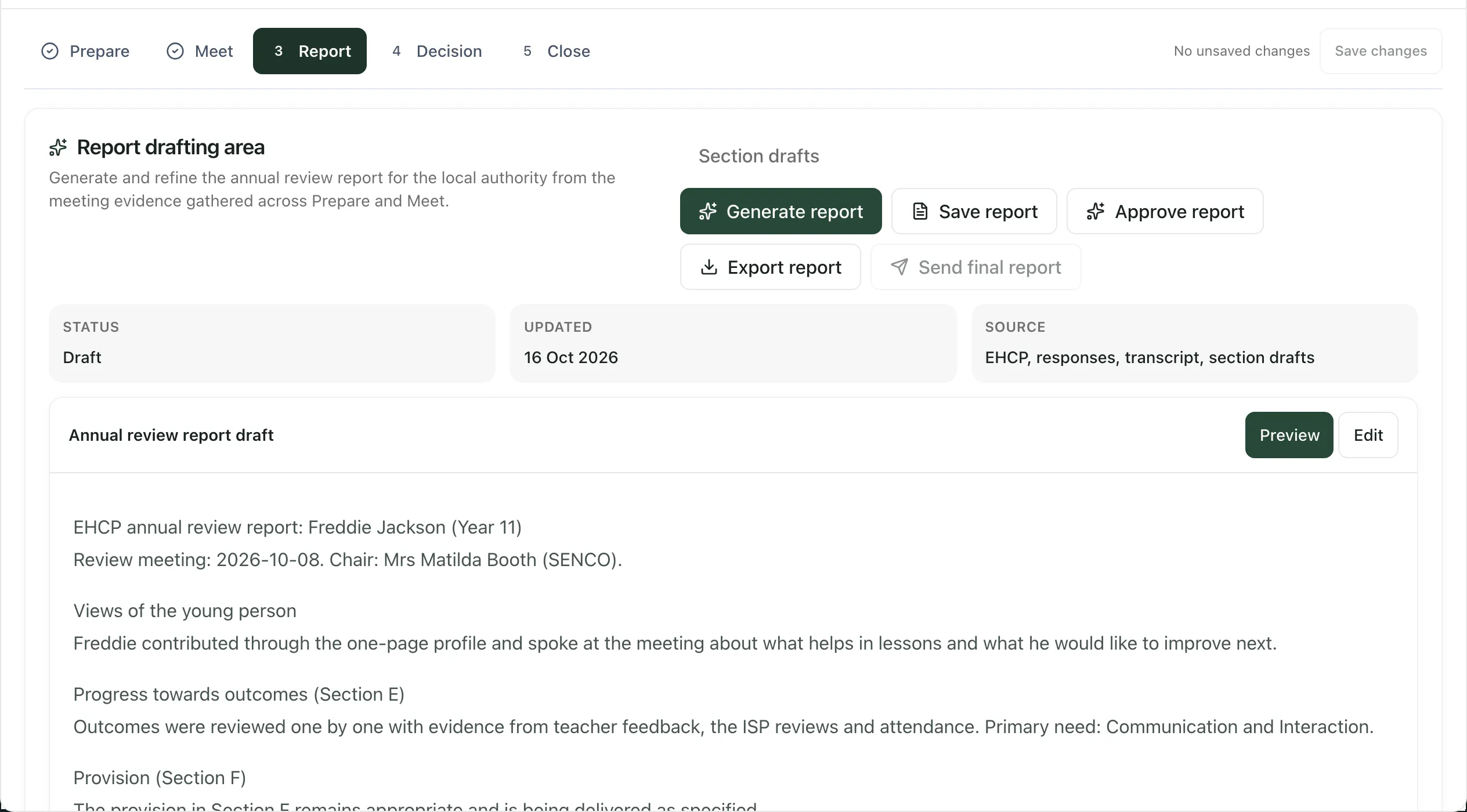
- Optionally, click Section drafts, then Generate updated sections to draft updated wording for each EHCP section. Review and edit each Updated section draft, then click Back to report.
- Click Generate report. Student Radar drafts the report from the EHCP, the responses, the meeting record and the section drafts.
- Click Edit to change the draft. Use Heading, Bold, Italic, Bullets and Numbered to format it, and Preview to see how it looks.
- Click Save report.
- When the report is right, click Approve report. The Status changes to Approved.
- Click Send final report.
Generated wording is a draft. Check every statement against the evidence and the meeting record, and fill any gaps, before you approve it.
Send final report only works once the saved report is approved. If you edit an approved report, save it and approve it again before sending. When it’s sent, you’ll see “Delivery of the approved revision is confirmed for all configured recipients.” and the status changes to Sent.
The report is emailed to the attendees who have an email address. Attendees whose role is a parent, carer, guardian or the pupil receive a version written for families; everyone else receives the full report. Check the attendee list in Prepare before you send.
To keep a copy, click Export report to download the report as a PDF.
Follow-up tasks
Section titled “Follow-up tasks”Click Follow-up tasks to open Tasks & recommendations. Tick a task when it’s done. To add one, fill in Task, Owner and Due, then click Add follow-up task. Tasks stay available after the review is closed.
Record the decision
Section titled “Record the decision”Open the Decision stage.
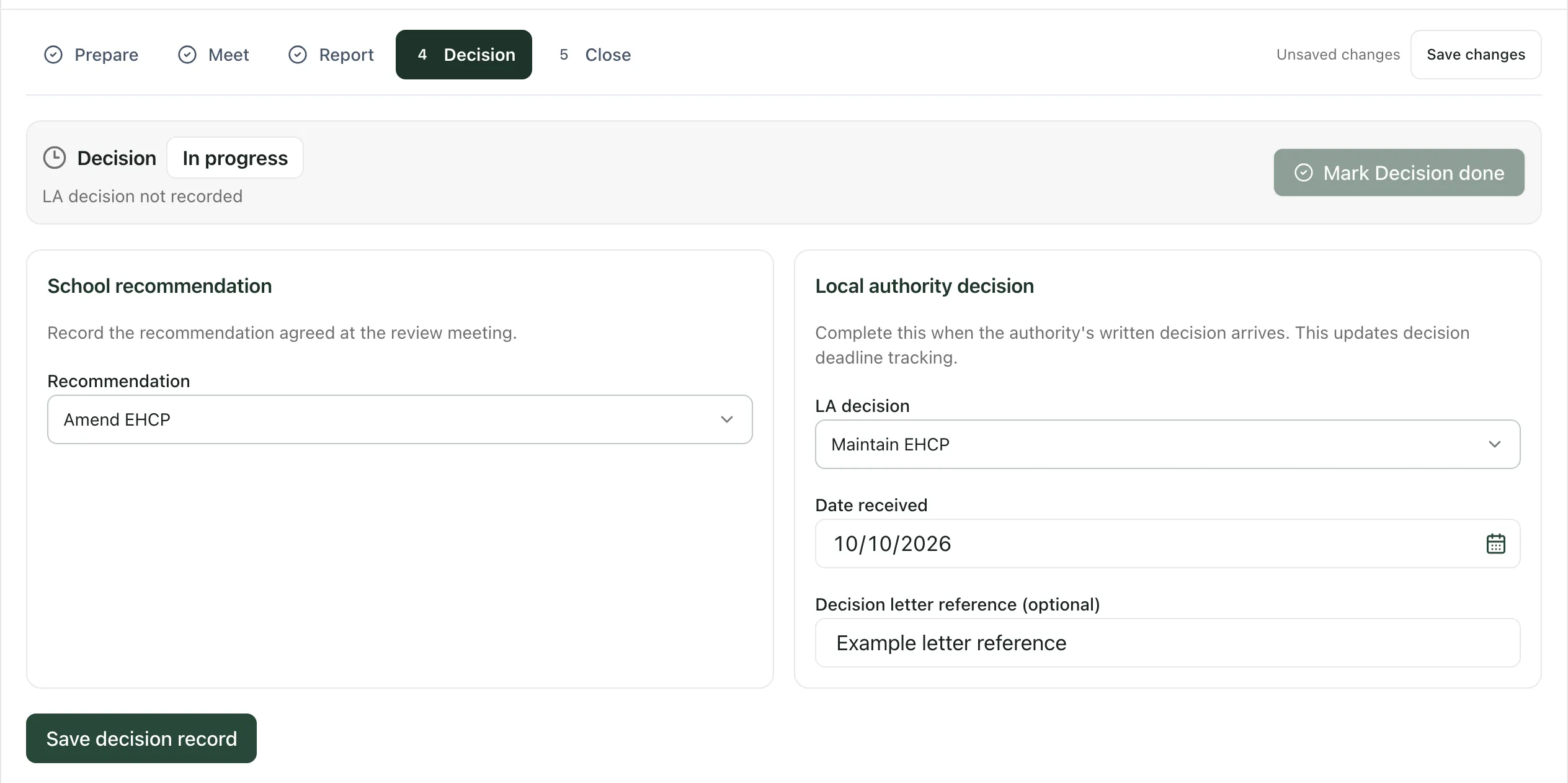
- Under School recommendation, choose the Recommendation agreed at the meeting: Maintain EHCP, Amend EHCP or Cease EHCP.
- When the local authority’s written decision arrives, choose it under LA decision, and enter the Date received. You can add a Decision letter reference (optional).
- Click Save decision record.
The school’s recommendation and the LA’s decision are kept separately. Recording the date received updates the decision deadline tracking. Once both the decision and the date are saved, click Mark Decision done in the stage summary.
Close the review
Section titled “Close the review”Open the Close stage. Before closing lists what’s still outstanding.
- Enter the Next review date and, if you like, Next review notes.
- Click Complete this review.
You’ll see “Review completed”. The review moves to Review history in the register. The meeting record and decision are kept, and open follow-up tasks can still be completed. To start the next cycle, create its meeting from the register with Create meeting.
- England only: the Annual Review page is only available to schools in England.
- Permissions: many staff can open the Annual Review page, but what you can change depends on the permissions your school has given you.
If something doesn’t work
Section titled “If something doesn’t work”| What you see | What to do |
|---|---|
| “Changes not saved” with “Your draft remains open.” | Click Retry save. If it keeps failing, click Copy draft to keep your work, then try again later. |
| “Add attendees in Prepare before recording agreement.” | Open Prepare, click Add attendee and save the attendee list. |
| “Outcome evidence could not be checked. Retry before relying on it.” | Click Retry outcome evidence. A message starting “Outcome evidence is incomplete” names the source that couldn’t be checked. |
| “Save or discard your edits before generating a new report.” | Click Save report, or Discard report changes, then generate again. |
| Send final report is greyed out | Save the report and click Approve report. If you’ve edited it since approving, save and approve it again. |
| “Delivery is still processing. Reload to check its status.” | Wait a moment, then close and reopen the review to check whether the report was sent. Recipients who already received it aren’t sent it again. |
| “Record both the LA decision and the date received, or leave both unrecorded.” | Enter the Date received for the LA decision, or set the decision back to Not received. |
| “Record the LA decision, received date and next review date first.” | Save the decision record with its date received, and enter the Next review date, then click Complete this review again. |