Manage your tasks in My Actions
Written for: All school staff.
My Actions is your to-do list in Student Radar. It brings together the pupil actions assigned to you, your own personal tasks, and items from other parts of Student Radar that need your attention. Use it to see what’s due, add tasks, mark work done and put things off until later.
Open My Actions
Section titled “Open My Actions”In the sidebar, open Overview and choose My Actions.
The list is grouped by when things are due: Overdue, Due today, Due this week, Later and No due date. Items you’ve put on hold appear under Waiting and Snoozed, and finished items under Closed. The number beside each heading shows how many items are in that group.
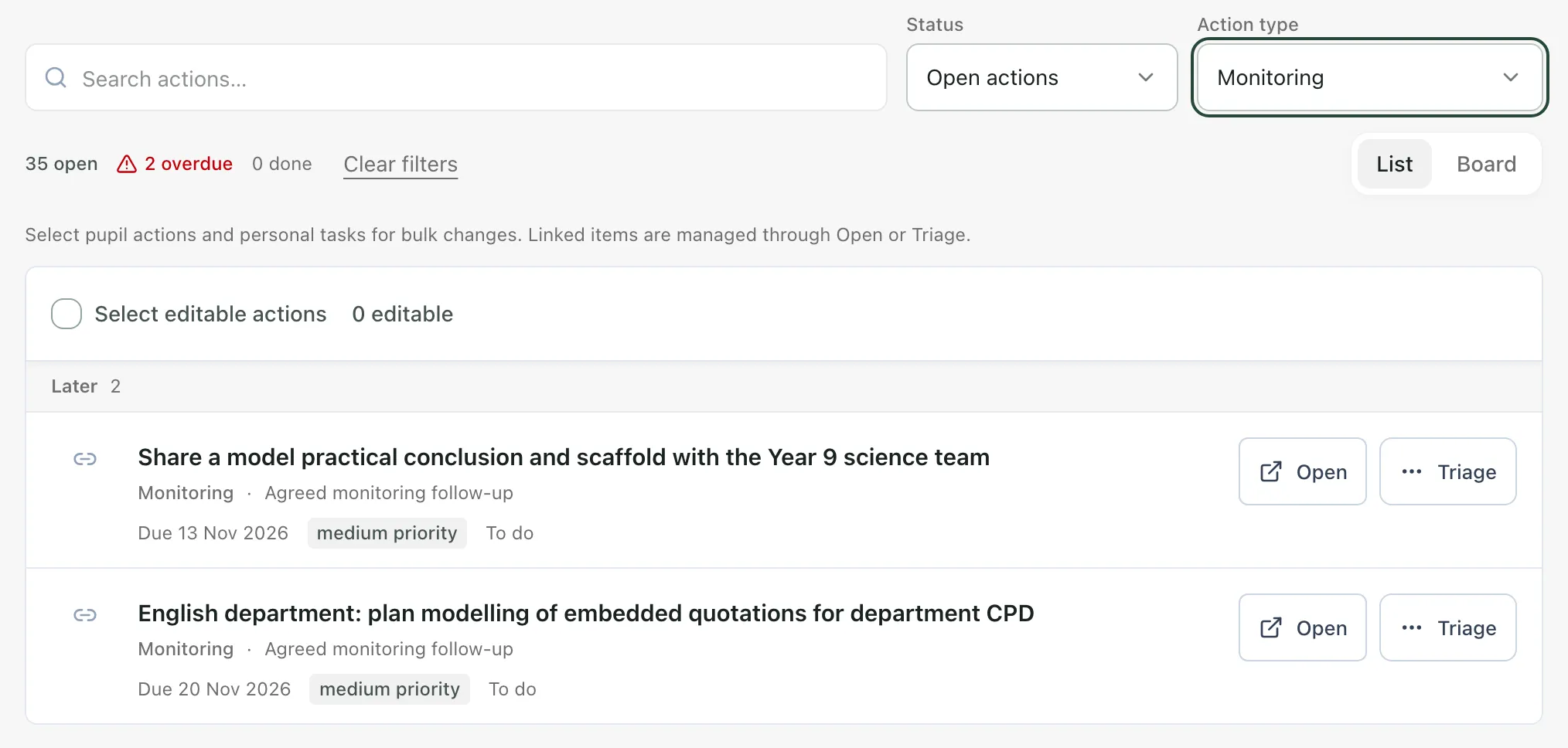
Each item shows:
- Its title. Click it to open the item.
- What kind of item it is: Pupil action, Personal task, or the part of Student Radar it comes from, such as Monitoring or First aid.
- The pupil’s name, for pupil actions. Click the name to open the pupil’s profile.
- The due date (shown in red when it’s overdue), the priority and the status.
Above the list, a line of totals shows how many items are open, overdue and done.
Find what you need
Section titled “Find what you need”- Search actions…: type part of a title to narrow the list.
- Status: choose Open actions (the default), Due now, Snoozed, Waiting or Closed. Due now leaves out anything snoozed or waiting.
- Action type: show one kind of item, such as Pupil actions or Personal to-dos. The list only offers the types you currently have.
- Clear filters: go back to the full list.
Click Board to see your items as cards in lanes: To do, In progress, Waiting, Snoozed and Closed. To move one of your own items to another lane, drag its card, or click Move on the card and choose a lane. Click List to go back. Student Radar remembers which view you used last.
Add a personal task
Section titled “Add a personal task”- Click Add at the top of the page.
- Under Action type, leave Personal task selected.
- Type what you need to do. To set the due date, click Today, Tomorrow, Next week or Pick a date. You can also end the task with a day, such as tomorrow or next Friday. Student Radar sets the due date from it and shows the title it will save after Saves as.
- If you want to, set the Status and Priority, add Labels (separated by commas), choose how often the task Repeats and set a Reminder.
- Click Add task.
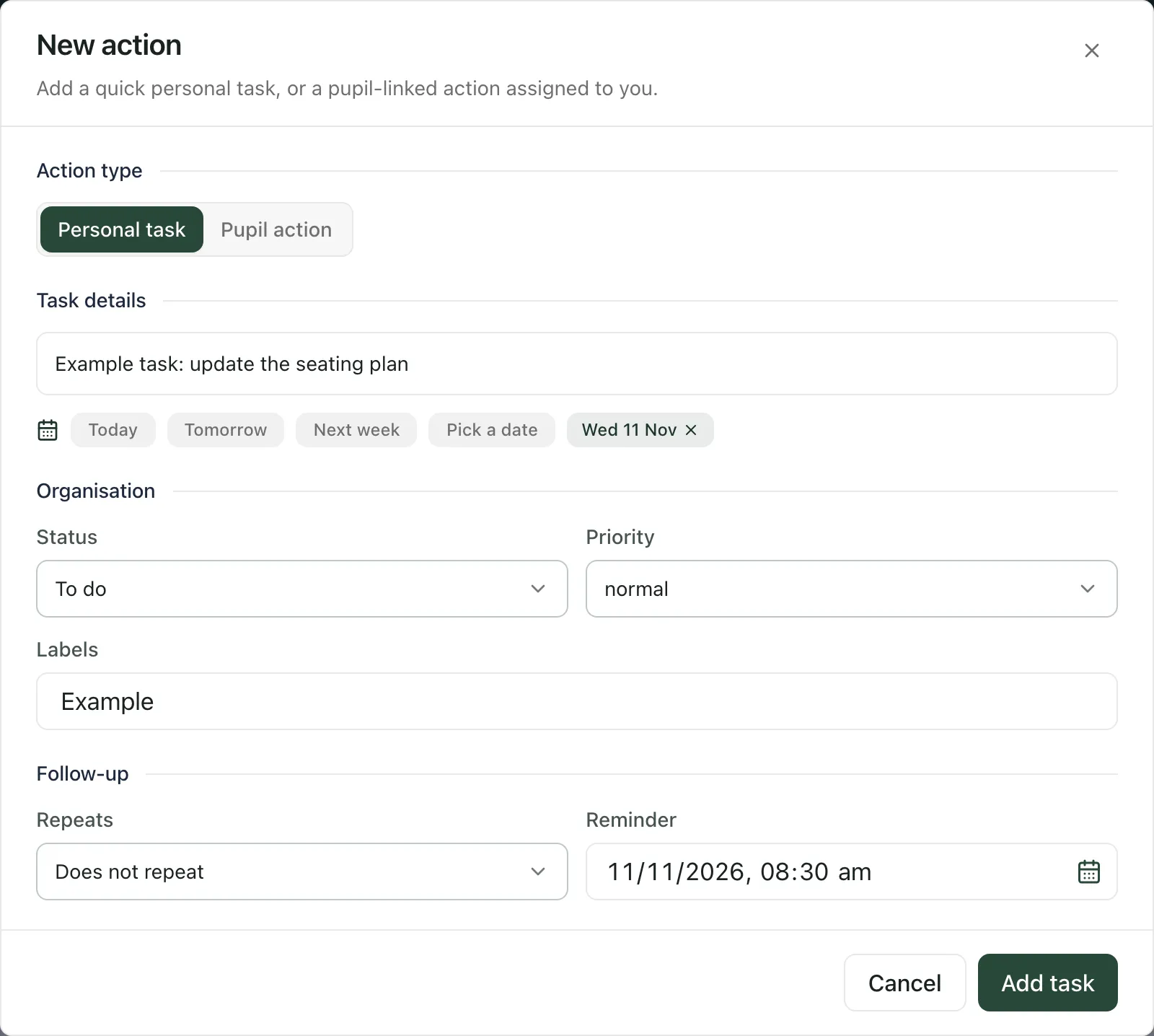
The task is added to your list straight away. Personal tasks are only for you.
Add a pupil action for yourself
Section titled “Add a pupil action for yourself”- Click Add, then choose Pupil action.
- Search for the pupil under Pupil.
- Enter a Task title and, if you want to, some Notes.
- Choose a Category and Priority, and set a due date.
- Click Create action.
A pupil action you add here is assigned to you. Staff who can see the pupil’s actions will see it on the pupil’s profile, in the Actions section. To give a pupil action to a colleague, see Assign a pupil action to a colleague.
Mark items done
Section titled “Mark items done”- For one item, click Done beside it.
- For several, tick them (or tick Select editable actions to choose them all), then click Mark done.
Done items move to Closed. To see them, set Status to Closed. To tidy up, click Clear completed there to remove finished personal tasks for good. Closed pupil actions stay on the pupil’s record.
Change, snooze or delete an item
Section titled “Change, snooze or delete an item”Click an item’s title to open Edit action. You can change the title, Notes (for pupil actions), Due date, Priority, Status, Reminder and Snooze until. For personal tasks you can also choose how often the task Repeats. Click Save changes.
Pupil actions also have an Activity trail at the bottom of this window. Type a note, such as what you’ve done so far, and click Add note. Changes of status are recorded there too.
For quicker changes, click ⋯ beside an item:
- Snooze until tomorrow or Snooze until next week puts the item in the Snoozed group until then. Clear snooze brings it back.
- Delete… removes the item for good after you confirm. Only delete something you added by mistake. If the work is finished, mark it done instead so the record is kept.
Setting the status to Waiting moves an item to the Waiting group. Use it when you’re waiting for someone else before you can carry on.
Linked items from other parts of Student Radar
Section titled “Linked items from other parts of Student Radar”Items with a link symbol come from elsewhere in Student Radar, for example a monitoring follow-up, a first-aid review or a risk alert. You can’t mark these done in My Actions, because they’re finished in the place they came from.
- Click Open to go to the item in its own part of Student Radar.
- Click Triage to deal with it from My Actions:
- Convert to to-do turns it into a personal task.
- Convert to pupil action / assign… turns an item about one pupil into a pupil action, for you or for a colleague.
- Dismiss… hides it. Add a Reason (optional) and choose how long to hide it for under Hide until. It comes back when that time is up, or sooner if the item changes where it came from.
Monitoring follow-ups are recorded in their monitoring task, so use Open for those.
Some items group several records together, such as all your medication tasks that need attention. Click Open to work through them.
- If your account isn’t linked to your staff record, you’ll see Link your account to a staff record at the top of the page. Personal tasks still work, but pupil actions assigned to you won’t appear until the link is made. Click Link my account, or ask your school’s Student Radar administrator.
- If you have a lot of items, the list loads them in batches. Click Load 50 more to see the rest. Until you do, the totals and filters only cover the items loaded so far.
- If the SEND team has asked you for access-arrangement evidence, the requests appear at the top of the page under Access-arrangement evidence requests.
If something doesn’t work
Section titled “If something doesn’t work”| What you see | What to do |
|---|---|
| “We couldn’t load your actions” | Your tasks are safe. This is a loading problem, not an empty list. Click Retry. |
| “Linked sources couldn’t be loaded just now” | Some items from other parts of Student Radar are missing for now. Click Try again before treating the list as complete. |
| “No actions match your filters” | Click Clear filters, or change the search and filters. |
| “Saved dismissals couldn’t be loaded. Previously dismissed items may appear again.” | Click Retry dismissals. |
| “This action is no longer assigned to you or has been removed.” | Someone else has changed the action. Reload the page to see its current state. |
| “Open the monitoring task to record its outcome.” | Monitoring follow-ups can’t be triaged here. Click Open and record the outcome in the monitoring task. |
| “Your account isn’t linked to a school yet, so this can’t be saved.” | Ask your school’s Student Radar administrator to check your account. |