Complete a QABF for a pupil
Written for: All staff.
The QABF (Questions About Behavioural Function) is a 25-item questionnaire about one specific behaviour. It helps you think about why the behaviour keeps happening: what it might get the pupil, or help them avoid. Each item points to one of five possible functions, and Student Radar adds up the scores as you go. The scores are a starting point for discussion and planning, not a diagnosis.
Open the QABF Register
Section titled “Open the QABF Register”In the sidebar, open Behaviour, then Assessment, and choose QABF.
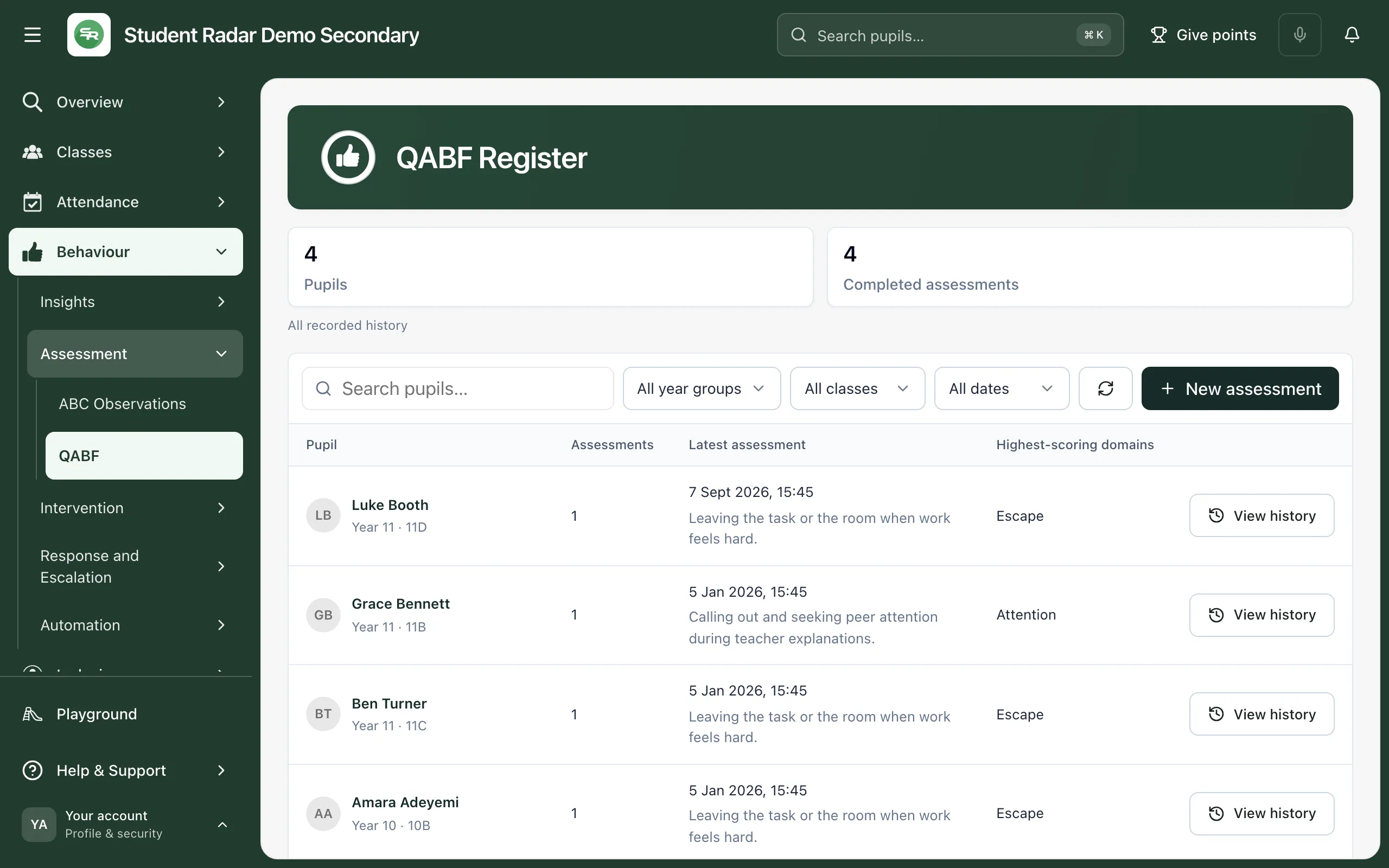
The register lists each pupil with a completed QABF, with the date and target behaviour of their latest assessment and the function that scored highest.
Start an assessment
Section titled “Start an assessment”-
Click New assessment.
-
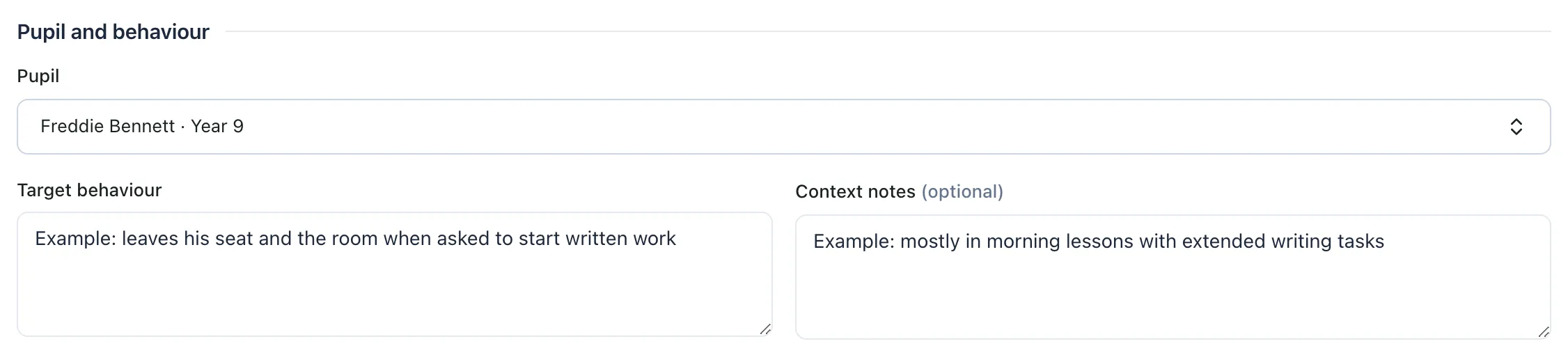
Under Pupil, click Search for a pupil…, type at least two letters of the pupil’s name and choose them from the list.
-
In Target behaviour, describe one behaviour that others could see or hear, and when it happens. Rate one behaviour per assessment. If you’re concerned about more than one, complete a separate QABF for each.
-
If you want to, add Context notes: the setting, recent observations or any relevant changes. Leave out personal details that aren’t needed.
Rate the 25 items
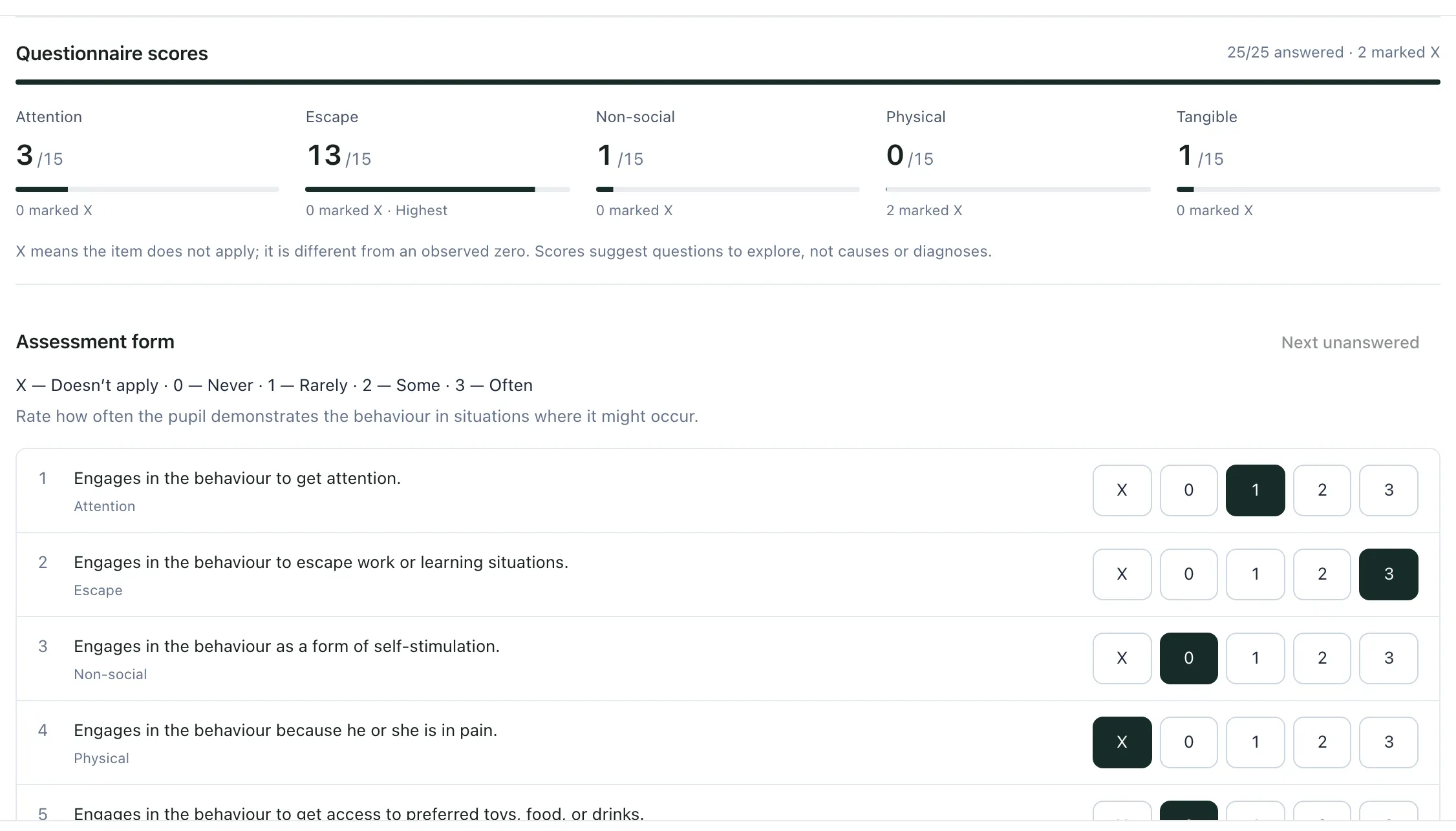
Section titled “Rate the 25 items”Under Assessment form, rate each item for how often the pupil shows the behaviour in situations where it might happen:
| Rating | Meaning |
|---|---|
| X | Doesn’t apply: the situation doesn’t come up. |
| 0 | Never |
| 1 | Rarely |
| 2 | Some of the time |
| 3 | Often |
Use X only when an item doesn’t apply to this pupil. It isn’t the same as 0, which means you would expect to see the behaviour in that situation and don’t.
Click Next unanswered to jump to the next item you haven’t rated. The number beside it shows how many are left.
Read the scores
Section titled “Read the scores”As you rate, Questionnaire scores shows how many items you’ve answered and a score out of 15 for each function. When all 25 items are rated, the highest-scoring function is marked Highest. If two functions tie, both are marked.
| Function | What its items ask about |
|---|---|
| Attention | Whether the behaviour gets attention or a reaction from others. |
| Escape | Whether it gets the pupil out of work or demands, or gets people to leave them alone. |
| Non-social | Whether the behaviour seems enjoyable in itself, even when no one is around. |
| Physical | Whether it happens more when the pupil is in pain, unwell or uncomfortable. |
| Tangible | Whether it gets the pupil something they want, such as an item, food or a drink. |
A high score suggests which function to explore first when you plan support. It doesn’t tell you the cause of the behaviour. Read it alongside direct observation, ABC observations and what you and your colleagues know about the pupil.
Save the assessment
Section titled “Save the assessment”Click Save assessment. It becomes available once you’ve chosen a pupil, described the target behaviour and rated all 25 items. You’ll see “QABF assessment saved”, and the assessment is added to the register.
A saved assessment keeps the original ratings as evidence and can’t be changed. To see whether things have changed later, complete a new QABF for the same behaviour.
To start again before saving, click Reset. If you close the assessment or choose a different pupil before saving, Student Radar asks “Discard unsaved assessment?” Click Keep editing to go back, or Discard changes to lose the draft.
Optional: AI interpretation and PDF
Section titled “Optional: AI interpretation and PDF”Once all 25 items are rated, you can also:
- Click AI interpretation to draft working hypotheses about the behaviour, with immediate checks, advice for staff, environmental adjustments, interventions to consider, ideas for working with parents and carers, and a monitoring plan. It uses only the ratings, behaviour and notes you’ve entered. It’s a draft for staff to review alongside direct observation, not a diagnosis. If you change a rating, the draft is discarded.
- Click Download PDF to download the completed questionnaire. If you generated an AI interpretation, it’s included in the PDF.
The AI interpretation is never saved in the register. The register keeps only the original ratings, behaviour and notes.
Look back at earlier assessments
Section titled “Look back at earlier assessments”Click View history on a pupil’s row. Their assessments are listed newest first. Choose one to see the target behaviour, who completed it and when, the context notes, the scores and every original answer. Click Download assessment to download it as a PDF, or Pupil profile to open the pupil’s profile.
To narrow the register, search for a pupil or use the year group, class and date filters. Click Clear to see everyone again.
If something doesn’t work
Section titled “If something doesn’t work”| What you see | What to do |
|---|---|
| Save assessment is greyed out | Check you’ve chosen a pupil, described the target behaviour and rated all 25 items. Next unanswered helps. |
| “Complete all 25 QABF items before saving.” | Rate the items you’ve missed, then save again. |
| “The behaviour or context is too long to save. Please shorten it.” | Shorten the target behaviour or context notes. |
| “The QABF assessment could not be saved.” | Nothing was saved and your answers are unchanged. Wait a moment, then click Save assessment again. |
| “That pupil is no longer available to you.” | You can no longer see this pupil’s record. Ask your school’s Student Radar administrator. |
| “You do not have permission to manage QABF assessments.” | Your account can’t save QABF assessments. Ask your school’s Student Radar administrator. |
| “Register unavailable” | Click Try again. Until it loads, the register can’t confirm how many assessments there are. |
| “The AI service returned no usable interpretation. Your answers are unchanged.” | Try AI interpretation again later. You can still save the assessment without it. |