View the exclusions log
Written for: Behaviour leads, senior leaders, SENCos, safeguarding leads and office staff.
The exclusions log lists the suspensions and permanent exclusions recorded for your school in the dates you choose. It brings together exclusions from your management information system (MIS) and cases recorded in Student Radar, and labels where each one came from. Use it for oversight, governor reports and checking that exclusions are handled consistently.
Open the log
Section titled “Open the log”In the sidebar, open Behaviour, then Response and Escalation, and choose Exclusions.
The page opens on the last 30 days. To change the dates, set From and To under the figures at the top. You can look at up to 400 days at a time, for example one academic year.
Read the figures
Section titled “Read the figures”Three figures at the top count the exclusions in your dates:
- Suspensions: the number of suspensions.
- Permanent exclusions: the number of permanent exclusions.
- Repeats: the number of pupils with more than one suspension.
If a figure says Unavailable, it couldn’t be loaded. It doesn’t mean zero.
Read the log
Section titled “Read the log”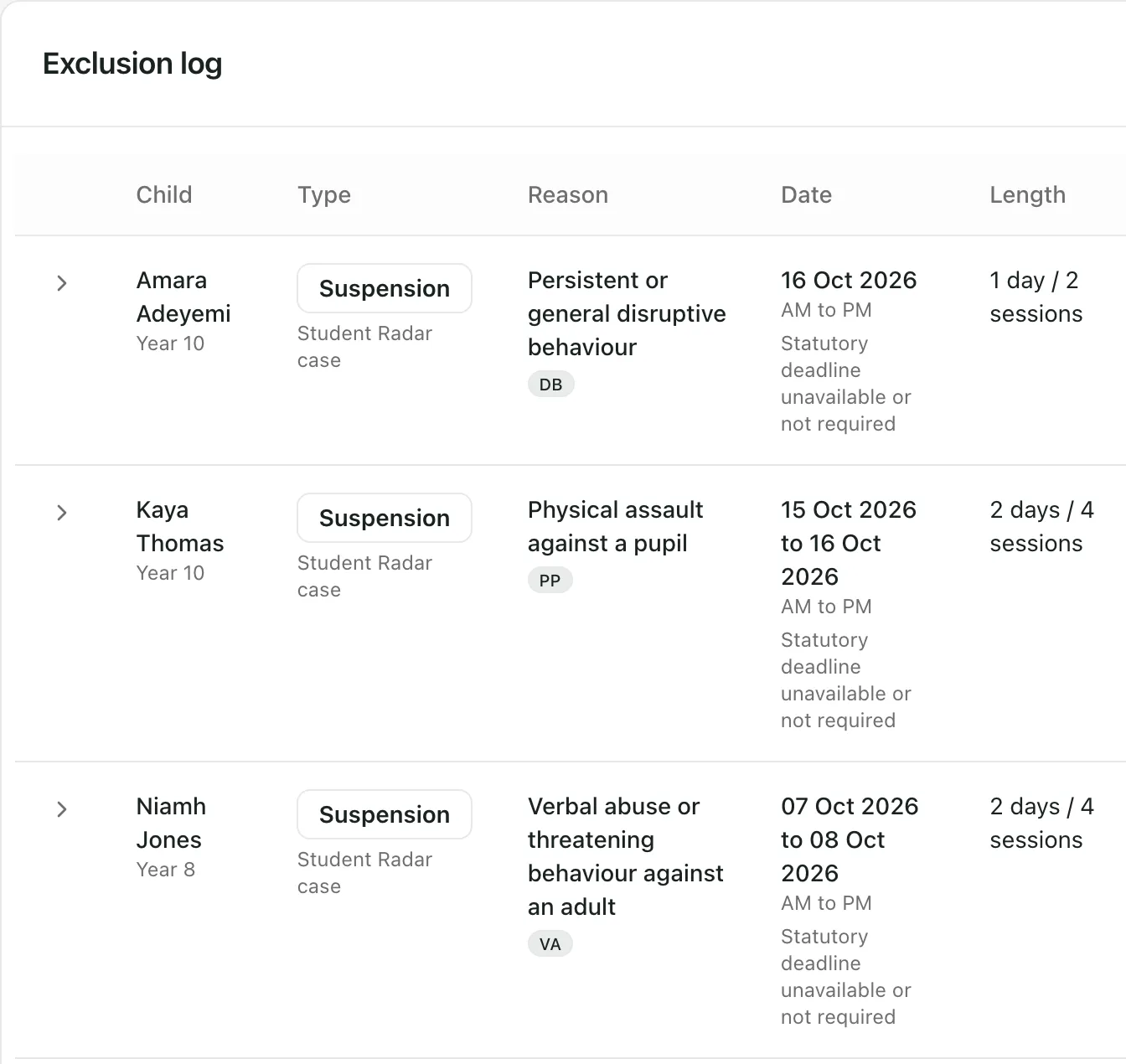
Each row of the Exclusion log shows:
| Column | What it shows |
|---|---|
| Child | The pupil’s name, year and class. |
| Type | Suspension, Lunchtime suspension or Permanent exclusion. Underneath, Student Radar case or MIS source says where the record came from. |
| Reason | The reason for the exclusion, with its DfE reason code. |
| Date | The first and last day, and the sessions, such as AM to PM. |
| Length | The length in days and sessions. |
| Notes | Any notes recorded with the exclusion. |
The type and reason use DfE wording, whatever wording your MIS uses.
Records from your MIS can only be changed in your MIS. If a length wasn’t supplied, the log gives an estimate from the dates, marked (weekdays; calendar unverified), or says Duration not provided.
See more detail
Section titled “See more detail”When your MIS has supplied more about an exclusion, the row has an arrow at the start. Click the arrow, or the row, to see it:
- Appeal: whether an appeal was received, its result and any reinstatement date.
- Discipline committee: the hearing date, result, any reinstatement date and whether representations were made.
- Context: the academic year, the term and any agencies involved.
Click the arrow again to hide the detail.
Pupils who have left
Section titled “Pupils who have left”If an exclusion belongs to a pupil who has left your school, or who isn’t on roll yet, the Child column says Pupil not on current roll. The record is kept. If the MIS didn’t link the exclusion to a pupil, it says Not linked to a pupil.
Take the built-in tour
Section titled “Take the built-in tour”Click Take a tour at the top of the page. It shows you how to change the dates and read the log.
- Who can open it: by default, year leads and teaching assistants don’t have this page. Your school can change who has access.
- Extra workflow: some schools also use Student Radar to work through each exclusion case. If your school has this switched on, you’ll see more on this page, such as a deadline under the date of each Student Radar case. This article covers the log only.
- Large date ranges: the log shows up to 250 exclusions. If there are more, you’ll see “Showing up to 250 exclusions. Narrow the date range to see a complete log.”
If something doesn’t work
Section titled “If something doesn’t work”| What you see | What to do |
|---|---|
| “The exclusions register could not be loaded. No records have been hidden or treated as absent. Try again shortly.” | Click Retry exclusion log. If you’ve chosen more than 400 days, choose a shorter range first. |
| “You do not have permission to view named-pupil exclusion records.” | Your account can’t see named exclusion records. Ask your school’s Student Radar administrator. |
| “No exclusions were recorded for the selected date range.” | Check From and To. Try a longer range, such as this academic year. |
| Unavailable in the figures | Refresh the page. If you’ve chosen more than 400 days, choose a shorter range. |