Add your term dates
Written for: Headteachers, school administrators and office managers.
Your term dates tell Student Radar when your school is open. They’re used by the calendar, attendance figures, schedules and anything else that counts school days, so add each academic year’s dates before it starts. You add teaching terms, holidays and INSET days one at a time in School Settings.
Open the term dates
Section titled “Open the term dates”-
In the sidebar, click Settings, then School Settings.
-
The Term Dates tab opens first. If you’re on another tab, click Term Dates.
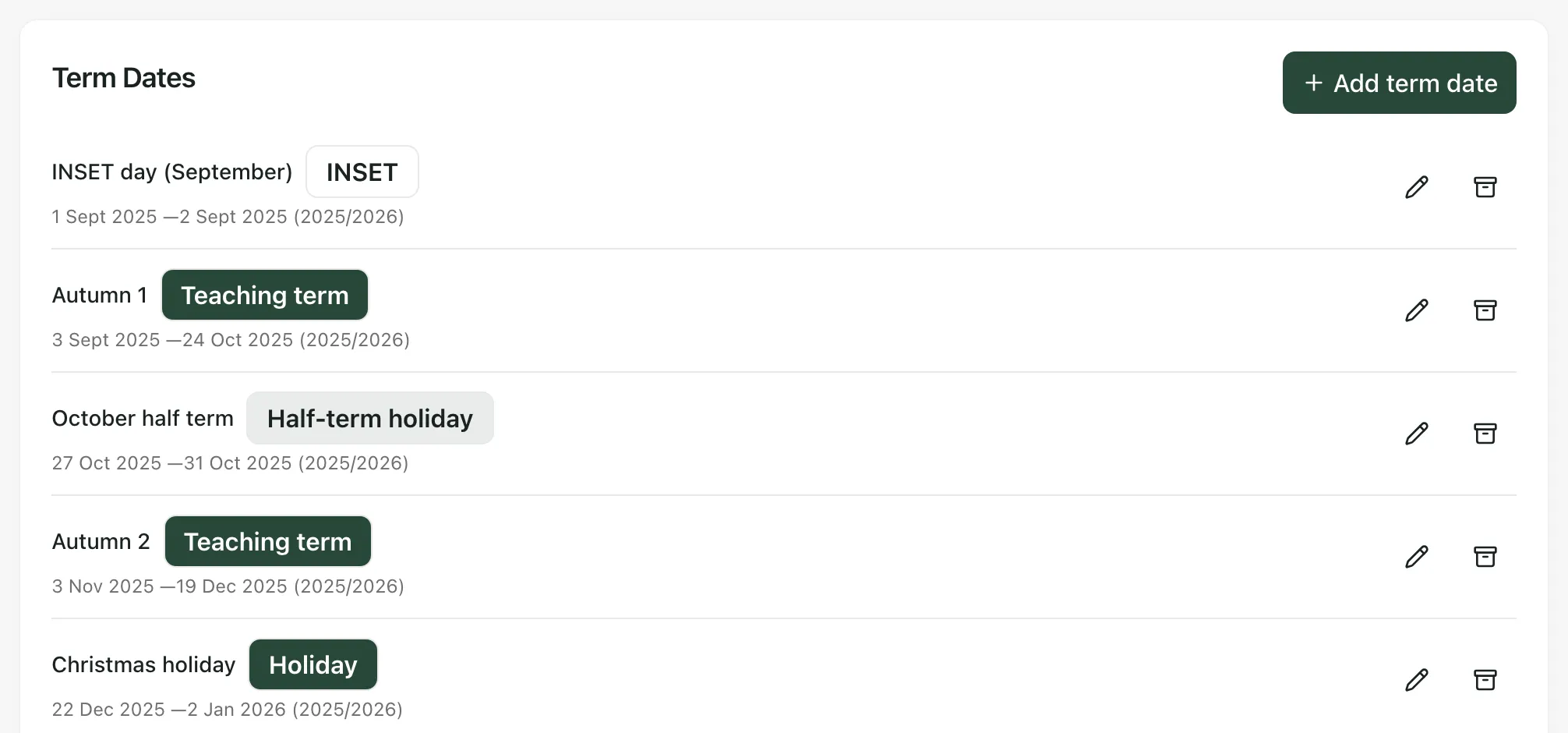
Each row shows the name, its type, the first and last day, and the academic year in brackets.
| Badge | What it means |
|---|---|
| Teaching term | The school is open for teaching. |
| Holiday | The school is closed. |
| INSET | A staff training day. Pupils aren’t in school. |
| Half-term holiday | A half-term break saved with an older type. See the note below. |
| Imported | The date was imported from your school’s published calendar. |
Dates marked Imported have a Published calendar source link to the calendar they came from.
Add a term, holiday or INSET day
Section titled “Add a term, holiday or INSET day”-
Click Add term date.
-
In Name, type a name staff will recognise, such as Autumn 1 or Christmas holiday.
-
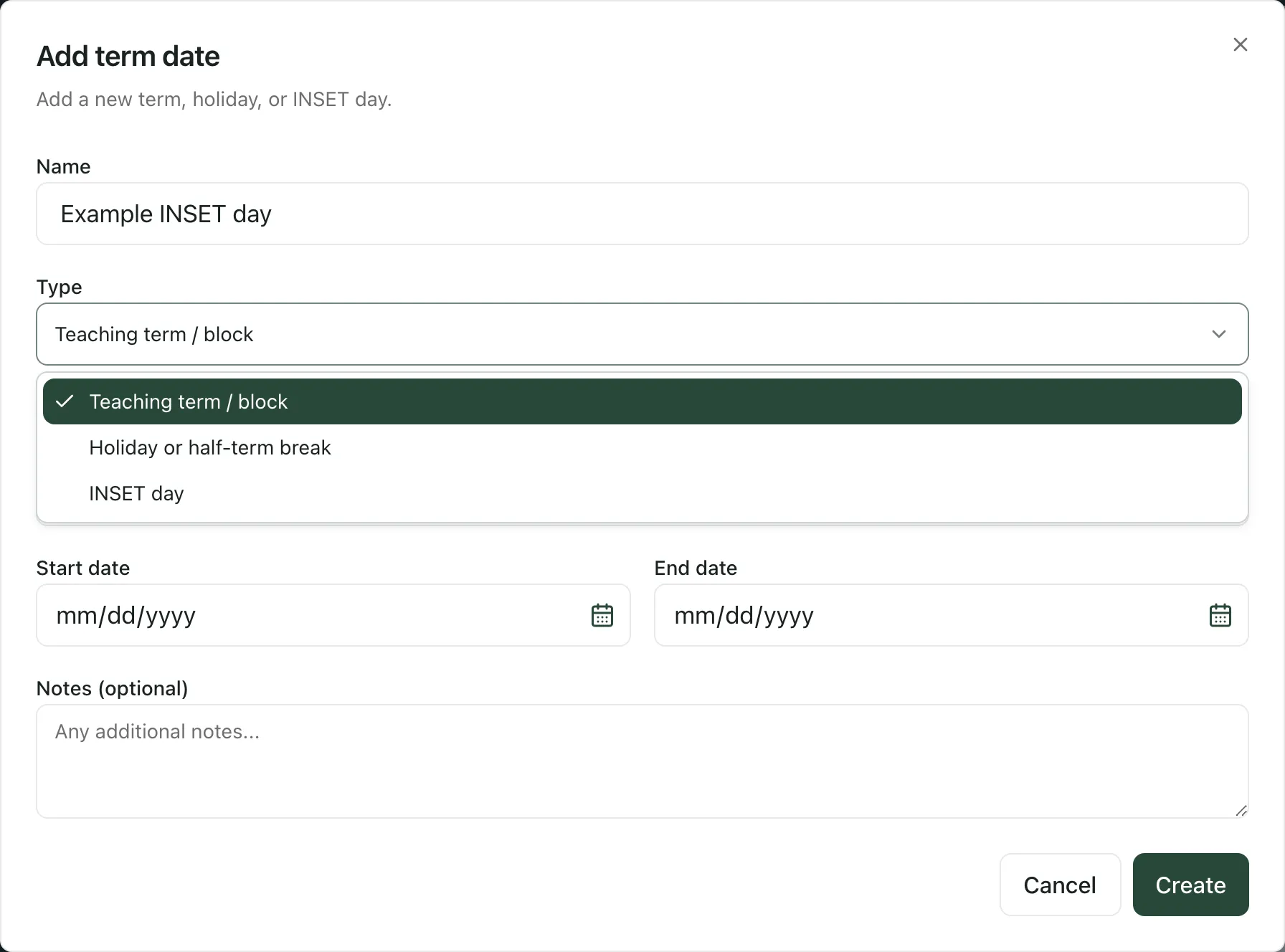
Choose a Type:
- Teaching term / block for each teaching half term.
- Holiday or half-term break for each holiday, including half-term breaks.
- INSET day for staff training days.
-
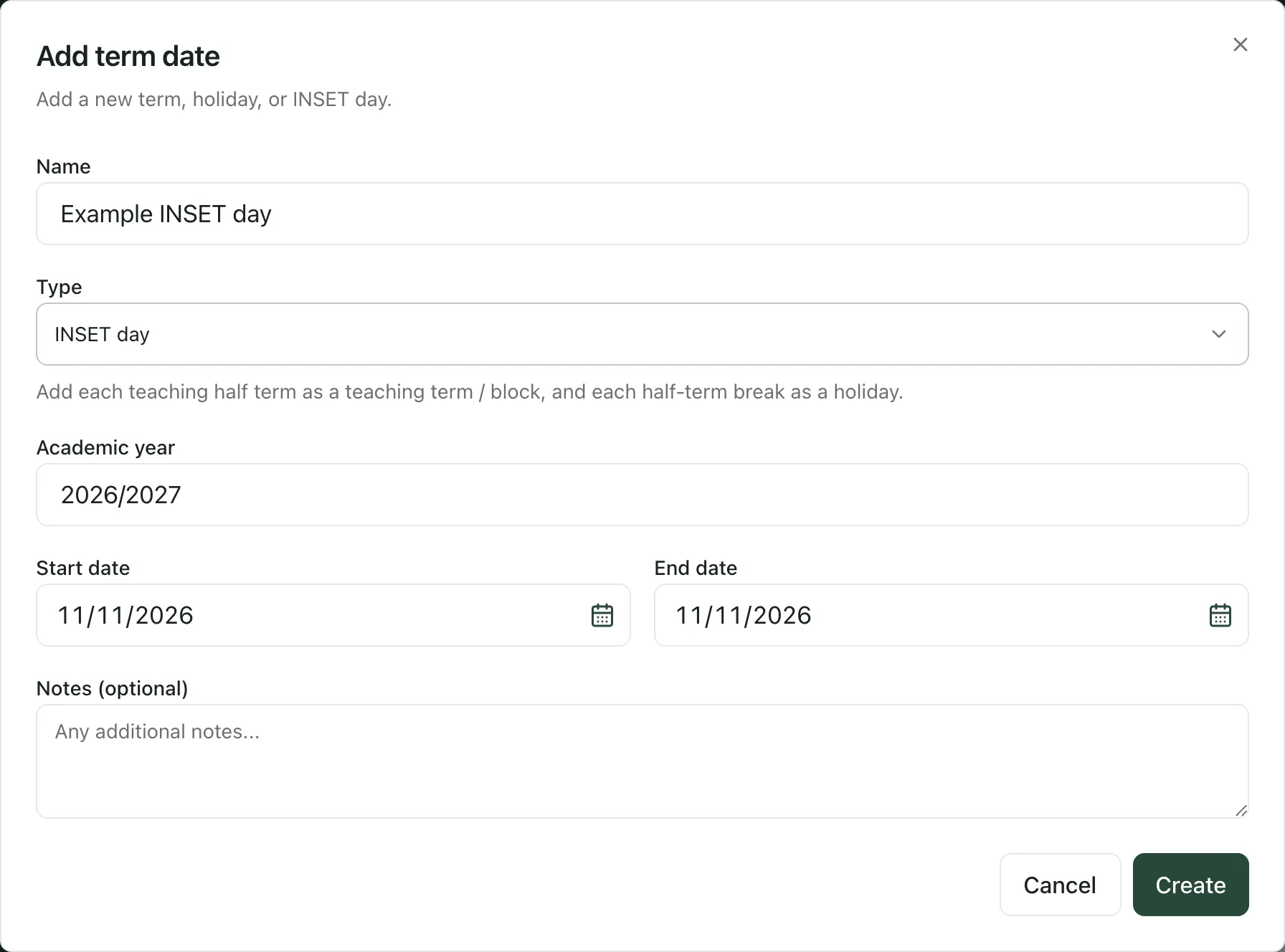
Check the Academic year. Student Radar fills in the current one, such as 2026/2027. Change it if you’re adding dates for next year.
-
Choose the Start date and End date. For a single INSET day, choose the same date for both.
-
Add any Notes (optional).
-
Click Create.
You’ll see “Term date created” and the new date appears in the list, in date order.
Tip: Add each teaching half term as its own Teaching term / block, with the half-term break between them as a Holiday or half-term break. That way every report treats the break as closed.
Change a term date
Section titled “Change a term date”- Click the pencil button on the row.
- Change the details in Edit term date. Your changes save automatically as you type, and you’ll see Saving… while they do.
- Click Done.
A change isn’t saved while a field is empty or while the end date is before the start date. Fix the dates and the change saves.
If you change a date marked Imported, it becomes your school’s own date and is no longer marked Imported.
Archive a term date you no longer need
Section titled “Archive a term date you no longer need”Click the archive button on the row. The date is archived straight away and you’ll see “Term date archived”. There’s no confirmation step, so check you’ve chosen the right row first.
Archived dates are no longer used as school days, holidays or INSET days. To see them, click Show archived at the top of the list, and Hide archived to hide them again. You can’t edit or restore an archived date. If you archive one by mistake, add it again with Add term date.
- Half-term holiday badges: older half-term breaks show a Half-term holiday badge. Some reports count that older type as teaching days. Click the pencil button on the row and change its Type to Holiday or half-term break, so every report treats the dates as closed.
- Your school year: the month your school year starts and the names of your terms come from your country settings. You can see them under Setting Profile, in Country and region. See Set your setting type, country and wording.
- Who can change term dates: each part of School Settings has its own permission. By default, headteachers, administrators and office managers can manage term dates. If you can open the tab but your changes aren’t saved, ask your Student Radar administrator.
- Take the tour: click Take a tour at the top of School Settings for a short guide to each tab.
If something doesn’t work
Section titled “If something doesn’t work”| What you see | What to do |
|---|---|
| “Name is required” | Type a Name, then click Create again. |
| “Academic year is required” | Type the Academic year, such as 2026/2027. |
| “Start and end dates are required” | Choose both a Start date and an End date. |
| “End date must be on or after start date” | Change the dates so the end date isn’t before the start date. |
| “Failed to save term date” | The date wasn’t saved. Check your connection and try again. If it keeps happening, ask your Student Radar administrator. |
| “Unable to load term dates” | Click Try again. If the list still doesn’t load, reload the page. |
| “No term dates configured. Add your first term date to get started.” | Your school has no term dates yet. Click Add term date to add the first one. |