Create and publish a form
Written for: School staff who collect information from families, pupils or colleagues.
Use Forms to build your own form, such as a consent form, a club application or a feedback survey. You start from a ready-made form, change the questions, check it in a preview, then save and publish it. Once a version is published you can send it to parents, pupils or staff.
To get there, open Parents in the sidebar and choose Forms. The Form library tab lists your school’s forms under School and team forms, with each one’s status: Draft only, Awaiting approval or the version that’s published.
Start a new form
Section titled “Start a new form”- Click New form. The Create a form page opens.
- Choose where to start:
- Shared form library: forms shared by Student Radar, your trust or your school. Click Use template to make your own editable copy. The copy is saved as a draft straight away.
- Legacy V1 starters: ready-made forms such as Blank form, Simple consent, Trip consent and Survey. Click the Use button under the one you want, for example Use Survey.
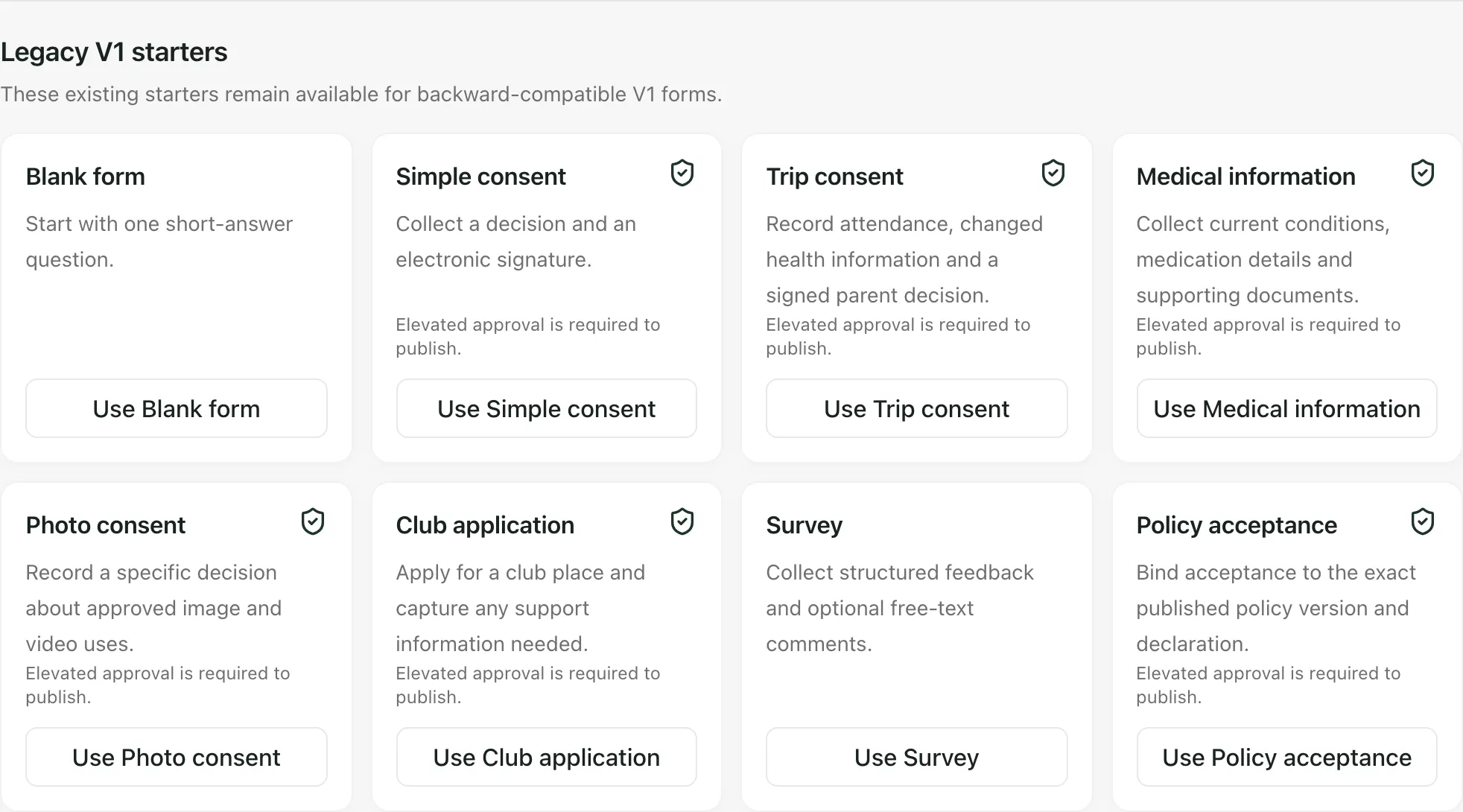
Start blank form is greyed out in most schools. It shows “The blank drag-and-drop builder is not enabled for this school.” Start from a template or a starter instead: Blank form gives you a form with one short-answer question.
Build the form
Section titled “Build the form”The form opens on the Build tab.
-
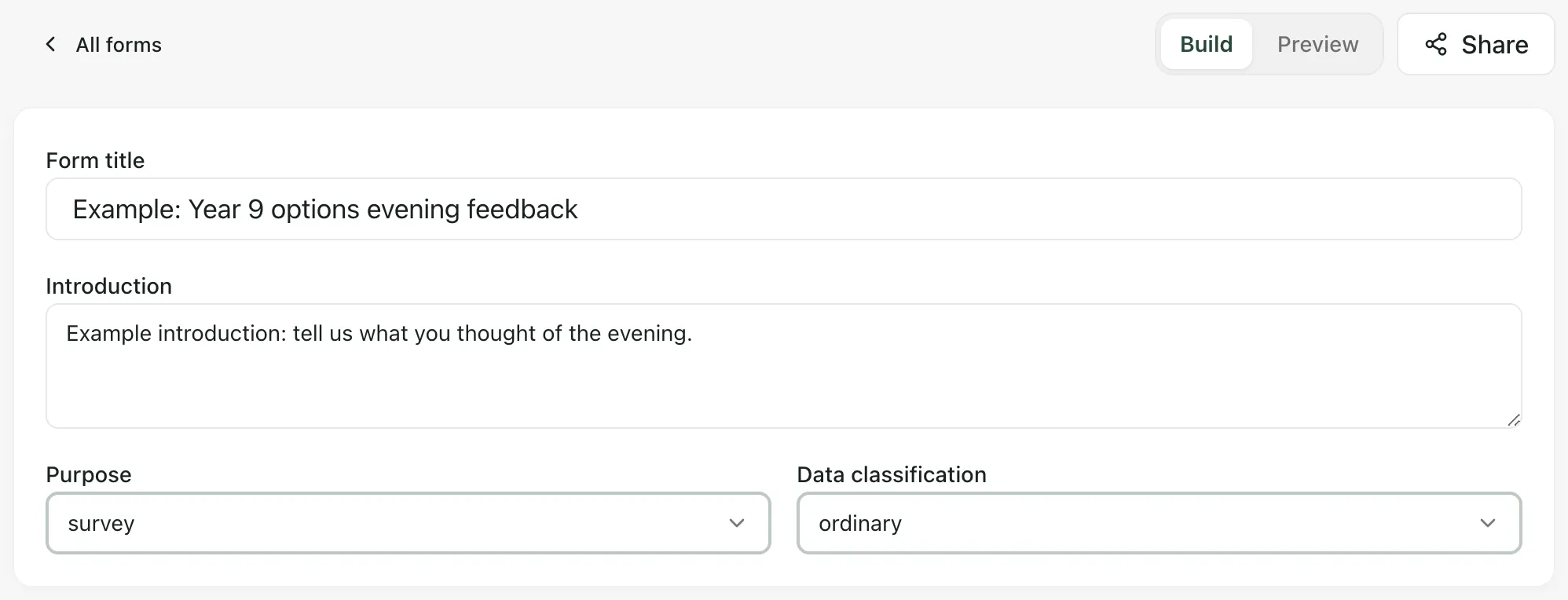
Enter the Form title and, if you want, an Introduction that people see at the top.
-
Check the Purpose and Data classification. Choose the classification that matches the most sensitive information the form collects. You can’t change either once the form is published.
-
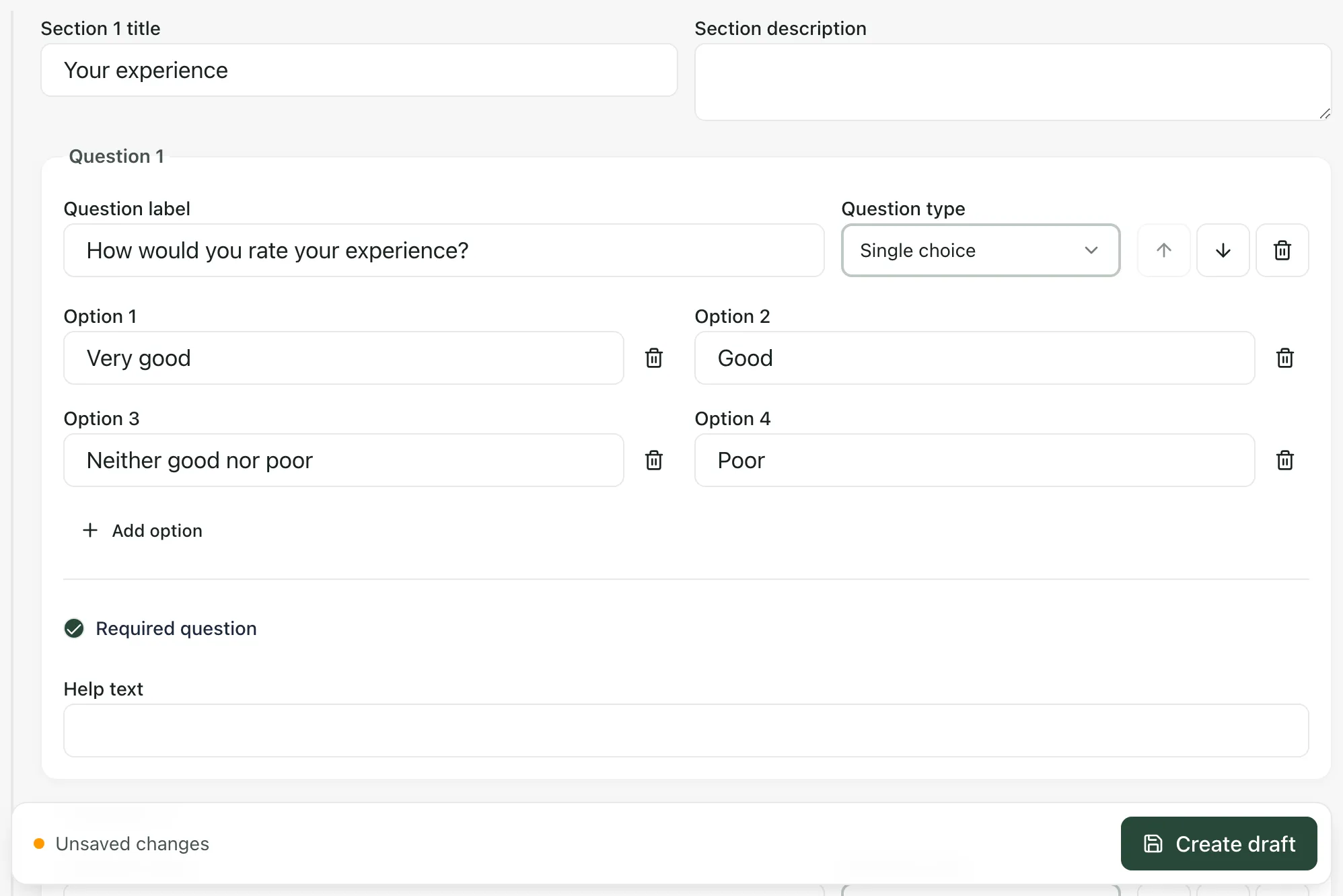
Give each section a title (Section 1 title, Section 2 title and so on) and a Section description if it helps.
-
For each question:
- Write the Question label and choose the Question type, such as Single choice, Short text, Yes or no, Date, Declaration or Signature.
- For a choice question, edit the options. Click Add option for more.
- Tick Required question if it must be answered, and add Help text if people might need a hint.
- Use the arrow buttons to move the question up or down, or the bin to delete it.
-
Click Add question to add another question to a section, or Add section to start a new section.
To show a question only when an earlier answer matches, click Add condition under it. Choose Show when, the Earlier question, the Condition and, if needed, the Answer value. Click Remove condition to show the question to everyone again.
Check it and save a draft
Section titled “Check it and save a draft”- Click Preview to see the form the way people will fill it in. Click Build to go back and make changes.
- Click Create draft at the bottom of the page. For a form that’s already saved, the button is Save draft.
The bar at the bottom shows Unsaved changes until you save. If anything needs fixing, a list headed “Check these form settings before saving:” appears, and the save button stays greyed out until it’s fixed.
Publish the form
Section titled “Publish the form”- Click Share at the top of the form.
- If the form came from the shared library, check the choices under Sharing choices:
- Who is this form for?: tick every group that should get it, such as Parents and carers or Pupils.
- Can you see who responded?: choose how much of the respondent’s identity staff see.
- Approval before sharing: whether a colleague must approve the form before it can be shared.
- Review responses before accepting them: whether a colleague must review each response.
- Under Ready to share?, click Publish form, then Publish form again to confirm.
The form is published as version 1 and listed under Publishing history. People always get the version that was published. If you edit the form later, save the draft and publish again to make a new version.
If the button says Send for approval instead, the form needs a colleague’s approval first. See Approve a form and review responses.
Who can publish
Section titled “Who can publish”- Sensitive forms: forms that collect consent, a declaration or signature, medical or financial details, or other special category information need a colleague with permission to publish sensitive forms. The starters marked “Elevated approval is required to publish.” are like this.
- View-only access: if you see “You have view-only access to this draft. Ask the owner or a Forms manager for editor access if you need to make changes.”, ask the person who made the form.
- Your school can change access: if you can’t create, save or publish forms, ask your school’s Student Radar administrator.
What’s next
Section titled “What’s next”To send the published form to families, see Send a form to parents. You can also click Create recipient campaign under Ready to share?.
To open, share or retire a saved form, click the three-dot button at the end of its row in School and team forms. Choose Edit form, Share form or Archive form. Archiving removes the form from the library, but its published versions and campaigns are kept as evidence.
If something doesn’t work
Section titled “If something doesn’t work”| What you see | What to do |
|---|---|
| “Add at least one field before saving or publishing this form.” | Add a question, then save. |
| “Check these form settings before saving:” | Fix each item in the list. The save button works again once they’re all fixed. |
| “Publish this saved form before sharing it with recipients.” | The form hasn’t been published yet. Save the draft, then click Publish form. |
| “You do not have permission to perform this form action.” | Your account can’t do this for this form. Ask a colleague who can, or your Student Radar administrator. |
| “This draft changed elsewhere. Reload it before trying again.” | Someone else saved the form. Reload the page, then make your change again. |
| “Forms could not be loaded” | Click Try again. If it keeps happening, wait a few minutes and reload the page. |
| “Governed templates could not be loaded.” | The shared library couldn’t load. You can still start from one of the starters. |