Create a behaviour support plan
Written for: All staff, SENCos and behaviour leads.
An individual behaviour support plan sets out, for one pupil, what is difficult, what is likely to be behind it, and what adults will do to prevent it, teach new skills and respond consistently. Any authorised member of staff can start a draft. The SENCo or behaviour lead coordinates the plan and activates it, so that every adult who works with the pupil can follow it.
Start a draft
Section titled “Start a draft”- In the sidebar, click Behaviour, then Intervention, then Support Plans.
- Under Start with the child, click Choose a pupil and pick the pupil.
- Click Start plan.

A new draft opens. To carry on with a plan that’s already started, click the pupil’s name under Current plans. Drafts stay private to authorised staff.
Find your way around the plan
Section titled “Find your way around the plan”The plan has six sections. Click a section to open it, or use Next and Previous.
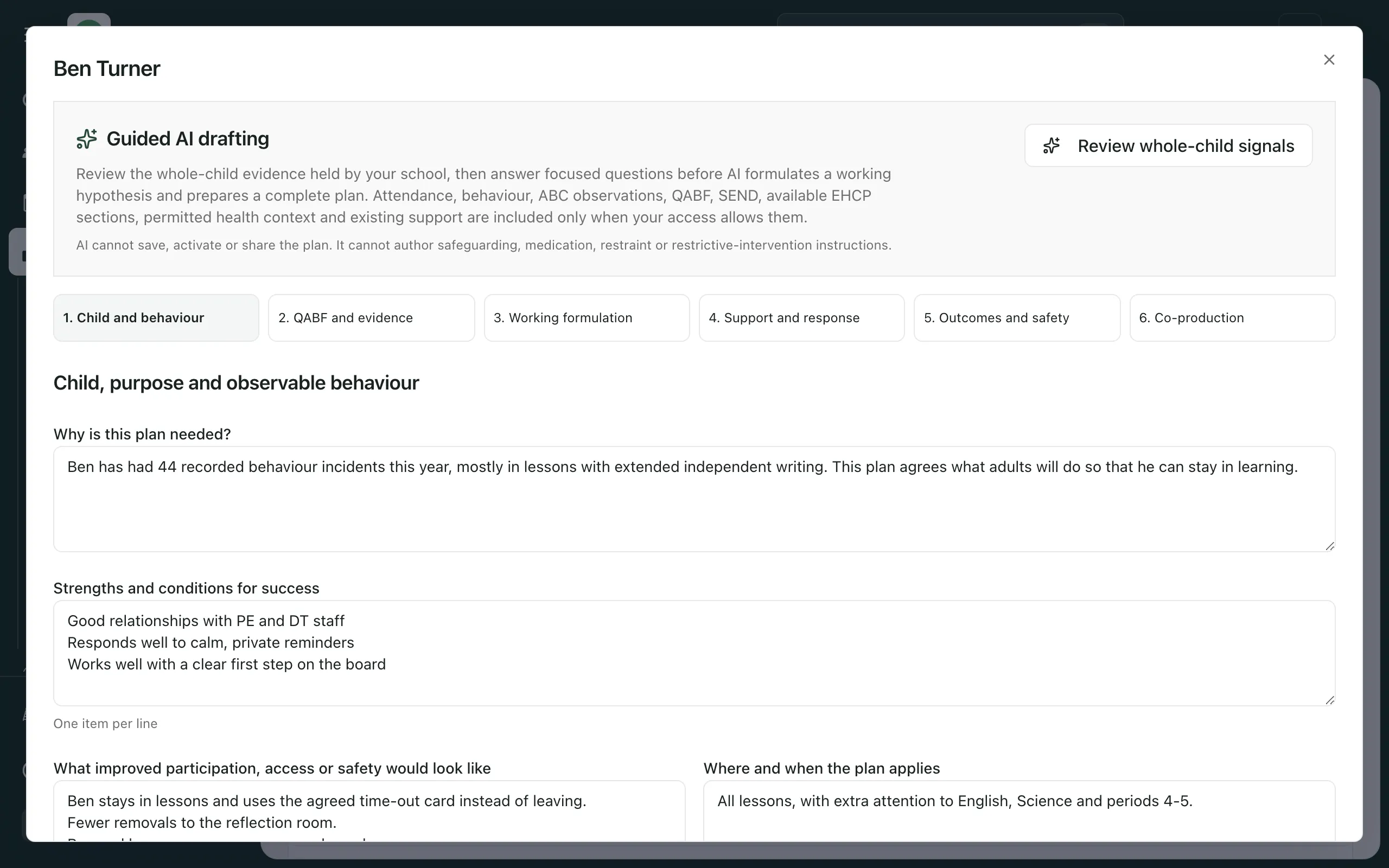
| Section | What you record |
|---|---|
| Child and behaviour | Why the plan is needed, the pupil’s strengths, what success would look like, the pupil’s and family’s views, and a neutral, observable description of the behaviour. |
| QABF and evidence | The QABF screen, the pupil’s current attendance and behaviour context, and other evidence such as ABC observations. |
| Working formulation | A plain-language summary, common triggers and early signs, and a working hypothesis with the evidence for and against it. |
| Support and response | Reasonable adjustments, a preventive strategy and who does it, the skill you’ll teach instead, what adults do at early signs and during escalation, and what to avoid. |
| Outcomes and safety | A measurable outcome for the pupil, how delivery will be checked, checkpoints, the review date and any safety requirements. |
| Co-production | What still needs completing, the consultation and the decision to activate the plan. |
The QABF screen and the working hypothesis suggest questions to investigate. They don’t diagnose why a pupil behaves as they do. Complete the QABF with someone who knows the pupil well, and check it against direct observations, the pupil’s own account and what the family knows.
Draft with AI (optional)
Section titled “Draft with AI (optional)”Guided AI drafting can prepare a full draft from the evidence your school holds. It only uses what your access allows. AI can’t save, activate or share a plan, and it can’t write safeguarding, medication, restraint or restrictive-intervention instructions.
- Click Review whole-child signals.
- Read the summary, the Evidence coverage and the Generation requirements. Before AI can draft, the plan needs a completed and saved QABF with observer context, and enough completed ABC observations. See Record an ABC behaviour observation.
- Under Optional clarifying questions, answer what you know from direct experience. Leave a question blank rather than guessing.
- Click Generate full plan for review.
- Read the Draft outline and anything under Resolve before consultation or activation.
- Click Apply draft to editor. This copies the draft into the plan’s sections.
- Check every section and change anything that isn’t right, then click Save draft.
Treat the draft as a starting point for professional judgement. Staff must check every section before the plan is shared or used.
Save your work
Section titled “Save your work”Click Save draft at the bottom of any section. You’ll see “Draft saved”. If you close the plan with unsaved changes, Student Radar asks whether to Keep editing or Discard changes.
Open consultation and activate the plan
Section titled “Open consultation and activate the plan”A plan must go through consultation before it can be activated. This is where you record the pupil’s view of the plan: see Record the pupil’s views in a behaviour support plan.
- Click Co-production. The box at the top lists any required areas that are still missing. Complete them first.
- When it says “Required plan sections are complete”, click Save and open co-production. This saves the draft and opens consultation on the plan.
- Record the pupil’s view of the plan.
- The SENCo or behaviour lead reads the views, makes any final changes and clicks Activate plan.
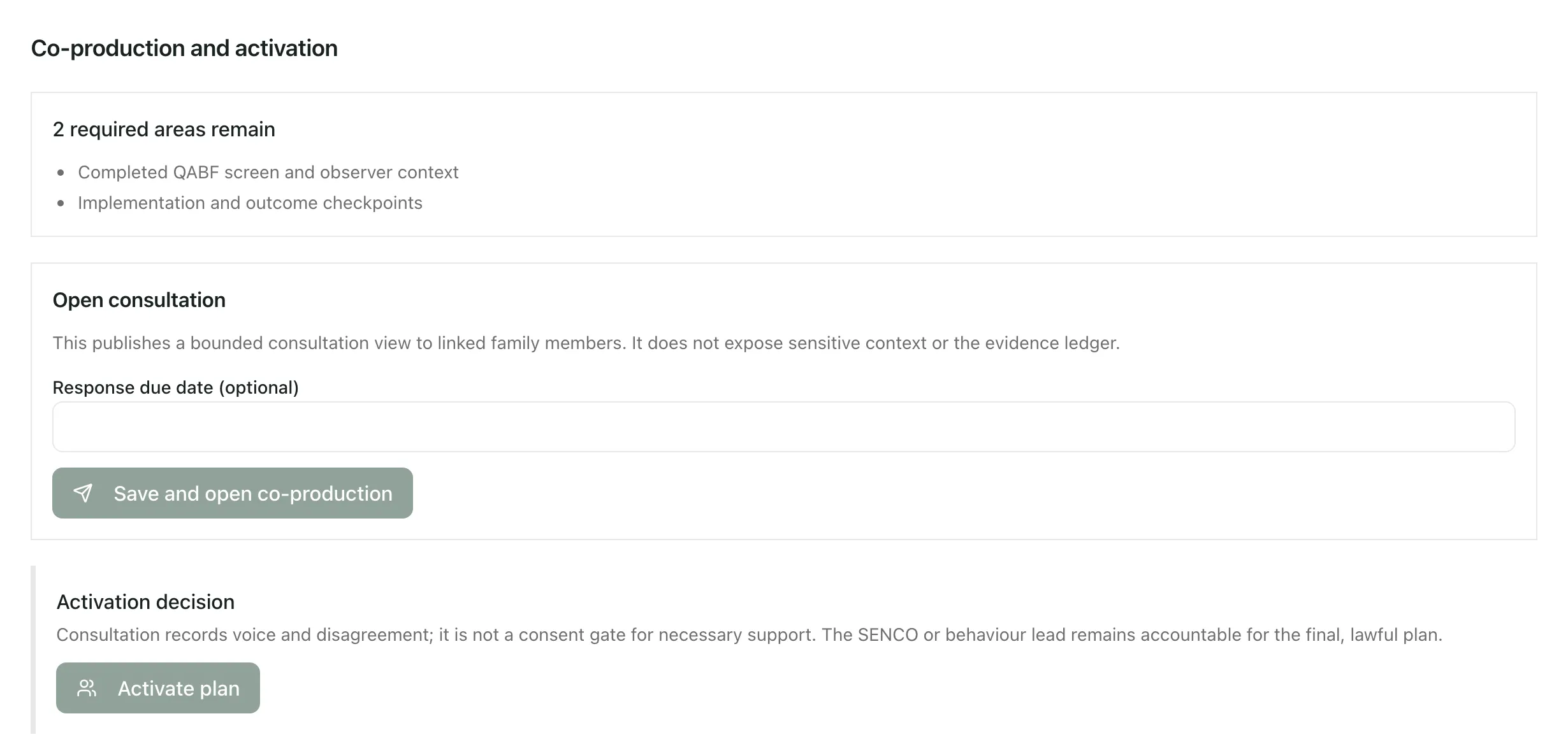
When the plan is activated, you’ll see “Plan activated”. Staff can now use it. Staff who can see only the staff quick view get the instructions they need: strengths, prevention and adjustments, the skills being taught, what to do at early signs and during escalation, and any safety-critical instructions. They don’t see the evidence or sensitive context.
Consultation records the pupil’s and family’s views, including disagreement. It isn’t a consent gate for support the pupil needs. The SENCo or behaviour lead remains accountable for the final plan.
- Per-school switch: Behaviour Support Plans are switched on separately for each school. If your school’s are off, the page shows “Behaviour Support Plans are not enabled for this school yet.”
- Consultation needs a school setting: opening consultation depends on a separate setting for your school. If it’s off, Save and open co-production saves your draft but shows “Family co-production is not enabled for this school yet.”, and Activate plan stays greyed out. Contact Student Radar support.
- Who can do what: your school decides who can start, edit and activate plans. You can always save a draft you started. If Review whole-child signals is greyed out, your account can’t coordinate this plan.
- Restrictive intervention: in Outcomes and safety, ticking Restrictive intervention may be reasonably foreseeable doesn’t authorise any intervention. The plan then needs a Linked approved risk assessment ID before it can be activated. Follow your school’s policy.
If something doesn’t work
Section titled “If something doesn’t work”| What you see | What to do |
|---|---|
| “Behaviour Support Plans are not enabled for this school yet.” | Plans are switched off for your school. Contact Student Radar support. |
| “You do not have permission to perform this plan action.” | Your account can’t do this. Ask the SENCo or behaviour lead, who coordinates the plan. |
| “AI drafting is temporarily unavailable. Please try again.” | AI drafting is switched off for your school, or briefly unavailable. Carry on writing the plan yourself. |
| “This draft changed elsewhere. Reload it before saving again.” | A colleague has saved the same draft. Close the plan, open it again and redo your changes. |
| “Complete the required plan sections before consultation.” | Open Co-production to see what’s missing. |
| “Family co-production is not enabled for this school yet.” | Consultation isn’t available for your school. Your draft is saved. Contact Student Radar support. |
| “Link the approved risk assessment before activating this plan.” | In Outcomes and safety, enter the Linked approved risk assessment ID, then save the draft. |
| “Some pupil context is unavailable” | The plan is open, but the pupil’s context couldn’t be loaded. Add the relevant evidence yourself. |